


 Video Converter Ultimate
 ضبط صفحه
 تعمیر ویدیو
یاد بگیرید چگونه در Minecraft با بهترین ابزارهای ضبط صفحه ضبط کنید
هر کسی که عاشق بازی کردن روی کامپیوتر باشد، ماینکرفت را میشناسد. به خاطر محبوبیت بسیار زیادش، این بازی روی بسیاری از استریمرها تأثیر گذاشته و آنها را ترغیب کرده که این بازی را استریم کنند. بیشتر آنها هم یک لحظهی حماسی (هایلایت) داشتهاند که باعث معروف شدنشان شده است. مثل «قایق کلچِ دریم» که خیلی از ما بارها امتحانش کردهایم اما شکست خوردهایم. بعد از تلاشهای زیاد، حالا بالاخره موفق شدهاید، اما هیچکس آنجا نیست که کلچ شما را ببیند. به همین خاطر، بهترین راه برای بهاشتراکگذاشتن قایق کلچ به سبک Dream این است که آن را ضبط کنید. پس در اینجا ما ابزارهای مختلفی را به شما معرفی میکنیم که با آنها میتوانید استفاده کنید و یاد بگیرید چطور در ماینکرفت ضبط کنید. با ادامهی خواندن این مقاله، بهترین نرمافزارهای ضبط را که میتوان در وب پیدا کرد، خواهید شناخت.

قسمت 1. نحوه ضبط Minecraft با استفاده از یک ابزار آنلاین
ضبط صفحه نمایش FVC رایگان
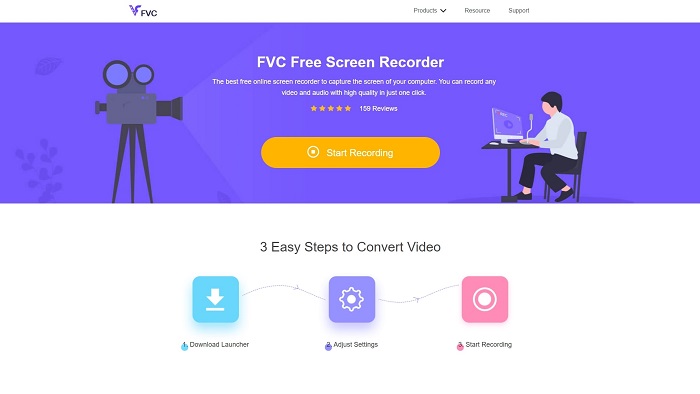
میخواهید یاد بگیرید چطور یک ویدئوی ماینکرفت بهصورت آنلاین ضبط کنید؟ پس این ابزار را بخوانید و امتحان کنید. FVC Screen Recorder هیچ هزینهی پنهانی ندارد. همچنین رابط کاربری ابزار تحت وب آن، تبلیغات آزاردهنده یا مزاحم ندارد. علاوه بر این، میتوانید بدون محدودیت اینجا ضبط کنید. البته با وجود آماده بودن این ابزار برای ضبط از صفحه، نسخهی آنلاین حالت مخصوص گیمپلی ندارد. اما اگر اینترنت در دسترس دارید، همچنان میتوانید از این ابزار استفاده کنید. بنابراین، برای اینکه بدانید چطور از این ابزار استفاده کنید، لازم است مراحل زیر را بهدقت دنبال کنید.
مرحله ۱. برای دسترسی به ابزار، ابتدا روی این لینک کلیک کنید.
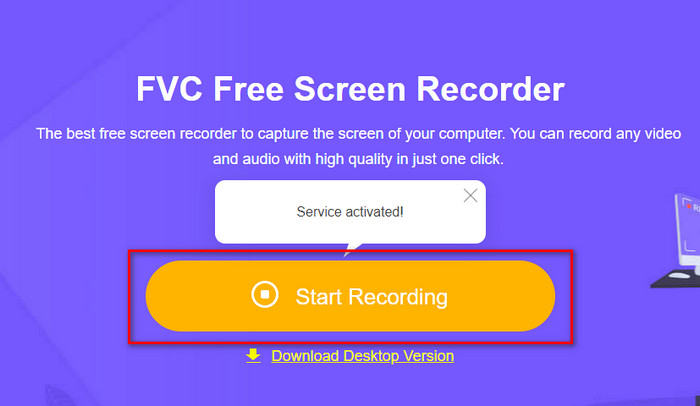
مرحله ۲. روی Start Recording کلیک کنید، سپس اگر اولینبار است که از آن استفاده میکنید لانچر را دانلود و نصب کنید. بعد دوباره روی Start Recording کلیک کنید تا اینبار ابزار اجرا شود.
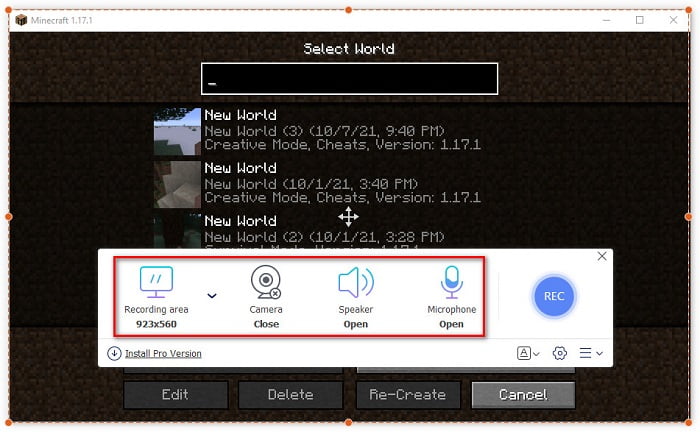
مرحله ۳. نسبت قاب (frame ratio) صفحهنمایش خود را تنظیم کنید، سپس Camera را برای افزودن واکنشتان، Speaker را برای اضافه کردن صدای تولیدشده در بازی، و Microphone را برای افزودن صدای خودتان فعال کنید.
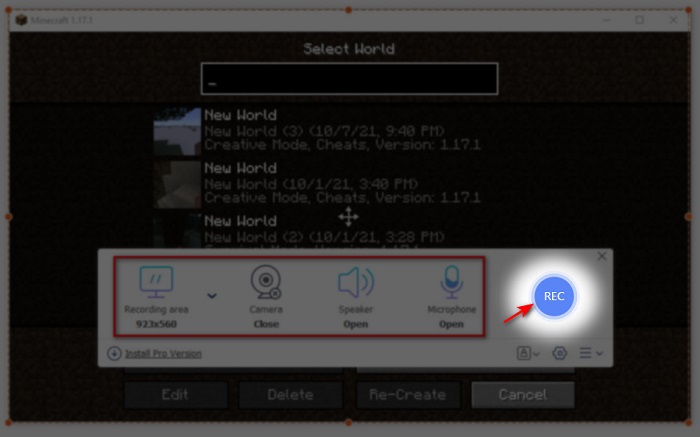
مرحله ۴. سپس روی دکمهی REC کلیک کنید تا ضبط شروع شود.
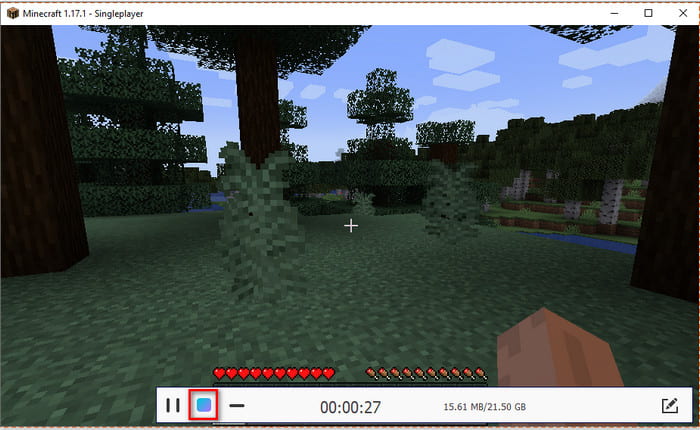
مرحله ۵. برای پایان دادن به ضبط، روی دکمهی مربع کلیک کنید و سپس روی اولین فایل در Recording List کلیک کنید تا قبل از ارسال یا آپلود، کلچ خود را دوباره تماشا کنید.
قسمت 2. نحوه ضبط Minecraft با 2 تا از بهترین ابزارهای ضبط آفلاین
1. ضبط کننده صفحه نمایش FVC
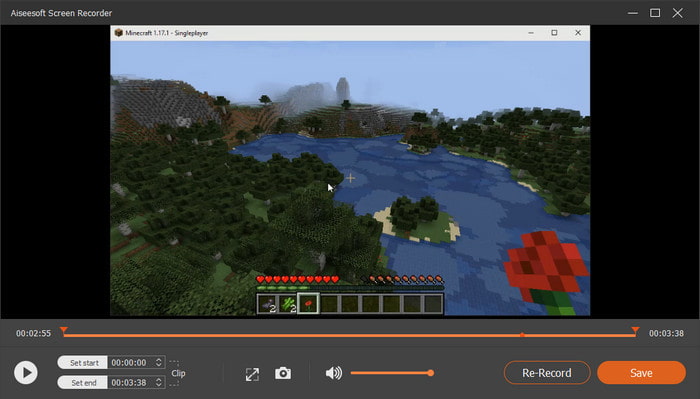
میخواهید تمام لحظات حرکات نمایشی خود در ماینکرفت را ثبت کنید؟ پس FVC Screen Recorder بهترین گزینه برای شماست. اگر از نظر کارایی کلی و رابط کاربری دوستانه صحبت کنیم، این ابزار از نسخهی آنلاین خودش و حتی OBS هم بهتر است. این نرمافزار از حالت Game Recorder پشتیبانی میکند که میتوانید با آن ضبط بازی را تا حد ممکن روان و سریع انجام دهید. همچنین میتوانید هاتکیها را تنظیم و ویرایش کنید تا برای دسترسی آسانتر، دستورات لازم را به ابزار بدهید. حتی میتوانید ضبط بدونوقفه تا ۲۴/۷ انجام دهید. بنابراین، برای اینکه بدانید چطور روی ویندوز ۱۰ یا مک از ماینکرفت فیلم بگیرید، مراحل زیر را با دقت دنبال کنید.
مرحله ۱. نرمافزار را دانلود کرده و روی درایو خود نصب کنید. سپس یک تنظیم اولیهی سریع انجام دهید و روی Finish کلیک کنید تا تنظیمات ذخیره شود.
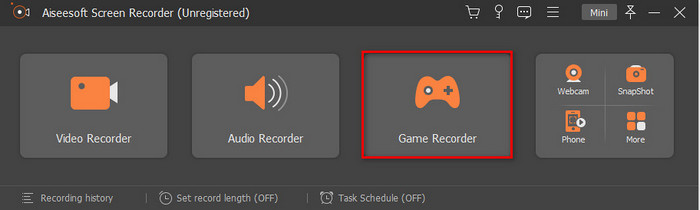
مرحله ۲. روی Game Recorder کلیک کنید و اجازه دهید ابزار بهصورت Administrator اجرا شود، سپس روی OK فشار دهید. دوباره روی Game Recorder کلیک کنید تا ادامه دهید.
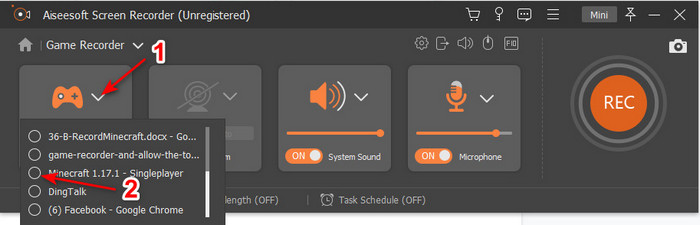
مرحله ۳. ابتدا ماینکرفت را اجرا کنید و صبر کنید تا بهطور کامل بارگذاری شود. روی Select Game کلیک کرده و Minecraft را انتخاب کنید.
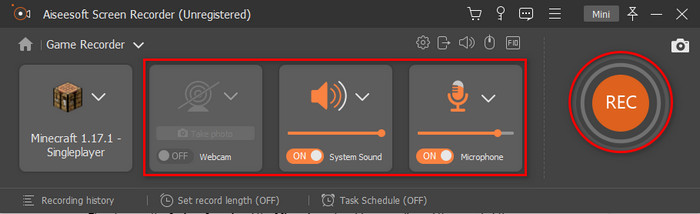
مرحله ۴. قبل از شروع ضبط، Webcam را روشن کنید تا در حین ضبط، واکنش شما هم اضافه شود. سپس System Sound و Microphone را فعال کنید تا صدای شما و صدای بازی ضبط شود. روی دکمهی REC کلیک کنید تا ضبط شروع شود و بازی بهطور خودکار روی صفحهی شما نمایش داده خواهد شد. حالا میتوانید حرکات حماسیای را که میخواهید ضبط کنید، انجام دهید.
مرحله ۵. اگر میخواهید ضبط را متوقف کنید، روی دکمهی مکعب کلیک کنید. سپس روی Save و Next کلیک کنید تا فرایند ذخیرهی ویدئو انجام شود. پنجرهی History روی صفحه ظاهر میشود و میتوانید روی اولین فایل کلیک کنید تا دوباره حرکات حماسیای را که انجام دادهاید ببینید و بعداً آن را بهاشتراک بگذارید.
2. OBS
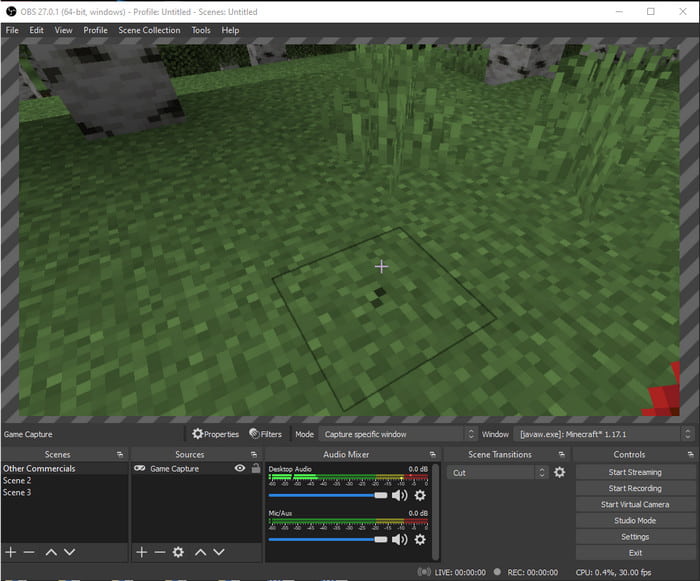
OBS بهعنوان یکی از ابزارهای نسبتاً پیچیدهای که بسیاری از کاربران از آن استفاده میکنند شناخته میشود. اما با وجود سخت بودن استفاده از آن، همیشه کیفیت خروجی بسیار خوبی ارائه میدهد. اگر میخواهید یاد بگیرید چطور با OBS از ماینکرفت فیلم بگیرید، مطمئن شوید که وقت آزاد کافی دارید. چون این ابزار از آنچه به نظر میرسد بسیار پیچیدهتر است، پس اگر ایدهای دربارهی نحوهی کار با آن ندارید، مراحل زیر را دنبال کنید.
مرحله ۱. ابتدا OBS را روی درایو خود دانلود کنید.
مرحله ۲. سپس ابتدا ماینکرفت را باز کنید و به پنل Source بروید و روی Game Capture کلیک کنید. حالت (Mode) را روی Capture Specific Window قرار دهید، سپس روی دکمهی drop-down پنجره کلیک کرده و نام فایل ماینکرفت را انتخاب کنید. بعد روی OK کلیک کنید تا ادامه دهید.
مرحله ۳. روی Start Recording کلیک کنید تا ضبط آغاز شود. و برای پایان دادن، روی Stop Recording کلیک کنید تا ضبط صفحه بهطور خودکار در حافظهی سیستم شما ذخیره شود.
بخش 3. سوالات متداول در مورد ضبط Minecraft
بازی های محبوب در حال حاضر در رایانه شخصی کدامند؟
بازیهای محبوب زیادی روی رایانه شخصی وجود دارد، اما اینها 5 بازی اول هستند که همیشه در بالای هر بررسی قرار میگیرند. اول Minecraft منتشر شده توسط Mojang در سال 2011 است، بعدی در لیست League of Legend یا معروف به LOL است که توسط Riot Games در سال 2009 ساخته شد، Counter Strike Global که توسط Valve Corporation در سال 2012 توسعه یافت، Grand Theft Auto Five منتشر شده توسط Rockstar Games است. و توسط Rockstar North در سال 2013 توسعه یافته است و در آخر Valorant است که توسط Riot Games در سال 2020 ساخته شده است.
آیا Bandicam بهترین ابزار برای انجام ضبط است؟
خیلیها در مورد Bandicam نظرات متفاوتی دارند، اما بیایید یاد بگیریم و تشخیص دهیم که آیا این ابزار ارزش امتحان کردن را دارد یا نه. بنابراین، برای اینکه بیشتر دربارهی Bandicam بدانید، روی این لینک کلیک کنید تا به مطلب جدیدی که دربارهی Bandicam نوشته شده بروید.
چگونه یک ویدیوی فایل بزرگ را در یوتیوب آپلود کنیم؟
از آنجا که یوتیوب بهعنوان یک پلتفرم مشهور اشتراکگذاری ویدئو شناخته میشود، بسیاری از کاربران سعی میکنند ویدئوهای خود را در آن آپلود کنند. اما وقتی ویدئویی با حجم بالا آپلود میکنیم، این کار زمان زیادی میبرد. پس حالا بهترین راه برای انتشار آسانتر، فشردهسازی ویدئو بدون افت کیفیت است. یاد بگیرید که چطور فایل ویدئویی را فشرده کنید و آن را بهراحتی در یوتیوب منتشر کنید.
نتیجه
حالا برای جمعبندی این بحث، درک اینکه چطور روی کامپیوتر از ماینکرفت فیلم بگیرید برای شما راحتتر شده است. احتمالاً تا الان ضبطکنندهی صفحهی خود را انتخاب کردهاید، اما علاوه بر همهی آنها، FVC Screen Recorder انتخاب مناسبی است. چون حتی اگر یک تازهکار باشید، بهراحتی میتوانید از این ابزار استفاده کنید. یادگیری نحوهی استفاده از این ضبطکنندهی بیرقیب کار سختی نیست. پس قبل از شروع ضبط قایق کلچ رویاییتان، مطمئن شوید که این نرمافزار را از قبل دانلود کردهاید.
-
 بهترین ضبط کننده صفحه XviD برای شروع در سال 2021 [آنلاین و آفلاین]
 XviD به دلیل فشرده سازی فایل های ویدئویی مشهور است. این نرم افزار منبع باز است که فرمت ISO MPEG-4 را انجام می دهد. برای خواندن ادامه دهید و به جزئیات بیشتر بپردازید.
-
 [برو به راهنما] Blu-ray را در OBS Studio و ابزارهای جایگزین ضبط کنید
 بدانید چگونه با این مراحل و نکات ساده مفید ، Blu-ray را در استودیوی OBS و سایر جایگزین ها ضبط کنید. به خواندن ادامه دهید و اجازه دهید & #039 ؛ وارد جزئیات شوید.
-
 فرآیند ضبط و ضبط DVD با VLC برای دیجیتالی کردن قالب قابل پخش
 VLC از چندین فرمت فایل فشرده صوتی و تصویری ، از جمله ضبط در DVD پشتیبانی می کند. فقط کافی است که توپ را برای بحث و جزئیات بیشتر تا انتها بچرخانید.
