


 Video Converter Ultimate
 ضبط صفحه
 تعمیر ویدیو
نحوه برش ویدیو در اندروید با استفاده از بهترین برنامه های اصلاح کننده ویدیو
وقتی همیشه یک گوشی هوشمند همراهتان است، ضبط ویدیوهای خارقالعاده یا حتی فقط ضبط صفحه کار سادهای است. ویرایش این ویدیوها روی گوشی اندرویدی قبلاً کار دشواری بود، اما دیگر اینطور نیست. در این موضوع، روشهای ساده برای برش ویدیوها در اندروید را بررسی میکنیم. از چندین برنامه/اپلیکیشن ویرایش ویدیو استفاده خواهیم کرد که برای شما کاربردی هستند. علاوه بر این، اگر بخواهید با استفاده از رایانه ویدیویی را برش دهید، این کار هم ممکن است. در این راهنما، سادهترین روشها برای کوتاه کردن طول ویدیو با استفاده از کامپیوتر را یاد میگیرید. بنابراین، اگر میخواهید تمام روشها را برای بریدن بخشی از یک ویدیو در اندروید و رایانه یاد بگیرید، همین حالا مطلب را بخوانید.

قسمت 1. نحوه برش ویدیوها در اندروید
در این قسمت دو روش موثر برای برش ویدیوی خود با استفاده از اندروید را در اختیار شما قرار می دهیم. برنامه اول یک برنامه از پیش ساخته شده است و برنامه دیگر یک برنامه قابل دانلود است. بنابراین شما گزینه ای در مورد موارد استفاده در هنگام برش دادن یک ویدیو خواهید داد. بدون مقدمه، بیایید شروع به کشف این روش ها کنیم.
با استفاده از گالری
اگر نمیخواهید هیچ برنامهای را از فروشگاه Play دانلود کنید، از برنامه گالری استفاده کنید. این برنامه از پیش ساخته شده نه تنها قادر به نمایش تصاویر و ویدئوها است. ویژگی های بیشتری از آنچه تصور می کنید برای ارائه دارد. اگر قصد دارید ویدیوی خود را با استفاده از این برنامه برش دهید، می توانید این کار را انجام دهید. گالری دارای یک ابزار برش است که به شما امکان می دهد ویدیو را به راحتی و بلافاصله برش دهید. همچنین دارای یک رابط بصری است که آن را برای همه کاربران اندروید مناسب تر می کند. علاوه بر این، برنامه علاوه بر برش ویدیو، می تواند کارهای بیشتری انجام دهد. همچنین می توانید با استفاده از تنظیم کننده سرعت فیلم، سرعت فیلم را تنظیم کنید. با این حال، برنامه گالری فقط برای ویرایش اولیه مناسب است. اگر میخواهید ویدیوی خود را بهبود ببخشید و همه ویدیوهای کوتاهشده را ترکیب کنید، این برنامه کاربردی نیست. برای نتیجه دلخواه خود باید به دنبال نرم افزارهای پیشرفته تری برای ویرایش ویدیو باشید. اگر می خواهید بدانید که چگونه با استفاده از این برنامه یک کلیپ ویدیویی را در اندروید برش دهید، مراحل زیر را ببینید.
مرحله 1. دستگاه اندرویدی خود را باز کنید و برنامه Gallery را اجرا کنید. سپس ویدیویی را که میخواهید برش/کوتاه کنید پیدا کنید.
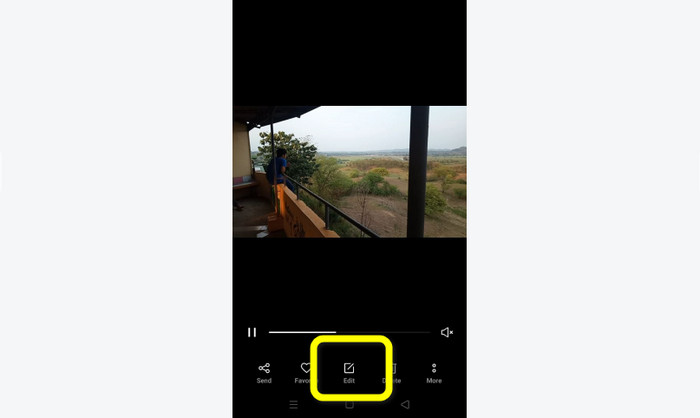
مرحله 2. پس از باز کردن ویدیویی که میخواهید برش/کوتاه کنید، به گزینههای پایین صفحه بروید. روی گزینه Edit کلیک کنید تا به مرحله بعد بروید.
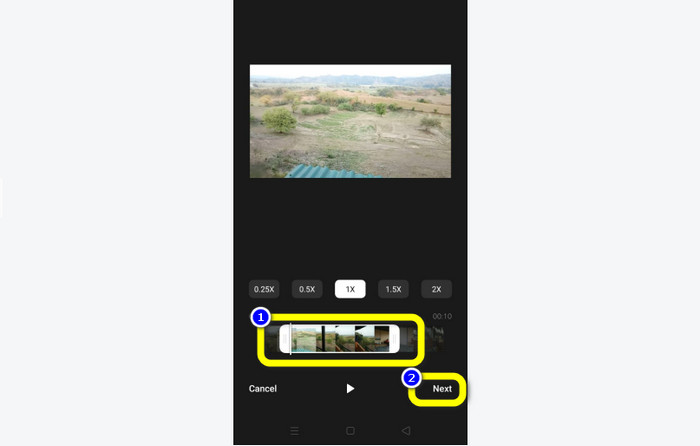
مرحله 3. بعد از آن میتوانید روی گوشی اندرویدی خود ویدیو را برش دهید. لبه یا نوار ویدیو را بکشید. هر دو سمت را بکشید تا ویدیو را کوتاه کنید. سپس پس از برش، روی گزینه Next در گوشه پایین سمت چپ رابط کلیک کنید.
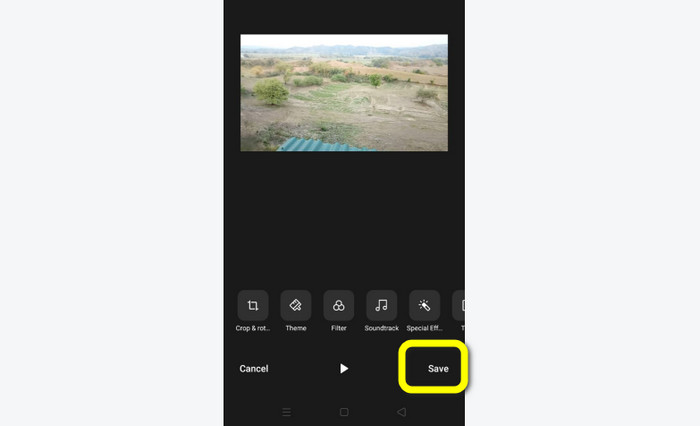
مرحله 4. سپس میتوانید روی دکمه Save کلیک کنید تا ویدیوی ویرایششده را در گوشی خود ذخیره کنید. همچنین اگر میخواهید ویدیوی خود را بیشتر ویرایش کنید، میتوانید آن را برش (crop) دهید، بچرخانید، فیلتر اضافه کنید و موارد دیگر.
با استفاده از Vid.Fun
علاوه بر برنامه Gallery، میتوانید از یک اپلیکیشن قابل دانلود نیز برای برش ویدیوها در اندروید استفاده کنید. میتوانید اپلیکیشن Vid.Fun را دانلود کنید تا با استفاده از گوشی اندرویدی خود، ویدیوها را برش دهید. VidFun یک اپلیکیشن رایگان برای دانلود است. علاوه بر این، رابط کاربری سادهای با فرایند ویرایش پایه دارد. به این ترتیب حتی کاربر غیرحرفهای هم میتواند از برنامه استفاده کند. همچنین، Vid.Fun علاوه بر برش ویدیوها، قابلیتهای بیشتری هم ارائه میدهد. اگر بخواهید روی ویدیوهایتان متن بگذارید، میتوانید از این برنامه استفاده کنید. علاوه بر این، میتوانید از ابزار تقویتکننده صدا برای تنظیم حجم صدای ویدیو استفاده کنید. همچنین میتوانید واترمارک را حذف کنید، سرعت ویدیو را تنظیم کنید، استیکر اضافه کنید، ویدیو را بچرخانید و موارد دیگر. با این حال، Vid.Fun معایبی هم دارد. فرایند خروجی گرفتن در VidFun کند است که برای کاربران زمانبر است. همچنین گاهی اوقات اپلیکیشن بهخوبی کار نمیکند. برای برش ویدیوها با استفاده از اپلیکیشن Vid.Fun، روشهای زیر را ببینید.
مرحله 1. به فروشگاه Google Play بروید و به دنبال اپلیکیشن Vid.Fun بگردید. سپس اپلیکیشن را روی گوشی اندرویدی خود نصب کنید. پس از اتمام نصب، برنامه را باز کنید.
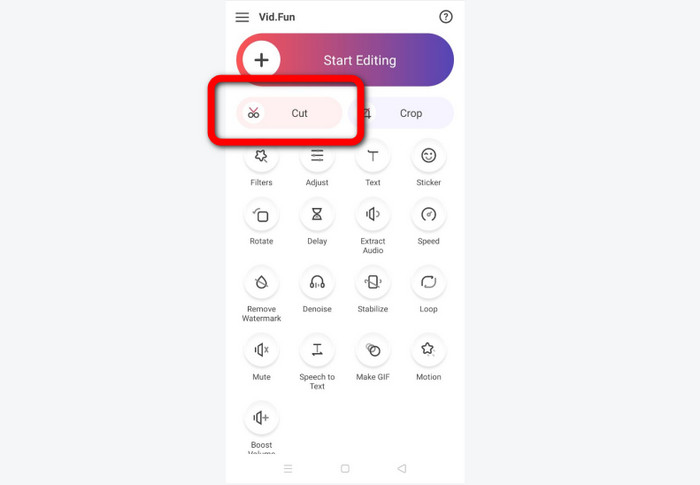
مرحله 2. وقتی رابط برنامه ظاهر شد، گزینه Cut را انتخاب کنید. سپس فایلهای شما روی صفحه نمایش داده میشوند. روی ویدیویی که میخواهید برش دهید کلیک کرده و دکمه Yes را فشار دهید.
مرحله 3. بعد از آن میتوانید فرایند برش را آغاز کنید. لبه ویدیو را بکشید. همچنین میتوانید برای برش از گزینههای Start و End استفاده کنید.
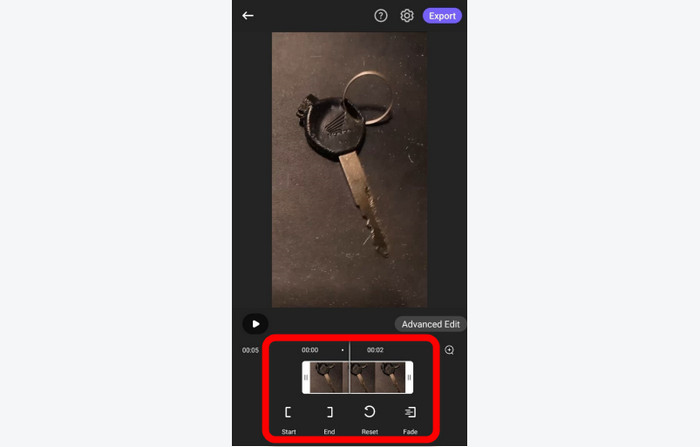
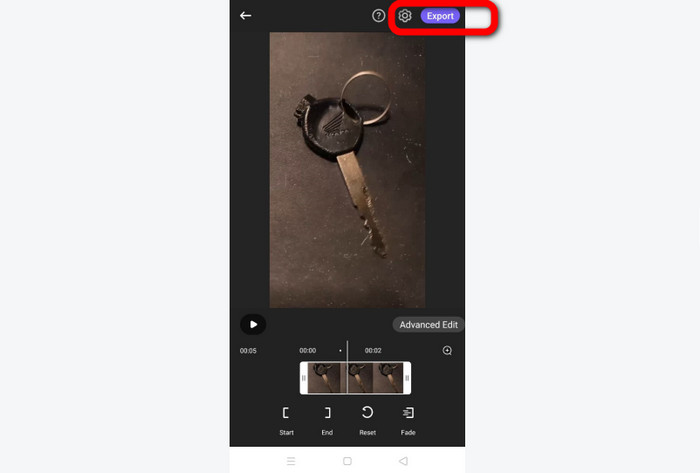
مرحله 4. هنگامی که برش/کوتاه کردن ویدیو تمام شد، میتوانید روی دکمه Export کلیک کنید. منتظر فرایند خروجی گرفتن بمانید و ویدیو را در دستگاه اندرویدی خود نگه دارید.
قسمت 2. نحوه برش ویدیوهای اندروید در رایانه شخصی
در بخش قبلی یاد گرفتید چگونه با استفاده از دستگاه اندرویدی ویدیوها را برش دهید. در این بخش، یاد میگیرید چگونه با استفاده از رایانه ویدیوها را برش دهید. اگر میخواهید با استفاده از دسکتاپ خود ویدیو را ویرایش کنید، بهویژه برای برش یا کوتاه کردن آن، از Video Converter Ultimate استفاده کنید. این برنامه آفلاین رابط کاربری شهودی دارد که به شما اجازه میدهد تمام گزینهها را بهسرعت درک کنید. همچنین فرایند برش ساده است. میتوانید تنها با چند کلیک ویدیو را برش/کوتاه کنید. علاوه بر این، فرایند خروجی گرفتن آن سریع است که برای تمام کاربران راحت و مناسب است. از آنجا که این برنامه کار با آن آسان است، هم حرفهایها و هم مبتدیها میتوانند از آن استفاده کنند. همچنین میتوانید خروجی نهایی خود را در قالبهای مختلف ذخیره کنید. از جمله AVI، FLV، MOV، MP4 و غیره. گذشته از این، Video Converter Ultimate رایگان برای دانلود است و روی هر دو کامپیوترهای مک و ویندوز در دسترس است. افزون بر آن، برنامه به شما اجازه میدهد رزولوشن، کیفیت، نرخ فریم و کدک ویدیو را تغییر دهید. همچنین میتوانید نرخ نمونهبرداری (sample rate) و بیتریت صدای ویدیو را تغییر دهید. به این ترتیب میتوانید مطمئن شوید که با استفاده از این برنامه آفلاین بهترین نتیجه را به دست میآورید. برای اینکه بدانید چگونه یک ویدیو اندروید را روی کامپیوتر برش دهید، دستورالعملهای ساده زیر را دنبال کنید.
مرحله 1. Video Converter Ultimate را روی کامپیوتر مک یا ویندوز خود دانلود کنید. روی دکمه Download زیر کلیک کنید تا به برنامه دسترسی پیدا کنید. نسخههای ویندوز و مک هر دو موجود هستند. سپس پس از اتمام فرایند نصب، برنامه را اجرا کنید.
دانلود رایگانبرای ویندوز 7 یا بالاتردانلود امن
دانلود رایگانبرای MacOS 10.7 یا بالاتردانلود امن
مرحله 2. وقتی رابط برنامه ظاهر شد، به بخش Toolbox در بالای رابط بروید و ابزار Video Trimmer Tool را انتخاب کنید.
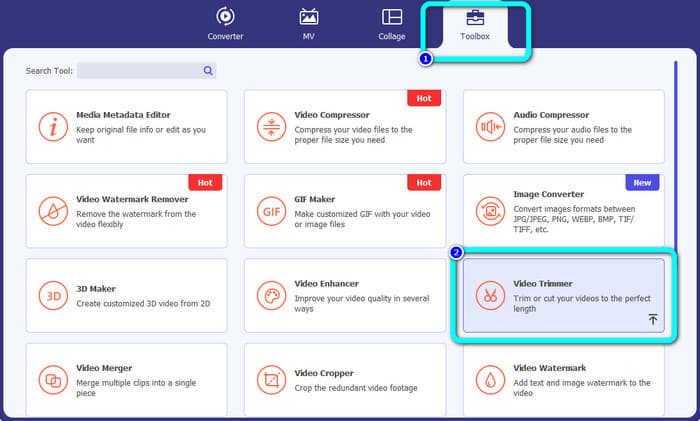
مرحله 3. پس از کلیک روی ابزار Video Trimmer، رابط دیگری نمایش داده میشود. روی نماد Plus کلیک کنید تا ویدیوی اندروید را وارد کنید. توجه داشته باشید که قبل از استفاده از برنامه، ویدیوی اندروید قبلاً به کامپیوتر منتقل شده باشد.
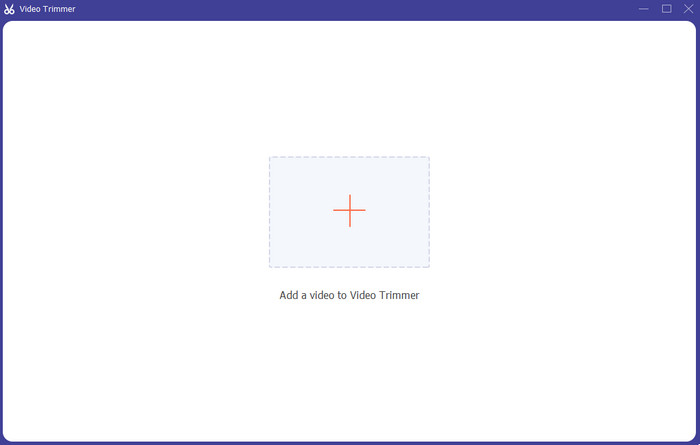
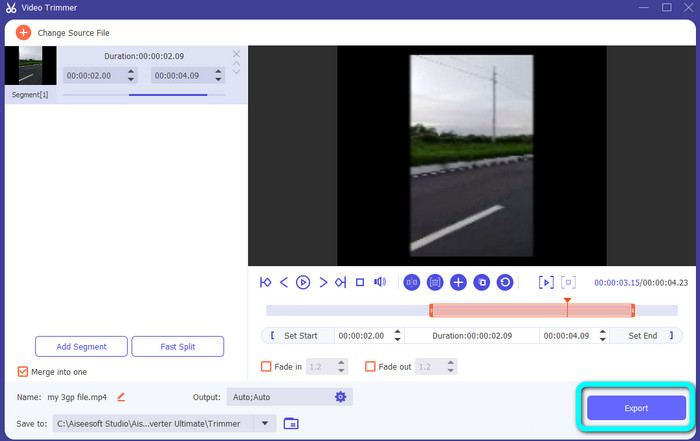
مرحله 4. سپس وارد فرایند برش میشوید. برای برش ویدیو، باید لبههای ویدیو را تنظیم کنید. میتوانید لبه شروع و لبه پایان را تنظیم کنید.
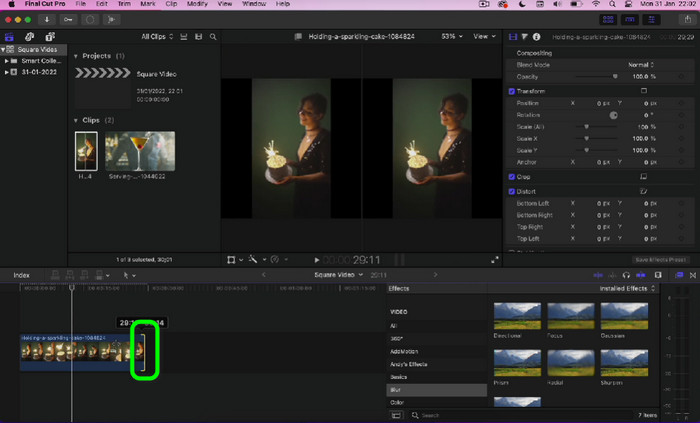
مرحله 5. پس از اتمام فرایند، میتوانید با کلیک روی دکمه Export ویدیوی ویرایششده خود را ذخیره کنید. پس از پایان فرایند خروجی گرفتن، میتوانید ویدیوی ویرایششده را پخش کنید.
بخش 3. سؤالات متداول در مورد نحوه کوتاه کردن ویدیوها در اندروید
چگونه وسط یک ویدیو در اندروید را قطع کنیم؟
اگر می خواهید قسمت میانی ویدیوی خود را با استفاده از دستگاه اندرویدی کوتاه کنید، همچنان می توانید از برنامه های معرفی شده در بالا استفاده کنید. می توانید به همین ترتیب عمل کنید و قسمت وسط ویدیو را برش دهید.
چگونه ویدیوهای کوتاه شده را در اندروید بازیابی کنیم؟
به برنامه گالری خود بروید. سپس روی گزینه های آلبوم کلیک کنید. پس از آن روی گزینه Trash کلیک کنید. ویدیوهای حذف شده را می بینید و روی دکمه Recover کلیک می کنید.
آیا می توانم با استفاده از iMovie ویدیو را در اندروید کوتاه کنم؟
قطعا نه. iMovie فقط با دستگاه های اپل مانند آیفون، آی پد و مک سازگار است.
نتیجه
خب، تمام شد! حالا یاد گرفتید چگونه روی اندروید و کامپیوتر، ویدیوها را برش دهید. بنابراین اگر کاربر اندروید هستید، میتوانید مراحل ذکرشده بالا را دنبال کنید. همچنین اگر میخواهید با استفاده از رایانه، یک ویدیوی اندروید را برش یا کوتاه کنید، از Video Converter Ultimate استفاده کنید. این برنامه آفلاین به شما اجازه میدهد ویدیوی اندروید خود را بهسادگی و با سرعت برش و کوتاه کنید.
-
 راه های عالی در مورد نحوه برش ویدیوی آنلاین به راحتی
 برش یک ویدیو بهترین راه برای ایجاد نکات برجسته ویدیو است. بنابراین، این پست روش هایی را در اختیار شما قرار می دهد که به راحتی ویدیوها را به صورت آنلاین برش دهید. برای کسب اطلاعات بیشتر بخوانید.
-
 چگونه یک ویدیو را در آیفون کوتاه کنیم [آموزش های دقیق]
 آیا شما یک کاربر آیفون هستید و می خواهید ویدیوهای خود را کوتاه کنید؟ دیگه نگران نباش این راهنما جزئیات کاملی در مورد نحوه برش ویدیو در iPhone و iPad ارائه می دهد.
-
 ساده ترین راه ها برای افزایش سرعت ویدیو در دستگاه های اندرویدی خود [2023]
 آیا می دانستید که می توانید سرعت ویدیو را در اندروید خود افزایش دهید؟ بنابراین، اگر می خواهید بدانید که چگونه سرعت یک ویدیو را در تلفن اندرویدی خود افزایش دهید، این نوشته را بخوانید.
