


 Video Converter Ultimate
 Näytön tallennin
 Videon korjaus
 Suojattu lataus
Yksinkertaisimpia tapoja korjata HEIC-valokuvat parhailla työkaluilla
HEIC-kuvat ovat kuvamuotoja, joita Windows ei voi avata. Vaikka niitä käytetään laajasti niiden korkealaatuisen tarkkuuden ja pienen tiedostokoon vuoksi, voit avata niitä oletusarvoisesti vain Apple-laitteilla. Lisäksi, jos kuvastasi on kadonnut tietoja tai se on vioittunut, tarvitset työkalun, joka auttaa korjaamaan kuvan ja palauttamaan kadonneet tiedot. Tässä artikkelissa kerrotaan, mikä on paras työkalu HEIC-kuvien avaamiseen Windows-tietokoneella, ja miten voit korjata HEIC-kuvat vaivattomasti.

Osa 1. HEIC-kuvan korjaaminen ja tarkasteleminen Windows-tietokoneellasi
Et voi tarkastella HEIC-kuvaasi Windows-tietokoneellasi, vaikka kuvasi ei ole vaurioitunut. Joten paras vaihtoehto sinulle on käyttää työkaluja, jotka voivat tarkastella HEIC-kuvaasi tai muuntaa sen muihin Windowsin tukemiin kuvamuotoihin, kuten JPG ja PNG. Joten esittelemme sinulle parhaat työkalut HEIC-kuvan katseluun Windows-tietokoneellasi ja kuinka muuntaa HEIC-kuvasi JPG-kuvamuotoon.
Käytä muuntajaa
Aiseesoft HEIC Converter on online-HEIC-muunnin, jonka avulla voit muuntaa HEIC-kuvasi JPG- tai PNG-kuvamuotoon. Tällä työkalulla on yksinkertainen käyttöliittymä, mikä tekee siitä käyttäjäystävällisen työkalun. Tämän lisäksi voit muuttaa kuvan laatua muuntaessasi HEIC-kuvaasi. Se voi myös säilyttää kuvasi EXIF-tiedot muuntaessaan niitä muihin kuvamuotoihin. Lisäksi voit käyttää tätä työkalua muuntaaksesi HEIC-kuvia JGP: ksi maksamatta mitään.
Vaihe 1. Lataa Aiseesoft HEIC Converter tietokoneellesi. Seuraa asennusohjeita ja avaa sovellus.
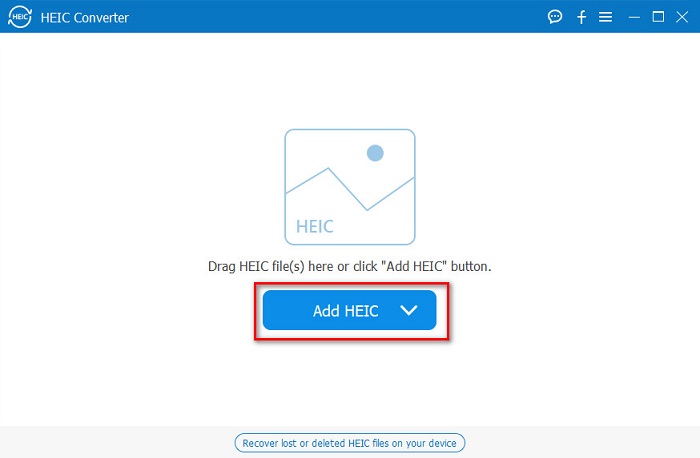
Vaihe 2. Napsauta Add HEIC -painiketta ladataksesi HEIC-kuvasi ohjelman pääikkunaan.
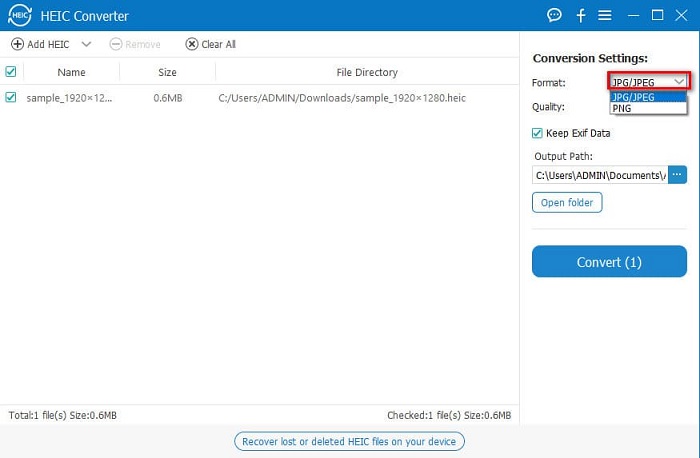
Vaihe 3. Valitse seuraavaksi tulostusmuoto napsauttamalla pudotusvalikkoa Format-kohdan vierestä. Valitse sitten JPG/JPEG-kuvamuoto.
Vaihe 4. Lopuksi napsauta Convert-painiketta muuntaaksesi HEIC-kuvasi JPG-kuvamuotoon.
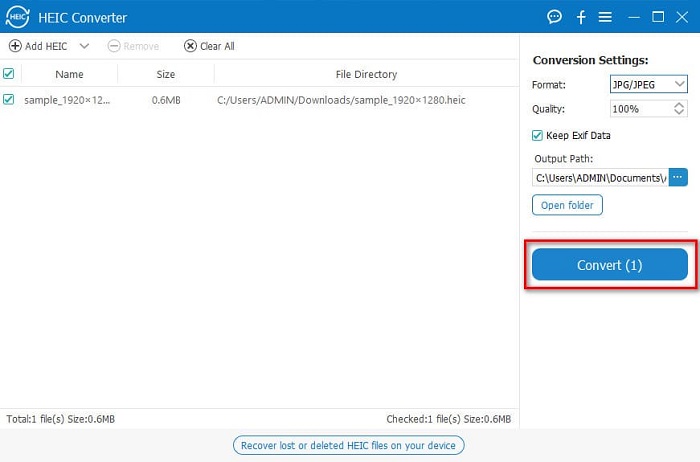
Seuraamalla näitä helppoja vaiheita voit muuntaa HEIC-kuvasi JPG-kuvamuotoon nähdäksesi sen Windows-laitteellasi.
Voit myös kokeilla FVC HEIC Converteria, jossa on yhtä tehokkaita ominaisuuksia kuin Aiseesoft Converterissa:
Ilmainen latausWindows 7 tai uudempiTurvallinen lataus
Ilmainen latausMacOS 10.7 tai uudempiTurvallinen lataus
Aiheeseen liittyvää:
Kuinka muuntaa HEIC PNG-muotoon
Kuinka muuntaa JPG HEIC-muotoon
Käytä Vieweria
1. HEIC Image Viewer Decoder
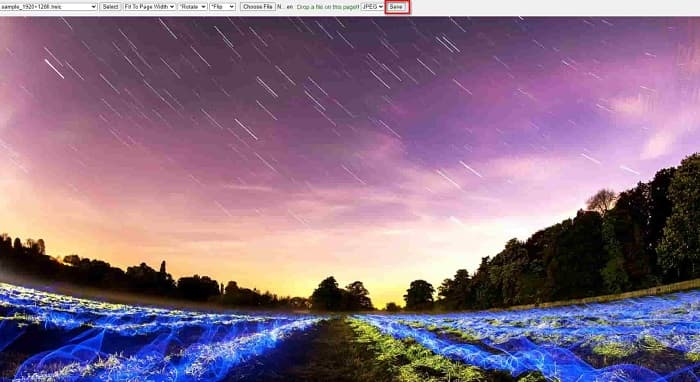
HEIC Image Viewer Decoder on HEIC-katseluohjelma, jonka avulla voit tarkastella HEIC-kuviasi verkossa. Kun olet katsonut tai purkanut HEIC-kuvasi, voit tallentaa sen PNG- tai JPG-kuvamuodossa. Lisäksi siinä on yksinkertainen käyttöliittymä, jonka ansiosta HEIC-kuvan katselu on helppoa.
Vaihe 1. Hae selaimessasi HEIC Image Viewer Decoder. Vedä sitten pääikkunassa HEIC-kuvasi suorakulmioon tai napsauta Choose Files -painiketta.

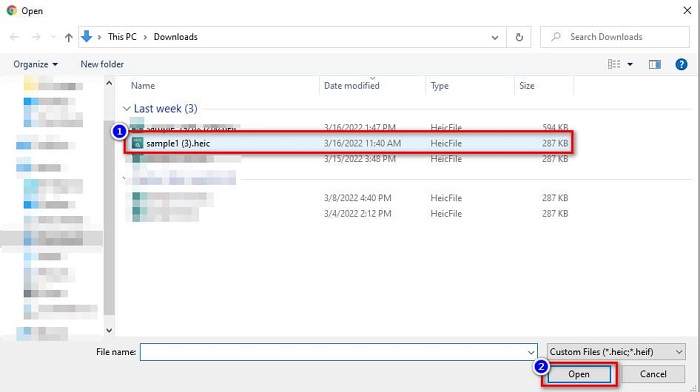
Vaihe 2. Tämän jälkeen tietokoneesi kansiot avautuvat, etsi HEIC-kuvasi, valitse se ja napsauta Open.
Vaihe 3. Kun olet ladannut HEIC-kuvasi, voit nyt tarkastella sitä. Napsauta sitten Save-painiketta tallentaaksesi HEIC-kuvasi JPG-kuvamuodossa.
2. CompressJPG.net
CompressJPG.net on verkkopohjainen HEIC-katseluohjelma, jossa on selkeä ja helppokäyttöinen käyttöliittymä. Se on käytettävissä mobiililaitteilla, Windowsilla ja tableteilla. Lisäksi siinä ei ole tiedostokokorajoitusta HEIC-kuvia katseltaessa. Koska se kuitenkin on selainpohjainen sovellus, hitaalla internet-yhteydellä latausprosessi voi olla hidas. Siitä huolimatta monet käyttävät tätä verkkotyökalua HEIC-kuviensa katseluun.
Vaihe 1. Hae selaimessasi CompressJPG.net ja napsauta hakutulossivulla näkyvää työkalun sivustoa. Pääikkunassa napsauta Choose Files -painiketta.

Vaihe 2. Tämän jälkeen tietokoneesi tiedostot avautuvat; etsi HEIC-kuvasi ja valitse se. Kun olet valinnut HEIC-kuvasi, napsauta Open-painiketta ladataksesi sen.
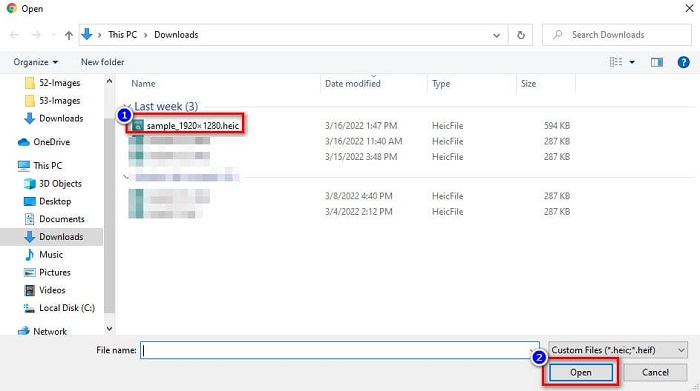
Vaihe 3. Nyt voit vihdoin tarkastella HEIC-kuvaasi Windows-tietokoneella.

Helppoa eikö? Seuraamalla ja käyttämällä yllä mainittuja online-työkaluja voit helposti tarkastella HEIC-kuvaasi Windows-tietokoneellasi.
Osa 2. Korjaa vaurioitunut HEIC-kuva
Jos HEIC-kuvasi ei voi avautua Apple-laitteellasi, jokin on vialla. Yleisin ongelma, jonka monet ihmiset kohtaavat, on tietojen katoaminen. Kun näin tapahtuu, se tarkoittaa, että kuvatiedostosi on vaurioitunut. Joten sinun on käytettävä työkalua, joka voi palauttaa kadonneet tiedot. Tässä osassa opit palauttamaan HEIC-kuvasi tiedot.
Käytä ohjattua EaseUS Data Recovery Wizard -toimintoa
EaseUS Data Recovery Wizard on ohjelmisto, jonka avulla voit palauttaa jopa 2 Gt kadonneita tietoja. Työkalu on helppokäyttöinen, koska sen käyttöliittymä on yksinkertainen. Lisäksi se voi skannata laitteesi tallennustilan ja etsiä luettelon kadonneista tiedostoista. Vaikka sitä voi käyttää ilmaiseksi, kokeiluversio pystyy vain paikantamaan vioittuneet tiedostot, muttei palauttamaan niitä. Siksi sinun on silti ostettava sovelluksen Pro-versio. Siitä huolimatta se on yksi käytetyimmistä tietojenpalautustyökaluista internetissä.
Plussat
- Se voi palauttaa jopa 2 Gt kadonneita tietojasi.
- Siinä on intuitiivinen käyttöliittymä.
- Saatavilla lähes kaikilla media-alustoilla, mukaan lukien Windows ja Mac.
Haittoja
- Sinun on ostettava pro-versio palauttaaksesi kadonneet tiedot.
Käytä Recuvaa
Toinen tietojenpalautustyökalu, jota kannattaa käyttää, on Recuva. Tällä sovelluksella on helppokäyttöinen käyttöliittymä, joten se sopii hyvin aloittelijoille. Tässä työkalussa vaikuttavaa on se, että se pystyy palauttamaan pysyvästi poistetut tiedostot, jotka käyttöjärjestelmä on merkinnyt vapaaksi levytilaksi. Lisäksi se voi palauttaa tietoja USB-muistitikuilta, kiintolevyiltä, muistikorteilta ja muista tallennusvälineistä. Ohjelmasta on sekä 32- että 64-bittinen versio.
Plussat
- Siinä on yksinkertainen käyttöliittymä.
- Sen avulla voit palauttaa tietoja USB-muistitikuilta, kiintolevyiltä, muistikorteilta ja muilta tallennuslaitteilta.
- Se voi skannata syvästi tiedostosi, joita on vaikea löytää.
Haittoja
- Osta premium-sovellus ennen kuin käytät sen ainutlaatuisia ominaisuuksia.
Osa 3. Usein kysyttyä HEIC-valokuvien korjaamisesta
Mikä voi avata HEIC-kuvan ilman kolmannen osapuolen työkalua?
Koska Apple kehittää HEIC-kuvia, voit katsella HEIC-kuvia alkuperäisesti millä tahansa Apple-laitteella.
Voinko palauttaa HEIC-kuvani tiedot Macissa?
Kyllä sinä voit. Voit myös käyttää yllä mainittuja työkaluja palauttaaksesi kuvan kadonneet tiedot tai jos HEIC-kuvasi on vahingoittunut.
Voinko muuntaa muita kuvamuotoja HEIC-kuvaksi?
Joo. Joidenkin työkalujen avulla voit muuntaa muita kuvamuotoja, kuten JGP ja PNG, HEIC-muotoon. Joten on mahdollista muuntaa JPG- ja PNG-kuvat HEIC-kuviksi.
Johtopäätös
Kaiken kaikkiaan HEIC-kuvien korjaaminen ei ole kovin monimutkaista, kun käytät yllä esiteltyjä työkaluja. Niiden avulla voit palauttaa kuvasi kadonneet tiedot ja korjata vauriot. Mutta jos HEIC-kuvasi on täysin kunnossa ja haluat vain katsella sitä Windows-laitteellasi, paras ratkaisu on muuntaa HEIC-kuvasi JPG-tiedostomuotoon käyttämällä Aiseesoft HEIC Converter -ohjelmaa.
-
 Muunna HEIC helposti RAW:ksi parhaiden muuntimien avulla
 Kuinka muuntaa HEIC RAW:ksi? Tämä artikkeli antaa sinulle parhaat tavat muuntaa HEIC RAW:ksi parhailla online- ja offline-muuntimilla.
-
 CopyTrans HEIC -katsaus, ominaisuudet ja vaihtoehdot
 Jos haluat tietää, mitä CopyTrans HEIC voi tehdä, tarjoamme sinulle työkalun ominaisuuksia, etuja ja vaihtoehtoja.
-
 Paras HEIC-katseluohjelma verkossa ja offline-tilassa [ilmainen]
 Jos etsit parasta HEIC-katselijaa, meillä on etsimäsi. Tarkastele HEIC-kuvaasi ilmaiseksi näiden työkalujen avulla.
