


 Video Converter Ultimate
 Enregistreur d'écran
 Réparation vidéo
Comment ajouter un filtre au GIF sur Windows/Mac/iPhone/Android en quelques étapes
Want to know how to spice your GIF by adding a filter on it? No need to worry because this article will provide the most picked GIF editor you can use on your desktop and phone to have filters. The information we include here will provide credible evidence on adding filters to a GIF. Let's investigate further what GIF filter software you can use on your operating system without further ado.

Partie 1. Pourquoi dois-je ajouter un filtre au GIF
Si vous partagez le GIF sur le Web, vous devez d'abord ajouter un filtre au GIF pour améliorer la couleur, en fonction de votre personnalisation. Selon les recherches, les GIF filtrés attirent davantage le public que les GIF qui n'en ont pas. Donc, si vous voulez attirer un large public, vous devez commencer à ajouter un filtre sur chaque GIF que vous avez créé avec l'éditeur GIF dont vous disposez. Maintenant, si vous ne savez pas comment ajouter un filtre à votre GIF, nous vous suggérons fortement de lire l'intégralité de l'article.
Partie 2. Ajouter des filtres au GIF avec l'éditeur GIF phénoménal sur Windows et Mac [le moyen le plus simple]
Video Converter Ultimate is the best GIF editor we've seen and pick-out on the market. It is known for being your one-stop GIF editor as it offers multiple editing features like adding filters on a video or GIF. With this tool, you won't need to be a pro to use it, but you know what's great? You will have a pro output within a few touches. So now, if you want to add a filter to the GIF, you can follow the tutorial without breaking a sweat.
Step 1. To use the GIF editor, you must push the download button below and choose which operating system you are using. After downloading it, install the software by following the installation process, then open it to begin adding a filter to the GIF.
Téléchargement gratuit pour Windows 7 ou version ultérieure Téléchargement sécurisé
Téléchargement gratuit pour macOS 10.7 ou version ultérieure - Téléchargement sécurisé
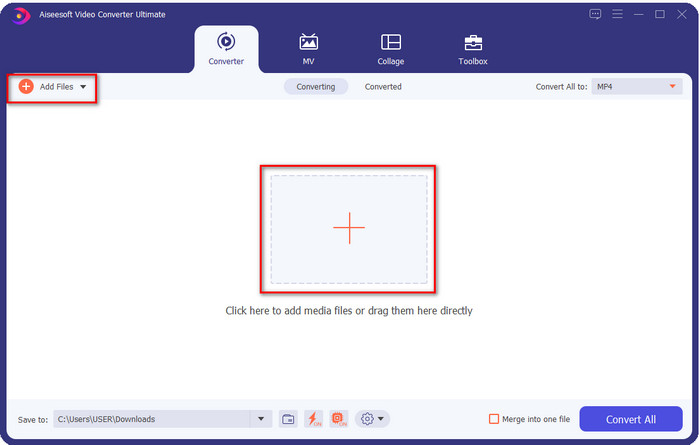
Step 2. Upload the GIF you want by clicking the + icon on the center of the main interface, but you can also click Add Files if you want; whether of the two you choose, they do function the same. Search the .gif on the desktop folder that will show on your screen, and click Open to upload it.
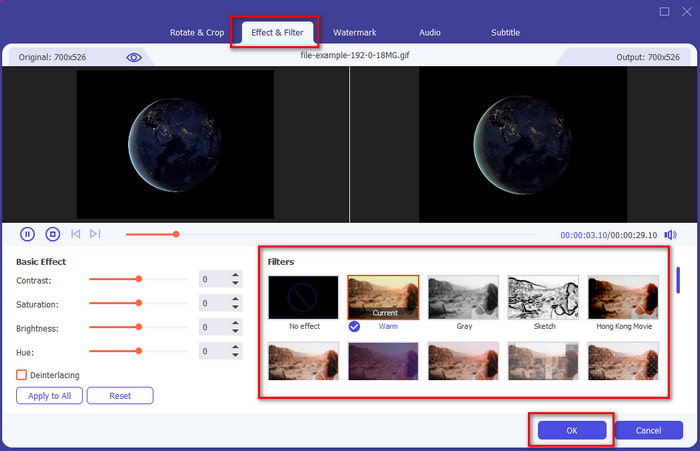
Step 3. Click the wand button to open a new window to add a filter to the GIF. Go to the Effect & Filters under it, and you will see a different set of filters you can use to make your GIF look better than the other GIFs on the web. You can try out all the filters by clicking them individually; if you are happy with the filter, you must click OK to successfully apply the filter on the GIF.
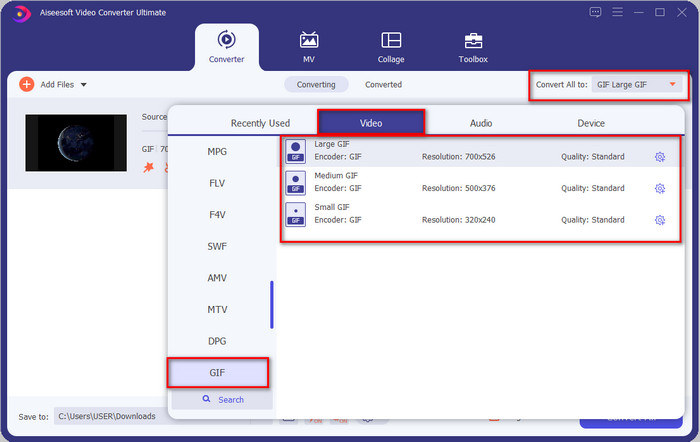
If you want to keep the format of your GIF, click the Convert All to and look for the GIF format. Select the GIF format you want to have and click it.
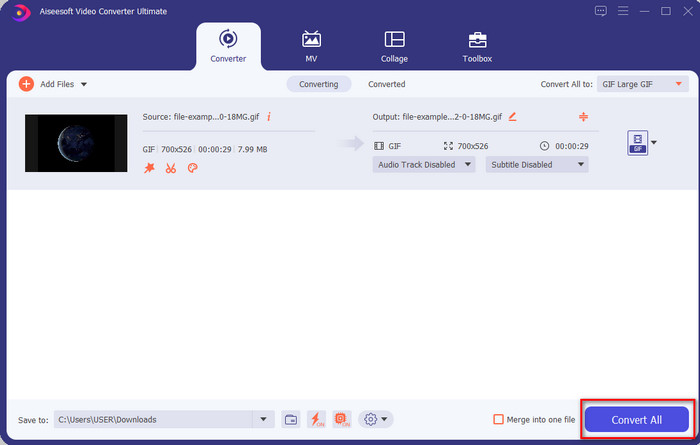
Step 4. And to download the GIF with the filter on it, click the Convert All button. Easy isn't it? With the Video Converter Ultimate, you can almost do everything regarding the GIF without breaking any sweat at all.
Partie 3. Comment ajouter un filtre sur GIF avec l'éditeur GIF Maker disponible sur les appareils Android
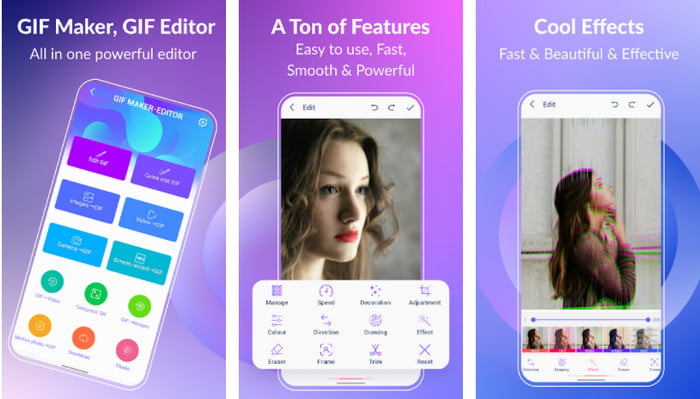
GIF Maker-Editor is an all-in-one tool you can download on your Android. This tool supports different filters to help you create a beautiful GIF. Although the tool is excellent, the ads on this tool are coming out of nowhere; you must be careful not to click them. So now, here are the steps on how to add a GIF color filter to your GIFs.
Step 1. Download the tool on your Play Store and open it.
Step 2. Click Edit GIF and choose the GIF that is on your image library.
Step 3. Look for the effects by sliding the options, then click it. Choose the filter you want, click the check icon, and OK to save the GIF.
Partie 4. Comment appliquer un filtre sur GIF avec GIF Maker disponible sur les appareils iPhone
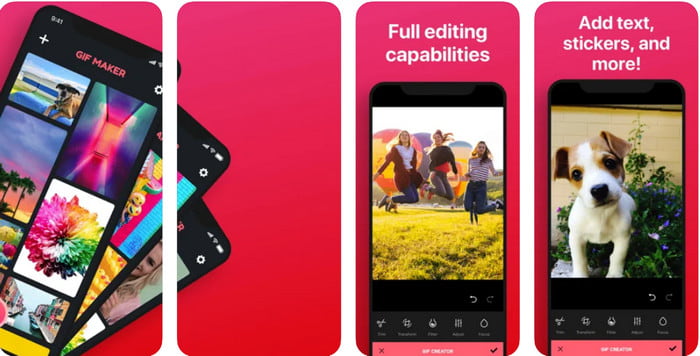
GIF Maker is the one-stop GIF editor you can download on your iPhone. With this tool, you create your custom GIFs within a few clicks. However, you can't directly use a GIF because the format isn't supported, but you can click this link and learn how to convert GIFs into a live wallpaper. After converting the GIF into a live wallpaper, you can follow the next steps to add a filter to the GIFs.
la version gratuite de cet outil laissera un filigrane au GIF que vous exportez.
Step 1. You can download the app for free on your App Store.
Step 2. Open the tool, click the + icon, click Choose Live Photo From Library, and choose the live photo to upload it.
Step 3. After uploading the live photo, click Filter, and choose which filter you want to add to your GIF. Click check to apply the video, and click the check again to export the file.
Partie 5. FAQ sur l'ajout de filtres au GIF
Les filtres affectent-ils la couleur du GIF ?
La combinaison de couleurs affectera le GIF ou tout autre média si vous ajoutez le filtre. Ces filtres servent à corriger la combinaison de couleurs que vous souhaitez obtenir, alors ne soyez pas surpris si la couleur sera beaucoup plus profonde ou plus claire que le visuel brut du GIF.
Quels sont les effets disponibles sur Instagram ?
There are numerous video filters you can use on Instagram, and if you wonder what these are, you can click this link and know the top 10 picks filters on Instagram.
Puis-je créer une vidéo de haute qualité à l'aide de filtres ?
You can highlight the colors of the video to make it look high quality. However, filters can only enhance the colors of the video and not the overall quality. But if you want to extend the video quality of your video, you can read this and learn how to improve video quality.
Conclusion
Et maintenant que nous avons une idée de la façon d'ajouter un filtre au GIF, vous devez essayer les outils que nous fournissons ci-dessus. Bien que les outils présentent des atouts différents pour filtrer votre GIF, nous pensons toujours que Video Converter Ultimate vous offrira les meilleurs filtres que vous pouvez utiliser pour créer un excellent GIF filtré. De plus, avec cet outil, vous pouvez couper, fusionner, rogner, créer des GIF personnels et bien plus encore. Vous n'êtes pas convaincu par les informations que nous fournissons ? Nous pensons qu'il existe un moyen de vous prouver que cet outil est le meilleur choix concernant l'édition du GIF, et c'est en cliquant sur le bouton de téléchargement ci-dessus et en suivant le tutoriel que nous présentons et apprécions !
-
 Comment ajouter de l'audio et de la musique à une vidéo gratuitement sur votre ordinateur / téléphone
 Cet article présente 4 moyens simples d'ajouter gratuitement de l'audio à une vidéo. Quelle que soit la piste audio que vous souhaitez ajouter à votre vidéo, vous pouvez obtenir des résultats satisfaisants ici.
-
 Transformez GIF en format vidéo : convertissez les mèmes GIF en vidéo [2021]
 Déterminez comment transformer GIF en format vidéo à l'aide des outils répertoriés ci-dessous. Choisissez lequel et apprenez comment le faire, car nous recueillons suffisamment de preuves à leur sujet.
-
 Marvelous GIF to Video Apps pour les appareils Android et iOS
 Saviez-vous que vous pouvez convertir des GIF dans n'importe quel format vidéo que vous aimeriez utiliser sur votre téléphone ? Choisissez les meilleures applications sur votre Android ou iOS.
