


 Video Converter Ultimate
 Enregistreur d'écran
 Réparation vidéo
Comment recadrer un GIF rapidement avec les 4 recadrages GIF
Changer la taille d’un GIF est une tâche simple si vous utilisez la meilleure solution pour recadrer un GIF. Cependant, tous les éditeurs de GIF ne proposent pas une solution professionnelle et pratique pour le recadrage. Tout ce que vous devez savoir sur les outils de recadrage pour GIF se trouve dans cet article. Pour vous fournir toutes les meilleures options que vous pouvez utiliser, lisez les détails ci-dessous et découvrez les quatre outils incroyables que vous pouvez utiliser pour modifier la taille de votre GIF.

Partie 1. Comment recadrer des GIF sur Windows et Mac
Méthode 1. Utilisez Video Converter Ultimate - Meilleur recadrage GIF
Il s’agit d’un outil professionnel qui offre uniquement l’excellence à ses utilisateurs, quel que soit leur problème. FVC Video Converter Ultimate permet déjà de monter des GIF en les découpant, en les tronquant, en les recadrant ou même en créant un GIF personnalisé. Cet outil n’est pas seulement excellent pour les GIF : vous pouvez aussi convertir un GIF en MOV, AVI, MP4, MKV, WMV et en plus de 200 autres formats. En outre, le processus qu’il propose est très différent de celui des autres outils, puisqu’il assure un traitement ultra‑rapide pour importer et exporter les fichiers. De plus, cet outil a permis de résoudre de nombreux problèmes liés au montage de GIF. Il est donc simple de lui confier la tâche de recadrage. Vous voulez apprendre à recadrer un GIF ? Dans ce cas, les détails suivants vous proposeront un tutoriel rapide pour le faire en un rien de temps.

Convertisseur vidéo FVC Ultimate
Plus de 5 689 200 téléchargements- Un recadrage GIF professionnel et très fiable est disponible sur Windows et Mac.
- Il prend en charge la conversion de GIF en formats MP4, MOV, WMV, MKV et plus de 200.
- Des fonctionnalités avancées supplémentaires sont disponibles pour vous aider à créer des GIF, accélérer ou ralentir, etc.
- Il est à l'abri de tout type de virus.
- Le processus d'exportation ultra-rapide pour vous aider à préparer le GIF recadré en un rien de temps.
Téléchargement gratuit pour Windows 7 ou version ultérieure Téléchargement sécurisé
Téléchargement gratuit pour macOS 10.7 ou version ultérieure - Téléchargement sécurisé
Étape 1. Téléchargez l’outil de recadrage sur votre disque en cliquant sur le bouton de téléchargement ci‑dessous. Ensuite, installez le logiciel et appuyez sur Démarrer maintenant pour passer à l’étape suivante.
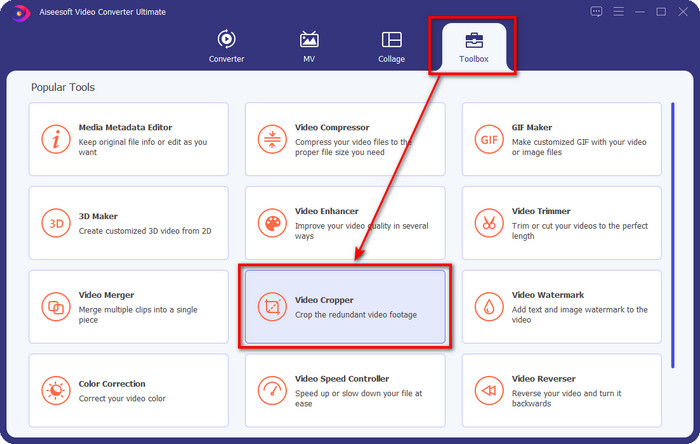
Étape 2. Une fois le logiciel ouvert, cliquez sur la Boîte à outils et cherchez le Recadrage vidéo en haut de l’interface.
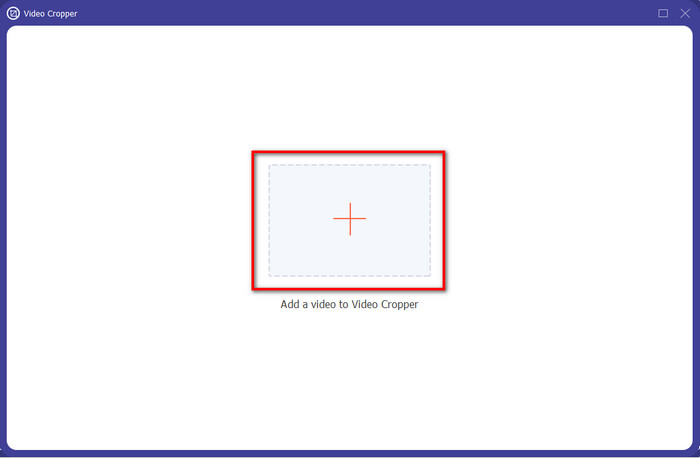
Étape 3. Une nouvelle interface apparaît, cliquez sur le bouton + ; un dossier s’ouvrira pour vous permettre de parcourir vos GIF, cliquez dessus puis appuyez sur Ouvrir pour continuer.
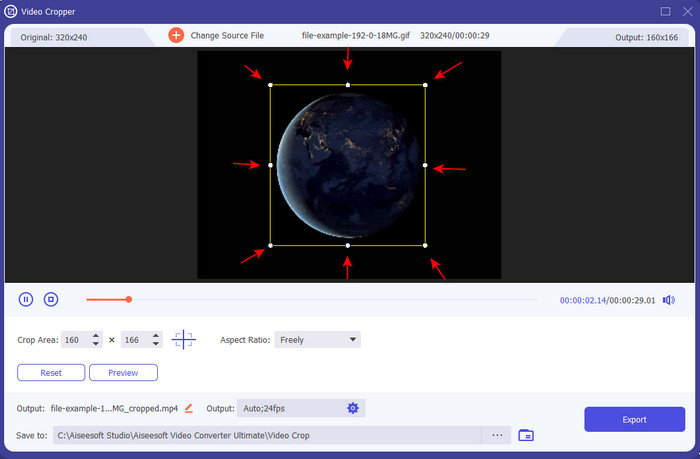
Étape 4. Cliquez sur l’option Couper (icône en forme de ciseaux), puis une nouvelle interface s’affichera à l’écran, où vous pourrez recadrer le GIF et ajuster le format d’image selon vos besoins en faisant librement glisser les petits points.
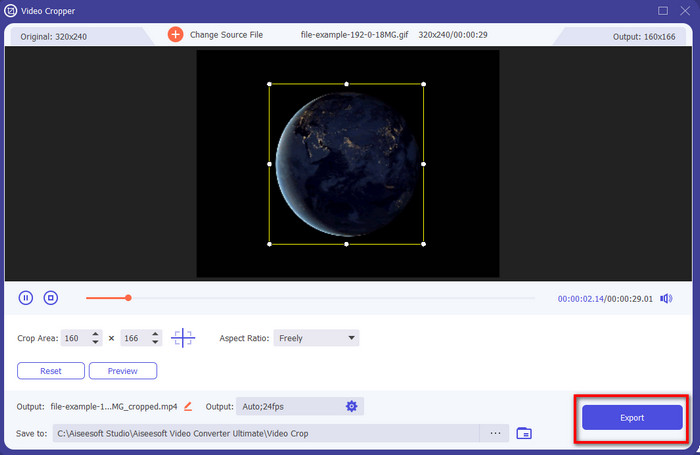
Étape 5. Après les réglages, vous pouvez appuyer sur Exporter pour enregistrer et télécharger le GIF recadré sur votre disque ; et voilà, aussi simple que cela, vous avez maintenant recadré votre GIF.
Méthode 2. Utilisez Photoshop
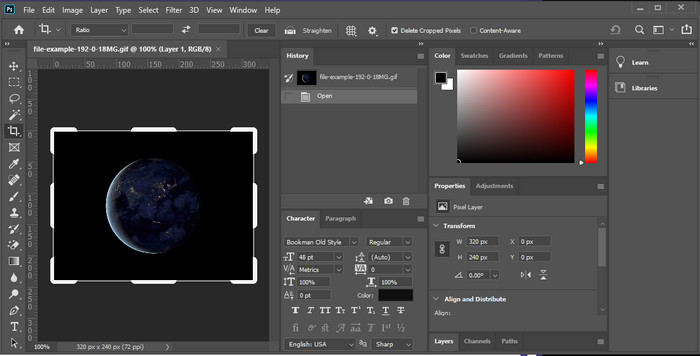
Photoshop est un outil professionnel qui prend en charge l’édition poussée de chaque image que vous importez, y compris les GIF. Cet outil a déjà aidé des millions d’utilisateurs expérimentés à réaliser des retouches complexes sur leurs images. Toutefois, en raison des fonctionnalités avancées qu’il propose, il devient assez technique pour un nouvel utilisateur, surtout si vous n’avez pas d’expérience en retouche. Même s’il peut servir de recadreur, il reste surdimensionné pour une tâche aussi simple. Mais si vous cherchez comment recadrer un GIF dans Photoshop, suivez les indications ci‑dessous pour savoir comment faire.
Étape 1. Téléchargez et lancez Photoshop sur votre ordinateur de bureau.
Étape 2. Cliquez sur Fichier, recherchez le GIF, puis appuyez sur Ouvrir. Appuyez sur la touche C de votre clavier, ajustez la taille, puis appuyez sur Entrée pour continuer.
Étape 3. Exportez le résultat final en cliquant sur Enregistrer dans le menu Fichier.
Partie 2. Comment recadrer des GIF en ligne
Méthode 1. Utilisez Ezgif
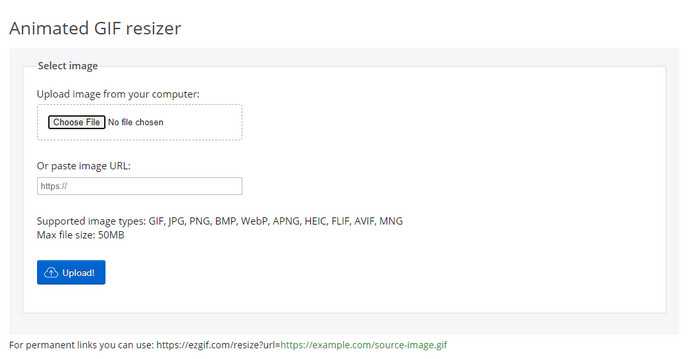
Si vous avez besoin d’un recadreur de GIF en ligne, vous connaissez probablement déjà Ezgif. Ce n’est pas une surprise que cet éditeur de GIF en ligne figure dans la liste, car il est connu pour ses capacités d’édition. Contrairement aux recadreurs mentionnés plus haut, il est gratuit et ne nécessite aucun téléchargement. L’expérience globale est plutôt bonne, mais ce n’est pas la meilleure que nous ayons eue à cause des publicités qui rendent cet outil en ligne agaçant. De plus, si vous recadrez un GIF animé ici, prévoyez d’être patient, car l’envoi et le téléchargement du GIF peuvent prendre du temps.
Étape 1. Ouvrez votre navigateur et recherchez Ezgif.
Étape 2. Allez dans Crop, appuyez sur Choose File, localisez le fichier dans votre dossier, puis cliquez sur Upload.
Étape 3. Faites glisser les points du cadre selon vos besoins et appuyez sur Crop Image pour continuer.
Méthode 2. iLoveIMG
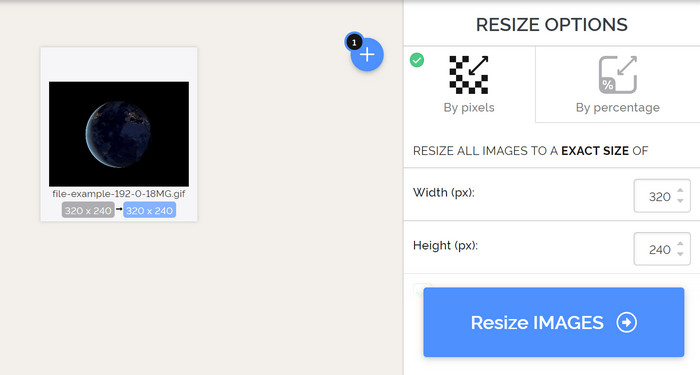
Apprenez à recadrer des GIF en ligne avec iLoveIMG. Cet outil propose des fonctions qui vous aideront à recadrer, redimensionner, compresser et plus encore vos images. De plus, l’envoi et le téléchargement des fichiers ici sont plus rapides qu’avec Ezgif, car le chargement prend moins de temps. Si vous ne souhaitez pas télécharger un outil de recadrage sur votre ordinateur, cet outil est une bonne option, comme le premier outil en ligne mentionné. Mais attendez‑vous à ce que quelques publicités sur l’interface puissent être un peu irritantes.
Étape 1. Ouvrez votre moteur de recherche, recherchez iLoveIMG, puis cliquez sur Crop Image.
Étape 2. Appuyez sur Select Image et parcourez le fichier GIF. Ajustez le rapport du cadre selon vos besoins, puis appuyez sur Crop Image.
Étape 3. Attendez la fin du processus de recadrage, puis téléchargez le fichier.
Partie 3. FAQ sur le recadrage GIF
Quelles qualifications dois-je rechercher dans un recadrage GIF ?
Il y a beaucoup de qualifications que vous devrez prendre en compte lors du choix d'un recadrage GIF, et la première d'entre elles est la compatibilité de l'outil sur vos plateformes. Assurez-vous de lire la critique de l'article sur les outils pour savoir s'ils sont disponibles sur vos appareils. Ensuite, il est protégé contre les logiciels malveillants, en particulier en ligne ou téléchargeable ; le recadrage est une tâche facile, mais assurez-vous que votre recadrage est fiable. Enfin, le recadrage doit avoir plusieurs fonctionnalités dont vous aurez besoin pour déterminer si la taille recadrée est la bonne taille. Ceux-ci incluent le cadre de recadrage, l'option d'aperçu, la longueur et la hauteur, etc.
Est-il sûr d'utiliser un recadrage GIF en ligne ?
La plupart des recadreurs de GIF en ligne sont sûrs, mais pas tous. Donc, avant de les utiliser, assurez‑vous que l’outil en ligne est fiable afin d’éviter tout dommage irréversible à vos appareils.
Comment définir le GIF comme arrière-plan ?
Il existe de nombreuses façons d’utiliser un GIF comme fond d’écran sur votre téléphone portable ou votre ordinateur. Nous proposons également ici un outil bonus pour vous aider à créer un GIF à partir d’une compilation d’images ou de vidéos. Alors, qu’attendez‑vous ? Cliquez sur ce lien pour apprendre comment définir des GIF comme fond d’écran sur votre appareil.
Conclusion
Toutes les façons possibles de recadrer des GIF en ligne ou hors ligne sont présentées ici. Les outils que nous incluons dans cet article ont déjà prouvé qu’il est facile de changer la taille d’un GIF avec leur aide. Mais si vous avez besoin d’un résultat professionnel et d’un outil simple à utiliser, alors FVC Video Converter Ultimate est un excellent choix. Cet outil creuse l’écart entre un bon recadreur et le meilleur. Donc, si vous voulez recadrer comme un pro, le bouton de téléchargement ci‑dessous est à votre disposition pour obtenir l’outil.
Téléchargement gratuit pour Windows 7 ou version ultérieure Téléchargement sécurisé
Téléchargement gratuit pour macOS 10.7 ou version ultérieure - Téléchargement sécurisé
-
 Comment recadrer un fichier MP4 sans perdre la qualité de la vidéo [2021]
 Apprenez à recadrer MP4 avec des étapes simples fournies uniquement pour vous. Alors, gardez le rythme car nous vous présentons le meilleur des meilleurs outils de recadrage que vous pouvez utiliser.
-
 Créez votre meilleur GIF animé via Online GIF Maker [2021]
 Une revue informative sur la façon de créer un GIF à l'aide de ces simples créateurs de GIF en ligne que vous rencontrez déjà ou non sur le Web.
-
 [Mise à jour 2021] 9 meilleurs éditeurs GIF pour PC, Mac, iOS et Android
 Besoin d'ajouter une touche personnelle à votre GIF pour qu'il devienne plus expressif ? Continuez à lire cet article pour savoir comment éditer et le meilleur outil pour le travail.
