


 Video Converter Ultimate
 Enregistreur d'écran
 Réparation vidéo
Méthodes les plus pratiques pour convertir des MP3 en M4R pour les appareils Apple
Avez-vous déjà pensé à transformer votre musique préférée en sonnerie sur votre iPhone ? Est‑ce seulement possible ? Oui, tout à fait. Il vous suffit pour cela de convertir le fichier. Pourquoi faut‑il d’abord le convertir ? Parce que nous pouvons ensuite le définir comme sonnerie ? Principalement parce que, pour définir un fichier précis comme sonnerie musicale, il doit être au format M4R. Autrement dit, vous devez trouver le meilleur convertisseur MP3 vers M4R compatible avec iTunes qui vous convienne. Cet article propose différentes méthodes pour convertir votre fichier MP3, et plus encore, pour effectuer une conversion MP3 en M4R par lots en lisant le contenu ci‑dessous.

Partie 1. Le moyen le plus faisable de convertir MP3 en M4R
Video Converter Ultimate est de loin l'outil le plus convaincant que vous puissiez utiliser pour convertir MP3 en M4R. Non seulement un seul fichier, mais il peut également effectuer une conversion par lots de MP3 en MP4. Il s'agit d'un convertisseur capable de produire des vidéos HD et de l'audio sans perte. En fait, il est idéal et recommandé pour lui de convertir le fichier sans perdre sa qualité d'origine. La vitesse est 30 fois plus rapide que le convertisseur normal là-bas. De plus, si vous convertissez une liste de lecture pour l'enregistrer sur votre téléphone, cet outil peut certainement faire le travail pour vous. Sans effort et sans sueur. En attendant, voici quelques-unes des autres fonctionnalités dont vous pouvez également profiter en dehors de la conversion audio. En outre, un guide étape par étape a été rédigé ci-dessous pour votre référence si vous décidez de l'utiliser.
◆ Modifier les métadonnées.
◆ Accélération GPU à grande vitesse.
◆ Support technique en temps réel.
La compression vidéo est prise en charge.
Étape 1. Pour l’utiliser, téléchargez l’application en cliquant sur le bouton de téléchargement ci‑dessous. Une fois l’application téléchargée sur votre Windows ou Mac, lancez‑la.
Téléchargement gratuit pour Windows 7 ou version ultérieure Téléchargement sécurisé
Téléchargement gratuit pour macOS 10.7 ou version ultérieure - Téléchargement sécurisé
Étape 2. Depuis l’interface principale de l’outil, vous verrez deux options pour importer le fichier. Soit vous cliquez sur l’icône Signe Plus au centre, soit vous cliquez sur le bouton Ajouter des fichiers dans la partie supérieure gauche. Choisissez le fichier cible et importez‑le.
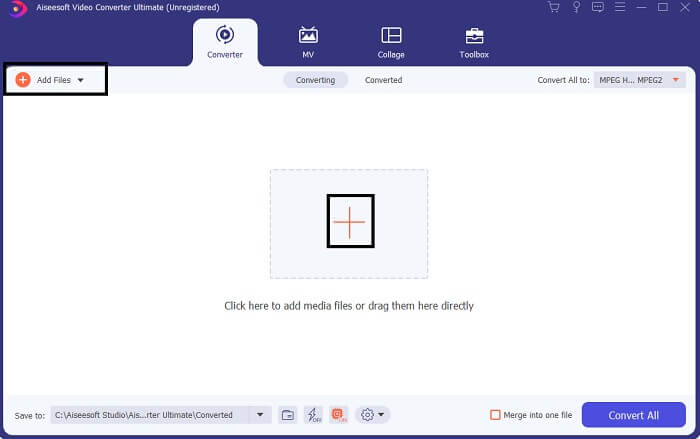
Étape 3. Pour obtenir le résultat souhaité, modifiez le format en cliquant sur le menu déroulant situé dans la partie supérieure droite de l’interface.
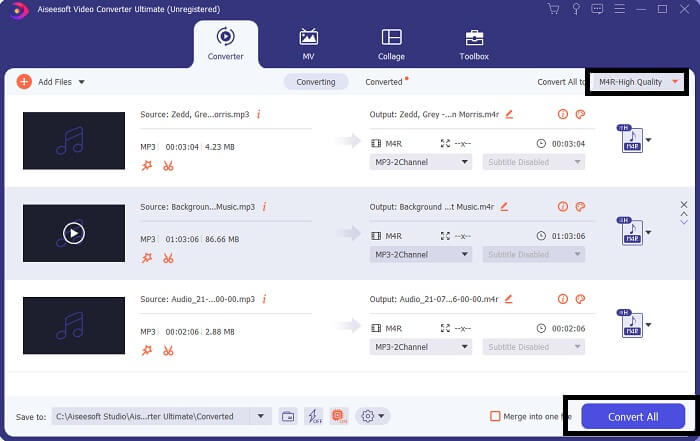
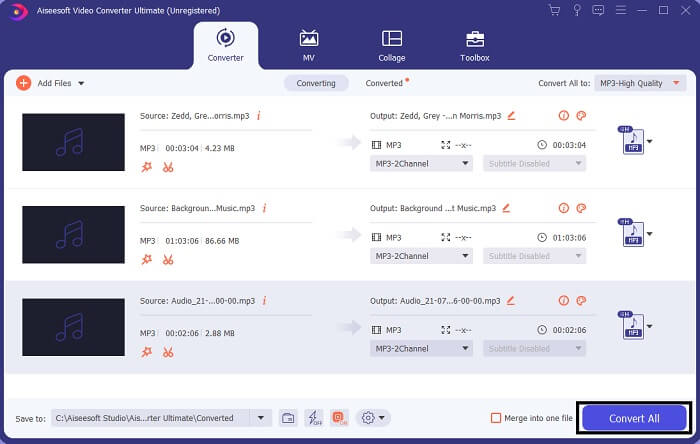
Étape 4. Enfin, cliquez sur le bouton Tout convertir en bas à droite de l’interface principale. Puis patientez jusqu’à la fin de la conversion du fichier.
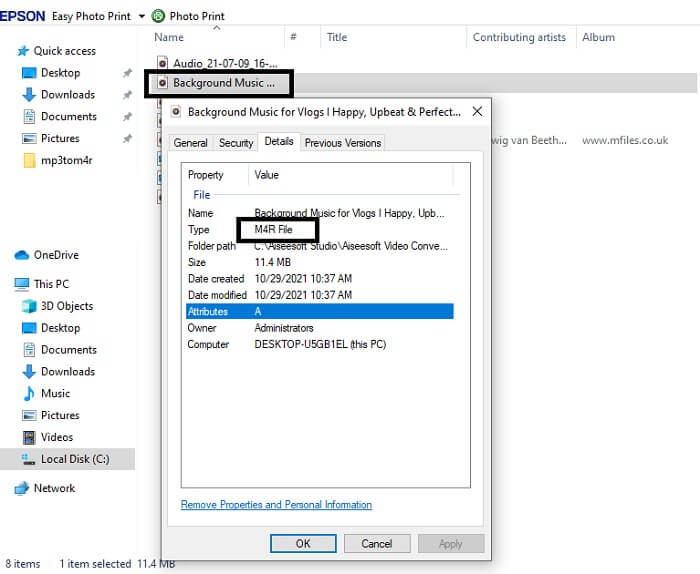
Étape 5. Pour terminer, ouvrez le dossier dans lequel la sortie audio est enregistrée et transférez‑la sur votre iPhone. Vous pouvez pour cela utiliser un outil ou une application de transfert. Vous trouverez des recommandations sur Internet : il vous suffit de faire une recherche, puis de suivre la procédure pour en faire la sonnerie de votre iPhone.
Partie 2. Certains des meilleurs outils pour convertir des MP3 en M4R en ligne
Convertisseur audio en ligne gratuit FVC
Un outil premium pour convertir, c’est bien, mais rien ne vaut un outil pratique. En tenant compte de vos besoins, FVC a créé une version gratuite de l’outil. FVC Free Audio Converter est votre solution gratuite accessible à tout moment et en tout lieu. Tout ce dont vous avez besoin, c’est d’une connexion Internet fonctionnelle et d’un navigateur compatible. Ce convertisseur MP3 en M4R pour sonnerie iPhone est capable de produire un son de haute qualité sans perte. Le résultat est satisfaisant et sans avoir à dépenser d’argent. Et ce n’est pas tout : saviez‑vous qu’il peut aussi effectuer des conversions par lots ? Oui, c’est possible ! Voici également quelques fonctions notables dont vous profiterez en l’utilisant. Par ailleurs, un guide est également rédigé pour vous faciliter la tâche.
◆ Le fichier converti a une qualité similaire à l'original.
◆ 100% gratuit et sûr à utiliser.
◆ Aucune limite de taille lors de la conversion.
◆ La conversion par lots est prise en charge.
Étape 1. Pour accéder à l’outil, rendez‑vous sur le site officiel de FVC Free Audio Converter.
Étape 2. À partir de là, cliquez sur Ajouter des fichiers à convertir. Pour une première utilisation, vous devez autoriser l’accès en cliquant sur Ouvrir FVC Launcher. Une fenêtre s’affichera alors sur votre écran pour vous permettre de localiser le fichier que vous souhaitez convertir.
Téléchargez la version de bureau pour convertir des fichiers par lots.
Étape 3. Après avoir importé le fichier, une autre fenêtre s’affichera. En bas, changez le format du fichier de sortie en cochant M4R.
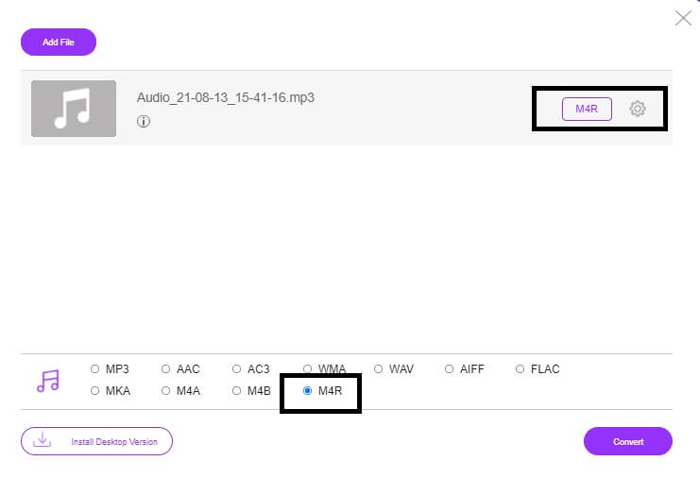
Étape 4. Cliquez ensuite sur le bouton Convertir pour lancer la conversion.
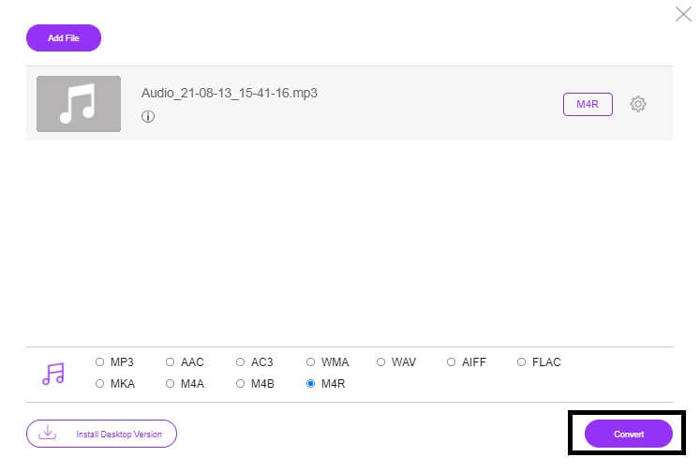
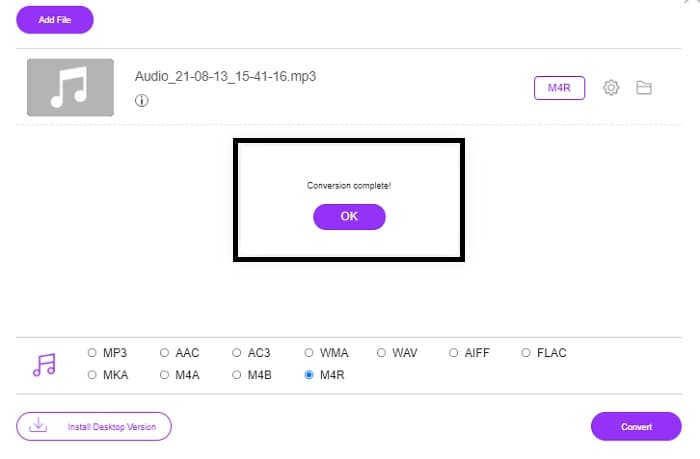
Étape 5. Pour finir, sélectionnez un dossier dans lequel enregistrer le fichier ; celui‑ci sera enregistré automatiquement. Transférez‑le ensuite sur votre iPhone. Sachez que vous pouvez effectuer une conversion par lots, donc ne vous limitez pas.
En rapport:
M4ROnline par File Converter
Simple mais fiable : c’est ainsi que ses utilisateurs décrivent cet outil en ligne. Par défaut, il est spécialement conçu pour convertir des fichiers MP3 en M4R. Comme son nom l’indique, c’est précisément à cela qu’il sert. Il fonctionne sur différents navigateurs Web, vous n’avez donc pas besoin de le télécharger ni de l’acheter. Si vous visitez le site, vous remarquerez la simplicité de l’interface. Elle est très intuitive : il vous suffit de cliquer sur le bouton Parcourir pour lancer le processus d’importation et de conversion. Si vous voulez l’essayer, il est recommandé de visiter le site officiel et de vous faire votre propre idée. De ce fait, cet outil constitue une bonne alternative. Vous pouvez également consulter les étapes ci‑dessous pour connaître la procédure d’utilisation de l’outil.
Étape 1. La première chose à faire est d’aller sur la page officielle de M4R Online, puis de cliquer sur Parcourir.
Étape 2. Choisissez le fichier depuis votre dossier et cliquez sur le bouton Téléverser le fichier.
Étape 3. Une fois le message de fin de conversion affiché, cliquez sur le fichier pour le télécharger.
Convertir-en-ligne.com
Cet outil offre ses services depuis un certain temps déjà. On peut dire que de nombreux utilisateurs trouvent cet outil en ligne très utile pour leurs besoins de conversion. Sinon, il n’existerait plus aujourd’hui s’il n’avait pas fait ses preuves. En visitant la page d’accueil du site, vous verrez tous les outils disponibles : convertisseur audio, convertisseur vidéo, convertisseur d’images, convertisseur de documents, convertisseur de livres numériques, tous réunis sur la page d’accueil. Les regrouper ainsi permet à l’utilisateur de trouver plus facilement les outils dont il ou elle a besoin. Il mérite donc d’être ajouté à cette liste de convertisseurs MP3 vers M4R pour iTunes. Voici, en complément, comment utiliser l’outil pour vous guider.
Étape 1. Rendez‑vous sur le site officiel de l’outil et choisissez Convertisseur audio.
Étape 2. Cliquez sur le Menu déroulant, choisissez le format de sortie, puis cliquez sur GO.
Étape 3. Une nouvelle fenêtre s’ouvrira alors. Cliquez sur le bouton Choisir des fichiers et importez le fichier. Pour lancer la conversion, cliquez sur Démarrer la conversion. Une fois le fichier prêt, il est automatiquement téléchargé sur votre PC.
MP3 contre M4R
Le format MP3 a été lancé en 1993 par Moving Picture Experts Group (MPEG). C'était la norme pour stocker de la musique car il pouvait compresser l'audio à une taille beaucoup plus petite que les autres formats non compressés. Il est encore largement utilisé de nos jours, notamment pour diffuser de l'audio en ligne.
Un fichier M4R est utilisé pour enregistrer une sonnerie iPhone personnalisée créée avec Apple iTunes. Normalement, vous pouvez voir ce format lors du transfert d'une sonnerie de l'ordinateur vers un appareil iOS. Les fichiers M4R créés avec iTunes incluent généralement la protection des droits d'auteur.
Partie 3. FAQ sur la conversion de MP3 en M4R
Qu'est-ce que M4R ?
Il s'agit d'une extension de fichier spécialement créée par Apple et strictement utilisée comme sonnerie pour iPhone et autres appareils Apple. C'est aussi bon que M4A et MP4 en termes de qualité.
Existe-t-il un convertisseur MP3 vers M4R en dehors d'iTunes ?
Certainement, il y a. Vous pouvez choisir parmi les outils ci-dessus ou envisager d'utiliser Windows Media Player en extrayant. Si vous ne souhaitez pas passer par tous les processus, vous pouvez simplement utiliser les outils gratuits disponibles en ligne. Ils convertissent directement l'audio au format souhaité au lieu de passer par le long processus d'extraction.
Pourquoi dois-je convertir mon fichier MP3 en M4R pour l'utiliser comme sonnerie ?
C'est un must. Pour être considéré comme un fichier comme sonnerie, le fichier doit être par défaut au format M4R pour être lu comme votre sonnerie.
Conclusion
Avec tout cela, vous pouvez sûrement compter sur les outils énumérés ci-dessus. Il vous suffit d'accéder à l'outil qui peut vous être utile en fonction de vos besoins. Si vous êtes un étudiant et un citoyen ordinaire qui souhaite convertir et convertir gratuitement MP3 en M4R sur Mac ou quel que soit l'appareil que vous utilisez, vous pouvez vous référer aux outils gratuits. Pour un usage professionnel, il est recommandé d'utiliser le Video Converter Ultimate. Vous pouvez toujours revenir sur cette page si vous souhaitez en savoir plus sur d'autres outils de conversion.
-
 [Gratuit et en ligne] 3 méthodes pour convertir MP3 en MP4 avec image
 Comment convertir MP3 en MP4 en haute qualité? Cet article montre 3 méthodes efficaces et gratuites pour changer MP3 en MP4 avec des images sur Windows et Mac.
-
 Découvrez comment convertir un MP3 en format WAV
 Voulez-vous savoir comment convertir MP3 en WAV ? Déterminez lequel des outils produit la meilleure qualité de conversion possible.
-
 Directives sur la façon de convertir M4A en WAV [PC et Mac]
 Apprenez-en plus sur la façon de convertir M4A en WAV avec des étapes détaillées et différents outils parmi lesquels vous pouvez choisir.

