


 Video Converter Ultimate
 Enregistreur d'écran
 Réparation vidéo
 Téléchargement sécurisé
Comment allonger une vidéo sur iPhone - Résolu
Les spectateurs n’apprécieront pas votre vidéo si elle ne dure que trois secondes et la trouveront ennuyeuse. Par conséquent, la meilleure façon de procéder est de rendre votre vidéo plus longue. Si vous faites partie de ceux qui cherchent une solution pour allonger une vidéo, ne vous inquiétez plus, car nous avons les meilleures solutions pour vous. Il n’est pas facile de rallonger une vidéo sans utiliser d’outil. Cependant, dans cet article, vous allez découvrir comment rendre une vidéo plus longue en ajoutant de nouveaux clips, en ralentissant votre vidéo et en la lisant en boucle plusieurs fois. Lisez donc toutes les étapes détaillées pour savoir comment rallonger une vidéo sur iPhone et sur d’autres appareils, en utilisant les trois meilleures méthodes.

Méthode 1. Comment allonger une vidéo en ajoutant de nouveaux clips
La première méthode consiste à ajouter de nouveaux clips ou images à votre vidéo. Lisez les étapes ci-dessous pour allonger une vidéo sur iPhone en ajoutant de nouveaux clips ou images. Cette partie vous présentera un outil tiers qui peut vous aider à ajouter de nouveaux clips ou images à votre vidéo.
Étape 1. Téléchargez l’application iMovie depuis l’App Store. Suivez le processus d’installation, puis ouvrez l’application. iMovie est le logiciel de montage vidéo par défaut pour l’iPhone et les autres appareils Apple ; vous pouvez donc le télécharger gratuitement sur n’importe quel appareil Apple.
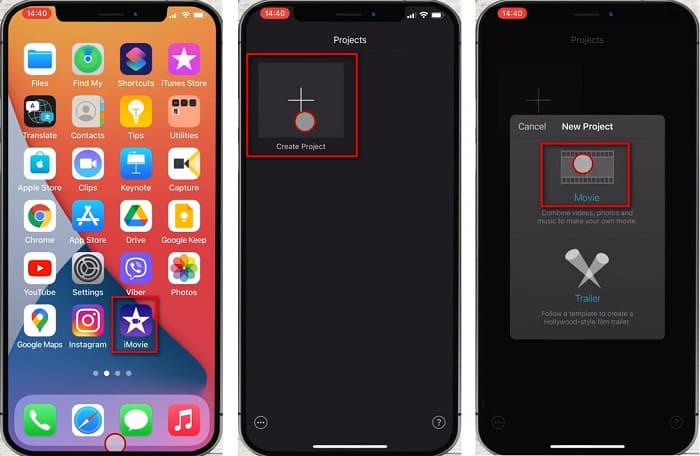
Étape 2. Sur l’interface principale du logiciel, touchez le bouton plus (+) pour créer un nouveau projet, puis touchez l’option Film (Movie). Une autre interface s’affichera, où vous sélectionnerez les vidéos que vous souhaitez fusionner. Ensuite, touchez le bouton Create Movie.
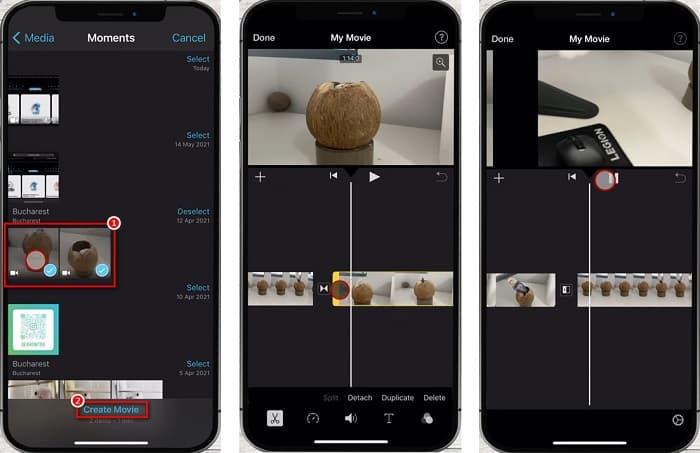
Étape 3. Enfin, touchez les clips vidéo sur votre timeline, puis saisissez les bords de chaque image et faites-les glisser jusqu’à la durée souhaitée. Lorsque vous avez terminé d’ajouter des clips vidéo, touchez le bouton Terminé (Done) dans le coin supérieur gauche de votre écran.
Méthode 2. Comment allonger une vidéo en ralentissant la vidéo
La méthode la plus simple pour allonger une vidéo consiste à utiliser un outil de ralentissement de la vidéo. Lorsque vous ralentissez votre vidéo, le temps se prolonge, ce qui le rend plus long que l'original. Ainsi, en utilisant la lecture de cette méthode, vous saurez comment allonger une vidéo en utilisant les meilleurs outils de changement de vitesse vidéo en ligne et hors ligne.
Convertisseur vidéo FVC Ultimate
Le meilleur outil de modification de vitesse vidéo que vous puissiez trouver sur le marché est FVC Video Converter Ultimate. Cet outil hors ligne vous permet de ralentir ou d’accélérer votre vidéo et de choisir parmi divers préréglages de vitesse. En outre, il comprend de nombreuses fonctions de montage avancées, comme un créateur de GIF, un amplificateur de volume, une synchronisation audio, et bien d’autres encore. Vous n’avez pas à vous soucier des formats de fichiers pris en charge, car il en gère un grand nombre, notamment MP4, AVI, M4V, FLV, MKV, MOV, WebM et plus de 1000 autres formats. De plus, beaucoup de personnes utilisent cette application parce qu’elle est gratuite et possède une interface très simple à utiliser. Donc, si vous êtes intéressé par l’utilisation de cet outil ultime pour ralentir votre vidéo, suivez les étapes simples ci‑dessous.
Étape 1. Pour utiliser cette application, téléchargez FVC Video Converter Ultimate en cliquant sur le bouton Download ci‑dessous pour Windows ou Mac. Suivez le processus d’installation, puis ouvrez l’application.
Téléchargement gratuit pour Windows 7 ou version ultérieure Téléchargement sécurisé
Téléchargement gratuit pour macOS 10.7 ou version ultérieure - Téléchargement sécurisé
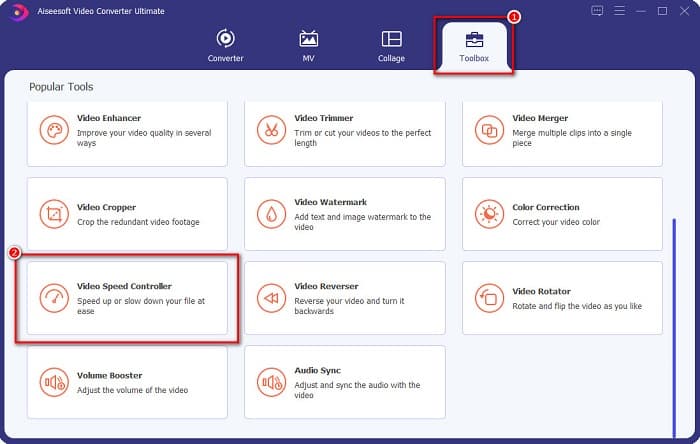
Étape 2. Ensuite, sur l’interface principale du logiciel, sélectionnez l’onglet Toolbox. Puis cliquez sur Video Speed Controller.
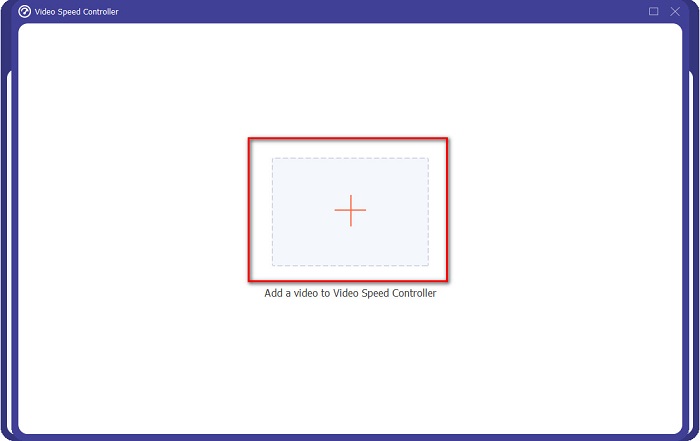
Étape 3. Ensuite, cliquez sur le bouton en forme de signe + pour importer votre vidéo. Les dossiers de votre ordinateur s’ouvriront, où vous sélectionnerez la vidéo que vous souhaitez ralentir, puis vous l’importerez.
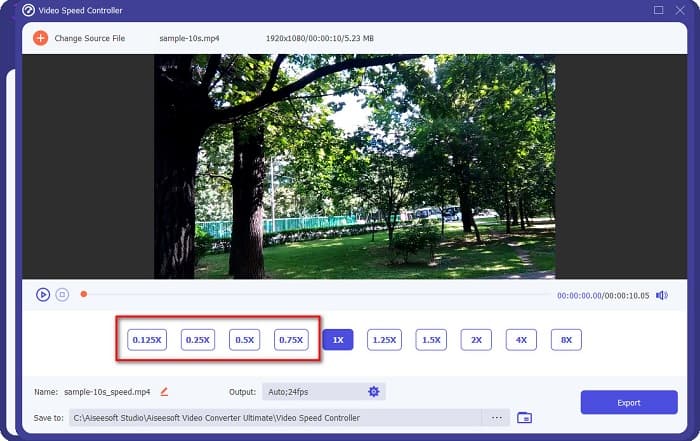
Étape 4. Puis sélectionnez le préréglage de vitesse que vous souhaitez pour votre vidéo. Si vous voulez ralentir votre vidéo, choisissez parmi les préréglages 0,125x, 0,25x, 0,5x et 0,75x.
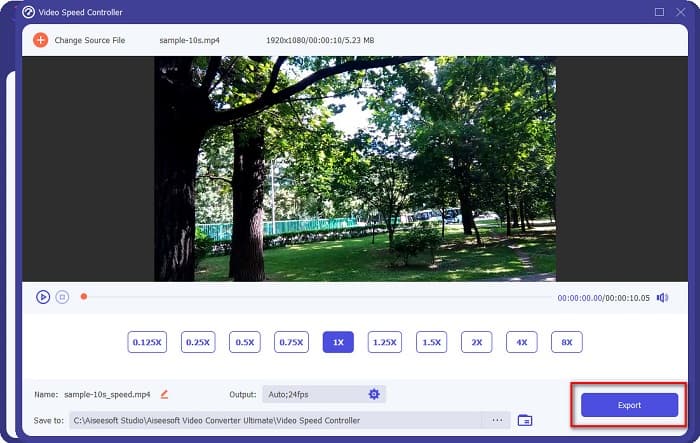
Étape 5. Enfin, cliquez sur le bouton Export pour modifier la vitesse de votre vidéo. Votre fichier de sortie sera automatiquement enregistré dans les dossiers de votre ordinateur.
Avantages
- Il a une interface utilisateur intuitive.
- Il peut ralentir ou accélérer votre vidéo facilement.
- Il prend en charge de nombreux formats de fichiers, tels que WMV, AVI, FLV, MKV, MOV, MPEG et plus de 1000 autres.
- Il a des fonctionnalités d'édition avancées.
- Disponible sur toutes les plates-formes cross-média, y compris Windows, Mac et Linux.
Les inconvénients
- Vous devez acheter l'application avant d'accéder à ses fonctionnalités uniques.
Clidéo
Clideo est un changeur de vitesse vidéo en ligne connu pour son interface simple. Cet outil vous permet de modifier la vitesse de votre vidéo à l’aide de six préréglages de vitesse parmi les plus courants. De plus, cet outil est sûr et gratuit. Si vous cherchez un changeur de vitesse vidéo qui permet également de modifier le format de sortie, cet outil propose cette fonctionnalité. En outre, il prend en charge les formats de fichiers les plus courants sur internet, notamment MP4, AVI, MPG, VOB, MOV, et bien d’autres.
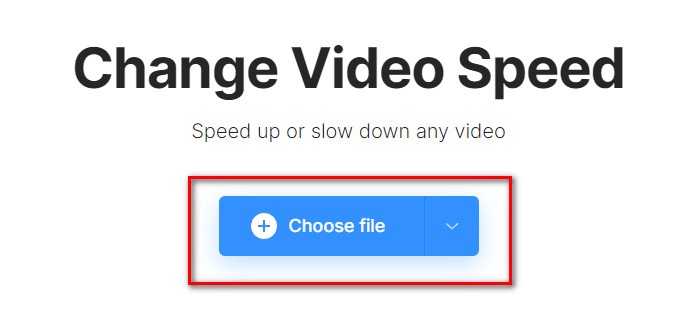
Étape 1. Dans le navigateur que vous utilisez, recherchez Clideo et allez sur leur page web. Sur l’interface principale, cliquez sur le bouton Choose file. Les dossiers de votre ordinateur s’ouvriront, où vous sélectionnerez puis téléchargerez votre vidéo.
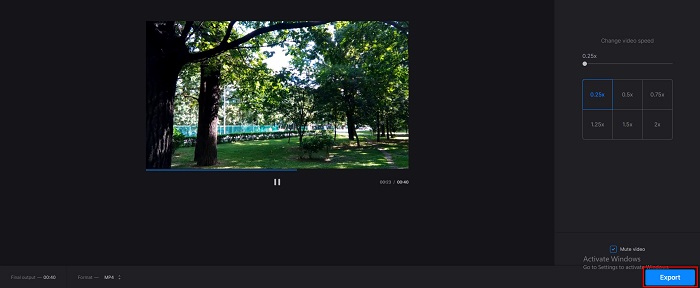
Étape 2. Après avoir importé votre vidéo, choisissez le préréglage de vitesse que vous souhaitez pour celle‑ci. Sélectionnez une vitesse comprise entre 0.25x et 0.75x si vous voulez ralentir votre vidéo.
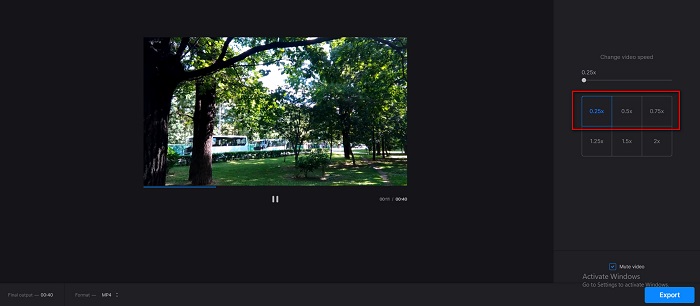
Étape 3. Puis cliquez sur le bouton Export pour l’étape finale.
Avantages
- Il a une interface facile à utiliser.
- Il prend en charge les formats de fichiers les plus courants, notamment MP4, AVI, MPG, VOB, etc.
- Il est sûr à utiliser.
Les inconvénients
- Il a parfois un processus de chargement lent.
EzGIf.com
EzGIF est une autre réponse à la question de savoir comment rendre une vidéo plus longue. Ce changeur de vitesse vidéo en ligne peut ralentir et accélérer votre vidéo en toute simplicité. De plus, il est sûr et gratuit. Cependant, cet outil en ligne contient des publicités qui peuvent être gênantes. Néanmoins, de nombreuses personnes continuent de l’utiliser en raison de sa praticité.
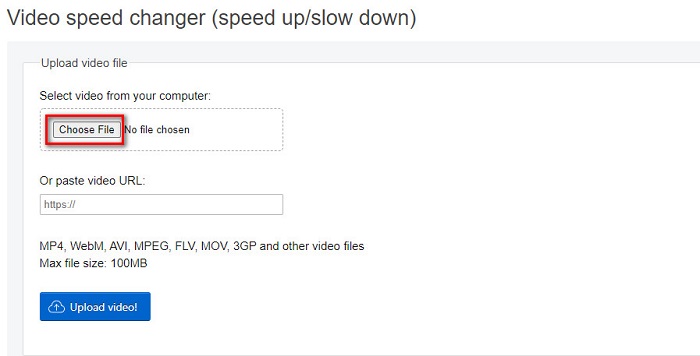
Étape 1. Dans votre navigateur, recherchez EzGIF.com. Puis cliquez sur le bouton Choose File sur l’interface principale du site pour importer votre vidéo.
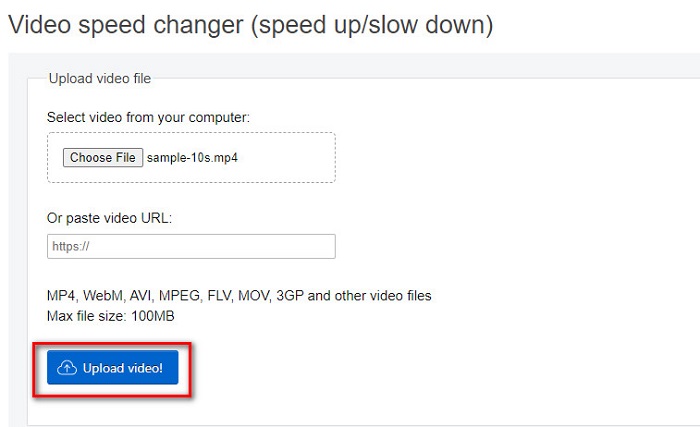
Étape 2. Après avoir téléchargé votre fichier vidéo, cliquez sur le bouton Upload video.
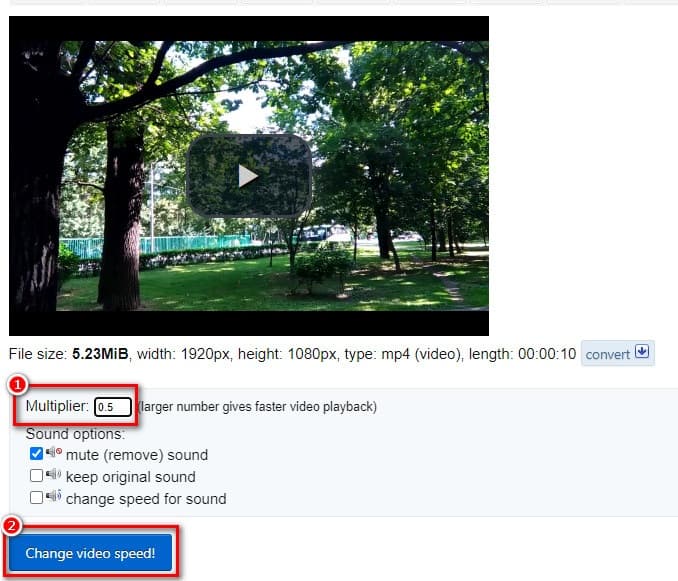
Étape 3. Ensuite, dans le champ du multiplicateur, saisissez la vitesse de lecture souhaitée pour votre vidéo (plus le nombre est bas, plus la vidéo est lente). Puis cliquez sur Change Video Speed.
Partie 3. FAQ sur la façon de rendre une vidéo plus longue
La taille du fichier augmente-t-elle lorsque la vidéo est plus longue ?
Oui. Plus votre vidéo est longue, plus la taille du fichier augmente. Donc, ralentissez votre vidéo si vous voulez avoir une petite taille de fichier.
Pouvez-vous ralentir une vidéo sur TikTok ?
Heureusement, oui. Tiktok a un changeur de vitesse vidéo intégré. Vous pouvez créer une vidéo au ralenti sur Tiktok et même ralentir une vidéo sur votre appareil photo.
Peut-on ralentir une vidéo sans perdre en qualité ?
Oui. Les outils de changement de vitesse vidéo peuvent ralentir la vitesse de votre vidéo sans perdre sa qualité.
Conclusion
Votre question sur la façon de rallonger une vidéo sur iPhone et sur d’autres appareils est désormais résolue. Il ne tient plus qu’à vous de choisir la méthode et l’outil que vous utiliserez pour effectuer cette tâche. Mais si vous préférez un changeur de vitesse vidéo utilisé par de nombreux professionnels, téléchargez FVC Video Converter Ultimate et essayez ses fonctionnalités remarquables.
-
 Comment accélérer la vidéo dans Premiere Pro et avec ses alternatives
 Voulez-vous savoir comment utiliser Premiere Pro pour accélérer une vidéo ? Alors vous êtes dans le bon article car nous proposons des étapes et d'autres alternatives abordables.
-
 2 façons simples d'accélérer une vidéo sur TikTok
 Voulez-vous connaître le secret pour accélérer la vidéo sur TikTok ? Alors lisez cet article pour avoir une idée de comment le faire et savoir quels sont les 2 autres outils qui vous aideront.
-
 Excellents conseils de 2021 : comment accélérer une vidéo sur iMovie
 Votre ami suggère iMovie pour vous aider à résoudre votre problème d'accélération d'une vidéo à l'aide du système d'exploitation iOS, mais vous ne savez pas quoi faire ? En savoir plus à ce sujet en lisant cet article.
