


 Video Converter Ultimate
 Enregistreur d'écran
 Réparation vidéo
 Téléchargement sécurisé
Procédures pour découper des parties d'une vidéo sur iPhone
Vous avez peut‑être enregistré une superbe vidéo avec votre iPhone ou votre iPad pendant votre temps libre et vous souhaitez la partager avec vos amis ou la publier sur les réseaux sociaux. Mais il est préférable de commencer par modifier les parties de la vidéo que vous ne voulez pas envoyer. Dans ce cas, vous pouvez rapidement monter vos vidéos avec les outils intégrés en les raccourcissant ou en les éditant. Alors, comment raccourcir une vidéo sur un iPhone ? Vous découvrirez dans cet article les meilleures méthodes. Si vous voulez connaître toutes les étapes, lisez attentivement les informations ci‑dessous.

Partie 1. Procédures efficaces pour couper une vidéo sur iPhone
Utilisation de l'application Photos
Si vous êtes un utilisateur d'iPhone et que vous souhaitez raccourcir la durée de votre vidéo, l'application Photos peut vous aider. L'application Photos n'est pas seulement utile pour afficher des images et des vidéos. Avec l'aide de cette application prédéfinie, vous pouvez également couper ou découper votre vidéo. Comme il s'agit d'une simple application sur iPhone, vous pouvez raccourcir la vidéo en quelques touches. De cette façon, tous les utilisateurs, en particulier les débutants, peuvent utiliser l'application. De plus, comme il s'agit d'une application pré-construite, l'installation n'est pas requise. Cependant, même s'il s'agit d'une application pratique pour couper des vidéos, l'application Photos présente certaines limites. L'application ne convient pas si vous souhaitez que des outils d'édition avancés améliorent une vidéo en plus de raccourcir la durée de la vidéo. L'application Photos ne peut offrir que des fonctions d'édition de base telles que couper, ajouter des filtres, etc. Si vous voulez savoir comment découper une vidéo sur un iPhone, suivez les étapes ci-dessous.
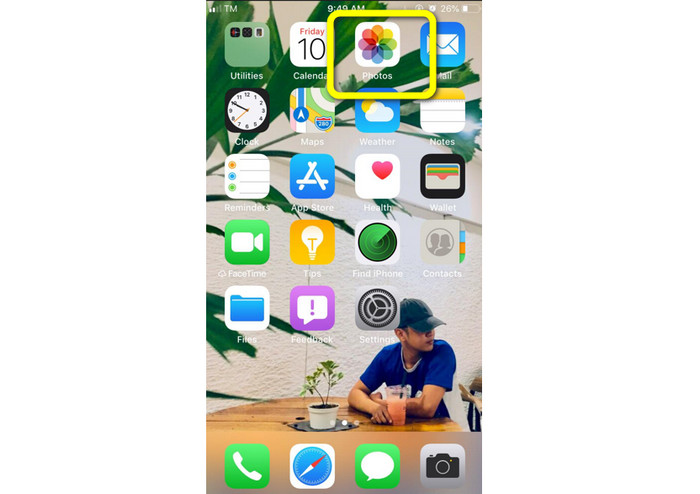
Étape 1. Déverrouillez votre iPhone et ouvrez l’app Photos.
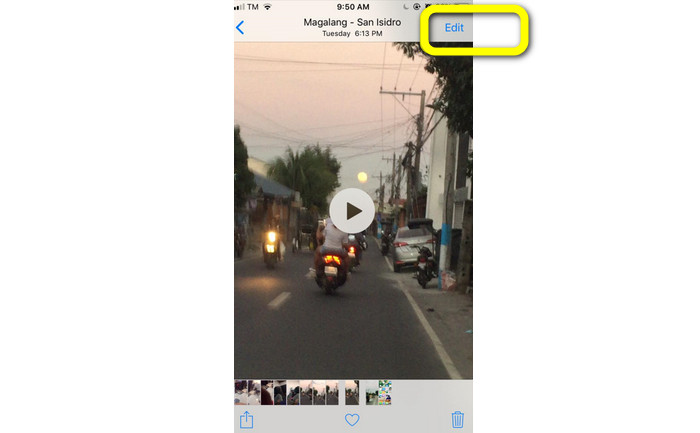
Étape 2. Ensuite, touchez la vidéo que vous voulez raccourcir. Puis appuyez sur le bouton Modifier dans le coin droit de l’écran.
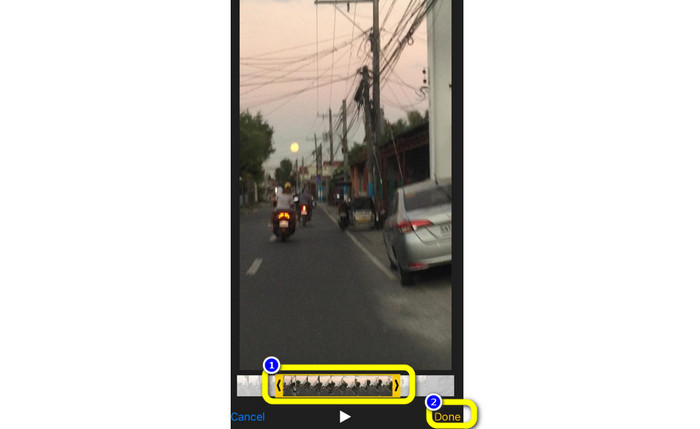
Étape 3. Vous pouvez maintenant raccourcir la vidéo en faisant glisser les bords du clip. Faites glisser les bordures gauche et droite de la vidéo. Une fois le découpage terminé, touchez le bouton OK pour l’enregistrer sur votre téléphone.
Utiliser iMovie
Souhaitez‑vous monter certaines des vidéos que vous avez tournées avec votre iPhone, par exemple pour supprimer les parties inutiles, les rendre plus courtes ou plus attrayantes visuellement ? C’est un processus simple et direct lorsque vous utilisez le programme iMovie, disponible sur les appareils iOS. L’éditeur vidéo intégré de l’app Photos par défaut suffit à la plupart des utilisateurs. Cependant, il ne permet pas d’accéder à des fonctions plus avancées, comme le suivi précis de la timeline, l’ajout de transitions, la fusion de plusieurs vidéos, etc. Dans ce cas, un logiciel de montage vidéo dédié comme iMovie est très utile. iMovie d’Apple est supérieur aux autres outils de montage disponibles sur l’App Store. Vous pouvez même synchroniser l’audio et la vidéo avec iMovie. Toutefois, iMovie présente certains inconvénients. iMovie n’est disponible que sur les appareils iPhone. Cela signifie que si vous utilisez un appareil Android, vous devrez recourir à une autre application pour couper une vidéo.
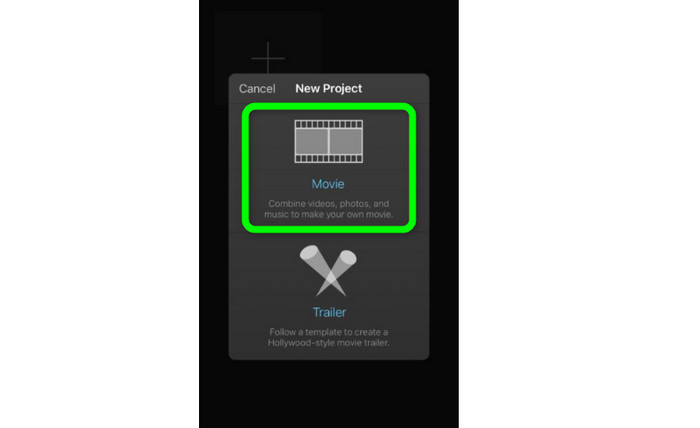
Étape 1. Téléchargez et installez l’application iMovie sur votre iPhone. Ensuite, lancez l’application. Lorsque l’interface apparaît à l’écran, cliquez sur l’option Créer un projet > Film et ajoutez la vidéo.
Étape 2. La vidéo que vous avez choisie sera maintenant ajoutée à la timeline d’iMovie. Par défaut, le curseur se trouve à la fin du clip, mais vous pouvez le faire glisser progressivement vers la droite et l’y arrêter à l’endroit où vous souhaitez couper la vidéo.
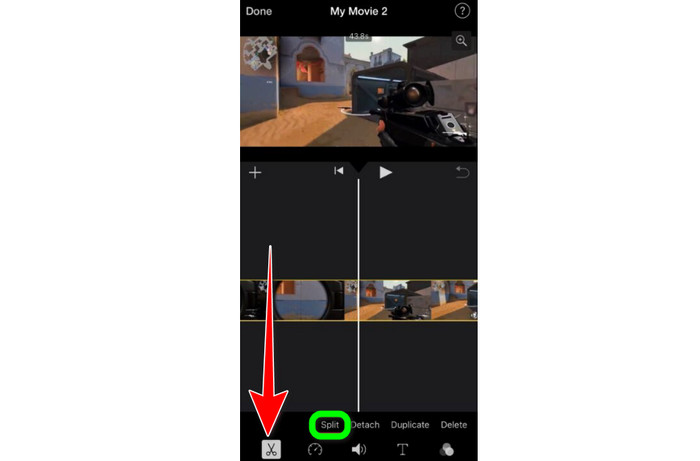
Étape 3. Vous pouvez maintenant utiliser plusieurs des fonctionnalités qu’offre iMovie. Comme indiqué ci‑dessous, l’icône en forme de Ciseaux correspond à l’outil de coupe. Sélectionnez l’outil Scinder dans le menu pour découper le clip vidéo exactement à l’endroit que vous avez marqué.
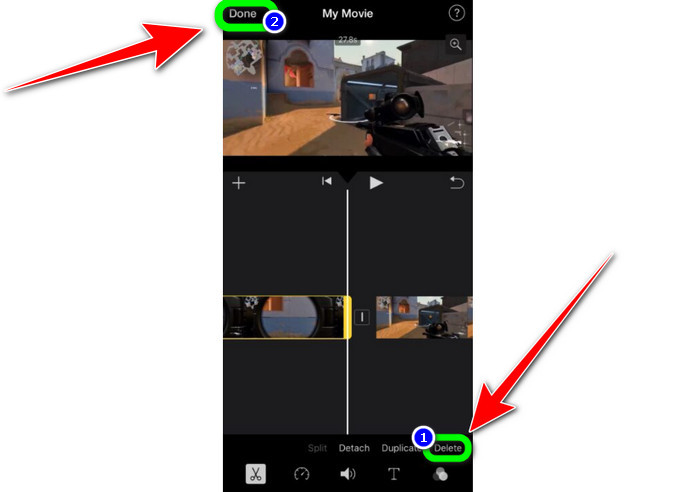
Étape 4. Cliquez ensuite sur l’option Supprimer pour enlever la partie inutile de la vidéo. Lorsque vous avez terminé le découpage, appuyez sur le bouton OK.
Partie 2. Comment découper des vidéos sur iPad
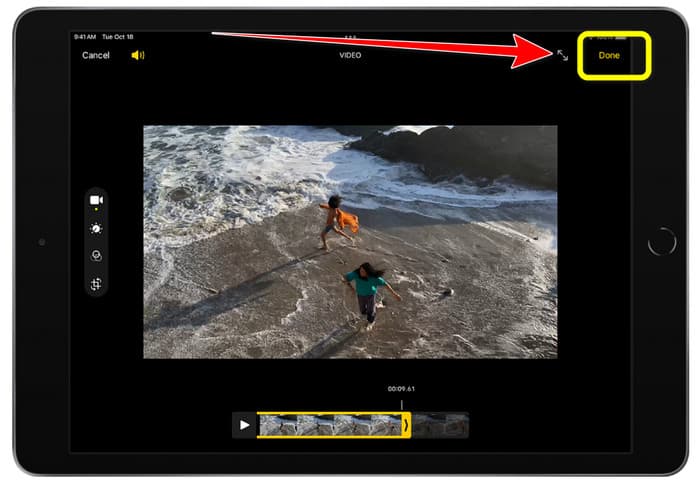
Si vous souhaitez découper ou rogner une vidéo avec un iPad, vous n’avez plus besoin de chercher une application à télécharger. Comme sur iPhone, vous pouvez couper ou rogner votre vidéo avec l’app Photos. L’app Photos peut toutefois présenter certaines limites sur iPad. Elle convient très bien si votre objectif est simplement de couper la vidéo. En revanche, vous ne pourrez pas l’utiliser si vous avez besoin d’outils de montage avancés. Suivez les étapes ci‑dessous pour couper ou rogner une vidéo avec un iPad.
Étape 1. Lancez l’app Photos sur votre iPad, touchez le clip vidéo que vous voulez modifier, puis appuyez sur l’option Modifier.
Étape 2. Faites glisser les bords du visualiseur de trame pour raccourcir la durée de la vidéo et commencer le rognage.
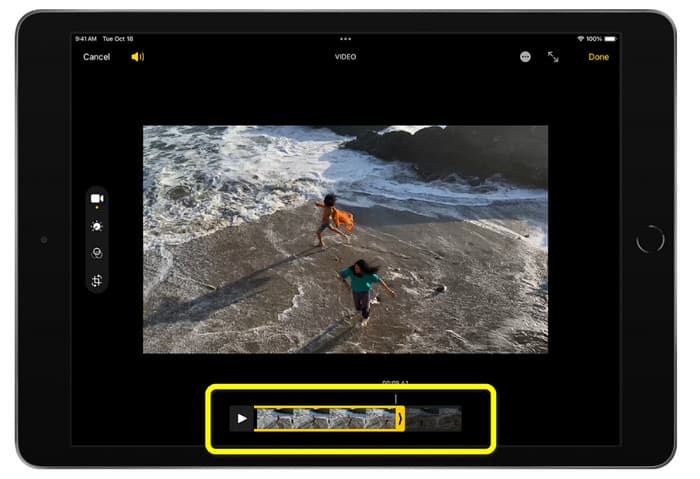
Étape 3. Une fois le rognage terminé, appuyez sur le bouton OK.
Partie 3. Comment couper des vidéos iPhone sur PC
Vous cherchez la meilleure façon de couper des vidéos iPhone sur un PC ? Dans ce cas, utilisez Video Converter Ultimate. Vous pouvez couper très facilement votre vidéo iPhone à l’aide de ce logiciel hors ligne. Il propose également une interface conviviale avec des étapes simples. Il convient donc parfaitement à tous les utilisateurs, en particulier aux débutants. Vous pouvez aussi ajuster différents paramètres dans les réglages de sortie. La résolution, la netteté et la fréquence d’images de la vidéo peuvent toutes être modifiées. Vous pouvez également changer le débit binaire audio, la fréquence d’échantillonnage et d’autres aspects. Vous pouvez en outre enregistrer le résultat final dans différents formats : MP4, MOV, AVI, MKV, etc. C’est un atout pour les utilisateurs, car Video Converter Ultimate est disponible aussi bien sur Windows que sur Mac. De plus, l’application n’ajoute pas de filigrane à la vidéo montée. Vous pouvez donc regarder la vidéo sans être gêné.
Téléchargement gratuit pour Windows 7 ou version ultérieure Téléchargement sécurisé
Téléchargement gratuit pour macOS 10.7 ou version ultérieure - Téléchargement sécurisé
Étape 1. Téléchargez Video Converter Ultimate sur votre PC. Cliquez sur le bouton Télécharger ci‑dessous pour accéder facilement au programme.
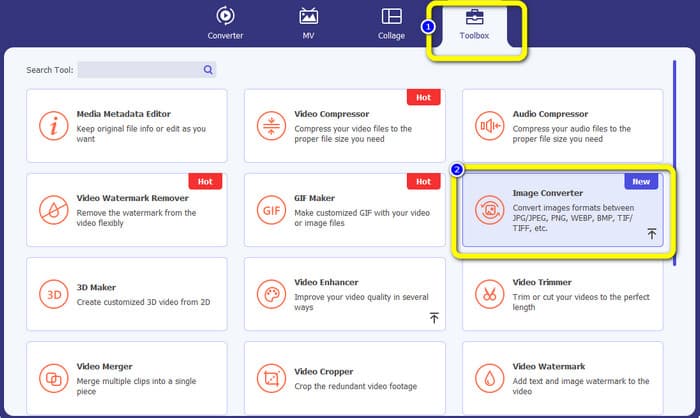
Étape 2. Après le téléchargement, lancez le programme pour afficher l’interface principale. Assurez‑vous que la vidéo iPhone a déjà été transférée sur l’ordinateur. Ensuite, lorsque l’interface apparaît, cliquez sur Boîte à outils > Outil Découpeur vidéo.
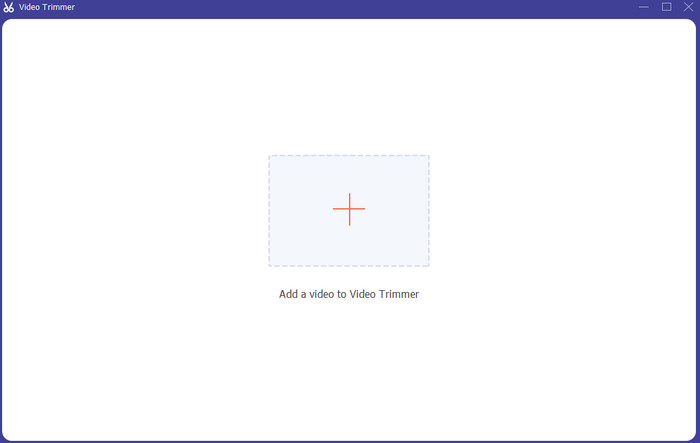
Étape 3. Quand la nouvelle interface s’affiche à l’écran, cliquez sur le signe + pour ajouter la vidéo iPhone.
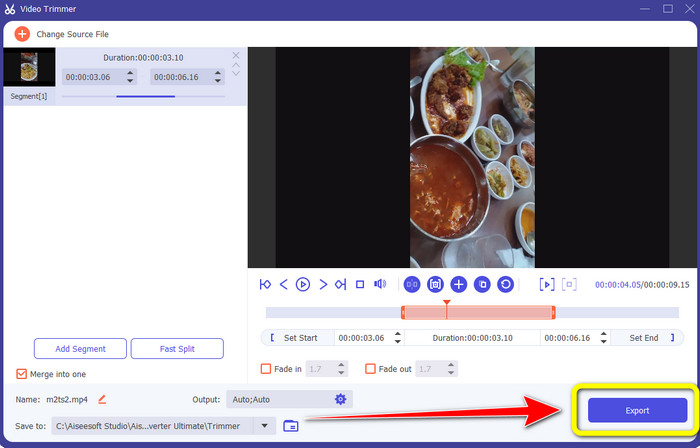
Étape 4. Vous pouvez alors ajuster les bords de la vidéo pour la couper. Vous pouvez aussi utiliser les options Définir le début et Définir la fin pour rogner la vidéo manuellement.
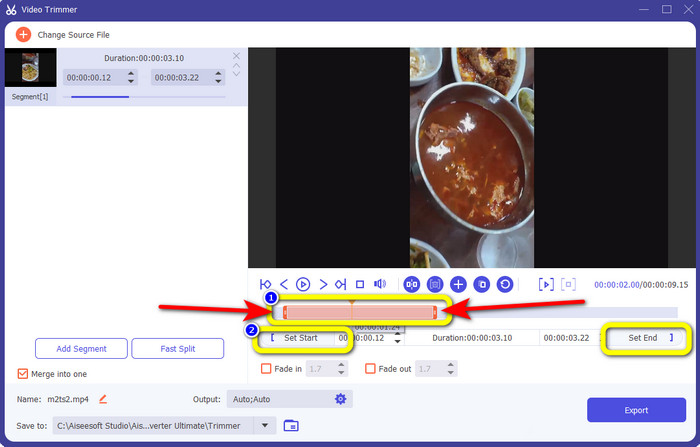
Étape 5. Enfin, cliquez sur le bouton Exporter pour enregistrer la vidéo après le découpage.
Partie 4. FAQ sur la façon de raccourcir une vidéo sur iPhone
Comment couper le milieu de la vidéo sur un iPhone ?
Si vous souhaitez découper la partie centrale de votre vidéo à l'aide de l'iPhone, vous pouvez toujours utiliser les méthodes mentionnées ci-dessus. L'application Photos et iMovie peuvent également couper la partie centrale d'une vidéo.
Comment découper une vidéo sur un téléphone Android ?
Vous pouvez accéder à votre application Galerie. Ouvrez ensuite la vidéo et cliquez sur l'option Modifier. Après cela, vous pouvez déjà découper la vidéo en faisant glisser les bords de la vidéo.
Comment transférer une vidéo sur iPhone depuis l'ordinateur ?
Vous pouvez utiliser de nombreux outils pour transférer une vidéo d'un ordinateur vers un iPhone. Vous pouvez utiliser iPhone Transfer Pro, Dropbox, AirDrop, etc.
Conclusion
Couper une vidéo est très utile lorsque vous voulez partager ou mettre en ligne un clip vidéo. Dans ce contexte, cet article informatif explique comment raccourcir une vidéo sur un iPhone. De plus, si vous souhaitez réduire la durée d’une vidéo iPhone avec un ordinateur, vous pouvez utiliser Video Converter Ultimate. Grâce à ce programme hors ligne, vous pouvez couper une vidéo iPhone facilement et instantanément sur PC.
-
 [4 solutions] Comment ralentir une vidéo sur iPhone comme un pro
 Vous rencontrez des difficultés pour ralentir une vidéo sur iPhone ? Si vous rencontrez ce problème, ne vous inquiétez plus, car nous vous aiderons à résoudre le problème en lisant cet article.
-
 Comment faire avancer rapidement une vidéo sur iPhone - Ajuster la vitesse de la vidéo
 Comment puis-je faire avancer rapidement une vidéo sur mon iPhone ? Comment faire avancer rapidement une vidéo sur iPhone avec iMovie ? Découvrez 3 façons d'accélérer une vidéo sur les appareils iPhone et iPad.
-
 Tutoriel - 4 façons gratuites de fusionner des vidéos sur iPhone en une nouvelle
 Lisez et obtenez 4 façons simples de fusionner des vidéos sur iPhone. Tous les modèles d'iPhone et versions iOS sont pris en charge. Vous pouvez combiner rapidement 2 vidéos et plus sur iPhone en une nouvelle vidéo.
