


 वीडियो कनवर्टर अंतिम
 स्क्रीन अभिलेखी
 वीडियो मरम्मत
Windows/Mac/iPhone/Android पर GIF में फ़िल्टर कैसे जोड़ें?
क्या आप जानना चाहते हैं कि अपनी GIF पर फ़िल्टर लगाकर उसे और आकर्षक कैसे बनाएं? चिंता की बात नहीं है, क्योंकि यह लेख आपको डेस्कटॉप और फ़ोन पर इस्तेमाल करने के लिए सबसे लोकप्रिय GIF एडिटर के बारे में बताएगा, जिनकी मदद से आप फ़िल्टर लगा सकते हैं। यहाँ दी गई जानकारी आपको GIF पर फ़िल्टर जोड़ने के बारे में भरोसेमंद जानकारी देगी। तो बिना देर किए यह जानते हैं कि अपने ऑपरेटिंग सिस्टम पर आप कौन‑सा GIF फ़िल्टर सॉफ़्टवेयर इस्तेमाल कर सकते हैं।.

भाग 1. मुझे GIF में फ़िल्टर जोड़ने की आवश्यकता क्यों है?
यदि आप वेब पर GIF साझा कर रहे हैं, तो आपको अपने अनुकूलन के आधार पर रंग बढ़ाने के लिए पहले GIF में एक फ़िल्टर जोड़ना होगा। शोध के अनुसार, फ़िल्टर किए गए GIF दर्शकों को उन GIF से अधिक आकर्षित करते हैं जिनके पास GIF नहीं है। इसलिए यदि आप बड़े दर्शकों को आकर्षित करना चाहते हैं, तो आपको अपने द्वारा बनाए गए GIF संपादक के साथ बनाए गए प्रत्येक GIF पर एक फ़िल्टर जोड़ना शुरू करना होगा। अब, यदि आपको पता नहीं है कि अपने GIF में फ़िल्टर कैसे जोड़ा जाए, तो हमारा सुझाव है कि आप पूरा लेख पढ़ें।
भाग 2। विंडोज और मैक पर फेनोमेनल जीआईएफ एडिटर के साथ जीआईएफ में फिल्टर जोड़ें [सबसे आसान तरीका]
Video Converter Ultimate अब तक का सबसे बेहतरीन GIF एडिटर है जिसे हमने देखा है और मार्केट में चुना है। यह आपके लिए एक वन‑स्टॉप GIF एडिटर माना जाता है, क्योंकि यह वीडियो या GIF पर फ़िल्टर जोड़ने जैसे कई एडिटिंग फीचर देता है। इस टूल के साथ आपको प्रोफेशनल होने की ज़रूरत नहीं, और सबसे अच्छी बात क्या है? कुछ ही टैप में आपको प्रोफेशनल क्वालिटी का आउटपुट मिल सकता है। तो अब, अगर आप GIF पर फ़िल्टर जोड़ना चाहते हैं, तो नीचे दिए गए ट्यूटोरियल को आराम से फ़ॉलो कर सकते हैं।.
स्टेप 1. GIF एडिटर का इस्तेमाल करने के लिए नीचे दिए गए डाउनलोड बटन को दबाएँ और अपना ऑपरेटिंग सिस्टम चुनें। डाउनलोड होने के बाद, इंस्टॉलेशन प्रोसेस फ़ॉलो करके सॉफ़्टवेयर इंस्टॉल करें, फिर उसे ओपन करें और GIF पर फ़िल्टर लगाना शुरू करें।.
फ्री डाउनलोडWindows 7 या बाद के संस्करण के लिएसुरक्षित डाउनलोड
फ्री डाउनलोडMacOS 10.7 या बाद के संस्करण के लिएसुरक्षित डाउनलोड
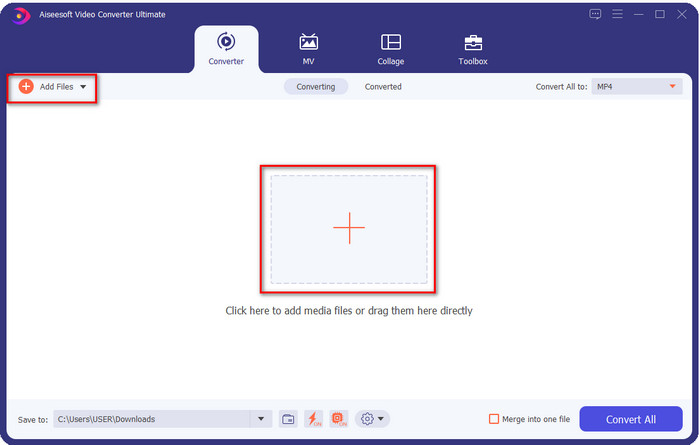
स्टेप 2. जिस GIF को आप एडिट करना चाहते हैं, उसे अपलोड करने के लिए मेन इंटरफ़ेस के बीच में दिए गए + आइकन पर क्लिक करें, या चाहें तो Add Files पर भी क्लिक कर सकते हैं; दोनों ही का काम एक जैसा है। आपके स्क्रीन पर जो डेस्कटॉप फ़ोल्डर दिखाई देगा, उसमें .gif फ़ाइल खोजें और उसे अपलोड करने के लिए Open पर क्लिक करें।.
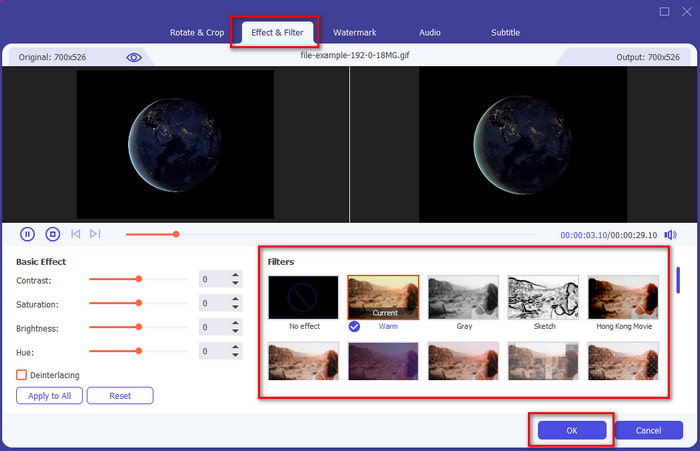
स्टेप 3. GIF पर फ़िल्टर लगाने के लिए wand बटन पर क्लिक करें ताकि नया विंडो खुले। उसमें Effect & Filters टैब पर जाएँ, जहाँ आपको अलग‑अलग तरह के फ़िल्टर दिखेंगे, जिनका इस्तेमाल करके आप अपनी GIF को वेब पर मौजूद दूसरी GIF से बेहतर बना सकते हैं। हर फ़िल्टर को आज़माने के लिए उन पर अलग‑अलग क्लिक करें; जब आप चुने हुए फ़िल्टर से संतुष्ट हों, तो GIF पर फ़िल्टर को सफलतापूर्वक लागू करने के लिए OK पर क्लिक करें।.
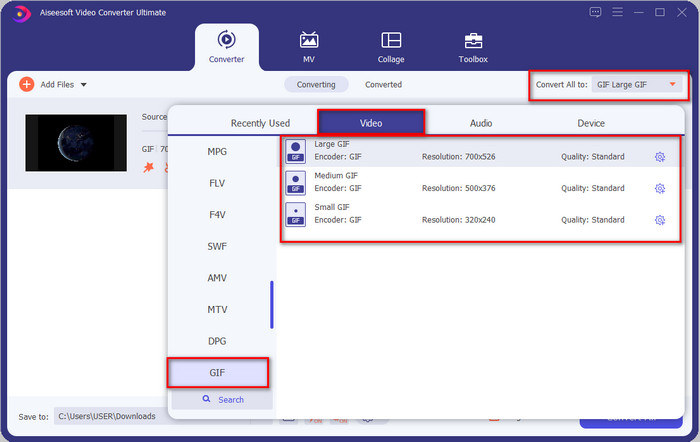
अगर आप अपनी GIF का फ़ॉर्मेट वही रखना चाहते हैं, तो Convert All to पर क्लिक करें और GIF फ़ॉर्मेट खोजें। जो GIF फ़ॉर्मेट आप रखना चाहते हैं उसे चुनें और उस पर क्लिक करें।.
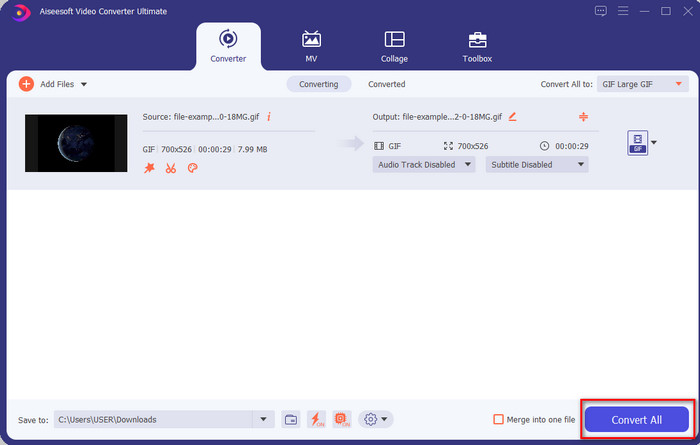
स्टेप 4. और GIF को फ़िल्टर के साथ डाउनलोड करने के लिए Convert All बटन पर क्लिक करें। कितना आसान है, है ना? Video Converter Ultimate के साथ आप GIF से जुड़ा लगभग हर काम बिना किसी परेशानी के कर सकते हैं।.
भाग 3. जीआईएफ मेकर के साथ जीआईएफ पर फ़िल्टर कैसे जोड़ें- एंड्रॉइड डिवाइस पर उपलब्ध संपादक
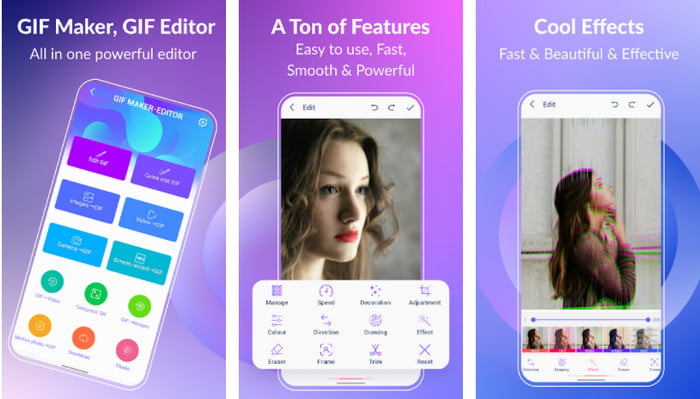
GIF Maker-Editor एक ऑल‑इन‑वन टूल है जिसे आप अपने Android पर डाउनलोड कर सकते हैं। यह टूल अलग‑अलग फ़िल्टर सपोर्ट करता है, जिससे आप खूबसूरत GIF बना सकते हैं। हालाँकि टूल बेहतरीन है, लेकिन इसमें अचानक विज्ञापन दिखाई देते रहते हैं; आपको ध्यान रखना होगा कि उन पर गलती से क्लिक न हो जाए। तो अब, नीचे दिए गए स्टेप्स से जानिए कि अपनी GIF पर GIF कलर फ़िल्टर कैसे जोड़ें।.
स्टेप 1. टूल को Play Store से डाउनलोड करें और ओपन करें।.
स्टेप 2. Edit GIF पर क्लिक करें और अपनी इमेज लाइब्रेरी में मौजूद GIF चुनें।.
स्टेप 3. ऑप्शंस को स्लाइड करके इफ़ेक्ट्स खोजें और फिर उन पर क्लिक करें। मनपसंद फ़िल्टर चुनें, फिर चेक आइकन पर क्लिक करें और GIF को सेव करने के लिए OK पर टैप करें।.
भाग 4. iPhone उपकरणों पर उपलब्ध GIF निर्माता के साथ GIF पर फ़िल्टर कैसे लागू करें
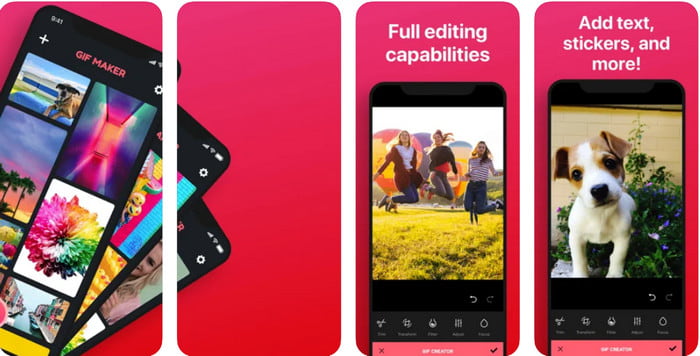
GIF Maker एक वन‑स्टॉप GIF एडिटर है जिसे आप अपने iPhone पर डाउनलोड कर सकते हैं। इस टूल से आप कुछ ही क्लिक में कस्टम GIF बना सकते हैं। हालाँकि, आप सीधे GIF का इस्तेमाल नहीं कर सकते क्योंकि यह फ़ॉर्मेट सपोर्टेड नहीं है, लेकिन आप इस लिंक पर क्लिक करके यह जान सकते हैं कि GIF को लाइव वॉलपेपर में कैसे कन्वर्ट करें। GIF को लाइव वॉलपेपर में बदलने के बाद, GIF पर फ़िल्टर जोड़ने के लिए आप आगे दिए गए स्टेप्स फ़ॉलो कर सकते हैं।.
इस टूल का निःशुल्क संस्करण आपके द्वारा निर्यात किए जाने वाले GIF पर वॉटरमार्क छोड़ देगा।
स्टेप 1. आप इस ऐप को App Store से मुफ़्त में डाउनलोड कर सकते हैं।.
स्टेप 2. टूल को ओपन करें, + आइकन पर क्लिक करें, Choose Live Photo From Library पर टैप करें और अपलोड करने के लिए लाइव फोटो चुनें।.
स्टेप 3. लाइव फोटो अपलोड होने के बाद, Filter पर क्लिक करें और वह फ़िल्टर चुनें जो आप अपनी GIF पर लगाना चाहते हैं। वीडियो पर फ़िल्टर लागू करने के लिए चेक पर क्लिक करें, और फ़ाइल एक्सपोर्ट करने के लिए दोबारा चेक पर क्लिक करें।.
भाग 5. GIF में फ़िल्टर जोड़ने के बारे में अक्सर पूछे जाने वाले प्रश्न
क्या फ़िल्टर GIF के रंग को प्रभावित करते हैं?
यदि आप फ़िल्टर जोड़ते हैं तो रंग संयोजन GIF या किसी भी मीडिया को प्रभावित करेगा। ये फ़िल्टर आपके इच्छित रंग संयोजन को ठीक करने के लिए उपयोग करते हैं, इसलिए आश्चर्यचकित न हों यदि रंग GIF के कच्चे दृश्य की तुलना में अधिक गहरा या हल्का होगा।
Instagram पर क्या प्रभाव उपलब्ध हैं?
Instagram पर आप ढेरों वीडियो फ़िल्टर इस्तेमाल कर सकते हैं, और अगर आप जानना चाहते हैं कि ये कौन‑कौन से हैं, तो इस लिंक पर क्लिक करें और Instagram के टॉप 10 चुने हुए फ़िल्टर के बारे में जानें।.
क्या मैं फ़िल्टर के माध्यम से उच्च गुणवत्ता वाला वीडियो बना सकता हूँ?
आप वीडियो के रंगों को हाईलाइट करके उसे हाई क्वालिटी जैसा दिखा सकते हैं। हालाँकि, फ़िल्टर सिर्फ़ वीडियो के रंगों को बेहतर बना सकते हैं, उसकी कुल मिलाकर क्वालिटी नहीं बढ़ा सकते। लेकिन अगर आप अपने वीडियो की क्वालिटी बढ़ाना चाहते हैं, तो इस लिंक को पढ़ें और जानें कि वीडियो क्वालिटी कैसे सुधारें।.
निष्कर्ष
और अब जब हमारे पास GIF में फ़िल्टर जोड़ने का विचार है, तो आपको हमारे द्वारा ऊपर दिए गए टूल को आज़माना चाहिए। यद्यपि उपकरण आपके जीआईएफ को फ़िल्टर करने में अलग-अलग ताकत पेश करते हैं, फिर भी हम मानते हैं कि वीडियो कन्वर्टर अल्टीमेट आपको बेहतरीन फ़िल्टर प्रदान करेगा जिसका उपयोग आप एक बेहतरीन फ़िल्टर्ड जीआईएफ बनाने के लिए कर सकते हैं। इतना ही नहीं, इस टूल से आप कट, मर्ज, ट्रिम कर सकते हैं, व्यक्तिगत GIF बना सकते हैं और बहुत कुछ कर सकते हैं। क्या आप हमारे द्वारा प्रदान की गई जानकारी से आश्वस्त नहीं हैं? हमें लगता है कि आपको यह साबित करने का एक तरीका है कि यह टूल GIF को संपादित करने से संबंधित सबसे अच्छा विकल्प है, और वह है ऊपर दिए गए डाउनलोड बटन पर क्लिक करके और हमारे द्वारा प्रस्तुत किए गए ट्यूटोरियल का अनुसरण करना और आनंद लेना!
-
 कैसे अपने कंप्यूटर / फोन पर मुफ्त में वीडियो के लिए ऑडियो और संगीत जोड़ें
 यह लेख मुफ्त में वीडियो में ऑडियो जोड़ने के 4 आसान तरीके दिखाता है। कोई फर्क नहीं पड़ता कि आप अपने वीडियो में कौन सा ऑडियो ट्रैक जोड़ना चाहते हैं, आप यहाँ संतोषजनक परिणाम प्राप्त कर सकते हैं।
-
 GIF को वीडियो फॉर्मेट में बदलें: GIF मेम्स को वीडियो में बदलें [2021]
 निर्धारित करें कि नीचे सूचीबद्ध टूल की सहायता से GIF को वीडियो प्रारूप में कैसे रूपांतरित किया जाए। कौन सा चुनें और सीखें कि इसे कैसे करना है, क्योंकि हम उन पर पर्याप्त सबूत इकट्ठा करते हैं।
-
 Android और iOS उपकरणों के लिए वीडियो ऐप्स के लिए अद्भुत GIF
 क्या आप जानते हैं कि आप जीआईएफ को अपने फोन का उपयोग करके किसी भी वीडियो प्रारूप में परिवर्तित कर सकते हैं? अपने Android या iOS पर सर्वश्रेष्ठ ऐप्स चुनें।
