


 Video Converter Ultimate
 Screen Recorder
 Videó javítás
Hogyan készítsünk GIF-et az iPhone-ra mentett fotóiból
GIF-eket használtunk, hogy a sima szövegünk érdekesebb legyen, és így még a képeknél is jobb változatot kaptunk. Hiszen ezek mozgó, animált állóképek. Emellett a formátum népszerűsége miatt sok felhasználó már most is megpróbálja elkészíteni a saját GIF-jeit, akár számítógépen, akár telefonon. Most tehát arról fogunk beszélni, hogyan lehet GIF-et készíteni iPhone-on a fotókból, amelyeket a tárhelyre mentettél. Olvasd tovább ezt az útmutatót, mert elmagyarázzuk, hogyan készíts GIF-eket, és milyen különböző szoftvereket használhatsz hozzá.

1. rész: Élő fénykép mentése GIF-ként a Photos alkalmazásban
Tudtad, hogy egyszerű GIF-eket készíthetsz az iPhone-odon lévő fotókból? A Fotók app segítségével. Ez az előre telepített alkalmazás rengeteg képet és videót tárol a telefonodon. Lényegében olyan, mint az Androidon a Galéria: az általad készített fotók tárhelye. Ugyanakkor ez az eszköz olyan szerkesztési funkciókat is kínál, amelyekről talán nem is tudsz. Bár van benne GIF-készítő, mégis hiányoznak belőle bizonyos fontos szerkesztési funkciók ahhoz, hogy a GIF-jeid igazán látványosak és újszerűek legyenek. Ha azonban ki akarod próbálni ezt az eszközt, akkor kövesd az alábbi lépéseket, és tanuld meg, hogyan lehet GIF-et készíteni iPhone-on a Fotók alkalmazással.
1. lépés. Nyisd meg az előre telepített Kamera alkalmazást az iPhone-odon.
2. lépés. Ezután koppints felül középen a Live Photo gombra, majd nyomd meg a Rögzítés gombot.
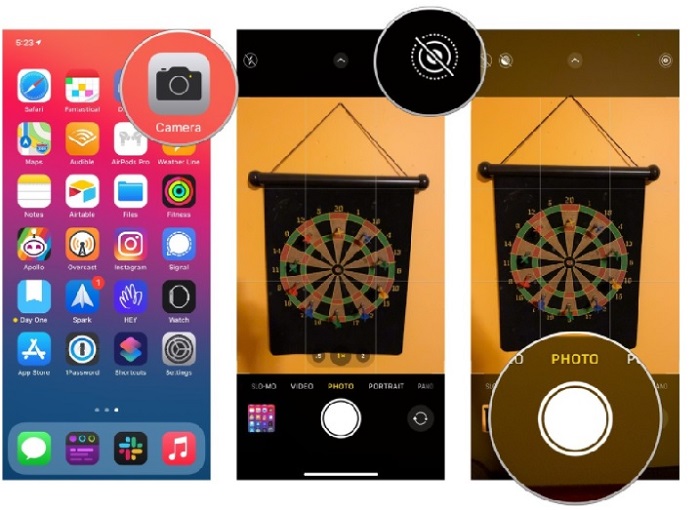
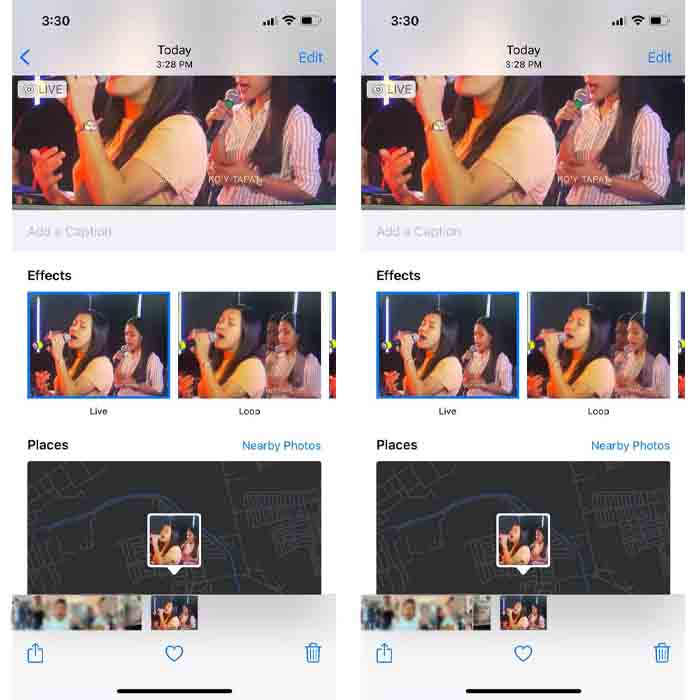
3. lépés. Ezután koppints a kis négyzet alakú fotóra a kamera felületének bal alsó sarkában. Majd húzd felfelé a fotót, és válaszd ki a GIF-effektusok egyikét. A kiválasztás után a GIF automatikusan elmentésre kerül, és készen áll arra, hogy megoszd másokkal vagy a közösségi médiában.
Előnyök
- Nem kell letölteni, mert már előre telepítve van az iPhone-ra.
- Egyszerűen használható szerkesztőeszközként.
Hátrányok
- A képeket nem lehet GIF-ekké alakítani, ha nem élő fényképről van szó.
- Nem biztosít sok szerkesztési funkciót ahhoz, hogy a GIF csodálatos legyen.
2. rész: Hogyan készítsünk GIF-et iPhone-on a GIPHY segítségével
A GIPHY egy hatalmas, ingyenesen elérhető GIF-tár, amelyhez regisztrációval férhetsz hozzá. Itt a saját készítésű GIF-jeidet is megoszthatod, hogy mások is felhasználhassák őket. Az eszköz azonban nem támogatja több kép egyesítését egyetlen GIF-fé. Ugyanakkor a benne található szűrők nagyszerűek és könnyen használhatók. Ha tehát GIPHY-vel szeretnél GIF-eket készíteni, kövesd az alábbi lépéseket.
1. lépés. Először töltsd le a GIPHY-t az iPhone-odra, majd indítsd el.
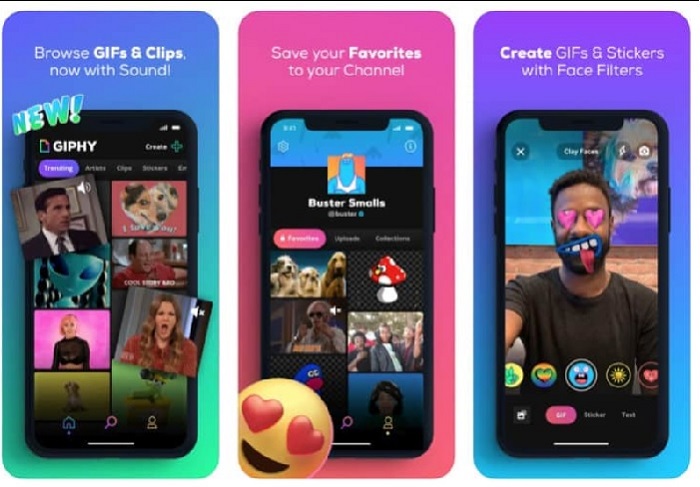
2. lépés. Koppints a Létrehozás gombra, majd bal felső sarokban az album gombra, és engedélyezd az alkalmazás számára, hogy hozzáférjen a képeidhez.
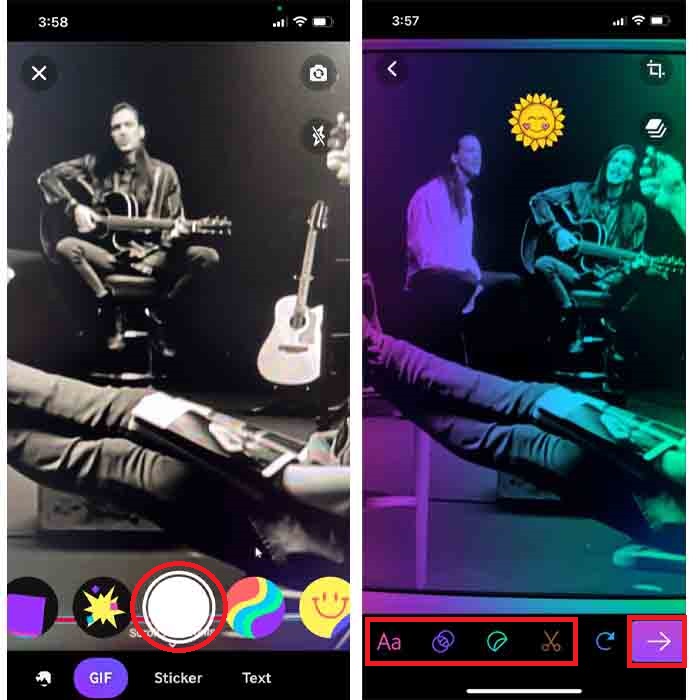
Ezután válassza ki azt a képet, amelyet GIF-be szeretne alakítani, és végezze el a szerkesztést a felületen.
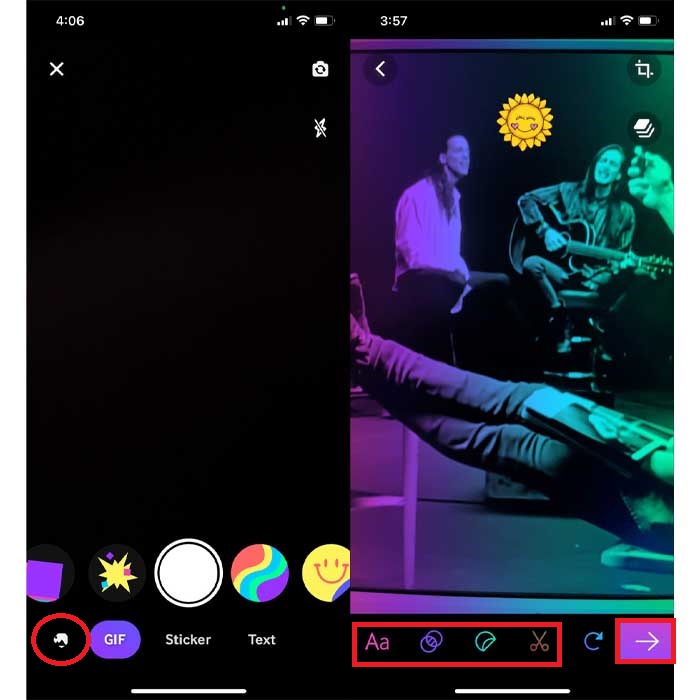
3. lépés. A GIF-et nem tudod közvetlenül az iPhone-odra menteni, így két lehetőséged van: feltöltheted a GIPHY felhőtárhelyére, és nyilvánossá vagy priváttá teheted, vagy azonnal megoszthatod.
Előnyök
- Ez egy hatalmas GIF-könyvtár.
- Jobb hatása van, mint amit a Fotók nyújtani tudnak.
Hátrányok
- A kész GIF-et nem mentheti közvetlenül a tárhelyére. Vagy elmenti a GIPHY-n létrehozott fiókjába, vagy megosztja.
- Nem lehet képeket összeállítani GIF-ek készítéséhez.
3. rész. A legprofesszionálisabb eszköz több fényképből GIF-ek készítéséhez
Ha az elsőként bemutatott eszközzel nem sikerül olyan GIF-et készíteni, amilyet szeretnél, próbáld ki a Video Converter Ultimate programot. Ez az eszköz sokkal jobb GIF-et tud készíteni a fotóidból, mint a két natív vagy letölthető alkalmazás. A program azonban csak asztali gépen érhető el, ezért több fotót először át kell másolnod a számítógépedre, mielőtt GIF-et készítenél belőlük. A benne található szűrők ráadásul lenyűgözőek, és igazán meg fognak lepni. Ha meg szeretnéd tanulni, hogyan lehet GIF-et készíteni iPhone-os fotókból, több képből, kövesd az alábbi lépéseket.
1. lépés. Először töltsd le a Video Converter Ultimate programot, majd telepítsd.
Ingyenes letöltés Windows 7 vagy újabb rendszerre Biztonságos letöltés
Ingyenes letöltés macOS 10.7 vagy újabb rendszerre Biztonságos letöltés
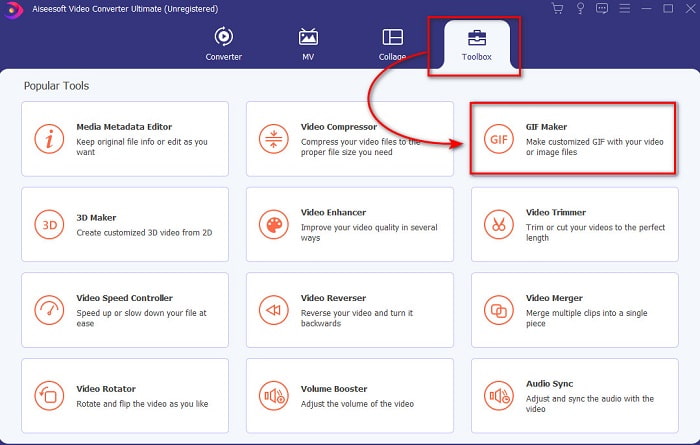
2. lépés. A Eszköztár részben kattints a GIF Maker opcióra.
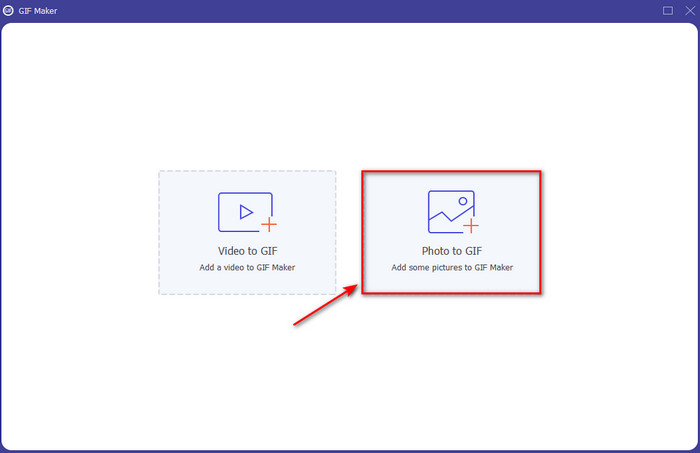
3. lépés. Kattints a Photos to GIF lehetőségre, válaszd ki azt a fotót, amelyet GIF-fé szeretnél alakítani, majd kattints az Open gombra. Kezdetben nem adhatsz hozzá több képet, de később igen. Ezután módosítsd a Kimeneti beállításokat a GIF-hez, és kattints az OK gombra.
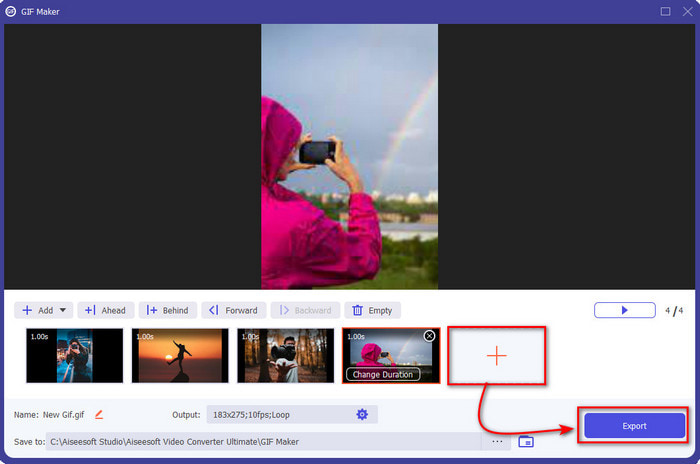
4. lépés. A további képek hozzáadásához kattints a + gombra, majd válaszd ki őket. Miután az összes képet beillesztetted, kattints az Export gombra.
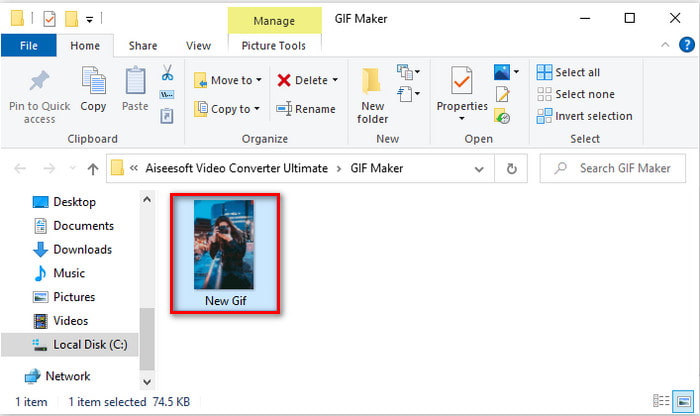
5. lépés. Várj néhány másodpercet, és megjelenik egy mappa a képernyőn, benne az imént elkészített GIF-fel.
Előnyök
- A fenomenális szerkesztő, amelyre támaszkodhat, hogy GIF-je kiemelkedő legyen.
- Számos fejlett funkcióval rendelkezik, amelyeket használhat.
- Ennek az eszköznek a használatának elsajátítása egyszerűbb, mert a helyén van.
Hátrányok
- Az iPhone-on lévő képeket át kell töltenie az asztalra.
- A hozzáféréshez először le kell töltenie az asztalra.
4. rész. GYIK a GIF készítésről a Photos alkalmazással kapcsolatban iPhone-on
Hogyan készítsünk GIF-et Androidon fényképekből?
Megismételheti a 3. részben leírt lépéseket, és ugyanúgy megteheti. Alapvetően minden olyan videót át kell vinnie a meghajtóra, amelyet GIF-ekké szeretne alakítani. Ezután kövesse az alábbi lépéseket.
Mi az a GIF?
A GIF-ek manapság nagyon népszerűek, mert a legegyszerűbb üzenetet is sokkal kifejezőbbé és tartalmasabbá tehetik. Ha szeretnél többet megtudni arról, mi is az a GIF, kattints erre a linkre, és olvasd el a részleteket.
Miért homályosodnak el a képeim, ha GIF-ekké alakítom őket?
Mivel a GIF-ek legfeljebb 256 különböző színt támogatnak. A JPEG-től és a PNG-től eltérően ez a képformátum több mint 16 millió színkombinációt támogat. Tehát a JPEG és a PNG a legjobb képminőséget produkálja a GIF-ekhez képest. De a JPEG és a PNG nem tartalmazhat mozgó animációt, mint a GIF-ek.
Következtetés
Ahogy a végére érünk, ma már sokkal könnyebb a GIF-ek kezelése és elkészítése, akár iPhone-on is. Bár a cikkben említett összes eszköz segít egyszerű GIF-ek létrehozásában, mégis a Video Converter Ultimate a legjobb választás. Rengeteg olyan funkciót kínál, amellyel a videóidat és GIF-jeidet annyira látványossá teheted, hogy magad is alig hiszed el, hogy te készítetted őket. Ne elégedj meg egyszerű szoftverekkel, ha a legjobb eszközt is használhatod. Töltsd le most a programot, és alakítsd a képeid gyűjteményét GIF-ekké.
-
 Válassza ki a legjobb online és offline GIF-vágót a GIF-ek vágásához [2021]
 A legjobb vágóeszköz kiválasztása kötelező, és néhány GIF-készítő nem biztosította ezt a funkciót. De melyik a legjobb GIF-vágó eszköz, és hogyan kell használni?
-
 5 legjobb lehetőség a GIF formátum rögzítésére PC és Mac GIF felvevőkkel
 Melyik a legjobb GIF-felvevő, amellyel GIF-eket rögzíthet? Az alábbi lista bizonyítékot szolgáltat arra vonatkozóan, hogy melyik a legjobb képernyőrögzítő.
-
 MPG konvertálása GIF formátumba [online és offline]
 Szeretnél egy sokkal jobb érzelmet kifejezni? Ezután inkább GIF-et kell használnia. Ez az írás megtanítja Önnek, hogyan konvertálhat MPG fájlt GIF formátumba, hogy sokkal jobban kifejezze érzéseit.
