


 ビデオコンバーター究極
 スクリーンレコーダー
 ビデオ修復
ビデオ修復
 安全なダウンロード
1分以内にiPhoneからMacにHEIC写真をAirDropする方法
あらゆるiOSおよびMacデバイス間でファイルを共有する最も信頼性が高く高速な方法は、AirDropを使うことです。Bluetoothの代わりに、1分もかからずに複数のファイルを転送できる、より優れた選択肢であるAirDropを利用できます。AirDropは、Mac OS X LionおよびiOS 7ですべてのデバイスに初めて導入されました。現在でも、画像・動画・ファイル・位置情報など、さまざまなデータをiOSからMacへ、またはその逆方向にワイヤレスで転送できる代表的な機能として使われ続けています。事前の設定は不要で、ファイルサイズや転送できるファイル数にも制限はありません。それでは、この機能がどのようなものかを詳しく確認し、iPhoneからMacへHEIC写真をAirDropで送る方法を手軽に学んでいきましょう。

パート1。iPhoneからMacにHEIC写真を簡単にエアドロップする方法
iPhoneからMacにAirDropHEIC写真を送信する前に、AirDropと両方のデバイスを開いてください。iPhoneのAirDropボタンを長押しする必要があります。ただし、Macでは、[許可された私を検出する]をクリックする必要があります。このアクションの後に画面に表示される3つのオプションがあります。これらは、受信オフ、連絡先のみ、および全員です。
受信オフとは、AirDropをオフにすることを意味します。連絡先でファイルをAirDropできるようにする場合は、連絡先のみをタッチする必要があります。最後に、Everyone、このオプションは、AirDropを使用している他のユーザーからデバイスが透けて見えるようにします。それらすべてを紹介しますが、連絡先のみではなく、全員をタップすることをお勧めします。連絡先のみにiCloudが必要になるため、受信者と送信者はお互いの連絡先リストに含まれている必要があります。
BluetoothとWiFiをオンにする必要があります。インターネット接続は必要ありませんが、MacでHEICファイルをワイヤレスで転送するには、インターネット接続をオンにする必要があります。以下に示す手順は、AirDrop機能を使用してiPhoneにあるHEICファイルをMacに転送する方法を示しています。
ステップ1. 写真アプリを開き、転送したいHEICファイルを探してタップします。
ステップ2. 共有ボタンをタップします。
ステップ3. 送信先の名前をタップして、選んだHEICファイルを送信します。
送信後、受信者はそれを受け入れるか拒否するかを選択できる通知を受け取ります。 Macに保存するには、取得することを選択する必要がありますが、送信されたファイルが間違っている場合は、拒否できます。
パート2。iPhoneからMacでHEIC形式ではなくJPGをAirDropする方法
画像形式を変更する場合は、HEICではなくAirDropJPGを介してキャプチャして送信します。画像の拡張子をHEICではなくJPEGに変更するには、以下の手順に従う必要があります。以下の手順ではHEICがJPGに変換されませんが、キャプチャしている画像がHEICではなくJPEGに変更されることに注意してください。
ステップ1. iPhoneで設定アプリを開き、カメラオプションを見つけて選択します。
ステップ2. カメラをタップした後に表示される一覧からフォーマットを選択します。
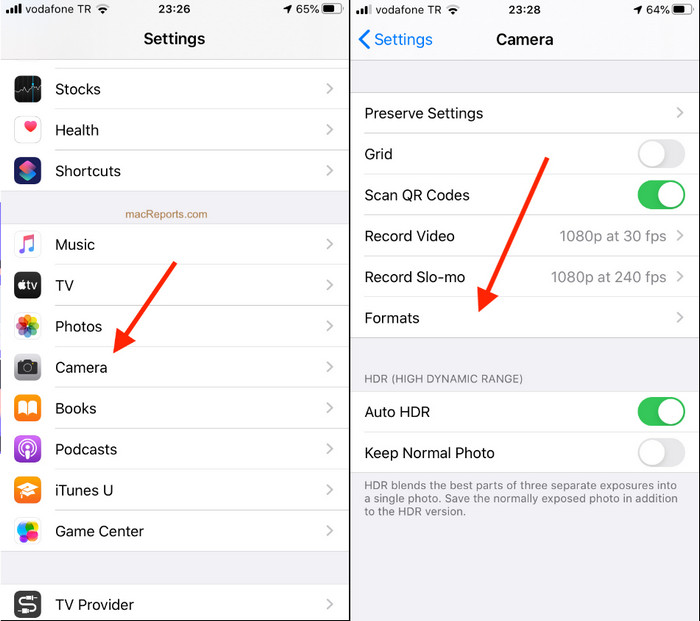
ステップ3. 互換性優先をタップして、iPhoneで撮影する画像をHEICではなく標準的なJPEG形式で保存するように設定し、そのうえで画像をAirDropで他のデバイスへJPGとして送信します。
パート3。HEIC形式の代わりにJPGをエアドロップする方法:あなたが知っておくべき最高のオンラインHEICコンバーター
HEICファイルをそのままMacにAirDropする代わりに、JPEGに変換しておけば、iOSやMac以外のデバイスとも共有しやすくなります。FVC Free HEIC to JPG Converterを使えば、Macに転送する前にHEIC形式を互換性の高いJPGに変換できます。iPhoneに専用アプリをインストールするのではなく、このオンラインコンバーターを試してみてはいかがでしょうか。ほかのコンバーターアプリと同様の作業を、効率よくオンライン上で行うことができます。
また、ツールを購入する必要はなく、使用する前にログインする必要もありません。それに加えて、Webツールは無料で使用でき、広告はありませんが、デバイス上のWebコンバーターに安全にアクセスできることを保証できます。以下の手順では、ここで変換して、HEICの代わりにJPGをAirDropする方法を説明します。
ステップ1. このリンクをクリックしてコンバーターのサイトを開くと、オンラインコンバーターのページへ直接アクセスできます。
ステップ2. ここにファイルをドラッグ&ドロップするだけで、HEICをJPGに変換するためのアップロードが簡単に行えます。
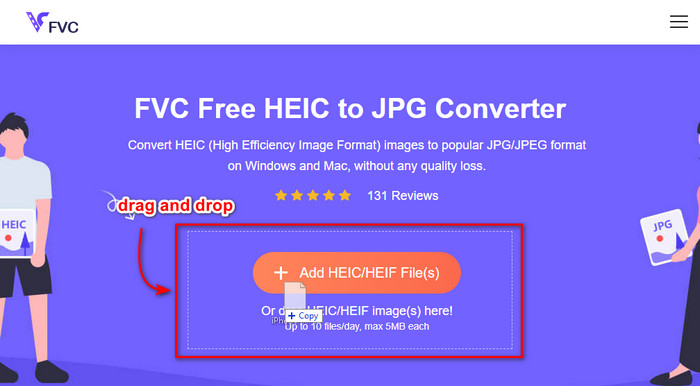
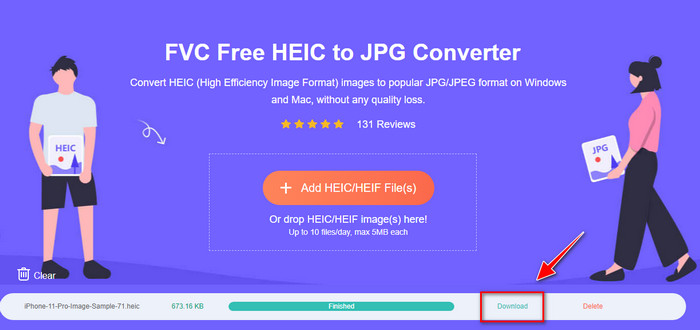
ステップ3. 変換は自動的に開始され、完了後にダウンロードをクリックしてドライブに保存します。これで、iPhone、Mac、Windows、Androidなど、さまざまなデバイスへ手軽に共有できるようになります。
関連記事:
パート4。iPhoneからMacにHEIC写真をAirDropする方法に関するFAQ
iPhoneからMacへのAirDroppingHEIC写真には時間がかかりますか?
BluetoothとWiFiを介したファイルの双方向転送を使用するため、MacでHEIC写真を転送するのにそれほど時間はかかりません。また、HEICファイルは小さいので、移動は簡単で効果的です。
HEICファイルをAirDropすると品質が低下しますか?
AirDropを使用してHEICファイルを転送しても、画質は低下しません。したがって、送信者がデバイスで持っているのと同じレートを受け取ることが期待できます。
MacでHEICファイルをAirDropする必要があるのはなぜですか?
多くの要因が、iPhoneにあるHEICファイルをAirDropする必要がある理由である可能性があります。まず、iPhoneで誤ってファイルを削除した場合に、ファイルを保存する必要があります。次に、デバイスのスペースを解放したいが、iPhoneに保存されている画像を削除したくない場合は、他の写真をMacに転送できます。 iPhoneからMacにHEICファイルをAirDropする必要がある理由は何百万もありますが、ここにはいくつかの理由しか含まれていません。理由が何であれ、MacでHEICイメージを移動することは良い選択です。
結論
この記事では、iPhone AirDrop HEICをMacでJPGに使用する方法、またはフォーマットをJPEGに変更せずにMacで同じ画像フォーマットを転送する方法を説明しました。 HEICファイルをAirDroppingする理由が何であれ、上記で追加した手順に従って実行できます。ただし、HEICファイルをWindowsやAndroidなどの他のデバイスで共有したいとします。
その場合、他のデバイスのデフォルトの画像形式であるため、形式をJPGに変換する必要があります。オンラインコンバーターの助けを借りて、フォーマットをJPGに変換するのは無料で簡単です。オンラインコンバーターを使用してフォーマットをJPEGに変換するのに専門家は必要ありません。上記の手順に従うことで、数秒でそれを得ることができます。
-
 お持ちのプリンターを使用してHEIC写真を印刷する方法の究極の方法
 HEIC写真を高品質で印刷する方法を知りたいですか?幸い、この記事では、お持ちのHEIC画像を印刷する手順を説明しています。
-
 知っておくべきApowersoft無料HEICコンバーターの公正なレビュー[2022]
 Apowesoft HEIC Converterとは何ですか?ソフトウェアが何であるかを知るために、以下にソフトウェアに関する完全な詳細を含めます。
-
 AndroidでHEICをJPGに無料で変換する3つのアプローチ
 AndroidでHEICをJPGに変換する必要がありますか?その場合、Androidデバイスでタスクを完了するために使用できる上位3つのアプリを提供します。
