


 ビデオコンバーター究極
 スクリーンレコーダー
 ビデオ修復
ビデオ修復
 安全なダウンロード
MOVファイルサイズを圧縮する6つのツール:無料で使いやすい
MOVは、Appleが開発した代表的な動画形式で、動画データと音声データの両方を保存でき、QuickTime動画形式とも呼ばれます。主にMacデバイスでよく見かけますが、現在ではWindowsオペレーティングシステムでも互換性があります。MOV形式は高画質な動画を提供してくれますが、MOV動画を大量に保存すると、ストレージ容量に大きな負担がかかってしまいます。また、動画を送信しようとすると、多くのチャットアプリやSNSには添付ファイルのサイズ制限があり、それが原因で送信できないこともあります。したがって、作業を始める前に、目的のサイズまでMOVを圧縮しておく必要があります。この過程で重要になるのがツール選びです。優れたコンプレッサーなら、画質を損なうことなくファイルサイズを効果的に小さくできます。次のセクションでは、デスクトップ用プログラム3つとオンラインサイト3つを含む、6つの動画圧縮ツールを厳選して紹介します。自分に最も合うものがどれか、ぜひ読み進めて確認してみてください。各ツールには、使い方を解説したステップバイステップガイドを用意しています。

パート1. Win/MacでMOVを圧縮する方法
FVCビデオコンバーターアルティメット
最初に紹介する、.movを圧縮する最も簡単でおすすめの方法は、FVC Free Video Compressorです。これは、MOVを含む1,000種類以上の形式のアップロードに対応したプラットフォームで、ツールボックスの中から簡単にVideo Compressorを見つけることができます。このプラットフォームの優れている点の一つは、圧縮後のファイルサイズを自由にカスタマイズできることです。特定のプラットフォームのサイズ制限に合わせて、簡単に調整できます。また、ビットレートや解像度、動画の長さも変更可能です。もし既存の動画の長さや色味に満足していない場合でも、ソフトのメイン画面から好みに合わせて編集できます。
無料ダウンロードWindows 7 以降に対応安全なダウンロード
無料ダウンロードMacOS 10.7 以降に対応安全なダウンロード
FVC Video Converter Ultimate を使用して MOV ファイルを圧縮する方法は次のとおりです。
手順1: FVC Video Converter Ultimateをパソコンにダウンロードしてインストールします。ソフトを起動してメイン画面が表示されたら、[Toolbox]タブを選択します。表示されているオプションの中からVideo Compressorを探します。検索バーで直接検索することもできます。
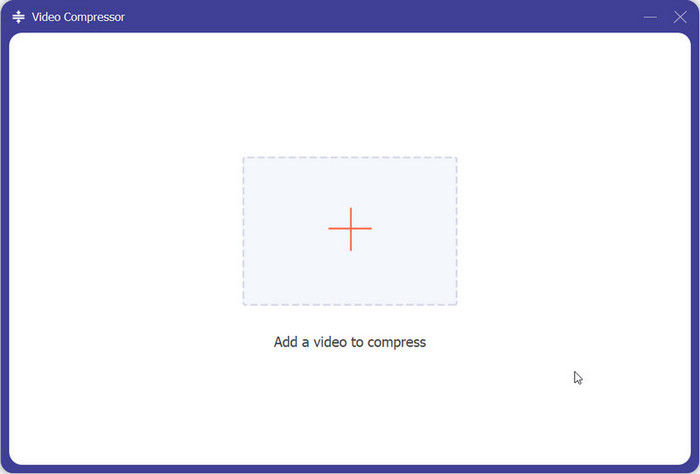
手順2: Video Compressorを開き、画面中央の追加アイコンをクリックします。そこで、用意しておいたMOVファイルをアップロードします。
手順3: [Size]オプションで、目標とするファイルサイズを設定します。ここでは画質を調整するためのオプションもいくつか用意されています。最後にCompressをクリックします。
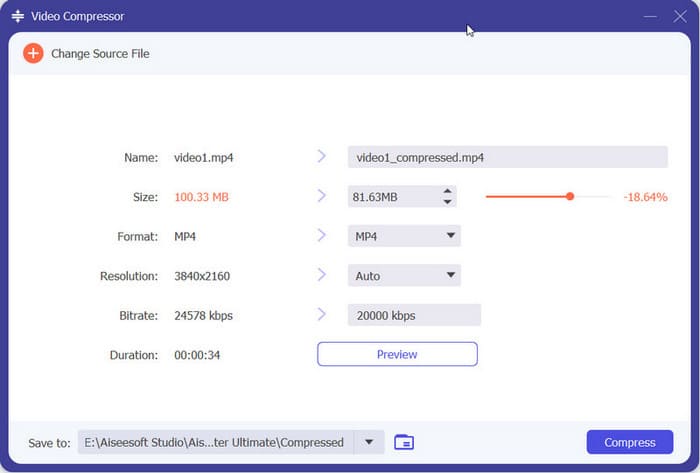
FVC Video Converter Ultimateは非常に使いやすく、MOVファイルのサイズ縮小はたった3ステップで完了します。出力ファイルのサイズを正確に設定できるのは非常に便利で、圧縮率も計算してくれます。ただし、このプラットフォームでは無料トライアルは5回までしか提供されていません。無料トライアル期間終了後は、ファイルの処理を継続するにはサブスクリプションを購入する必要があります。
ハンドブレーキ
完全に無料のデスクトップMOV圧縮ツールをお探しなら、Handbrakeをお試しください。Windows、Mac、Linuxシステムで使用できる、動画の編集、圧縮、変換のためのオープンソースツールです。
Handbrake を使用して MOV ファイルを無料で圧縮する方法は次のとおりです。
手順1: 公式サイトからHandbrakeをダウンロードしてインストールします。起動後、File > Open > Open Sourceをクリックし、圧縮したいMOV動画を選択します。
手順2: Handbrakeでは出力形式がデフォルトでMP4に設定されます。続いてDimensionタブに移動し、Storage Sizeを変更します。

手順3: Videoタブを開き、Video EncoderをH.264に設定します。最後にStartをクリックして圧縮を開始します。
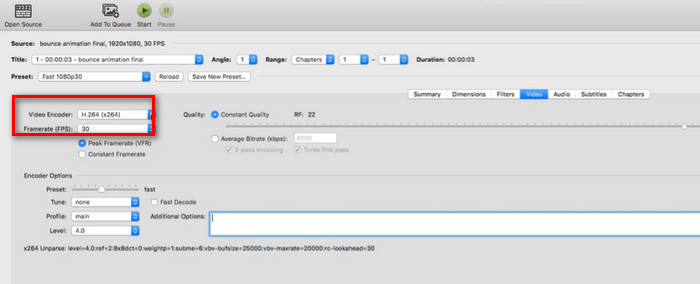
Handbrakeは.movファイルのサイズを縮小するのに完全に無料で、これは嬉しい驚きです。圧縮カスタマイズオプションも豊富です。しかし、Handbrakeのインターフェースは使いにくく、一部の機能ボタンは分かりにくいです。使い慣れていない場合は、チュートリアルに頼るしかありません。また、このプラットフォームは動画のローカルアップロードのみをサポートしており、オンライン動画のインポートはサポートしていません。
VLCメディアプレーヤー
Handbrake以外にも、無料のオープンソースMOV圧縮ツールであるVLC Media Playerがあります。これは、様々な形式の動画や音声の再生やファイル形式の変換によく使用されます。しかし、そのインターフェースにはMOV動画圧縮機能も備わっています。次のパートでは、動画のエンコード要素を変更することで動画ファイルサイズを縮小する方法をご紹介します。
VLC メディア プレーヤーで MOV ファイルを圧縮する方法は次のとおりです。
手順1: パソコンにVLCメディアプレーヤーを用意し、起動します。Media > Convert/Saveをクリックします。
手順2: ファイルメニューが表示されるので、+AddをクリックしてMOV動画を追加します。その後、再度Convert/Saveをクリックします。
手順3: Convertパネルでレンチアイコンをクリックし、Profileオプションに進みます。Profile Editionセクションに移動し、Video codecを選択します。
手順4: ビデオのビットレート、フレームレート、品質を下げます。以上の設定を行うことで、動画サイズは大幅に小さくなります。
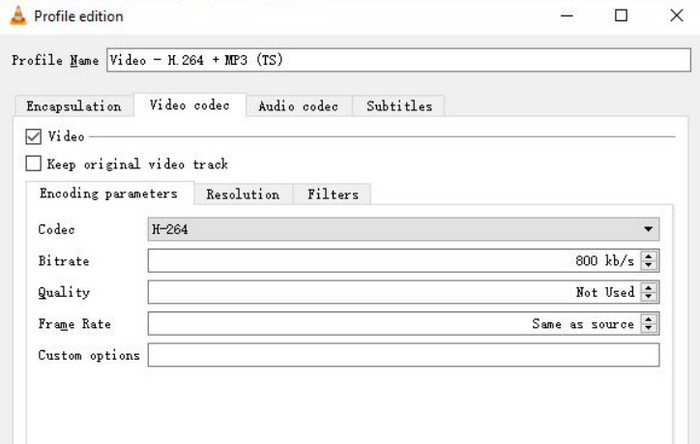
手順5: 保存先フォルダを選択し、Startをクリックします。
VLCメディアプレーヤーにもHandbrakeと同じ問題があります。圧縮されたビデオ用のボタンは見つけにくく、操作手順も複雑です。ワンクリックでタスクを完了するオプションはなく、ビデオパラメータを手動で調整することで間接的に.movファイルを圧縮するしかありません。
パート2. MOVファイルをオンラインで圧縮する方法
上記の手順をお読みいただくと、デスクトップ版の圧縮ソフトを使用する前に、インストールとダウンロードを行う必要があることにお気づきいただけるでしょう。この手順は時間がかかりすぎるだけでなく、インストールパッケージも大量のメモリを消費します。これらの欠点を回避するには、オンラインのMOV圧縮ソフトをいくつか試してみることをお勧めします。
FVC無料ビデオ圧縮
最初におすすめするオンラインコンプレッサーは、FVC Free Video Compressorです。1GBの動画を無料で10MBまで簡単に圧縮でき、処理速度も最大30倍と高速です。このプラットフォームは複数のMOV動画を一括で圧縮することもでき、動画フレームにウォーターマークが入ることもありません。FVC Free Video Compressorのサイトには広告やウイルス、マルウェアがなく、安心して利用できます。
FVC Free Video Compressor を使用して Mac または Windows で MOV ファイルを圧縮する方法を説明します。
手順1: ブラウザでFVC Free Video Compressorオンライン版を開き、Add Files to CompressをクリックしてMOVファイルをアップロードします。ランチャーのインストールを求められる場合があります。
手順2: [Size]で目標のファイルサイズを設定します。解像度やビットレートを変更することもできます。
このプラットフォームでは、MOVをMP4に変換することも可能です。その場合は、Format > MP4を選択するだけです。
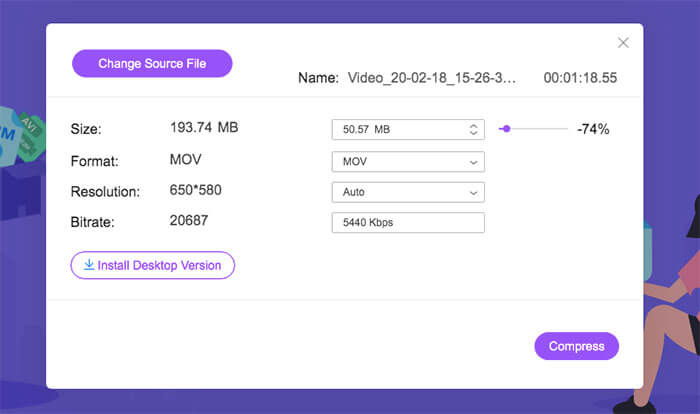
手順3: 最後にCompressをクリックします。
このコンプレッサーは完璧ですが、初めて使用する場合は、適切に使用するためにプラグインのデスクトップ バージョンをダウンロードする必要があるかもしれません。
VEED.IO
2つ目に試せるオンラインMOV圧縮ツールはVEED.IOです。ページデザインはよりモダンなスタイルで、操作インターフェースのボタン配置は標準的な動画編集ソフトのテンプレートに近いものになっています。
VEED.IO を使用して MOV を圧縮する方法は次のとおりです。
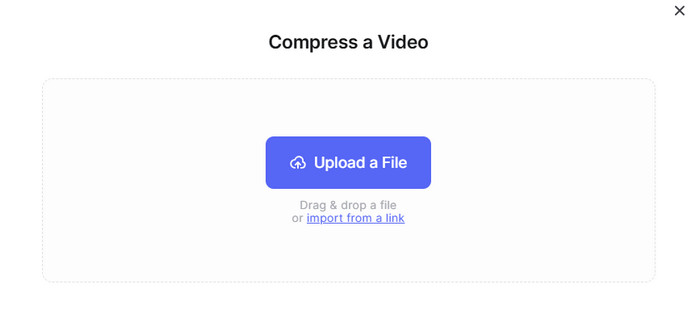
手順1: VEED.IOのオンラインMOVコンプレッサーを起動します。Upload a Fileをクリックして動画を追加します。
手順2: 出力品質と解像度を設定し、Compress Videoをクリックします。
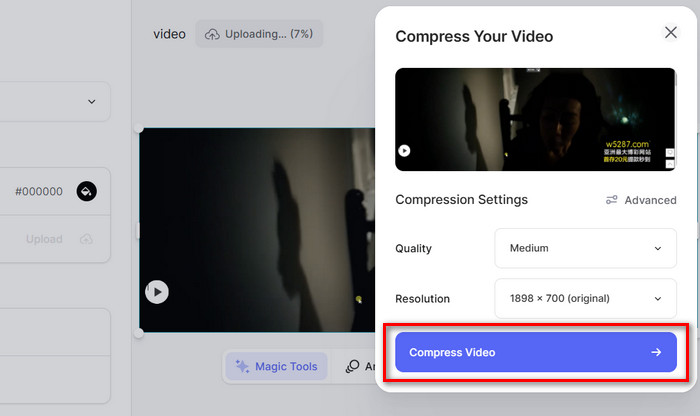
VEED.IOで動画を圧縮する手順は非常に簡単です。しかし、ネットワーク環境はこのプラットフォームのページの読み込みに簡単に影響を及ぼし、動画のアップロードが遅くなることがあります。
XConvert
最後におすすめするツールは、XConvertというオンラインMOV圧縮ツールです。ビットレートと解像度を変更することで、動画のサイズを縮小することも可能です。
このプラットフォームでは、ユーザーはローカルエリアからファイルを選択し、クラウドから圧縮するビデオを追加できます。
XConvert オンライン MOV コンプレッサーの使い方は次のとおりです。
手順1: ブラウザでXConvertのオンラインMOVコンプレッサーサイトを開きます。
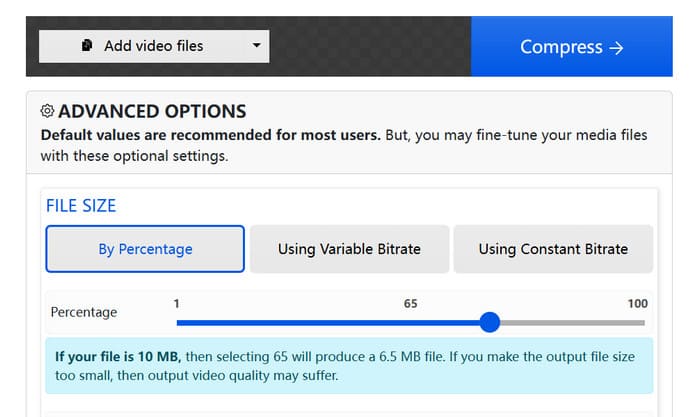
手順2: Add video filesをクリックして元の動画を選択します。圧縮モードは、By Percentage, Using Variable Bitrate、またはUsing Constant Bitrateから選びます。
手順3: 圧縮設定が完了したら、Compressをクリックします。
パート3. MOV圧縮に関するFAQ
.MOV ファイルを MP4 に圧縮するにはどうすればよいですか?
HandbrakeはMOVファイルをMP4ファイルに自動的に圧縮します。FVC Free Video Compressorなどのオンライン圧縮ツールでは、ビデオ出力パラメータを設定する際に、ターゲット形式としてMP4を直接選択することもできます。
ビデオファイルのサイズを縮小するにはどうすればいいですか?
動画の解像度、フレームレート、ビットレートなどを下げる方法があります。不要な部分をカットしたり、より圧縮効率の高い形式へ変換することでも、効果的に動画を圧縮できます。
Mac でビデオを圧縮するにはどうすればいいですか?
iMovie、QuickTime Player、Handbrakeはどれも優れたアシスタントです。この記事で紹介するオンラインツールのいくつかはMacでも使えます。
パート4. 結論
本記事では、MOVを圧縮する方法を詳しく解説しました。デスクトップ向けコンプレッサー3種とオンラインサイト3種を紹介しています。ステップバイステップガイドを参考に、自分の好みに合った方法を選んでください。総合的な性能を比較すると、FVC Video Converter Ultimateが最もコストパフォーマンスに優れていると考えています。
-
 MP4ビデオをより小さなサイズに圧縮する方法
 MP4ビデオはアップロードするには大きすぎますか?ビデオサイズを縮小したいですか? MP4ファイルを無制限に小さいサイズに圧縮する3つの効率的な方法を次に示します。
-
 iPhone / Android /オンラインで電子メール用のビデオを圧縮するためのチュートリアル
 大きすぎるビデオをメールで送信できませんか?この問題が発生した場合は、ここで電子メール用のビデオを圧縮するための実行可能な方法を入手できます。この記事では、大きなビデオファイルを無料で縮小する方法について詳しく説明します。
-
 デスクトップおよびオンライン ユーザー向けのベスト 10 GIF コンプレッサー
 この記事では、大きな GIF ファイルの問題を解決するのに役立つ最高の GIF コンプレッサーについて学びます。それらをチェックして、最良の洞察を得ることができます。
