


 ビデオコンバーター究極
 スクリーンレコーダー
 ビデオ修復
ビデオ修復
 安全なダウンロード
MP4ビデオから透かしを削除する簡単な手順
Mac や Windows などのデバイスで、MP4 動画からウォーターマークをどのように削除すればよいのか分からないという問題に直面していませんか? そんなあなたに、この記事では最適な解決策をご紹介します。映画やクリップなどの動画を見るのが好きな人なら、MP4 動画上に表示されるウォーターマークや不要なオブジェクトが、どれほど邪魔でイライラさせられるものか、共感できるはずです。また、ウォーターマークが画面を覆ってしまい、画面全体をきちんと見られないこともあります。さらに厄介なのは、一部の動画には非常に大きなウォーターマークが表示されていて、お気に入りの動画を心から楽しめないという点です。
ありがたいことに、透かし、ロゴ、テキスト、写真などの不要なオブジェクトをビデオから削除するために使用できる、ビデオ透かし除去機能を備えた素晴らしいソフトウェア アプリケーションが既に存在します。これらのオブジェクトをすばやく消去または削除して、これらのアプリケーションでビデオを見たり再生したりできます。これらのアプリケーションがあれば、イライラしたりいらいらしたりすることはもうありません。次に、このトピックに夢中になっている場合は、この記事を読んで十分な情報を提供し、特に MP4 ビデオの透かしを簡単に削除する必要があります.

パート 1: MP4 ビデオから透かしを削除する最良の方法
MP4 動画からウォーターマークを消すための、最も優れたアプリケーションをお探しなら、Video Converter Ultimate が最適なツールです。このアプリケーションは、ウォーターマーク、ロゴ、テキスト、画像など、動画上の邪魔なオブジェクトを削除することができます。また、保存時に長時間待つ必要もなく、ウォーターマークを消した後は、すばやく動画を保存できます。
さらに、Video Converter Ultimate には、ビデオ エンハンサー、透かしの削除、透かしの追加、ビデオ スピード コントローラー、GIF メーカー、コラージュ メーカー、ビデオおよびオーディオ レコーダー、ビデオ/オーディオ コンプレッサー、さまざまなファイルの変換など、利用できる編集ツールがたくさんあります。 MP4、FLV、MOV、TRP、MTS、M2TS、MKV、AAC、MP3 などの形式。さらに、最良の部分は、このアプリケーションを購入したり購入したりする必要がないことです。無料で操作できます。また、このアプリケーションは非常にシンプルで使いやすいです。 MP4 ビデオの透かしを削除したい場合、Video Converter Ultimate は 2 つの方法を提供します。動画の透かしを消す 2 つの方法については、この記事を読み続けてください。
1.ビデオウォーターマークリムーバーの使用
ステップ1:Video Converter Ultimate の公式サイトにアクセスします。アプリケーションを無料でダウンロードし、そのままインストール作業を行います。
無料ダウンロードWindows 7 以降に対応安全なダウンロード
無料ダウンロードMacOS 10.7 以降に対応安全なダウンロード
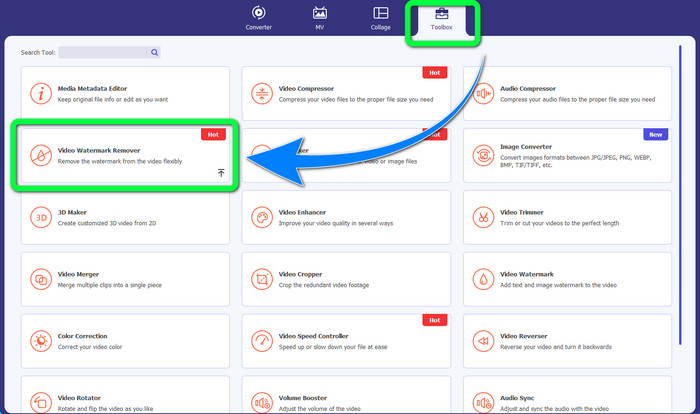
ステップ2:アプリケーションを起動します。ツールボックス > 動画ウォーターマーク除去を選択します。
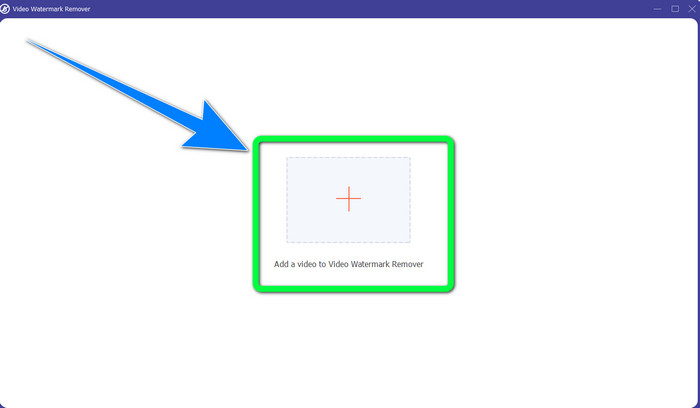
ステップ3:別の画面が表示されます。プラスアイコンをクリックし、ウォーターマーク付きの MP4 動画を追加します。
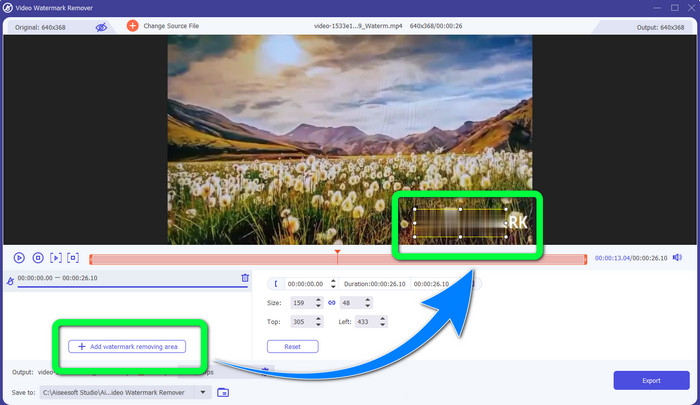
ステップ4:ウォーターマーク除去エリアを追加ボタンをクリックします。すると動画上に小さなボックスが表示されるので、このボックスをドラッグして移動させ、動画上のウォーターマークを覆うように配置します。
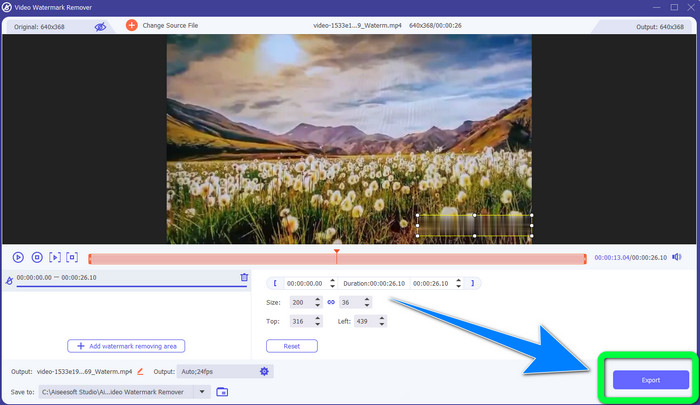
ステップ5:ウォーターマークの除去が完了したら、書き出しボタンをクリックして動画を保存します。これで、ウォーターマークのないお気に入りの映画を、心ゆくまで楽しめます。
2.ビデオクロッパーの使用
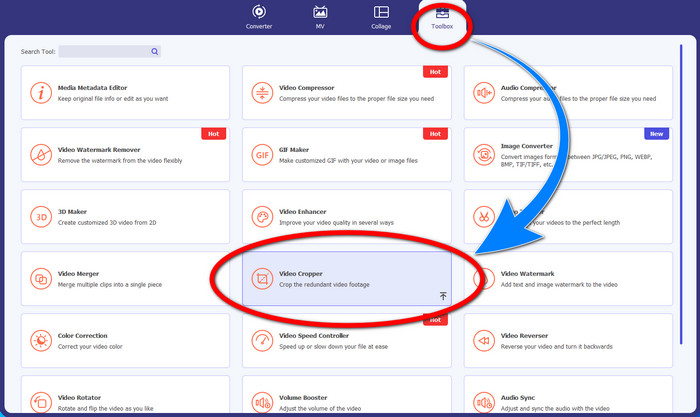
ステップ1:Video Converter Ultimate を起動します。その後、ツールボックス > 動画クロップをクリックします。
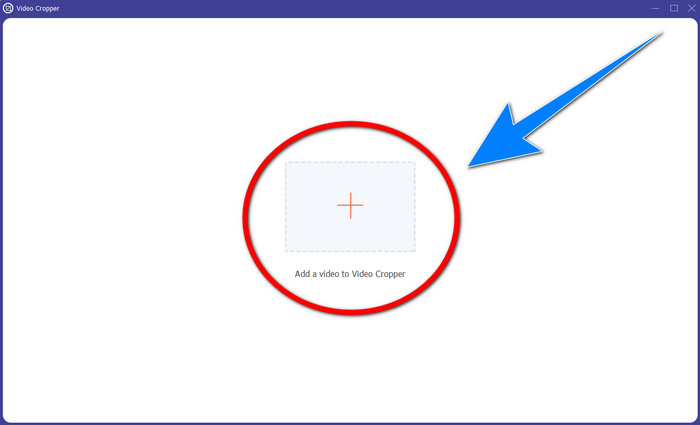
ステップ2:動画クロップをクリックすると、別の画面が表示されます。プラスアイコンをクリックして、ウォーターマーク付きの MP4 動画を追加します。
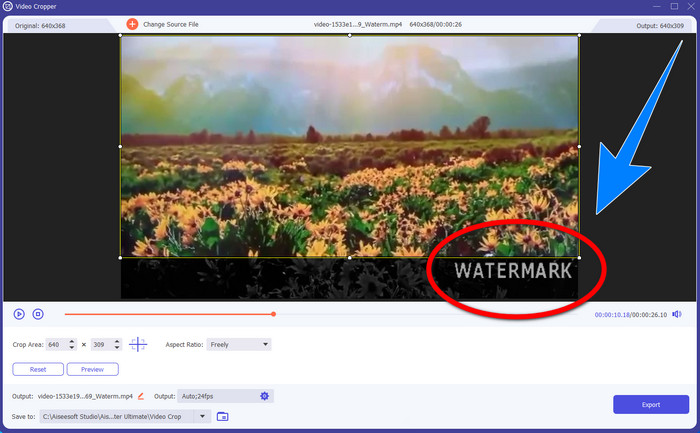
ステップ3:動画の追加が完了したら、MP4 動画をトリミングして、ウォーターマーク部分をカットします。
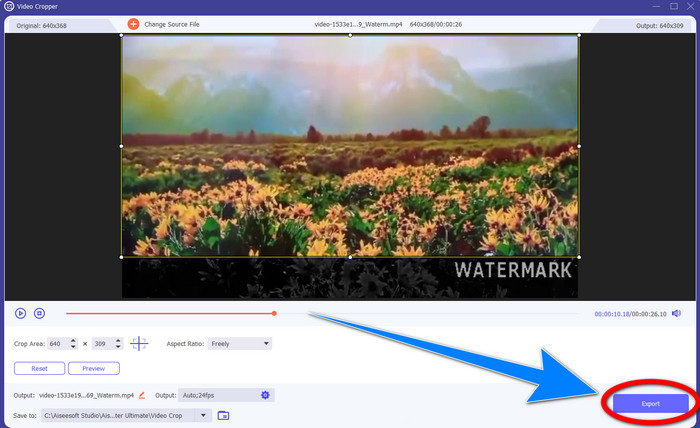
ステップ4:ウォーターマークを消すためのトリミング作業が終わったら、書き出しボタンをクリックして動画を保存します。こうすることで、ウォーターマークのない動画を視聴できます。
パート 2: MP4 ビデオ オンラインから透かしを削除する
MP4 動画からウォーターマークをオンラインで無料で削除できる優れたアプリケーションをお探しですか? それなら、HitPaw Online Watermark Remover にお任せください。さらに、このアプリケーションは完全に無料で利用でき、購入手続きなどは一切不要です。加えて、ウォーターマーク、ロゴ、署名などを回数制限なく削除でき、広告表示もありません。また、操作もシンプルで分かりやすく、初心者でも 3 ステップで動画のウォーターマークを削除できるのが大きな魅力です。
HitPaw オンライン透かしリムーバーは、Windows、Mac、iPhone、Android など、あらゆるデバイスからアクセスできます。このアプリケーションも安全で、動画を表示および編集できるのはあなただけです。ただし、ビデオの透かしを削除すると、その領域がぼやけて邪魔になることがあります.また、保存プロセスが遅いです。オンラインで MP4 ビデオの透かしを削除したい場合は、以下の簡単な手順に従ってください。
ステップ1:HitPaw Online Watermark Remover のサイトにアクセスします。Remove Watermark Now をクリックし、次に Choose File を選択して、ウォーターマーク付きの MP4 動画を追加します。
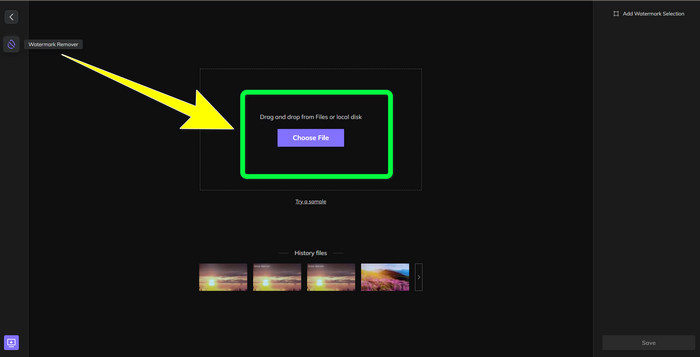
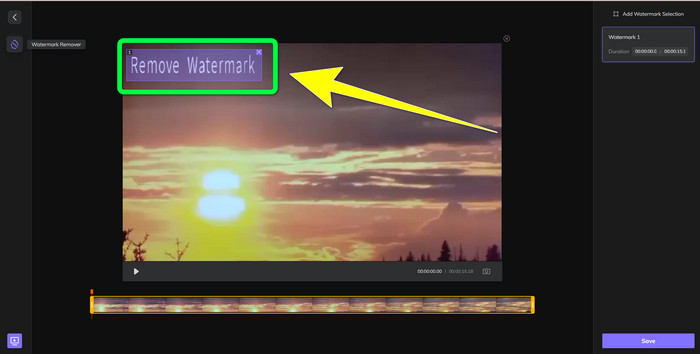
ステップ2:動画を追加すると、動画上に長方形の枠が表示されます。この枠をドラッグして移動させ、ウォーターマーク部分を覆うようにして削除します。
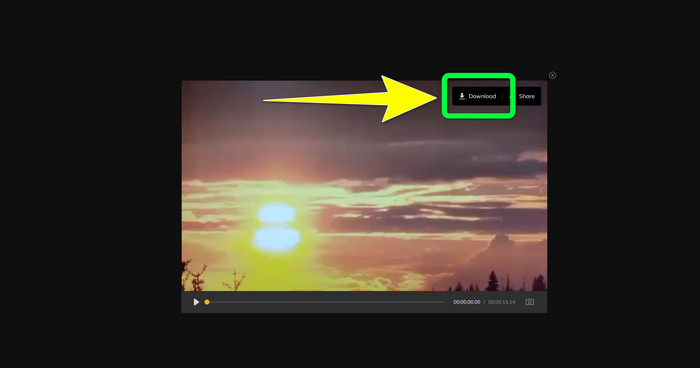
ステップ3:ウォーターマークの削除が終わったら、保存ボタンをクリックします。保存処理が完了するまで待ち、最後にダウンロードボタンをクリックして、動画をデバイスに保存します。
パート 3: MP4 からの透かしの削除に関する FAQ
動画の署名を削除することもできますか?
はい、可能です。Video Converter Ultimate は、動画上の署名を削除することもできます。動画の視聴を妨げるあらゆる不要なオブジェクトを、このアプリケーションを使えば簡単に取り除けます。
MP4 ビデオから透かしを削除するのに時間がかかりますか?
使用しているアプリケーションによって異なります。 MP4 ビデオの透かしを削除したい場合は、Video Converter Ultimate を使用してください。透かしを即座に削除できます。
使用できる最高のビデオ透かし除去ツールは何ですか?
動画のウォーターマークを削除できる信頼性の高いアプリケーションをお探しなら、Video Converter Ultimate は非常に優れたソフトウェアです。ウォーターマークを削除したうえで、画質を落とすことなく動画を保存できます。
HitPaw Online Watermark Remover のトリミング ツールを使用して透かしを削除できますか?
はいぜったいに!動画の透かしを削除したい場合、特に透かしが動画の隅や端にある場合は、このアプリケーションのクロップ ツールを使用することもできます。
透かしを削除する以外に、Video Converter Ultimate を使用してビデオに透かしを追加することはできますか?
絶対そうです! Video Converter Ultimate は、ビデオの透かしを削除するだけではありません。このアプリケーションは、特にテキスト、ロゴ、署名などを入れたい場合に、動画に透かしを追加することもできます。
結論
上で説明したように、Video Converter Ultimate を使えば、MP4 動画からウォーターマークを簡単に削除できます。さらに、本記事では、オンラインで MP4 動画から不要なオブジェクトを取り除くために利用できるソフトウェアもいくつか紹介しました。
-
 動画やプロジェクトの Filmora 透かしを無料で削除する方法
 Filmoraの透かしを削除するには?この質問はウェブ上で出回っています。ここでは、使用できるさまざまなアプローチをリストします。
-
 動画から Adobe Stock 透かしを削除する最も簡単な方法 [チュートリアル]
 Adobe Stock の透かしに問題がありますか?これを読んで、ビデオから Adobe Stock 透かしを削除する方法を学びましょう。
-
 プロの方法でビデオから透かしを削除する 5 つの方法
 ビデオから透かしを削除して、プロフェッショナルに見せる必要がありますか?それを行う方法についてのチュートリアルを追加するので、この記事を読んでください!
