


 ビデオコンバーター究極
 スクリーンレコーダー
 ビデオ修復
ビデオ修復
 安全なダウンロード
チュートリアルで最高のM4Aボイスレコーダーについてもっと知る
M4A は、MPEG-4 Audio とも呼ばれる特定の形式で、音声のみを保存するためのファイル名拡張子です。インターネット経由で大量の音楽をダウンロードするのが好きなオンラインユーザーにとって、とても良い選択肢と言えます。大量のデータ通信量を消費して時間を無駄にする代わりに、MP3 と同等の音質を保ったまま、このダウンロード済みの音声形式を楽しむことができます。ただ、今はいろいろと疑問に思っていることも多いはずです。以下の解説を読めば、頭の中を整理し、M4A 形式に対応した音声録音が行える最適なM4A ボイスレコーダーと、その使用手順を知ることができます。

パート1。WindowsとMac用の最高のオンラインM4Aレコーダー
FVC無料オーディオレコーダー
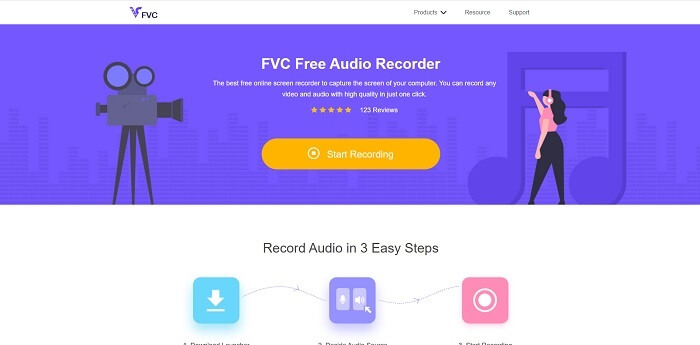
インターネット上で無料で使えるツールが、FVC Free Audio Recorder です。この優れたオンライン音声レコーダーは、インターネット接続さえあればどこからでも録音できるようユーザーをサポートします。さまざまなオペレーティングシステムで、制限や時間制約なく録音することが可能です。PC のシステムサウンド、マイクからの音声入力、さらには両方を同時に録音することもできます。ツールについてさらに詳しく知るために、以下に使い方の手順を紹介します。
手順 1. このリンクを開き、ツールの公式サイトにアクセスします。
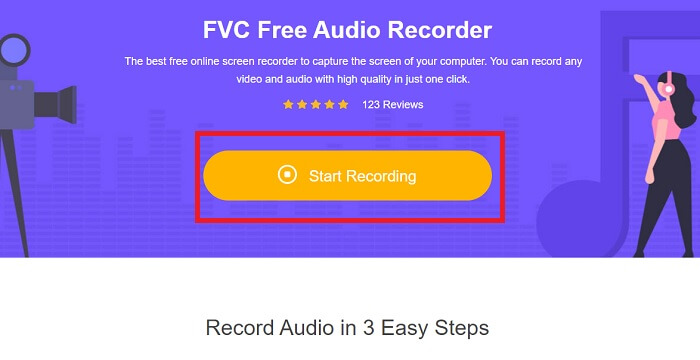
手順 2. Start Recording をクリックしてツールを起動します。
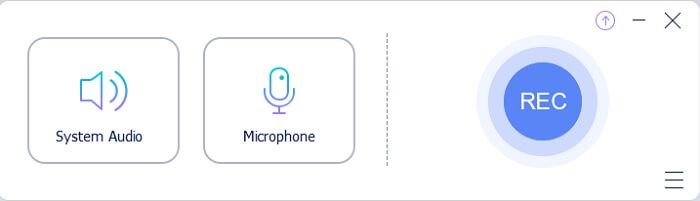
手順 3. このようなツールバーが画面に表示されます。
手順 4. Speaker と Microphone をオンにして音声入力を追加します。録音を開始するには、丸いボタンをクリックします。
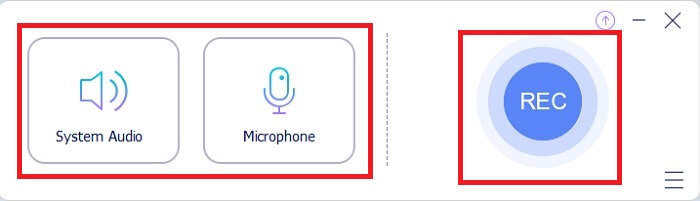
手順 5. 録音が終了したら、四角ボタンをクリックして停止します。録音ファイルは自動的に PC に保存されます。
パート2。WindowsとMac用の他の7つの代替M4Aレコーダー
1.FVCスクリーンレコーダー
録音中にもっとやりたい場合は、このツールが最適です。 FVC Screen Recorderは、ユーザーがオーディオ、ビデオ、ゲームプレイなどを最高の状態でキャプチャできるようにする多機能ツールです。 M4Aをサポートするはるかに優れたバージョンについて話す場合は、これが最適です。この有料ツールは、画面の記録だけでなく、M4Aファイル形式を生成できるオーディオレコーダーも使用します。それだけでなく、それはあなたが考えるかもしれないさまざまなプラットフォームをサポートします。したがって、プラットフォームを変更しても心配はいりません。引き続きこれを使用できます。それは彼らの理想的なスクリーンレコーダーとしてウェブ上で複数のユーザーによって選ばれます。このツールの使用方法について詳しく知るには、オーディオ録音の旅をガイドする手順に進む必要があります。
手順 1. まず、ツールをダウンロードする際に、自分が現在使用しているプラットフォームを選択します。ダウンロード後、ブラウザ画面の左下あたりに表示されるインストーラを開いてインストールします。ニーズに合わせて環境設定を調整し、Finish をクリックしてツールを起動します。
無料ダウンロードWindows 7以降に対応安全なダウンロード
無料ダウンロードMacOS 10.7以降に対応安全なダウンロード
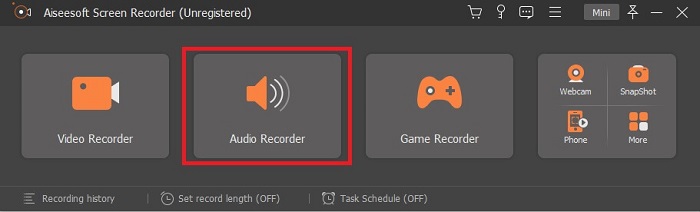
手順 2. このようなツールバーが画面に表示されます。Audio Recorder をクリックして次に進みます。
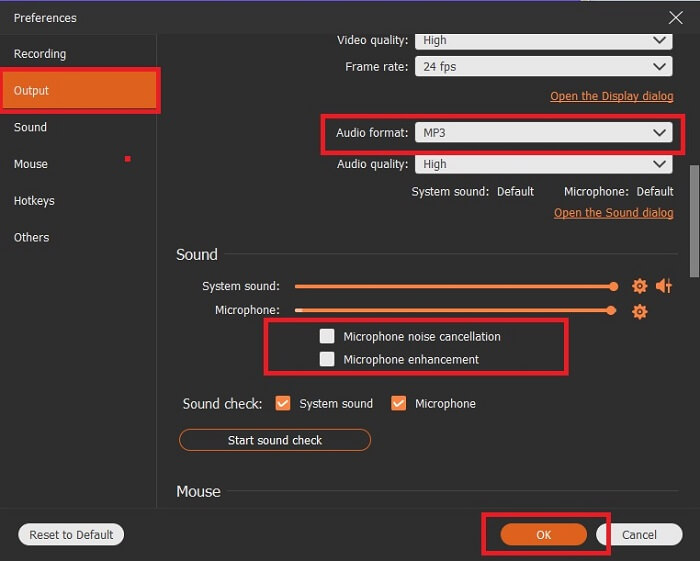
手順 3. ツールバー上に歯車アイコンが表示されるので、それをクリックします。録音の Output と SoundSettings を調整します。完了したら OK をクリックして次の手順に進みます。
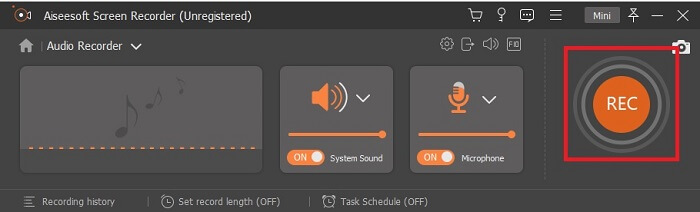
手順 4. Speaker をオンにしてシステム音声を追加し、Microphone をクリックして自分の声を追加します。この手順が終わったら、ディスク型のボタンをクリックして録音を開始します。Step 4. Turn On the Speaker to add the audio sound and click the Microphone to add your voice. If this step is finished, click the disk-shaped button to start.
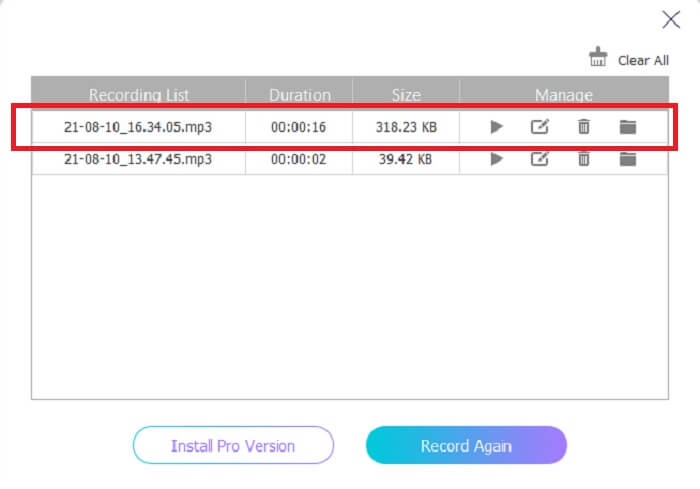
手順 5. 録音が終わったら、四角いボタンをクリックして停止し、Save ボタンをクリックしてから Next を押して録音ファイルを出力します。その後、最新の録音から古い録音までの一覧が画面に表示されますので、最初の録音をクリックして、自分が作成した出力形式を楽しみましょう。

2.大胆さ
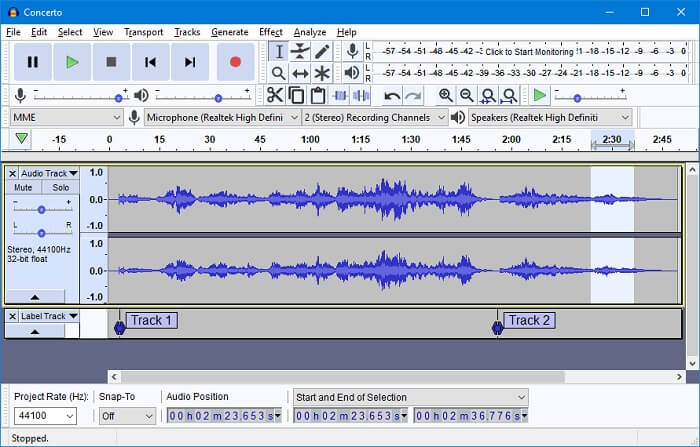
使用できるオーディオレコーダーの1つはAudacityです。ユーザーがオーディオ録音を行えるようにする無料のオープンソースのダウンロード可能なツール。一部のユーザーは、その可用性と仕事のためにオーディオレコーダーとしてこれを選択します。しかし、これはトップ10の最高のオーディオレコーダーに簡単に入れることができます。プログラムには、ミキシング機能の選択肢が限られています。
長所
- 無料でオープンソース。
- それを機能させるために大量のRAMを必要としません。
- 基本的な編集を提供します。
短所
- 基本的な編集を提供します。
- UIはユーザーにとって目を引くものではありません。
3.ワボサウルス
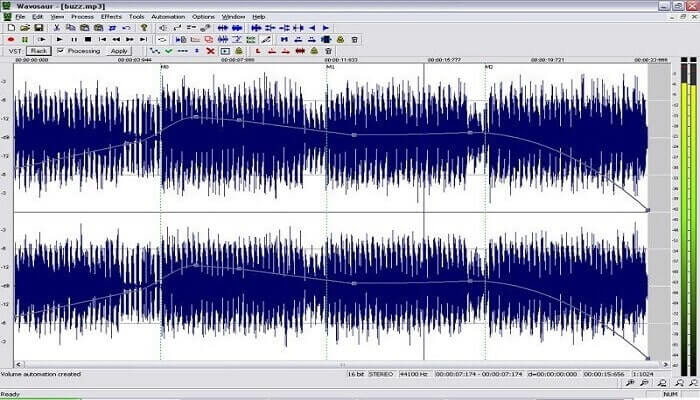
もし Audacity が M4A 用のオーディオレコーダーとして第一候補でない場合は、Wavosaur を使うのも良いでしょう。編集やミキシングなど、さまざまな作業に対応しており、複雑な楽曲アレンジにも利用できます。ユーザーインターフェースはやや古く見えますが、オーディオレコーダーとしては依然として十分に高機能です。
長所
- やり直し機能が追加されました。
- 無料のサウンドエディタ。
- 非破壊オーディオ編集。
短所
- それはあなたのコンピュータに害を及ぼす可能性のある.exeを持っています。
- Windows以外のすべてのプラットフォームで使用できるわけではありません。
4.オーディオブー
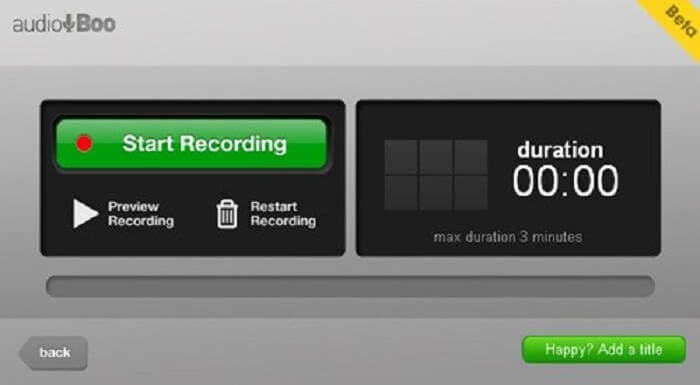
ユーザーが約3分間録音できるモバイルおよびWebベースのプラットフォーム。短いサウンドクリップを録音しようとしている場合は、ツールを使用する必要があります。 AudioBooの新しい名前はAudioBoo 2であるため、ツールをダウンロードする場合は、古いバージョンをアンインストールして、新しいバージョンをインストールする必要があります。
長所
- ツールに広告はありません。
- それは主要なオーディオフォーマットを作り出すことができます。
- オーディオの品質は大丈夫です。
短所
- 限定録音。
- このツールは、名前がAudiobook 2に変更されているため、どこにも見つかりません。
5.ウェーブパッド
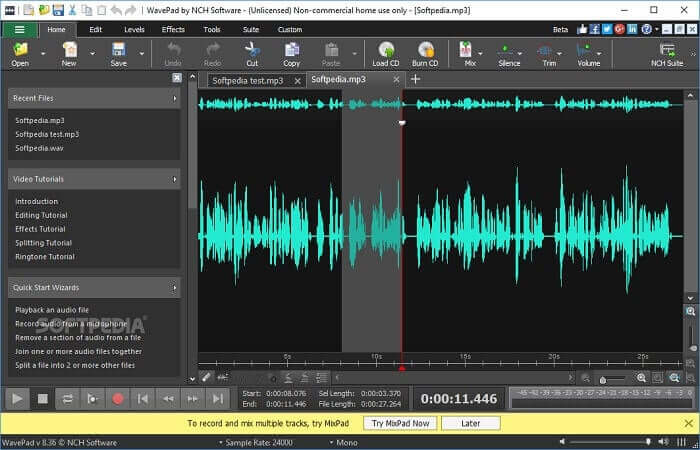
ユーザーが録音に特殊効果を追加できるようにするツール。上下にパンしたり、録音のテンポを変えたりしたことで、Wavepadが人気を博しました。オーディオ編集機能はそこで利用できますが、機能と使用方法を理解できない場合は、編集ツールの使用方法に関するビデオも提供されます。
長所
- 新規ユーザー向けの使いやすいツール。
- 録音した音声をトリミングし、挿入することで別の音声ファイルに変更することができます。
- 複数のメディアプラットフォームでナレーションを行うこともできます。
短所
- 商業広告として使用することはできません。基本的には無料ではありませんが、無料版があります。
- 単一のオーディオ録音トラックとしてのみ機能します。
6. AdobeAudition
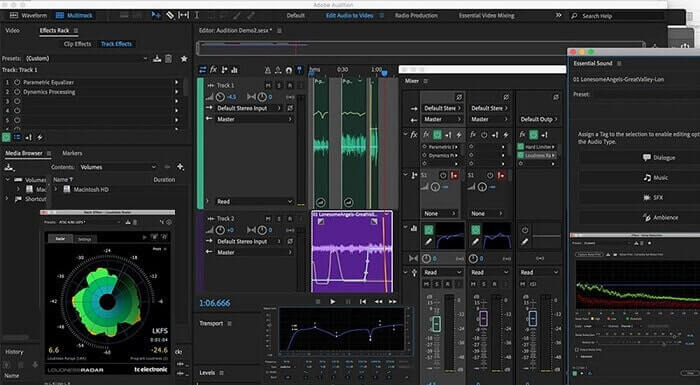
アドビがユーザーに提供できる主なオーディオ録音は、AdobeAuditionです。ポッドキャスティングで人気のある破壊的および非破壊的なオーディオ編集ツールがあります。あなたが基準を満たすプロのコンテンツを探しているなら、これはあなたのためです。また、アドビがツールに提供する専用のサポートのため。
長所
- オーディオをよくミックスします。
- ノイズキャンセリング機能。
- さまざまな編集セクション。
短所
- 音楽制作ツールはありません。
- 他のアドビソフトウェアよりも高すぎます。
7. Mixcraft 9
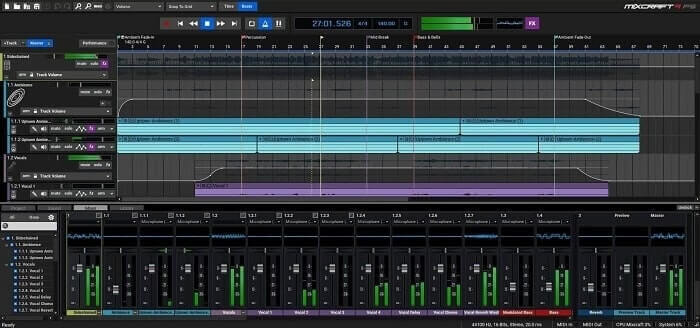
Acousticaによって開発された独自のツールはMixcraft9です。Web上で利用可能な音楽制作用の最高のオーディオレコーダーの1つです。このツールは、さまざまな機能、楽器、およびエフェクトを提供します。また、ピアノロールエディターやその他のオプションもあります。音楽を制作するためのオーディオ録音を探しているなら、これは別の選択肢です。
長所
- 最高の音楽制作。
- これには、ほとんどすべてのインストゥルメントとプラグインが含まれています。
- 軽量インターフェース。
短所
- ダークインターフェイス。そのため、一部のツールは読み取れません。
- 圧倒的な選択肢があるため、初心者には最適ではありません。
パート3。比較チャート
| ツールの機能 | FVC無料オーディオレコーダー | FVCスクリーンレコーダー | 大胆さ | ワボサウルス | オーディオブー | ウェーブパッド | Adobe Audition | Mixcraft 9 |
| 録音 |  | | | | | | | |
| 編集ツール |  | | | | | | | |
| ノイズキャンセル | | | | | | | | |
| 利用可能なフォーマット | MP3およびM4A | MP3、WMA、AAC、M4A、FLAC、OGG、Opusなど。 | WAV、AIFF、およびMP3 | WAVとMP3 | MP3 | AAC、M4A、MP4、DCT | AC-3、M4A、MAT、VOX、W64、WAV、その他多数 | WMVとAVI |
パート4。M4Aレコーダーに関するFAQ
なぜAndroidレコーダーはM4Aファイルを使用しているのですか?
すべてのAndroidレコーダーは、mp3よりも圧縮率が高いため、.m4aファイルを使用します。 LG、HuaweiなどのAndroidモバイルデバイス。しかし、すべてのアンドロイドがこのタイプのファイル形式を使用しているわけではありません。
M4Aを別のオーディオ形式に変換できますか?どのように変換すればよいですか?
M4A オーディオファイルを変換するには、このM4A Converter を使い、好みの音声形式を選択できます。リンクを開き、ツールのランチャーをクリックして起動し、MP3 など、希望する音声形式を選択します。
AndroidミュージックライブラリでM4Aファイルを再生できないのはなぜですか?
M4A オーディオファイルを再生できない主な理由は、もともとの音楽プレーヤーがこの形式に対応していないためです。ただし、ほかのM4A プレーヤーを利用することで再生可能になります。
結論
上記の詳細を要約すると、すべてのM4Aボイスレコーダーにはオーディオレコーダーとしての独自の機能があります。それらのいくつかはM4A形式を生成し、いくつかは生成しません。しかし、結局のところ、使用しなければならない最高のレコーダーを選択する必要があります。ユーザーとして必要のない多くのオプションを提供する複雑なツールを選択した場合、それはあなたにとって苦痛になり始めるからです。しかし、同じオーディオ形式を生成する簡単な録音方法を選択した場合は、それを再考する可能性があります。
FVC Screen Recorder は、現在も将来も使用できる多目的録画ツールです。このツール自体は決して複雑ではありませんが、生成される音声は他のソフトと同等のクオリティを実現できます。難しく考えて作業を複雑にするよりも、このツールを活用してみてはいかがでしょうか。言わば、他のツールに対する“裏ワザ”的な存在です。ですから、自分にとって最適なツールを選ぶなら、その「最適解」はFVC Screen Recorderだと言えるでしょう。
-
 WindowsとMac用のトップ5の最高のマウスとキーボードレコーダー
 これは、マウスの動きとキーボードのクリックを保存し、イベントを繰り返すことができる、マウスとキーボードのレコーダープログラムのトップ5です。
-
 スクリーンビデオをAVIファイルとしてキャプチャするためのトップ4の無料AVIスクリーンレコーダー
 高品質のAVIファイルに画面を記録するために、この記事では、この投稿で上位4つの無料のAVIスクリーンレコーダーを特定して共有しました。それに応じて目的のものを見つけるために詳細を学びます。
-
 アクション!スクリーンレコーダーのレビュー–短所、長所、およびその最良の代替案
 Action Screen Recorderは、ゲームプレイビデオをキャプチャするための望ましいゲームレコーディングソフトウェアですか?レビューから詳細を学び、記事からその代替案を学びましょう。
