


 ビデオコンバーター究極
 スクリーンレコーダー
 ビデオ修復
ビデオ修復MP4ビデオの速度を落とす方法に関するさまざまなプラクティスを利用して知識を強化する
モンタージュは、テーマ的に関連する映像の断片をつなぎ合わせて、ひとつの連続したショットとして見せる映画編集技法です。モンタージュを使うことで、監督、フィルム編集者、映像・音響技術者は、作品の各パートを切り貼りしながら組み立てていくことができます。モンタージュの中には、この過程を実現するためにスローモーション映像を用いるものもあります。このようなシネマティックなシーンを作り出すには、MP4 はもちろん、MOV や AVI など、さまざまな形式の動画をスローダウンする方法を学ぶ必要があります。本記事では、この問題を解決するために、モンタージュの作り方、つまり動画をスローにする方法について、いくつかのトピックに分けて解説します。

パート1。なぜビデオの速度を落とす必要があるのですか?
あなたが見ている映画のいくつかがスローモーションを持っているのはなぜだろうと思ったことはありませんか?特に映画のシーンに何らかのアクションとトランジションが実装されている場合、常にハイライトされるアクトの表示です。そして、あなたはアクション映画のファンなので、お気に入りのアクション映画を再現したいのですが、映画のアクションインパクトを実現するには、いくつかのシーンの再生速度を遅くする必要がありますが、達成する方法がわかりませんこの仕事。
パート2。MP4ビデオを遅くするための最良のツール
ウェブツールやソフトウェアには、MP4 をスローダウンするなど、動画編集ができるものが多数ありますが、その中でも、希望どおりのカスタマイズ動画を作るのに最適なツールとソフトを厳選して紹介します。中にはパソコンにダウンロード・インストールが必要なものもあれば、メールアドレスを登録するだけで、ブラウザ上で編集を始められるものもあります。
方法1.Video ConverterUltimateを使用する
Video Converter Ultimate は、無料でダウンロードでき、動画を永久的にスローダウンできるソフトウェアです。このソフトが備える機能のひとつとして、動画の再生速度を簡単な操作で速くしたり遅くしたりできます。速度調整機能に加え、このソフトには、トリミング、逆再生、結合、編集、コラージュ作成など、動画を理想の形に近づけるためのさまざまな機能が搭載されています。さらに、搭載されているすべてのツールは、初心者から上級者まで扱いやすい設計になっています。以下の手順に従えば、望みどおりの速度調整を行えます。
ステップ 1: まずは無料ダウンロードボタンをクリックして、パソコンへのダウンロードを開始します。その後、ソフトをインストールし、システム環境に合わせて設定します。
無料ダウンロードWindows 7 以降に対応安全なダウンロード
無料ダウンロードMacOS 10.7 以降に対応安全なダウンロード
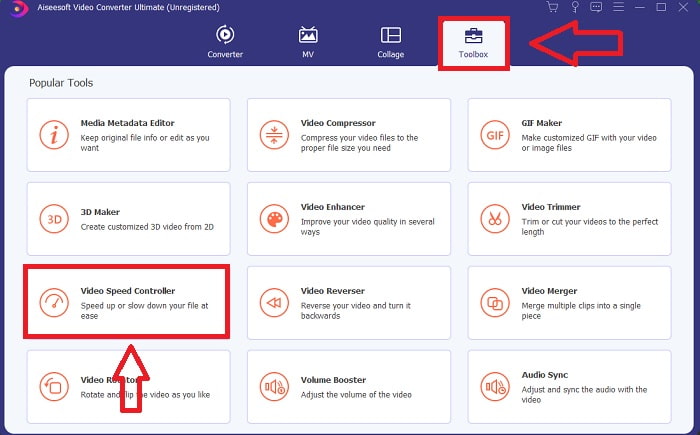
ステップ 2: インストールが完了したらソフトを起動し、メニューバーからツールボックスを選択し、表示された一覧から動画スピード管理をクリックします。
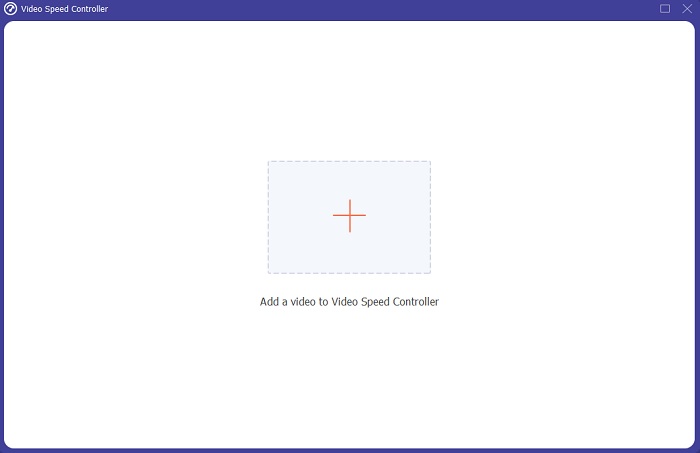
ステップ 3: +ボタンをクリックして任意のファイルを追加し、動画クリップを読み込みます。
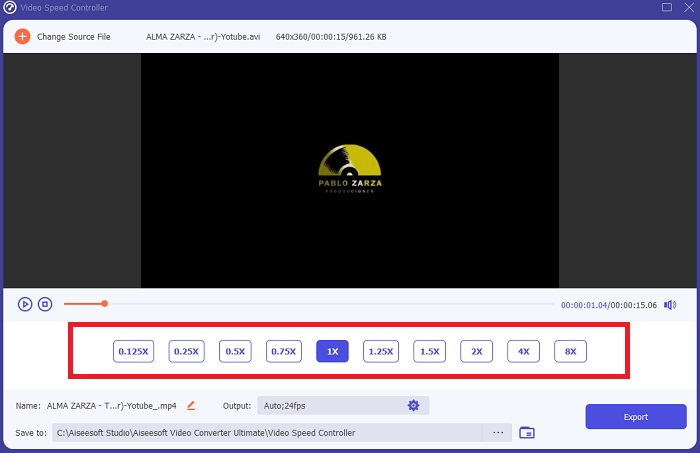
ステップ 4: 再生速度の項目を調整して、動画の再生スピードを変更します。
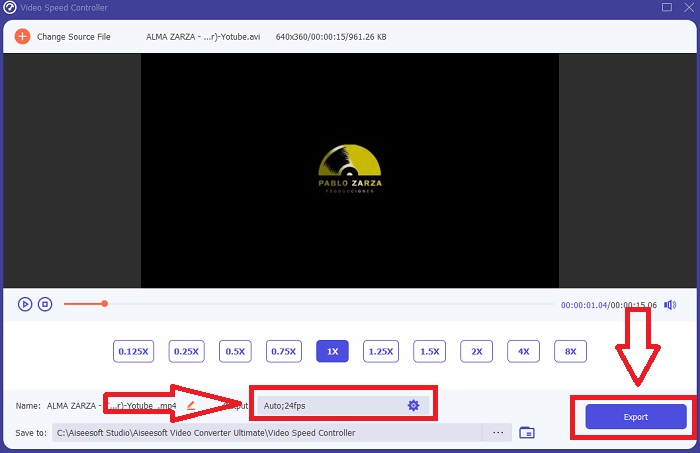
ステップ 5: 動画クリップの再生速度を変更したら、書き出し形式、解像度、画質などを選択します。その後、出力(Export)をクリックし、保存先フォルダーを指定してファイルを保存します。
方法2.InVideoを使用する
SNS やウェブサイト向けの動画を作成・共有する際、InVideo はあらゆる規模のビジネスに適した、ブラウザベースの動画編集ツールです。Storyblocks や Shutterstock などのオンライン素材サイトと連携した、画像・動画のコンテンツライブラリも備えており、アプリ内で利用できます。InVideo を利用するには、まずメールアドレスを入力してアカウントを作成する必要があります(この記事で前述したツールとはこの点が異なります)。このウェブツールには、動画を自由にカスタマイズできる豊富なテンプレートが用意されています。多彩な機能により、プロ並みの編集技術を身につけることも可能です。その機能のひとつとして、MP4 動画を簡単にスローダウンできます。以下の手順で操作します。
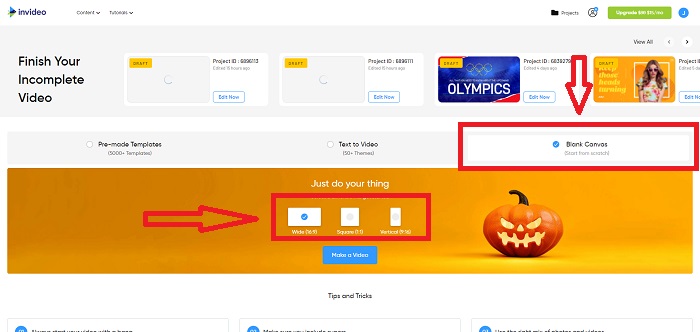
ステップ 1: まずウェブツール上でアカウントを作成し、利用を開始します。次に、使用したいテンプレートを選択します。インターフェース左側のアップロードボタンをクリックし、動画ファイルのアップロードを開始します。
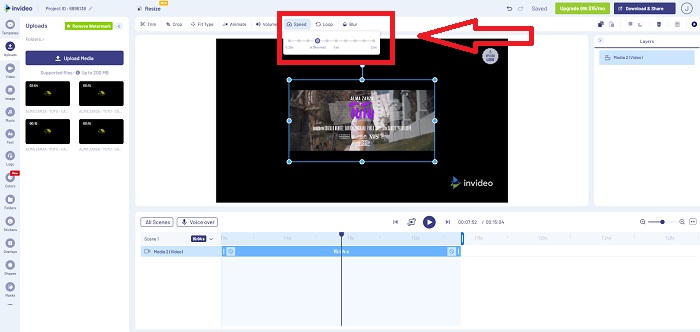
ステップ 2: 動画クリップの再生速度を編集するには、インターフェース右上のSpeedタブをクリックし、タイムライン上のトラックにドラッグします。続いてスライダーをドラッグして、動画クリップの再生速度を上げたり下げたりします。
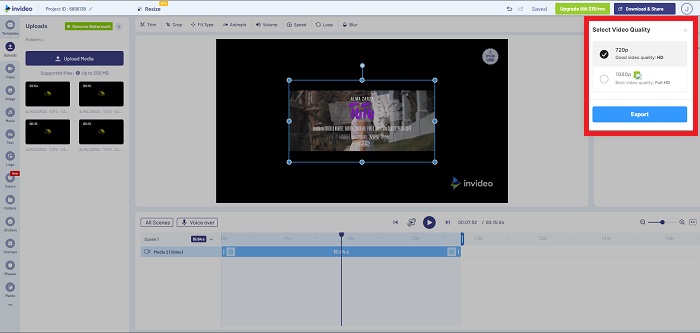
ステップ 3: 編集が完了したら、Download & Shareをクリックし、必要に応じてプレミアム版をアンロックすると、より高品質な結果を得られます。
方法3。VLCメディアプレーヤー
VLC(Video Lan Client)は無料で利用できるため、Windows と Mac でもっとも広く使われているメディアプレーヤーのひとつです。柔軟性が高く、高画質な動画はもちろん、360 度動画や圧縮形式の動画ファイルなど、さまざまなクリップを再生できます。ただし、広く利用されている一方で、不具合が生じることもあります。また、このメディアプレーヤーを使えば、MP4 ファイルを簡単な手順でスローダウンすることも可能です。以下に、その機能の詳細を説明します。
ステップ 1: まず、メニューの[メディア]タブからファイルを追加し、「ファイルを開く」をクリックします。
![[メディア]タブを開く](/images/2021/10/open-media-tab.jpg)
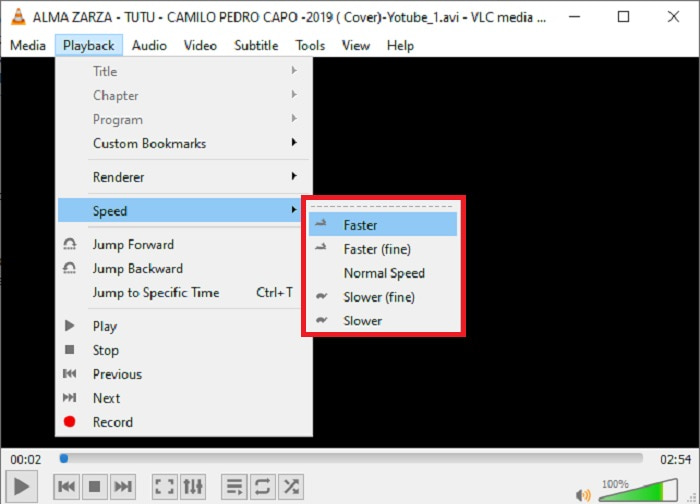
ステップ 2: 次に、再生タブを選び、続いて速度の項目をクリックします。
![[再生]タブをクリックします](/images/2021/10/click-playback-tab.jpg)
ステップ 3: ここで、利用したい再生速度を選択できます。動画ファイルの再生速度を遅くしたい場合は、より遅く(細かく)またはより遅くをクリックし、速くしたい場合は、より速く(細かく)またはより速くをクリックします。
関連記事:
パート3。MP4ビデオの速度低下に関するFAQ
速度を落とすとビデオの品質が低下しますか?
いいえ、ビデオの再生速度を上げるのと同じです。ビデオの速度を落としても、ビデオの品質が低下することはありません。何らかの理由で、ビデオの再生速度を下げた後に一部のビデオが少しグリッチになるのは、ビデオの品質がすでに鈍くて低いためです。また、ビデオクリップの再生速度を遅くするために強めると、フレームレートが半分に分割され、遅延が発生して品質が低下します。
ビデオをオフラインで遅くすることはできますか?
ビデオの速度を落としたり、速度を落としたりするのに完璧に動作するソフトウェアがあります。 Video Converter Ultimateは、さまざまな観点からビデオを改善および強化するために作成されたソフトウェアです。さらに、その目的のために、無料でダウンロードでき、幅広いユーザーがアクセスできます。
ビデオの速度を落とす方が良いですか?オフラインまたはオンライン?
ビデオの速度を落とすためのオンラインの手順のいくつかには、オフラインで使用するよりも複雑にする多くのプロセスがあります。ほとんどのソフトウェアは無料でダウンロードできるので、オフラインでビデオの速度を落とすと便利です。
結論
まとめると、現在多くのメディアプレーヤーが MP4 形式に対応しているため、本記事で紹介したウェブツールやソフトを使えば、MP4 をスローダウンすることは非常に簡単になっています。動画のポテンシャルを最大限に引き出したいなら、Video Converter Ultimateをダウンロードしてみてください。単に再生速度を落とすだけでなく、このソフトを使えば動画をワンランク上の仕上がりにすることができます。豊富な機能を活用すれば、自分自身をプロの動画編集者と呼べるほどの編集が可能になるでしょう。
-
 MP4ビデオを簡単にM4Vに変えるための4つの最高のMP4からM4Vへのコンバーター
 MP4からM4Vファイルに変更する必要がある場合は、2つの形式の違いと、最高のMP4からM4Vへのコンバーターについての詳細を記事から学ぶ必要があります。
-
 AMVコンバーター– Win / MacでMP4をAMVに変換する3つの最良の方法
 ビデオをAmineミュージックビデオに変換するのに最適なMP4からAMVへのコンバーターは何ですか。記事から、目的のビデオを簡単に取得するための3つの最も効率的な方法について詳しく学ぶことができます。
-
 WebMからMP4へ| WebMをMP4に無料で変換(オンラインおよびデスクトップ)
 WebブラウザなしでWebMファイルを視聴する方法は? WebMをMP4に変換する必要があります。これは、オンラインおよびMacとWindowsコンピューターでWebMをMP4に変更するための無料のWebMからMP4へのコンバータートップ10です。
