


 ビデオコンバーター究極
 スクリーンレコーダー
 ビデオ修復
ビデオ修復
 安全なダウンロード
他のオーディオ形式を MP4 ビデオ形式に変換する方法
オーディオ作品にスパイスを加え、視覚的なエッジを与える方法を考えたことはありますか?そこで役立つのがオーディオからビデオへの変換です。重要なのは、優れたオーディオ コンテンツを人目を引くビジュアルと組み合わせることで、次のレベルに引き上げることです。これを想像してみてください。あなたは、世界と共有したい素晴らしいポッドキャスト、素晴らしい音楽トラック、さらには並外れたサウンド レコーディングを持っているとします。それらをビデオに変換すると、まったく新しい可能性の世界が広がります。コンテンツをより魅力的なものにするだけでなく、視聴者のリーチも拡大します。
具体例を挙げて、この“マジック”を説明してみましょう。つまり、OGG から MP4 への変換です。手元にある OGG オーディオファイルを、ダイナミックな MP4 動画に変換したい、ということがあるかもしれません。そうすることで、魅力的なビデオクリップやスライドショーを作成したり、音楽にビジュアル要素を加えて、驚くようなオーディオビジュアル体験を実現できます。このあと、あなたの創造力を解き放ち、コンテンツを新たな高みへと引き上げるためのすばらしいツールをご紹介しますので、ぜひ最後までご覧ください!

パート 1. オーディオを MP4 に変換する必要がある理由
オーディオを MP4 に変換することは、コンテンツ全体の魅力と影響力を高めるための重要なステップです。オーディオにビジュアルを追加すると、視聴者にとってより没入感のある体験が生まれます。考えてみてください。魅力的なビデオは、誰かの注意を長く引きつけ、普通の音声では真似できない方法で感情を伝えることができます。コンテンツ クリエーター、ミュージシャン、ポッドキャスターのいずれであっても、オーディオから MP4 への変換を利用すると、視聴者をより深いレベルで引き込む可能性の世界が広がります。
さらに、オーディオを MP4 形式に変換すると、さまざまなデバイスやプラットフォーム間での幅広い互換性が保証されます。 MP4 は広くサポートされているビデオ形式であるため、ビデオ コンテンツは互換性の問題なく幅広い視聴者に届けることができます。ソーシャル メディア プラットフォームから Web サイト、ビデオ共有プラットフォームに至るまで、MP4 ビデオは簡単に共有でき、スマートフォン、タブレット、コンピュータなどでアクセスできます。したがって、リーチを拡大し、オーディオ コンテンツで永続的な印象を残したいと考えている場合、今日のデジタル時代において、オーディオから MP4 への変換に踏み出すことは、間違いなく採用する価値のあるニーズです。
パート 2. オーディオを MP4 に変換する 5 つの方法
1.ビデオコンバーターアルティメット
オーディオ表現をもっとレベルアップさせて、その音源を魅惑的な動画に変換したいとお考えですか?それなら、もう探す必要はありません。Video Converter Ultimate こそ、あなたが探し求めていた究極の音声から動画へのコンバーターです。このアプリの真骨頂は、シームレスな変換です。MP3、OGG、さらには WAV など、あらゆるオーディオファイルを取り込み、目を引く MP4 動画へと変換できます。しかも、これだけでは終わりません! この強力なツールは、音声から動画への変換にとどまりません。さまざまな形式を自在に扱える万能選手なのです。動画から動画、音声から音声、さらには動画から音声への変換まで ── あらゆる変換ニーズに対応してくれます。
しかし、話はこれで終わりではありません。 Video Converter Ultimate には、他にもいくつかの工夫が施されています。ビデオを編集し、クールな効果を追加し、ニーズに合わせて設定をカスタマイズできます。言うまでもなく、高解像度出力をサポートしているため、ビデオをどの画面でも最高の品質で表示できます。それで、なぜ待つのでしょうか? Video Converter Ultimate の可能性を最大限に引き出し、オーディオからビデオへのゲームをまったく新しいレベルに引き上げるための簡単な手順を順を追って説明していきます。
ステップ 1. アプリをダウンロードしてインストール
まず最初に、以下の無料ダウンロード ボタンのいずれかにチェックを入れて、ソフトウェアをダウンロードします。ダウンロードが完了したら、インストール ファイルをダブルクリックし、画面上の指示に従ってコンピューターにアプリをインストールします。心配しないで;迅速かつ簡単なプロセスです。
無料ダウンロードWindows 7 以降対応安全なダウンロード
無料ダウンロードMacOS 10.7 以降対応安全なダウンロード
ステップ 2. 変換したいオーディオファイルを追加
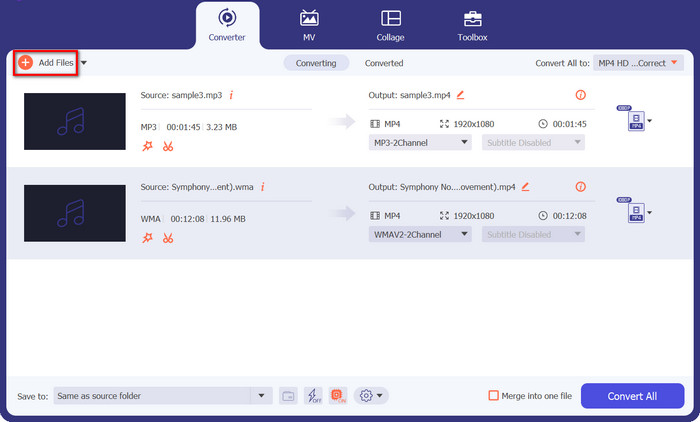
インストール後、アプリを起動します。スッキリして直感的なインターフェースが表示されるはずです。変換を始めるには、Add Files ボタンをクリックします。ここでは、OGG を MP4 に変換してみます。パソコン内を参照して、変換したい OGG オーディオファイルを選択しましょう。一度に複数ファイルを追加することもできるので、まとめて変換したい場合にも便利です!
ステップ 3. 出力形式(MP4)の選択
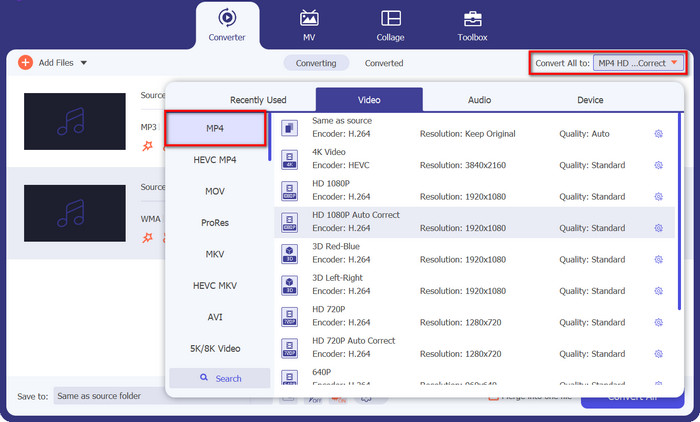
次に、出力形式を選択します。Convert All to セクションを探してください。ドロップダウンメニューを開き、一覧から MP4 が見つかるまでスクロールします。MP4 を選択したら、準備完了です。
ステップ 4. ファイルを変換
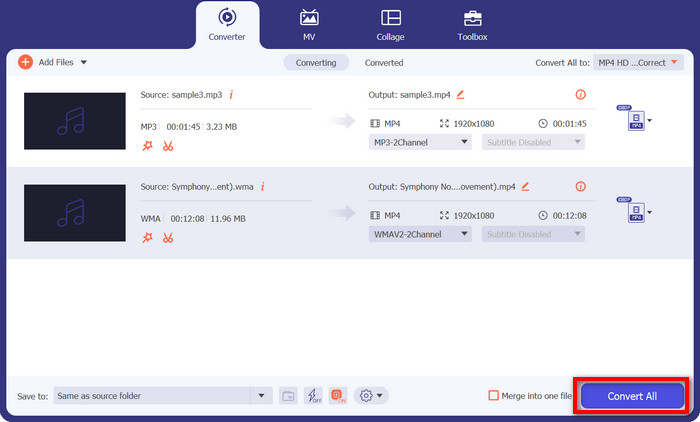
あと一歩です! インターフェースの下部または右上あたりにある Convert All ボタンを探してください。自信をもってクリックすれば、Video Converter Ultimate が Mac や Windows PC 上で OGG オーディオを MP4 に変換し始めます。
2.Freemakeビデオコンバータ
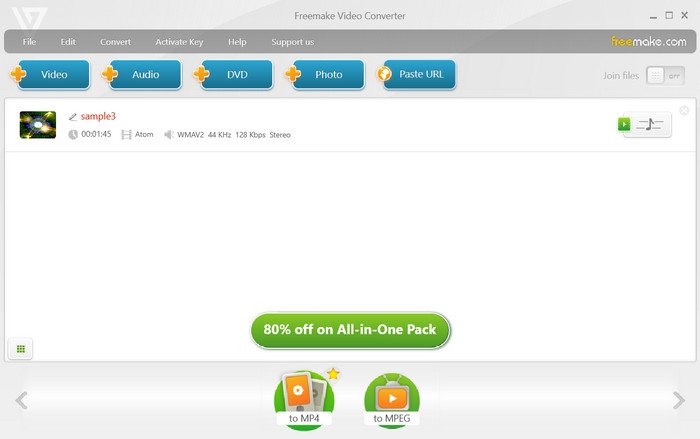
視覚的に強化したいお気に入りの曲やポッドキャストのコレクションがある場合は、このツールが役に立ちます。 MP3、OGG などの幅広いオーディオ形式を鮮やかな MP4 ビデオに変換できるだけでなく、クリエイティブなビジョンに合わせて出力を微調整したりカスタマイズしたりすることもできます。このツールを WMA から MP4 へのコンバーターとして使用する方法について簡単な手順を説明しますので、しばらくお待ちください。
ステップ 1. Freemake Video Converter を起動し、Audio ボタンをクリックします。変換したい WMA ファイルをパソコン内から選択します。
ステップ 2. そのあと、形式選択メニューの中から MP4 への変換オプション(to MP4)を探します。クリックして、変換の出力形式を MP4 に設定します。
ステップ 3. 準備ができたら、Convert ボタンをクリックして変換プロセスを開始します。
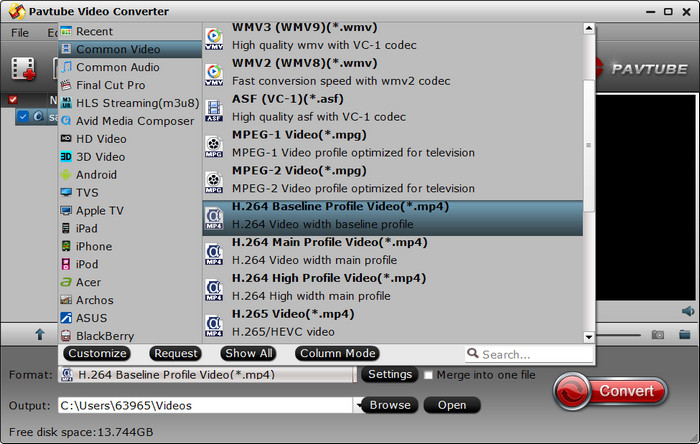
3.Pavtubeビデオコンバーター
Pavtube Video Converter はシンプルさと効率性を重視しています。数回クリックするだけで、OGG オーディオ ファイルを素晴らしい MP4 ビデオに変換できます。この多機能ツールは幅広い形式をサポートしているため、ビデオ、オーディオ、さらには DVD さえも手間なく簡単に変換できます。
OGG ファイルを MP4 に変換したいという気持ちはよくわかります。それでは、簡単で簡単な手順に移りましょう。
ステップ 1. パソコンで Pavtube Video Converter を起動します。
ステップ 2. Add Files ボタンをクリックし、変換したい OGG オーディオファイルを選択します。ファイルをプログラム画面へドラッグ&ドロップして追加することも可能です。
ステップ 3. 次に、出力形式を MP4 に設定します。Format オプションを探してクリックし、変換の希望形式として MP4 を選択しましょう。これで完了です! 以上が、この OGG から MP4 へのコンバーターの使い方です。
4.Xilisoftビデオコンバータ
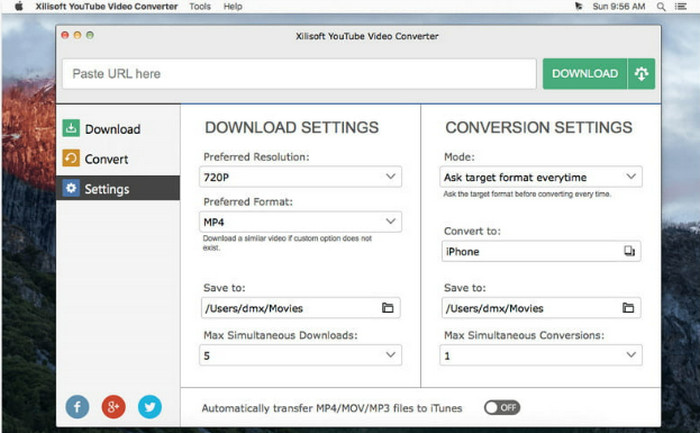
次に、Xilisoft Video Converter を紹介します。これは、他よりも優れた一流のコンバータです。なぜそれが最高なのでしょうか?単純!あらゆるユーザーのニーズに応える幅広い機能が満載です。高解像度ビデオ出力からカスタマイズ可能な変換プロファイル、シームレスな使いやすさまで、このツールにはすべてが備わっています。したがって、多用途性と重要な機能を提供するコンバーターをお探しの場合は、Xilisoft Video Converter が最適です。
ステップ 1. パソコンで Xilisoft Video Converter を起動します。
ステップ 2. 次に、Add File ボタンをクリックし、変換したい OGG オーディオファイルを選択します。
ステップ 3. 続いて、利用可能なオプションの中から出力形式として MP4 を選択し、Convert ボタンをクリックして変換プロセスを開始します。
5.無料のMP4コンバーターオンライン
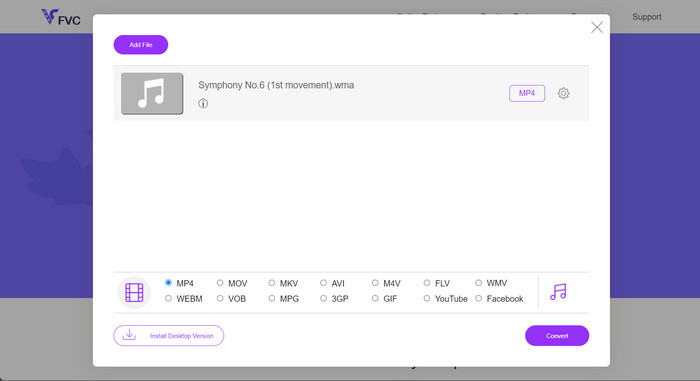
Free MP4 Converter Online は、Web ブラウザ上で手軽にビデオ変換ができる、頼れるオンラインツールです。Free MP4 Converter Online を使えば、ソフトウェアをダウンロードしたり、面倒なインストール作業を行ったりする必要は一切ありません。お気に入りの Web ブラウザを開くだけで、すぐに使い始められます。OGG を MP4 にオンラインで変換する方法が気になっている方は、このまま読み進めてください。
ステップ 1. Web ブラウザを開き、Free MP4 Converter Online のサイトにアクセスします。
ステップ 2. Add Files to Convert ボタンをクリックして、パソコンから OGG オーディオファイルを選択します。ファイルのアップロードが完了するまで少し待ちます。
ステップ 3. その後、Convert ボタンをクリックして変換プロセスを開始します。Free MP4 Converter Online が自動で処理を行い、OGG を MP4 に無料でオンライン変換してくれます。変換はあっという間に完了します!
さらに詳しく読む:
デスクトップ・オンライン・モバイルで使える MP3 から MP4 へのコンバーターまとめ
パート 3. オーディオを MP4 に変換することに関する FAQ
最も一般的な音声ファイル形式は何ですか?
MP3 (MPEG Audio Layer III) は、圧縮率が高く、広くサポートされているため、最も一般的なオーディオ ファイル形式です。
可逆圧縮の目的は何ですか?
可逆圧縮により、元のデータの品質を損なうことなくファイル サイズが削減されます。ファイルのアーカイブや保存によく使用されます。
ビデオファイルをオーディオファイルに変換できますか?
はい、ビデオ - オーディオ コンバーターを使用してビデオ ファイルをオーディオ ファイルに変換できます。これにより、MP4 ビデオを MP3 オーディオ ファイルに変換するなど、ビデオからオーディオを抽出できます。
オンラインでのファイル変換は安全ですか?
評判の良いオンライン ファイル変換サービスのほとんどは安全に使用できます。ただし、データを保護するには、よく知られた安全なプラットフォームを選択することが重要です。
モバイルデバイス上でファイルを変換できますか?
はい、多くのモバイル アプリやオンライン ツールを使用すると、スマートフォンやタブレットでファイルを変換できるため、外出先でも簡単に変換を実行できます。
結論
まとめると、ファイル形式の変換は、さまざまなデバイスやプラットフォーム間でデータをスムーズに互換・利用できるようにするための、欠かせないプロセスです。OGG から MP4 へのコンバーター や、WMA を MP4 に変換する WMA から MP4 へのコンバーターなど、多種多様なオンライン/オフラインツールが登場しているおかげで、ユーザーは音声・動画・その他のファイルを自分のニーズに合わせて簡単に変換でき、デジタルコンテンツの利便性と汎用性を大きく高めることができます。
-
 [簡単]同期していないオーディオとビデオを修正する方法
 ストリームを明日スケジュールする予定であるが、セットアップを確認すると、オーディオとビデオが同期していないとします。この懸念について詳しく知るために、この記事を読んでください。
-
 ビデオファイルからオーディオを抽出するための最高のオーディオエクストラクタの5
 ビデオの品質に影響を与えずにビデオからオーディオを抽出する方法を学びますか?次に、この記事を読み続けて、効率的な方法でビデオからオーディオを抽出する方法を理解してください。
-
 GIF に変換: すばやく簡単にファイルを変換するためのガイド
 究極の変換ガイドで GIF に変換します。動画ファイルを人目を引くミームに簡単に変換できます。
