


 ビデオコンバーター究極
 スクリーンレコーダー
 ビデオ修復
ビデオ修復
 安全なダウンロード
MacとWindowsでMXFビデオを録画するための最良の方法
MXF ファイルは「Material eXchange Format」としても知られている、プロ用途で使われるコンテナ形式の一種で、特に SMPTE(Society of Motion Picture and Television Engineers/映画テレビ技術者協会)のようなデジタル関連企業によって利用されています。厳密に言うと、ビデオテープをデジタル形式で置き換えたものです。この種の動画ファイルはメタデータやタイムコードをサポートしています。メタデータは動画コンテンツを閲覧するうえで非常に重要です。ほとんどの放送局や大手映画制作会社、代理店などはこのファイル形式をよく利用しています。そのため、この形式は多くの面で優れています。動画を録画したり書き出したりする際に、このファイル形式を使いたいと考える人は多いでしょう。そこで朗報です。現在ではMXF レコーダーを利用することで、このファイル形式を簡単に入手できます。詳しくは、この記事を読み進めて確認してみてください。

パート1。WindowsおよびMacコンピューター用のプロフェッショナルMXFレコーダー
ビデオ録画に不可欠な機能を提供する最も人気があり、使用可能なツールの1つは、FVCScreenRecorderです。 FVC Screen Recorderに表示される注目すべき点の1つは、インターフェイスです。それはよく整理されており、理解しやすいです。 100%はマルウェアから安全であり、最も重要なことは、ファイルが保護されており、ツール開発者がその機密性を考慮していることです。確かに、このツールはMXFビデオ形式の作成に信頼性があります。これが最高のMXFレコーダーであるとも言っても過言ではありません。
ステップ 1. ツールをダウンロードして PC にインストールします。
無料ダウンロードWindows 7以降に対応安全なダウンロード
無料ダウンロードMacOS 10.7以降に対応安全なダウンロード
ステップ 2. インストール手順に従ってセットアップを完了し、アプリを起動します。
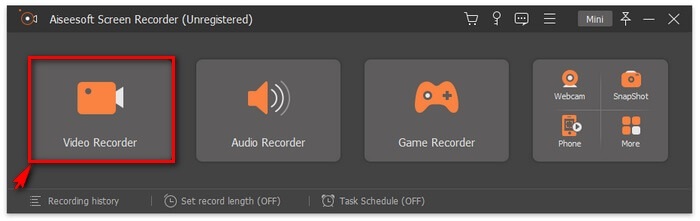
ステップ 3. 録画を開始するには、動画レコーダータブを選択し、録画したい動画のフレームサイズを選んでください。
注意:録画中に注釈を入れることもできます。鉛筆アイコンをクリックするとフローティングツールバーが表示されます。
ステップ 4. 録画が終了したら、画像で示されている停止ボタンをクリックします。フローティングツールバー左側にある赤い四角のボタンです。

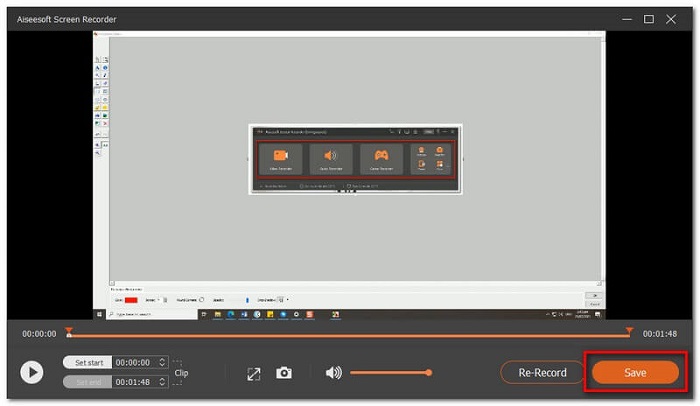
ステップ 5. 次に、保存するか再録画するかを選択します。録画した動画をプレビューするには、録画履歴ボタンをクリックしてください。
長所
- 100%は安全です。インストール中にサードパーティのハードウェアはありません。
- プライバシー保護が保証されています。
- サポートされているビデオ形式の膨大なリストがあります。
短所
- 登録が必要です。
パート2。試してみる価値のある上位4つのMXFレコーダー
ここからは、上で紹介した最高のMXF レコーダーに代わる、優れた代替ツールの一覧をご紹介します。
1.FVC無料画面記録-WindowsおよびMac用のMXFレコーダー
最初に紹介したツールと同じくらい優秀ですが、機能面ではやや制限があります。このツールは、前述のツールの無料版にあたります。ダウンロードする代わりに、必要なのはブラウザと安定したインターネット接続だけです。他のオンラインツールと比べても、このアプリの機能は無料ツールではなかなか見られないほど充実しています。もし、このようなFVC Free Screen Recorderのようなツールを使った経験がない人でも問題ありません。直感的なインターフェースと分かりやすい構成のおかげで、初心者でもすぐに使いこなせるようになります。まずは下からアプリをダウンロードし、そのまま以下のガイドに従って操作を進めてください。
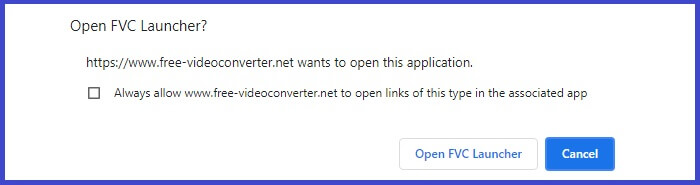
ステップ 1. 録画開始ボタンをクリックし、ツールが正常に起動するまで必要な許可を与えます。
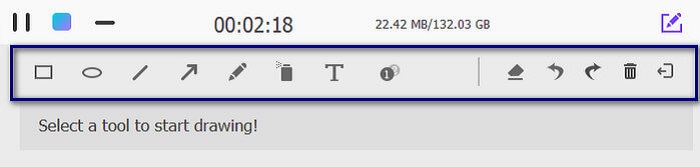
ステップ 2. ツールが起動したら、RECボタンをクリックして録画を開始します。録画中は注釈機能も使用できます。
ステップ 3. 録画を停止するには、青い四角ボタンをクリックします。
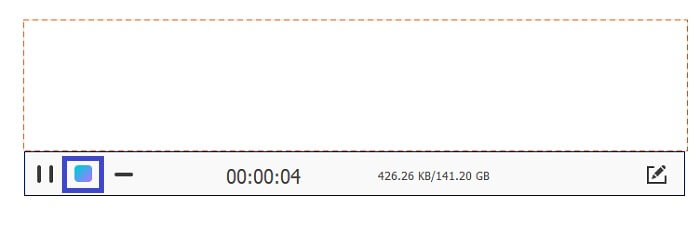
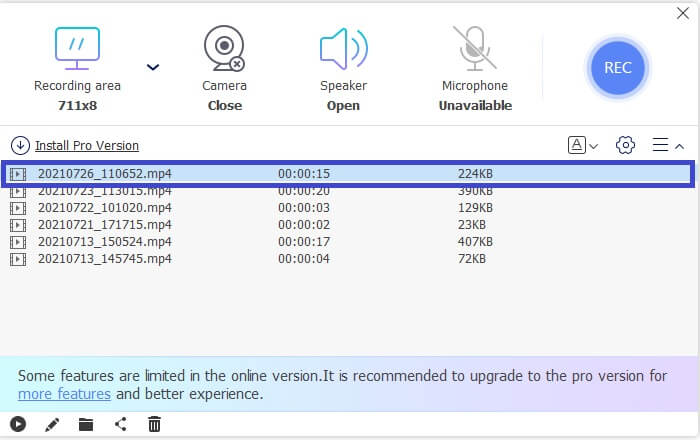
ステップ 4. 最後に、録画した動画をプレビューしたい場合は、フローティングバー下部の一覧を確認してください。
長所
- 100%は安全です。インストール中にサードパーティのハードウェアはありません。
- プライバシー保護が保証されています。
- サポートされているビデオ形式の膨大なリストがあります。
短所
- 登録が必要です
2.TinyTake-Windows用MXFレコーダー
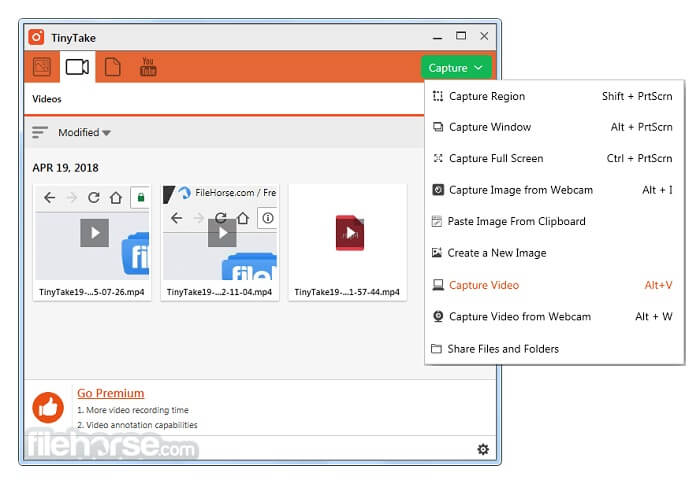
TinyTakeは、調整可能な領域、特定のウィンドウ、フルスクリーン、Webカメラ、特にビデオからコンピューター画面をキャプチャする別の.mxfレコーダーです。録画したビデオを保存できる無料のストアもあります。保存するか、ソーシャルメディアアカウントに直接共有します。一方、ツールには無料と有料の2つのバージョンがあります。無料とプレミアムの唯一の違いは、一連の機能とアクセスです。無料版では、最低5分間の録音しかできません。それらの欠点を無視しても、それはまだ良い選択肢です。
3. Screencastify
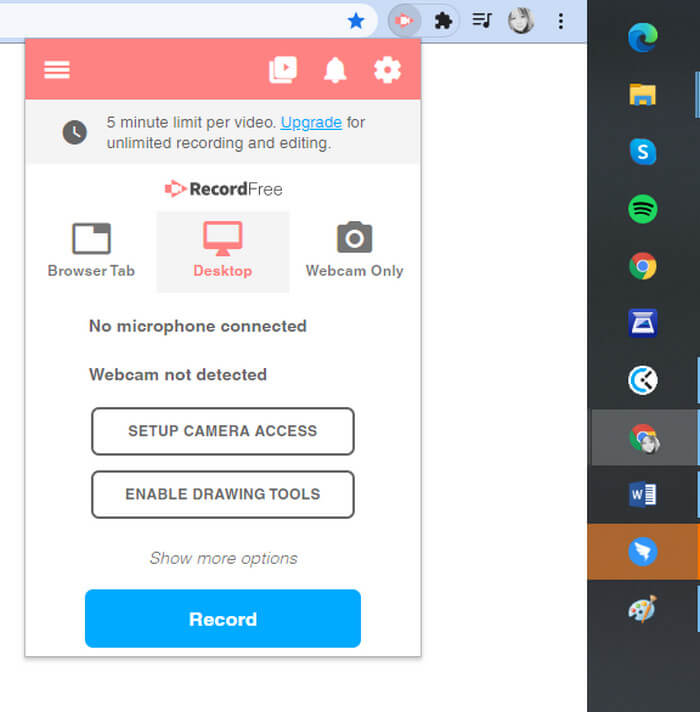
よりアクセスしやすく、非常に簡単なのがScreencastifyです。これは、GoogleChrome用に特別に作成されたWeb依存のツールです。これは、アプリのダウンロードを恐れて、コンピューターをマルウェアから保護したい人に最適です。これはあなたのです。 Screencastifyを使用すると、エクスポート後の月額料金や透かしについて心配する必要はありません。そのタイプのユーザーの場合は、これをToGoアプリのリストに含めることができます。近い将来必要になるかもしれません。
4. Ezvid
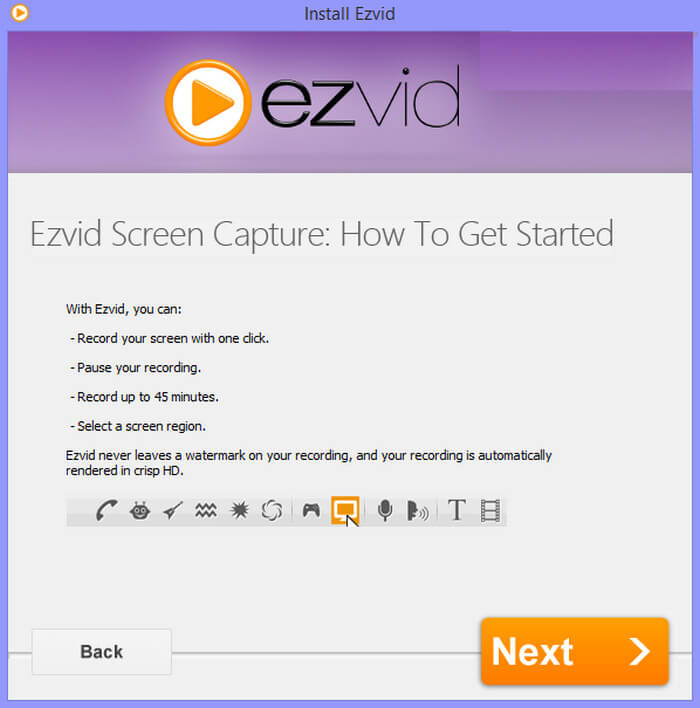
これで、最高のMXFレコーダーのリストの最後のツールになりました。ビデオメーカー、スクリーンレコーダー、スライドショーメーカーのEzvidについてご覧ください。 Ezvidの優れた特徴の1つは、録音中に画面に表示されるウィジェットです。ウィジェットを使用すると、ウォークスルービデオの有効化、無効化、一時停止、またはいくつかの注釈を付けることができます。これは、ほとんどのスクリーンレコーダーでは見つけることができないものです。また、このツールのユーザーを感動させるもう1つの点は、複数の録音を作成して自動的にカットする機能です。つまり、最高のMXFレコーダーのリストに載るに値します。
関連記事
パート3。比較チャート
| 特徴 | FVCスクリーンレコーダープレミアム | FVCスクリーンレコーダー無料 | TinyTake | ScreenCastify | エズビッド |
| オーディオとビデオの記録 |  | | | | |
| ビデオ編集機能 | | |  | | |
| ロックインウィンドウ機能 | | | | | |
| 注釈機能 | | | | | |
| MXFをサポート | | | | | |
| マルウェアセーフ | | | | | |
| 調整可能なビットレートとアスペクト比 | | | | | |
| サポートされているビデオ形式 | WMV、MP4、MOV、F4V、TS、AVI、WMA、MP3、M4A、AAC、PNG、JPG / JPEG、BMP、GIF、TIFF、MXF | BMP、GIF、TIFF、MXF、MP4 | MP4 M4A、AAC、PNG、JPG / JPEG、WMV、MP4、MOV | NG、JPG / JPEG、BMP、GIF、TIFF、MXF | WMV、MP4、MOV、F4V、PNG、JPG / JPEG、BMP、GIF、TIFF、MXF |
| システム要求 | OS:Windows 10、Windows 8、Windows 7、Windows Vista、Windows XP(SP2以降)macOS 10.7以降プロセッサー:1GHz Intel / AMD CPU以上RAM:1G RAM | Web依存 | OS:Windows 10、Windows 8、Windows 7、Windows Vista、Windows XPmacOS10.7以降 | macOS10.7以降 | Windows XP(SP2以降)macOS10.7以降 |
パート4。MXFレコーダーに関するFAQ
MXFファイルをインポートするときにプレミアプロを使用していますが、エラーメッセージ「サポートされていないファイル」が表示されます。どうすれば修正できますか?
PremierProを閉じます。次に、MXFメディアファイルがある最上位フォルダの名前を変更します。その後、再アップロードを再試行してください。これで問題は解決するはずです。それでも修正されない場合は、コーデックを使用して解決してみてください。
フッターデータ損傷エラー。このエラーのため、MXFファイルは再生されません。
MXFファイルが再生できない理由の1つは、もちろんヘッダーまたはフッターセクション内のメタデータが破損していることが原因である可能性があります。録音が中断された場合は、これが原因である可能性があります。原因を最初から再構築するか、修復ツールを使用して原因を修復します。
インポーターが一般的なエラーを報告したというエラーメッセージを受け取り続けます。どういう意味ですか?
これは、ファイルにビデオまたはオーディオストリームがないことを意味し、このファイルをPremiere Proに正常にアップロードできたとしても、処理中に再生エラーやクラッシュなどの隣接する問題が発生します。この場合は、フッテージを別のコーデックにトランスコードします。
結論
これで、MXF形式について詳しく知ることが、この種の形式でビデオを再生しているときに発生する可能性のあるいくつかの問題を修正するのに役立ちます。トラブルシューティングのヒントについては、これらの記事に記載されているFAQをいつでも信頼できます。それでもMXF形式が明確でない場合は、インターネットをクロールしてFVCScreenRecorderページにアクセスしてください。
-
 スクリーンビデオをキャプチャするための4つの最高の無料Web起動レコーダー
 1セントも払わずにデスクトップで画面上のアクティビティを記録するための最良の方法をお探しですか?これが最も頻繁に使用される4つの無料のWeb起動レコーダーです。
-
 偏りのないシンチレビューオーディオレコーダーと最良の代替品
 Cinch Audio Recorderは、ストリーミングサイトから音楽をダウンロードするための最良の方法です。公平なレビューと記事からの最良の代替案についてもっと学びましょう。
-
 WindowsとMac用のトップ5の最高のマウスとキーボードレコーダー
 これは、マウスの動きとキーボードのクリックを保存し、イベントを繰り返すことができる、マウスとキーボードのレコーダープログラムのトップ5です。
