


 ビデオコンバーター究極
 スクリーンレコーダー
 ビデオ修復
ビデオ修復
 安全なダウンロード
WindowsとMacのLightroomにHEICファイルを効果的にインポートする方法
もしHEIC画像の画質を向上させたい、あるいは整理したいと考えているなら、HEICをLightroomに読み込むことで、簡単に整理や編集を行うことができます。このソフトでは、HEICを閲覧・編集するための追加コーデックをダウンロードすることなく、簡単に画像をアップロードできます。このソフトでHEICファイルを読み込む方法を知りたい場合は、本記事に掲載しているWindows版とMac版それぞれの手順を読んで、そのとおりに進めてください。
さらに面倒なことはせずに、以下の詳細を読んでその方法を理解しましょう。LightroomがHEICのインポートに失敗した場合は、ここに追加する方法もあります。ただし、何よりもまず、次の詳細を読む前に、WindowsまたはMacにソフトウェアをダウンロードする必要があります。

パート1。Windows10/11または更新されたLightroomにHEICをインポートする方法
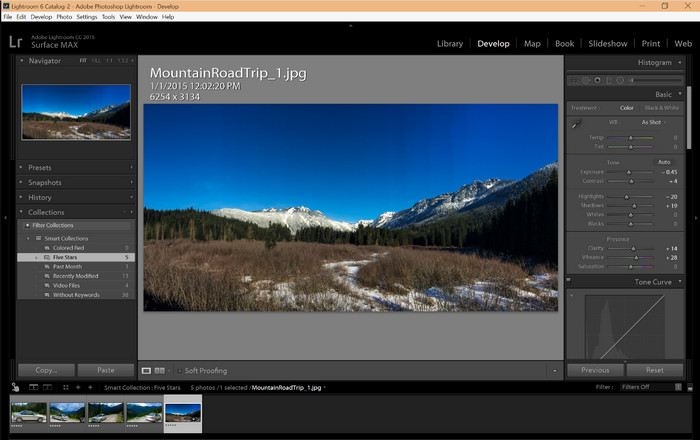
Lightroomは更新されたWindowsバージョンをサポートしています。この部分は、WindowsOSにソフトウェアをダウンロードする場合に役立ちます。以下のチュートリアルに従うことで、LightroomはHEICファイルを簡単に開くことができるため、心配する必要はありません。
手順1. Windows 10/11にソフトをダウンロードし、インストールしてから起動します。
手順2. ソフトが起動したら、+ボタンをクリックし、参照を押して、ここに読み込みたいHEICファイルを選択します。
手順3. ファイルを選択したら、Windows 10/11上のLightroomでHEICファイルを閲覧できるようになります。
パート2。Mac10.13以降のLightroomでHEIC写真を開く方法
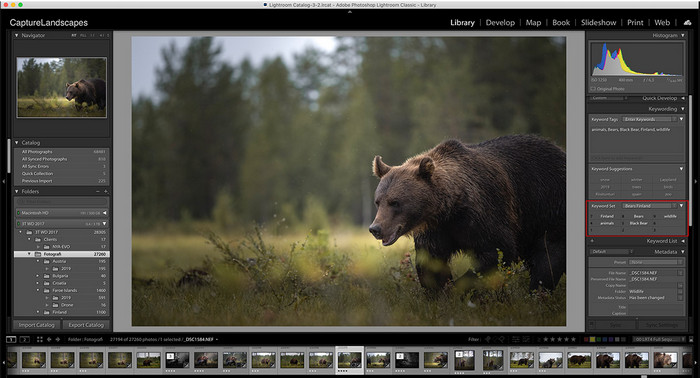
Lightroomがなくても、特にMacのバージョンがHigh Sierra 10.13以降のプレビューである場合は、HEICファイルを簡単に表示できます。プレビューは編集機能をサポートしていますが、Lightroomが提供するような複雑な編集に使用するだけでは不十分です。また、LightroomはMacで編集または整理するためのHEICファイルをサポートしているため、心配する必要はありません。
手順1. macOS 10.13以降にソフトをインストールします。お使いのOSバージョンがそれより低い場合は、ソフトが起動しないことがあります。デスクトップにLightroomをダウンロードしたら、起動してください。
手順2. 画面上部には、さまざまなメニューと、左上にLightroomの名称が表示されます。これが表示されていればソフトは起動しています。ファイルメニューをクリックし、写真を追加を選択します。または、キーボードのCommand + Shift + Iを押すショートカットを使うこともできます。
手順3. 画面にフォルダーが表示されるので、読み込みたい画像を選択し、読み込みを確認をクリックします。
パート3。LightroomがHEICファイルのインポートに失敗しました|サポートされていないHEIC問題を解決するための最良の解決策
多くのユーザーは、WindowsやMacのLightroomなどのソフトウェアとの互換性のために、HEICファイルのアップロードに問題がありました。上記の方法の助けを借りても、それはまだ不可能です。ただし、Web上で最高のツールを使用してHEICをJPGに変換することにより、LightroomにHEICファイルをインポートする方法があるため、悲しむ必要はありません。
FVC Free HEIC to JPG Converterは、WindowsとMacのどちらでもソフトをインストールせずにHEICファイルを変換できるソリューションです。このようなWebツールを使えば、非対応の形式をJPEGのような標準的な形式に変換できます。そのため、Lightroomに画像をアップロードしても、非対応形式のエラーが出ることはありません。HEICをJPGに変換できるだけでなく、複数のHEIC画像を同時にアップロードし、一括変換することも可能です。すばらしいと思いませんか?さらに驚くべきことに、高速変換を無料で行えます。HEICで発生する非対応の問題を解決したい場合は、以下の手順に従って、形式の変換方法を確認してください。
Webツールを使用してHEIC形式をJPGに変更する簡単な手順:
手順1. FVC Free HEIC to JPG Converterのリンクをクリックすると、お好みの検索エンジンからコンバーターの公式サイトを開くことができます。安全に利用でき、Web画面に煩わしい広告が表示されることもないので、心配はいりません。
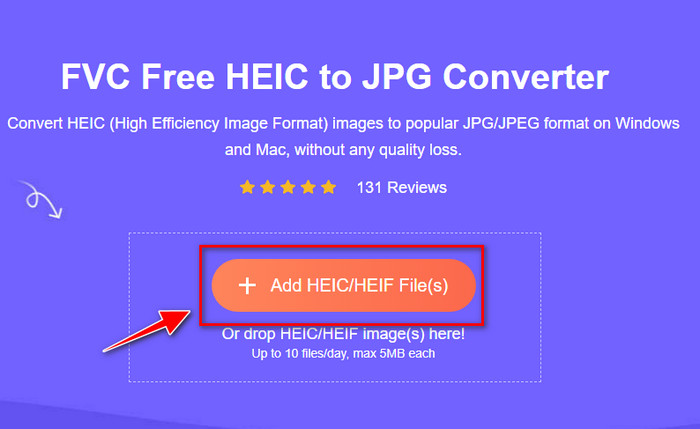
手順2. HEIC/HEIFファイルを追加をクリックして、Lightroomで開けないHEIC画像をここにアップロードします。あるいは、ファイルをドラッグ&ドロップして読み込むこともできます。
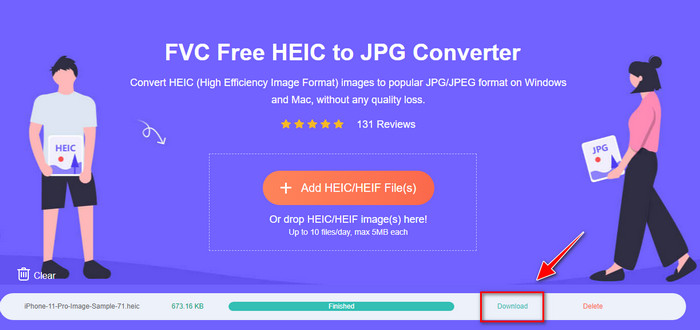
手順3. 進行バーが完了すると、ダウンロードボタンが表示されるので、それをクリックして変換されたHEICファイルをデスクトップに保存します。その後は、非対応や破損といったダイアログボックスが表示されることなく、Lightroomにファイルを読み込めるようになります。
パート4。LightroomでのHEICのインポートに関するFAQ
LightroomへのHEICファイルのインポートに制限はありますか?
この時点まで、LightroomにHEICファイルをいくつでもインポートできます。このタイプのフォーマットをLightroomにアップロードする際の制限はありません。
LightroomはWindowsとMacで無料ですか?
残念ながら、WindowsとMacのLightroomは無料ではありませんが、WindowsとMacに無料でダウンロードできます。ソフトウェアは無料ではありませんが、7日間サポートされている無料トライアルを利用できます。長期間ソフトウェアが必要になると思われる場合は、試用期間後にサブスクライブできます。
LightroomでHEICファイルをエクスポートすると透かしが残りますか?
幸いなことに、Lightroomはここにアップロードした画像に自動でウォーターマークを追加することはありません。ただし、必要であれば自分でウォーターマークを追加できます。画像をインターネット上に公開する予定があるなら、第三者による盗用を防ぐためにウォーターマークを追加することをおすすめします。
画像編集にはどちらが良いですか? PhotoshopまたはLightroom?
それはあなたの要求に依存します。 AdobeエディターのPhotoshopとLightroomを使用すると、画像の見栄えを簡単に改善できます。扱いやすい画像エディタが必要だとします。その場合、Lightroomはあなたが選択しなければならない選択です。それはあなたが持っている画像を強化するための最良の画像エディタです。しかし、より詳細な画像編集を行いたい場合は、Photoshopがすべてのプロの編集者のニーズに合う編集者です。
結論
Lightroomを使用すると、画像を簡単に編集したり、それに応じて整理してきれいに見せたりすることができます。したがって、LightroomにHEICファイルをインポートする場合は、WindowsまたはMacのユーザーであるかどうかに関係なく、追加された手順に従うことができます。ただし、HEICファイルのインポートで問題が発生した場合は、Lightroomとの互換性を確保するために、パート3を読んで解決してください。これで、編集を続行できます。この記事で、ファイルをインポートする方法がわかることを願っています。他に提案や推奨事項がある場合は、メッセージを残してください。
-
 iMazingHEICコンバーター|機能、長所と短所、およびその使用方法
 この記事では、iMazing HEIC Converterの機能とその代替機能について説明します。そのため、この機能について詳しく知りたい場合は、注意して読んでください。
-
 エキスパートのようにiPhoneでHEICをJPGに変換する3つの最も簡単な方法
 iPhoneでHEICをJPGに変更する方法がわかりませんか? HEICで問題が発生しているユーザーの場合は、こちらをお読みください。
-
 iPhoneの写真がHEIC形式になっている理由[理由と解決方法]
 私のiPhoneの写真がHEIC形式である理由を知りたいですか?この記事は、HEICが最高である理由についての信頼できる証拠を提供します。
