


 Video Converter Ultimate
 Skjermopptaker
 Videoreparasjon
 Sikker nedlasting
Vanlige metoder for å konvertere Xvid til MP4 online og offline
Har du problemer når du spiller av Xvid‑videoene dine? Da har vi de beste løsningene for deg. Det beste du kan gjøre, er å konvertere Xvid til andre gode formater, som MP4. På denne måten får du ikke problemer med å strømme videoene dine. Denne artikkelen gir deg en gratis Xvid til MP4-konverter du kan bruke. Dette verktøyet hjelper deg å konvertere videofilene dine enkelt og umiddelbart. Hvis dette høres interessant ut for deg, kan du lese de følgende delene og bruke tiden din på å lære noe nytt!

Del 1: Den enkleste måten å konvertere Xvid til MP4 på Mac og Windows
Bruk Video Converter Ultimate for å konvertere Xvid til MP4. Du kan bruke denne konverteren både på Mac og på Windows‑datamaskin. Den konverterer filer 30 ganger raskere enn andre konvertere. I tillegg, siden den støtter batch‑konvertering, kan du konvertere mange Xvid‑filer til ett enkelt MP4‑format. Med denne funksjonen kan du konvertere filer raskt og enkelt. Ytterligere videoformater som støttes av dette verktøyet, inkluderer AVI, FLV, MKV, MOV, VOB, WMV, M4V og mer enn 100 andre. Den er tilgjengelig for både Xvid‑ og MP4‑brukere. Dessuten kan denne konverteren brukes av både nybegynnere og erfarne brukere takket være det brukervennlige grensesnittet og enkle konverteringsmetoder. For å lære mer om hva du kan forvente når du bruker Video Converter Ultimate, kan du se de ekstra funksjonene nedenfor.
Funksjoner
◆ Konverter ulike videofilformater, som Xvid, MP4, DIVX, M4V, FLV, AVI, MKV, WMV, SWF og mer.
◆ Konverter flere videofiler samtidig.
◆ Den tilbyr en ultra-hastighets konverteringsprosess, som er 30 ganger raskere enn andre omformere.
◆ Tilbyr videoredigeringsverktøy, inkludert en videoforsterker, kompressor, trimmer, cropper, reverser, etc.
Følg de detaljerte trinnene nedenfor for å konvertere Xvid til MP4 på din Mac eller Windows ved å bruke FVC Video Converter Ultimate.
Trinn 1: Last ned Video Converter Ultimate på Mac eller Windows ved å klikke på Last ned-knappen nedenfor. Når installasjonen er ferdig, starter du programmet.
Gratis nedlastingFor Windows 7 eller nyereSikker nedlasting
Gratis nedlastingFor MacOS 10.7 eller nyereSikker nedlasting
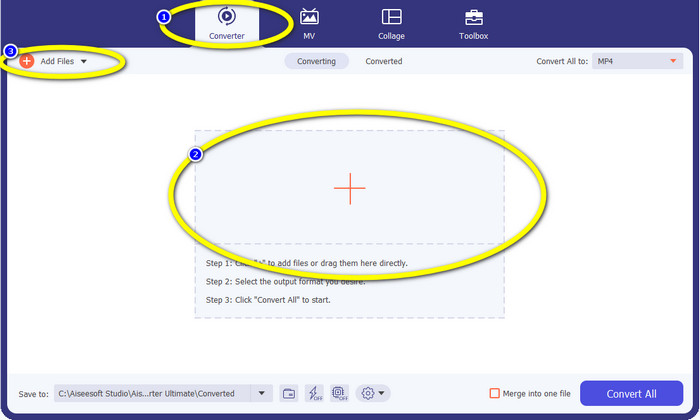
Trinn 2: Når grensesnittet vises på skjermen, velger du Converter-alternativet og klikker på +-ikonet for å legge til Xvid‑filen. En annen måte å legge til en videofil på er å klikke på knappen Add Files.
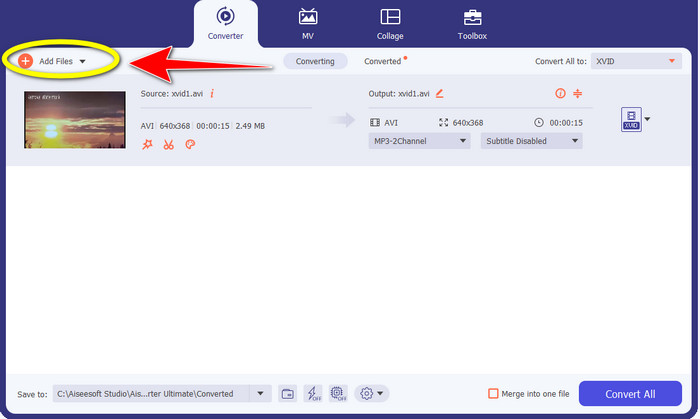
Trinn 3: Dette programmet lar deg konvertere flere filer. For å legge til en ny Xvid‑video du vil konvertere, klikker du på knappen Add Files øverst til venstre i grensesnittet.
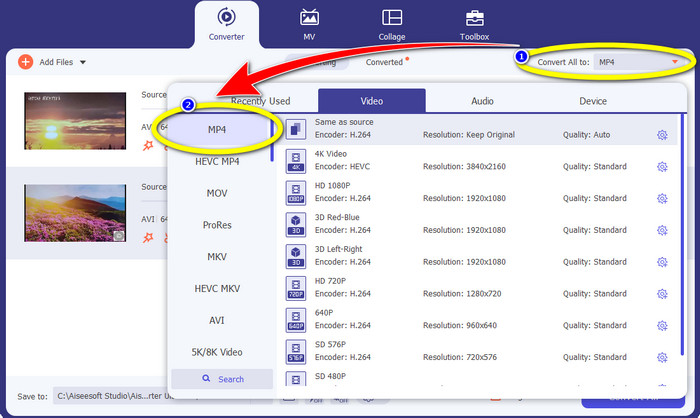
Trinn 4: Deretter, for å konvertere dem til én MP4‑fil, klikker du på knappen Convert All to. Velg MP4-filen fra formatalternativene og velg ønsket videokvalitet.
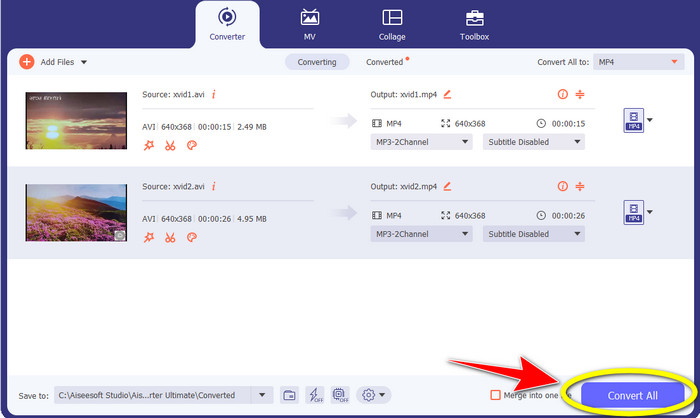
Trinn 5: Etter at du har valgt ønsket utdataformat, kan du starte konverteringsprosessen ved å klikke på knappen Convert All. Deretter lagrer du MP4‑videoen på enheten din.
Del 2: Hvordan konvertere Xvid til MP4 på VLC
I denne delen lærer du hvordan du konverterer Xvid til MP4 i VLC. Til ekstra informasjon kan VLC Media Player konvertere flere videofiler i tillegg til å spille dem av. Den støtter videoformater som MP4, TS, WEM, OGG og flere. Dessuten kan den konvertere lydfiler som MP3, FLAC osv. I dette tilfellet er VLC også et pålitelig program for å konvertere ulike filer. Men denne programvaren passer ikke så godt for nybegynnere. Den har et vanskelig grensesnitt, noe som gjør den mer komplisert å bruke. I tillegg tar det lang tid å laste den ned og installere den på datamaskinen.
Trinn 1: Last ned og installer VLC Media Player på datamaskinen. Start deretter programmet.
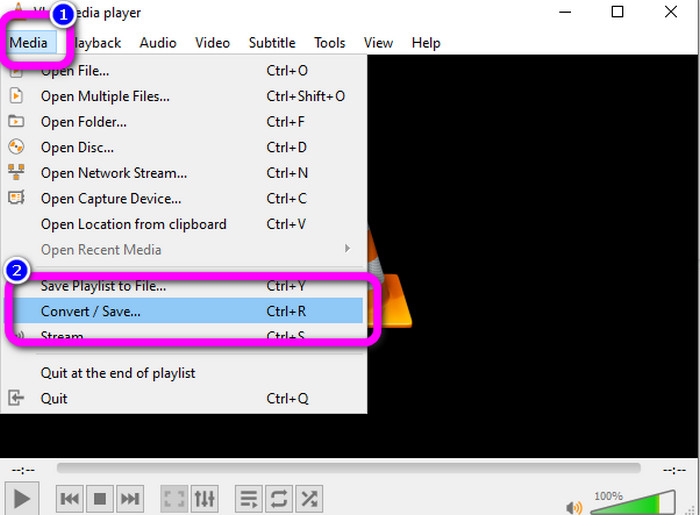
Trinn 2: Gå til øvre del av grensesnittet og velg alternativet Media. Klikk deretter på knappen Convert/Save.
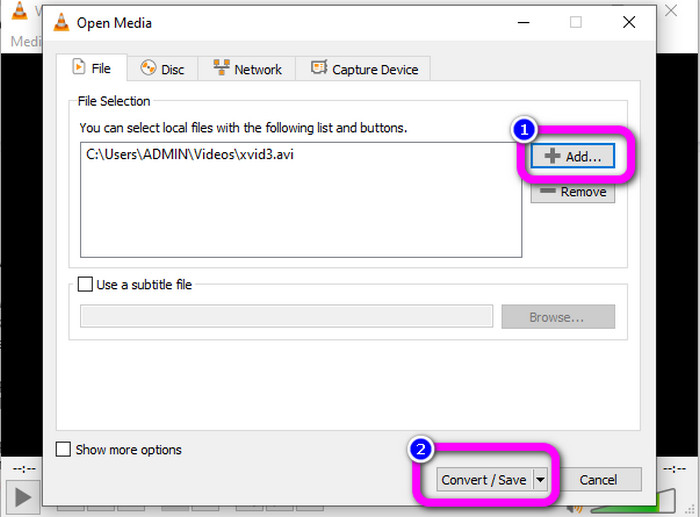
Trinn 3: Trykk på knappen Add for å sette inn Xvid‑videofilen. Når filen er lagt til, klikker du på knappen Convert / Save.
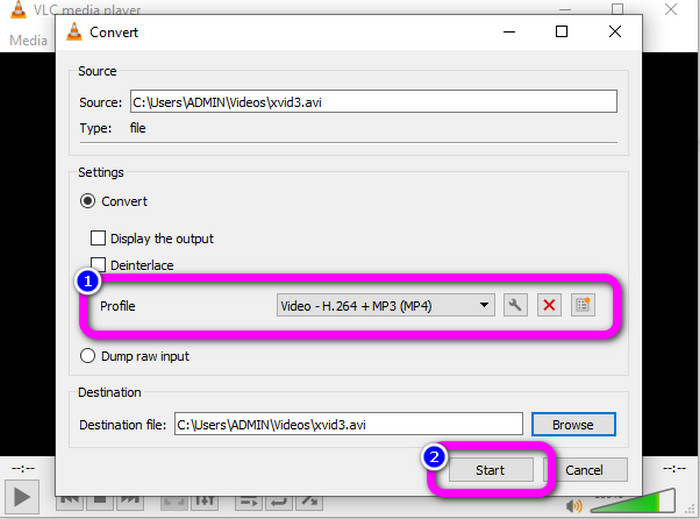
Trinn 4: Til slutt klikker du på Profile for å se formatvalgene og velger MP4 som filformat. Angi destinasjonsfilen, og gå videre til konverteringsprosessen ved å klikke på knappen Start.
Del 3: Enkle trinn for å konvertere Xvid til MP4 på håndbremsen
Handbrake er et annet offline-verktøy du kan stole på når du konverterer Xvid-filen til MP4-format. Dette verktøyet tilbyr også en batchkonverteringsprosess, der du bare trenger å sette inn en mappe som består av flere videoer og konvertere dem samtidig. Det er imidlertid ikke lett å bruke. Mange alternativer er forvirrende for nybegynnere. Følg den enkle guiden nedenfor for å konvertere Xvid til MP4 ved hjelp av en håndbrems.
Trinn 1: Last ned Handbrake på datamaskinen. Start det etter at installasjonen er fullført.
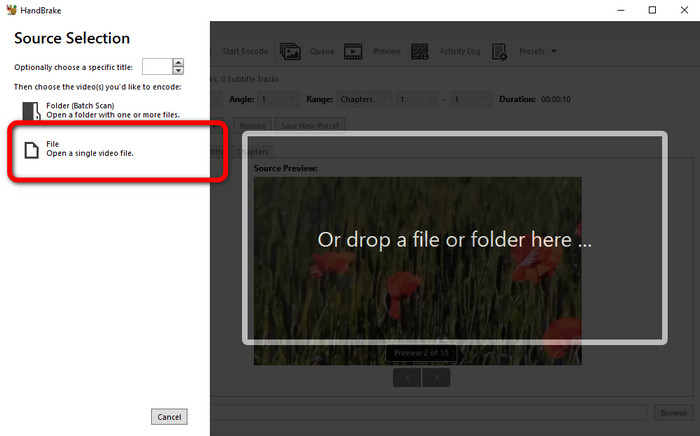
Trinn 2: Åpne knappen File for å legge til Xvid‑videofilen.
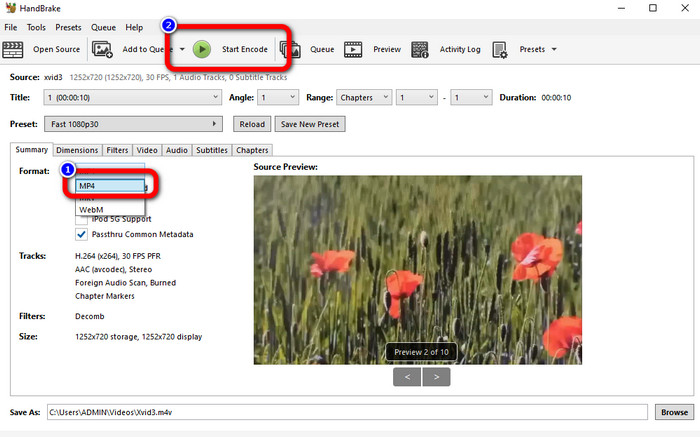
Trinn 3: Gå til alternativet Format og velg MP4 som filformat. Klikk deretter på knappen Start Encode for å konvertere Xvid‑filen din til MP4‑format.
Del 4: Prosess for å konvertere Xvid til MP4 Online
FVC Free Video Converter Online er et flott verktøy for å konvertere Xvid til MP4 på nettet. Det har et brukervennlig grensesnitt som passer perfekt for nybegynnere. Du kan konvertere filer i bare tre enkle trinn. I tillegg kan du også konvertere flere filer samtidig fordi det støtter batch‑konvertering. Dette verktøyet støtter ulike videoformater, som FLV, AVI, MKV, WMA, MOV, VOB og flere. Hvis du vil bruke FVC Free Video Converter Online, følger du de enkle instruksjonene nedenfor.
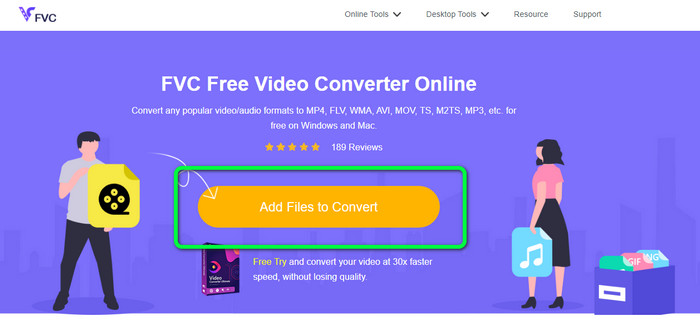
Trinn 1: Gå til nettstedet til FVC Free Video Converter Online. På hovedsiden velger du knappen Add Files to Convert for å laste opp Xvid‑videofilen du vil konvertere.
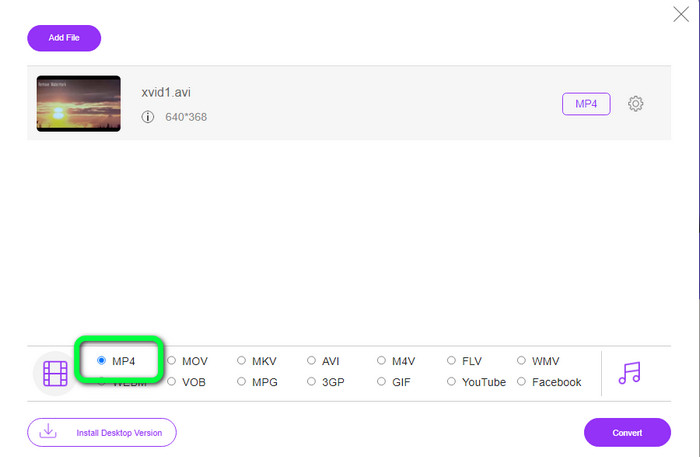
Trinn 2: Nederst i grensesnittet kan du se formatvalgene. Velg MP4 som utdataformat.
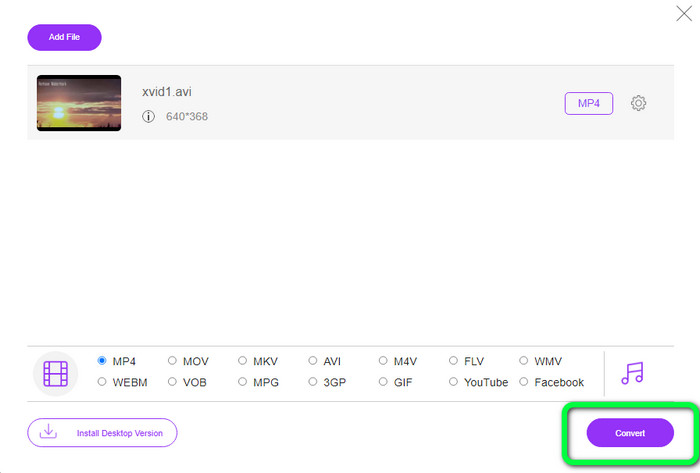
Trinn 3: Klikk på knappen Convert for å konvertere Xvid‑filen din til MP4‑format. Vent til konverteringsprosessen er ferdig, og lagre den endelige videoen.
Del 5: Flott metode for å konvertere Xvid til MP4 ved hjelp av Android
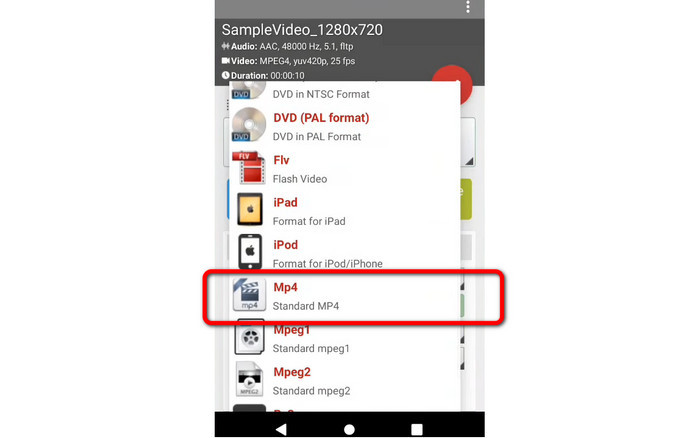
Hvis du vil ha en Xvid til MP4‑konverter for Android, kan du bruke Video Format Factory. Med dette programmet kan du enkelt endre en videofil til andre formater. Men det er tidkrevende å konvertere videoene dine fordi konverteringsprosessen er treg. Se trinnene nedenfor for å konvertere Xvid til MP4.
Trinn 1: Last ned og installer Video Format Factory på Android‑enheten din.
Trinn 2: Etter at du har startet appen, velger du Video‑knappen for å sette inn Xvid‑filen.
Trinn 3: Velg Convert-alternativet og velg MP4‑formatet fra formatvalgene. Start deretter konverteringsprosessen ved å klikke på Checkmark.
Videre lesning:
Lettlærte metoder for hvordan du konverterer Xvid til DivX
Utmerkede teknikker for å konvertere XviD til 3GP raskt
Del 6: Vanlige spørsmål om konvertering av Xvid til MP4
1. Hva er Xvid-filformatet?
Xvid-filformatet er en videokodek som følger MPEG-4-kodingsstandarden. Denne kodeken komprimerer videofiler ved bruk av MPEG-4 Part 2 A SP-format.
2. Er Xvid god kvalitet?
Ja. Denne filen er fortsettelsen av Project Mayo. Målet er å utvikle en høykvalitets åpen kildekode MPEG-4-kodek.
3. Er MP4 komprimert?
Ja, det er det. Det finnes en komprimert MP4-fil. Ulike kodeker av video kan inkluderes i en MP4-fil. Blant de mest populære videokodekene for MP4 er H.264, H.265 og MPEG-4. Med H.264-komprimering kan en timelang video komprimeres til rundt 1 GB ved hjelp av MP4-videokodeken.
Konklusjon
Med all informasjonen ovenfor vet du nå hvordan du konverterer Xvid til MP4 på nett, uten nett og med Android‑enheter. Men de beste konverterne du kan bruke, er Video Converter Ultimate og FVC Free Video Converter Online. Disse to konverterne tilbyr et intuitivt grensesnitt som passer for alle brukere.
-
 Hvordan konvertere MPG til M4V på Mac og ved hjelp av Online Tool
 Er du en ny Mac-bruker og vet ikke hvordan du konverterer MPG til M4V? Da kan du lese denne artikkelen for å vite mer og finne ut hvordan du konverterer filer ved hjelp av Mac-en
-
 Vellykkede metoder for å konvertere DIVX til MP4 med en gang
 Hvordan konverterer jeg DIVX til MP4? Hvis du leter etter den beste løsningen, er du i den rette artikkelen. Vi vil vise deg hvordan du enkelt konverterer DIVX til MP4
-
 Hvordan konvertere F4V til MP4 med de mest effektive metodene
 Er ikke F4V-videoene dine av god kvalitet? Gjør den så om til en MP4-fil. Dette innlegget vil tilby den beste måten å konvertere F4V til MP4 online og offline
