


 Video Converter Ultimate
 Skjermopptaker
 Videoreparasjon
 Sikker nedlasting
Topp MP3 til M4A-konverterere: Rask og enkel lydkonvertering
Er du misfornøyd når du lytter til lyd av lav kvalitet som ikke yter favorittsangene dine rettferdighet? Da er det på tide å oppgradere lydopplevelsen din med kraften i MP3 til M4A-konvertering! Ved å konvertere lydfilene dine til M4A kan du låse opp det sanne potensialet i musikksamlingen din og selv høre forskjellen. I denne veiledningen går vi gjennom fordelene med MP3 til M4A-konvertering og presenterer de beste programvarene for å sikre en sømløs konverteringsprosess. Gjør deg klar til å forvandle lydopplevelsen din og nyte musikken som aldri før.

Del 1. Beste måter å konvertere MP3 til M4A
Her er noen av de beste lydkonvertererne fra MP3 til M4a. Det er en offline måte, som er en skrivebordsapp, og et annet online verktøy, som er et nettbasert program. Sjekk dem ut for å lære mer.
1. Video Converter Ultimate
Video Converter Ultimate er et fleksibelt program som tilbyr en rekke funksjoner for lyd- og videokonvertering. Når det gjelder å konvertere MP3 til M4A, er Video Converter Ultimate et utmerket valg, og gir brukerne en enkel og oversiktlig prosess for å konvertere lydfilene sine. Verktøyet støtter et bredt spekter av lydformater, og den avanserte lydkodekteknologien sikrer høy lydkvalitet. Enten du trenger å konvertere lydfiler til privat eller profesjonell bruk, gjør Video Converter Ultimate prosessen rask, slik at du kan fokusere på det som betyr mest – å nyte lydfiler av høy kvalitet.
Trinn 1. Skaff programmet og installer det
For å begynne velger du en av knappene for Gratis nedlasting og følger instruksjonene på skjermen for å lagre filen på datamaskinen. Deretter starter du appen og gjør deg kjent med de intuitive kontrollene.
Gratis nedlastingFor Windows 7 eller nyereSikker nedlasting
Gratis nedlastingFor MacOS 10.7 eller nyereSikker nedlasting
Trinn 2. Legg til lydfiler
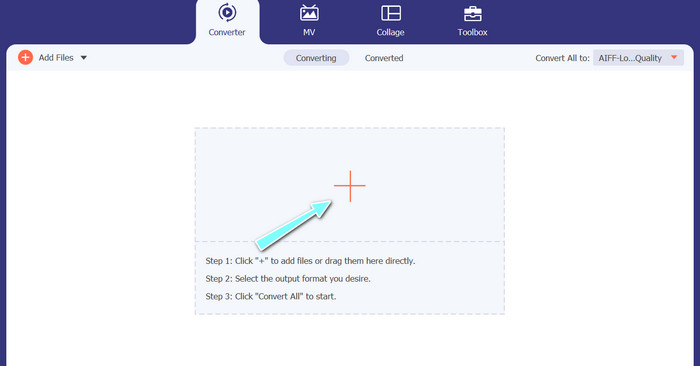
Velg deretter pluss-tegnet i hovedgrensesnittet og gå til plasseringen til lydfilen du ønsker å konvertere. Når en fil er lastet opp, vises en forhåndsvisning av den i brukergrensesnittet. Hvis du vil massekonvertere MP3 til M4A, kan du laste opp en mappe med filer.
Trinn 3. Velg et utdataformat
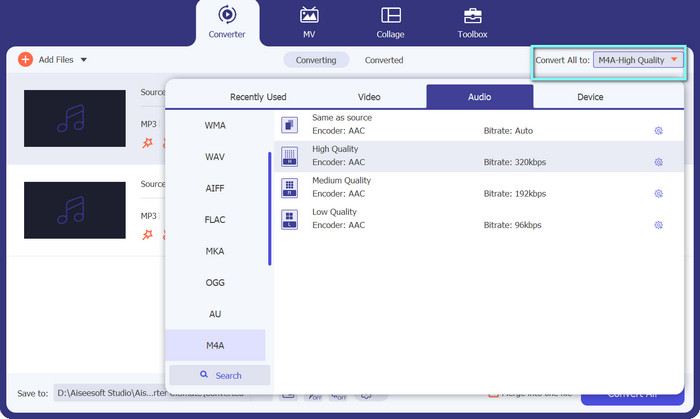
Velg deretter utdataformat ved å klikke på fanen Audio i Profile-menyen (øverst til høyre i verktøyet). Du kan konvertere til eller fra MP3 ved å bruke enten MP3- eller M4A-formatet.
Trinn 4. Lagre resultatet
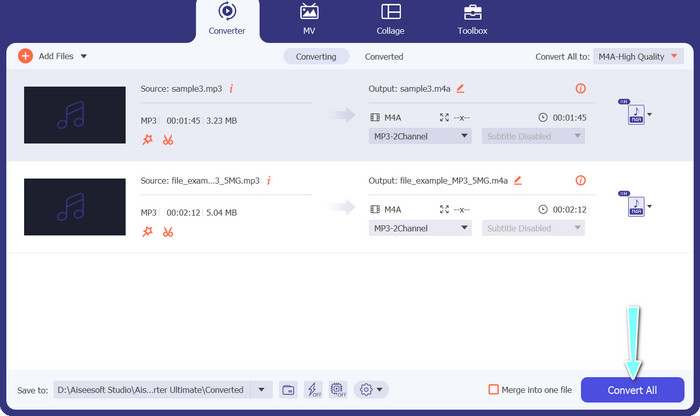
Velg målmappen nederst på skjermen. Når du er klar til å starte konverteringen, klikker du på knappen Convert All.
2. Gratis Video Converter Online
Har du ikke plass til enda et program? Ikke fortvil – du kan velge et nettbasert verktøy som lar deg konvertere filer uten å laste ned et program. Den nettbaserte appen Free Video Converter Online gjør det mulig å konvertere direkte i nettleseren. I tillegg støtter den mange formater for både video- og lydfiler. Du kan dessuten utføre massekonvertering med dette nettverktøyet. I tillegg er muligheten til å tilpasse lydfilens utdata en annen flott funksjon. Se hvordan denne MP3 til M4A-nettkonverteren fungerer.
Trinn 1. For å begynne å bruke Free Video Converter Online, åpner du favorittnettleseren din og går direkte til nettstedet.
Trinn 2. Velg deretter MP3-filen du vil konvertere til M4A ved å klikke på knappen Add Files to Convert.
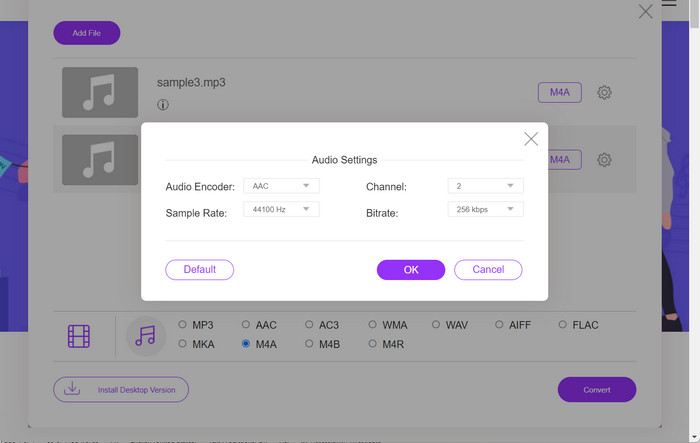
Trinn 3. Velg M4A som ønsket utdatafil under formatvalget Audio. Du kan også endre utgangskvaliteten, eller bithastigheten, for M4A-filen.
Trinn 4. Klikk på knappen Convert for å starte konverteringsprosessen. Slik konverterer du MP3 til M4A på nett.
Del 2. Konverter MP3 til M4A på Windows
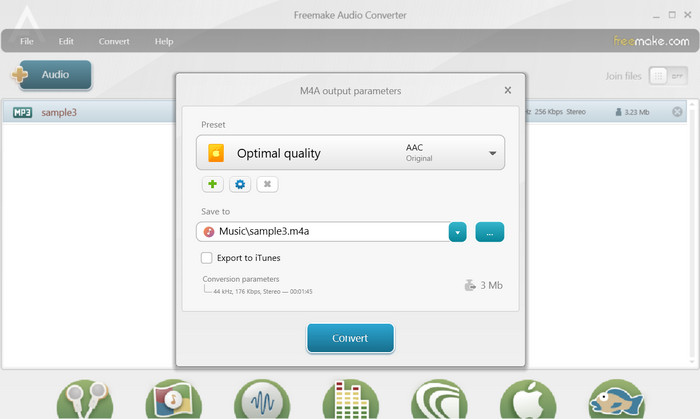
Freemake Audio Converter er et gratis og brukervennlig program som lar brukere konvertere lydfiler til ulike formater, inkludert M4A, MP3, WAV og mer. Med det enkle dra-og-slipp-grensesnittet kan brukere enkelt legge til MP3-filene og konvertere dem til M4A uten noen kompliserte innstillinger eller konfigurasjoner. Verktøyet har også en rekke tilpasningsalternativer, slik at brukere kan justere parametere som bitrate og sample rate for å få ønsket utdatakvalitet. Alt i alt er det en av de beste MP3 til M4A-konvertererne du kan bruke.
Trinn 1. Last ned og installer Freemake Audio Converter på Windows-datamaskinen din.
Trinn 2. Start programmet og klikk på knappen +Audio for å legge MP3-fil(er) til programmet.
Trinn 3. Velg M4A fra listen over tilgjengelige formater nederst i programvinduet. Bruk nedtrekksmenyen til å velge ønsket kvalitetsinnstilling for utdatafilen.
Trinn 4. Velg utdatamappen der du vil lagre den konverterte filen. Til slutt klikker du på knappen Convert for å starte konverteringsprosessen.
Del 3. Konverter MP3 til M4A på Mac
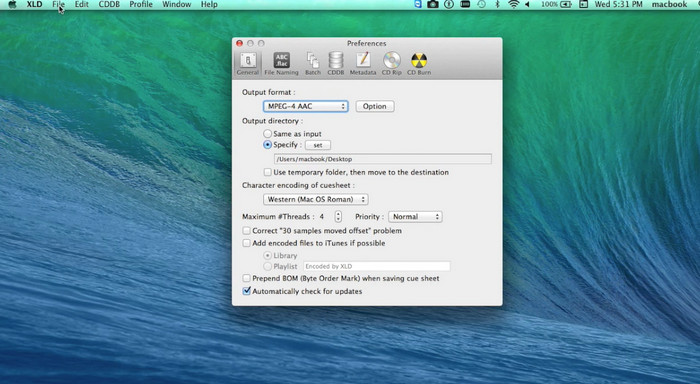
XLD er et gratis og brukervennlig program som lar Mac-brukere konvertere lydfiler til ulike formater, inkludert M4A, MP3, FLAC og mer. Med det enkle dra-og-slipp-grensesnittet kan brukere enkelt legge til MP3-filene og konvertere dem til M4A uten noen kompliserte innstillinger eller konfigurasjoner. XLD tilbyr også en rekke tilpasningsalternativer, slik at brukere kan justere parametere som bitrate og sample rate for å oppnå ønsket utdatakvalitet.
Trinn 1. Last ned og installer XLD på Mac-maskinen din.
Trinn 2. Start programmet og klikk på knappen Open for å legge MP3-fil(er) til programmet.
Trinn 3. Velg M4A fra listen over tilgjengelige formater i programinnstillingene. Du kan bruke nedtrekksmenyen til å velge ønsket kvalitetsinnstilling for utdatafilen.
Trinn 4. Velg deretter utdatamappen der du vil lagre den konverterte filen. Til slutt trykker du på knappen Convert for å starte konverteringsprosessen. Slik konverterer du MP3 til M4A gratis på Mac.
Del 4. Konverter MP3 til M4A på Android
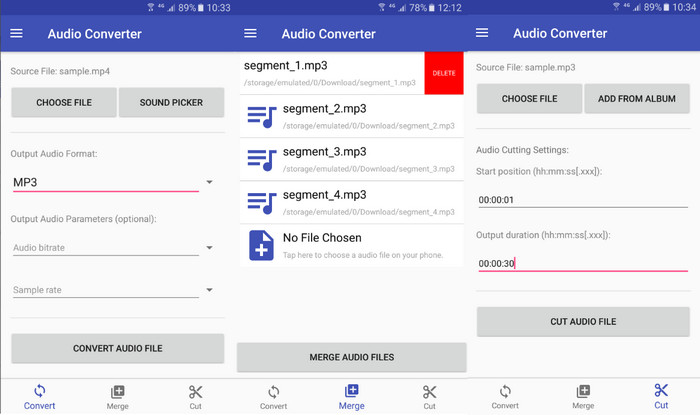
Når det gjelder å konvertere lydfiler, er den gratis og enkle Android-programvaren Audio Converter av Online-Convert.com vanskelig å slå. Brukere kan ganske enkelt dra og slippe MP3-filene sine inn i programmets grensesnitt for å starte konverteringsprosessen til M4A. Utgangskvaliteten til en lydfil kan justeres ved å endre innstillinger som bitrate og samplingsfrekvens i Audio Converter. Her er trinnene for å endre MP3 til M4A på Android:
Trinn 1. Last ned og installer Audio Converter fra Online-Convert.com fra Google Play Store på Android-enheten din. Start appen og trykk på knappen Convert Audio.
Trinn 2. Velg deretter MP3 som inndataformat og M4A som utdataformat.
Trinn 3. Trykk nå på knappen Select Files for å legge MP3-fil(er) til appen. Til slutt trykker du på knappen Start Conversion for å starte konverteringsprosessen. Så enkelt er det! Nå har du lært hvordan du konverterer MP3 til M4A på Android.
Del 5. Konverter MP3 til M4A på iOS
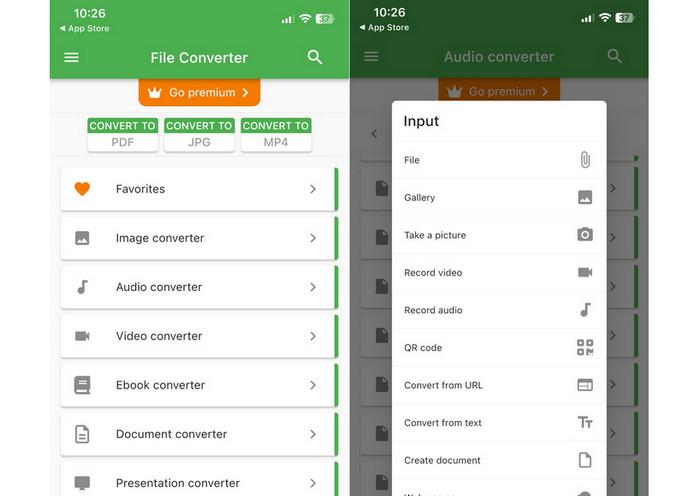
Lydfiler, som MP3, kan konverteres til det mer bærbare og tapsfrie M4A-formatet ved hjelp av File Converter Free, en gratis og enkel iOS-programvare. Den enkle designen gjør det enkelt for alle å laste inn MP3-filer og konvertere dem til M4A uten å måtte fikle med noen innstillinger eller oppsett.
Trinn 1. File Converter Free finnes i App Store og er gratis å laste ned og bruke. Start programmet og trykk på fanen Audio.
Trinn 2. Velg MP3 for både inn- og utdataformat og M4A for Apples AAC-format. Velg ønsket kvalitet på utdatafilen ved hjelp av nedtrekksmenyen. For å importere en MP3-fil til programmet, velg knappen Add File.
Trinn 3. Klikk på knappen Convert for å starte konverteringsprosessen.
Del 6. Vanlige spørsmål om konvertering av MP3 til M4A
Kan jeg konvertere MP3 til M4A ved hjelp av Windows Media Player?
Ja, du kan konvertere MP3 til M4A med Windows Media Player, men det krever noen ekstra trinn siden M4A ikke støttes som standardformat i Windows Media Player. Eller du kan ganske enkelt bruke et alternativ til Windows Media Player.
Vil konvertering av MP3 til M4A føre til tap av lydkvalitet?
Konvertering av MP3 til M4A kan føre til et lite tap av lydkvalitet på grunn av forskjellene i komprimeringsalgoritmer som brukes av de to formatene.
Kan jeg konvertere M4A tilbake til MP3?
Ja, mange programmer og verktøy for lydkonvertering lar deg konvertere M4A til MP3 ved behov. Vær imidlertid oppmerksom på at gjentatt konvertering mellom formater kan føre til tap av kvalitet.
Konklusjon
MP3 til M4A-konvertering er en nyttig prosess for alle som ønsker å forbedre kvaliteten og kompatibiliteten på lydfilene sine. Ved å følge trinnene og tipsene som er beskrevet her, kan du enkelt konvertere MP3-filene dine til M4A og nyte lyd i høy kvalitet på hvilken som helst enhet.
-
 Gratis og online | Hvordan konvertere MP4 til M4A på Windows / Mac
 Hvordan konverterer jeg MP4 til M4A online? Kan jeg trekke ut lyd fra MP4-filer? Les dette innlegget, så får du alle svarene om konvertering fra MP4 til M4A.
-
 De beste verktøyene du kan bruke til å batchkonvertere MP3 til M4R-filer
 Leter du etter en konverter som kan forvandle MP3-filen din til en M4R-ringetone for iPhone eller iPad batch? Les gjennom artikkelen for å finne noen av de beste som finnes.
-
 5 MP3-kuttere for å kutte hvilken som helst lyd enkelt [2023 Oppdatert]
 Trenger du en MP3-kutter for å trimme lyden? I så fall, les denne artikkelen fordi vi tilbyr verktøyene du kan stole på som gir enkel skjæring av lyden.
