


 Video Converter Ultimate
 Skjermopptaker
 Videoreparasjon
 Sikker nedlasting
Hvordan konvertere FLAC til MP3: Veiledning for høykvalitets lydkomprimering
Vil du unngå at høykvalitets FLAC-lydfilene dine tar opp for mye plass på enheten din? Ved å konvertere dem til det svært kompatible MP3‑formatet kan du løse dette problemet uten å ofre særlig mye lydkvalitet. I denne veiledningen går vi steg for steg gjennom hvordan du konverterer FLAC til MP3. Vi dekker alt fra de beste verktøyene og tipsene for en effektiv konvertering til hvordan du bevarer mest mulig kvalitet under prosessen. Nyt favorittmusikken din på alle enheter uten å bekymre deg for lagringsplass.

1. FVC Video Converter Ultimate
FVC Video Converter Ultimate er en omfattende videokonverteringsprogramvare som ikke bare konverterer ulike videoformater, men også støtter lydkonvertering. Det er en alt‑i‑ett‑løsning for konvertering, nedlasting, redigering og brenning av video- og lydfiler. I tillegg til videokonverteringsfunksjonene kan FVC Video Converter Ultimate konvertere lydfiler mellom ulike formater, inkludert konvertering fra FLAC til MP3. Den støtter et bredt spekter av lydformater, som WAV, AAC, M4A, WMA og mange andre. Følg trinnene nedenfor for å lære hvordan du bruker denne FLAC til MP3‑konverteren.
Trinn 1. Installer programmet
Først må du ha programmet installert på datamaskinen. For å gjøre dette klikker du på en av knappene for Gratis nedlasting for å laste ned verktøyet. Følg deretter installasjonsveiviseren for å installere det. Start så programmet på datamaskinen for å se selve grensesnittet.
Gratis nedlastingFor Windows 7 eller nyereSikker nedlasting
Gratis nedlastingFor MacOS 10.7 eller nyereSikker nedlasting
Trinn 2. Legg til en FLAC- eller MP3‑fil
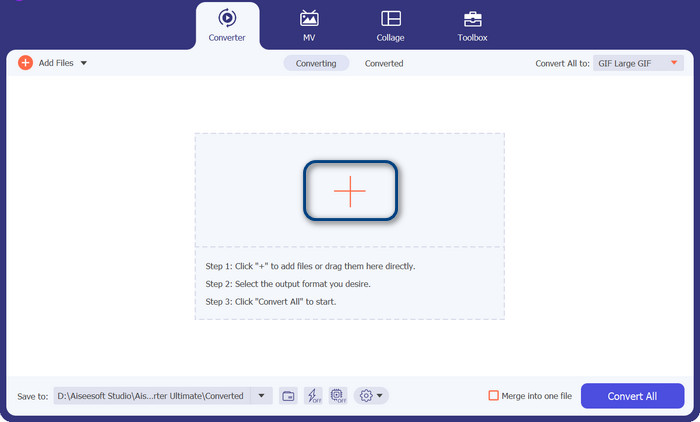
Hvis du ønsker å konvertere MP3 til FLAC eller omvendt, vennligst legg til en lydfil ved å trykke på plusstegnet fra hovedgrensesnittet. Du kan velge en eller flere lydfiler som du ønsker. Etterpå bør du se miniatyrbildet deres fra hovedgrensesnittet.
Trinn 3. Angi utdataformat
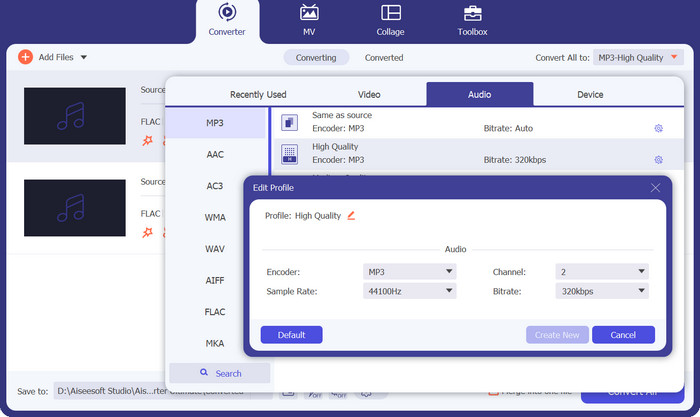
Klikk nå på menyen Profile øverst til høyre i verktøyet. Når den vises, velger du fanen Audio og finner MP3. For å konvertere fra MP3 til FLAC velger du FLAC som utdatafil. Eventuelt kan du redigere utdatainnstillingene etter egne preferanser.
Trinn 4. Konverter til FLAC
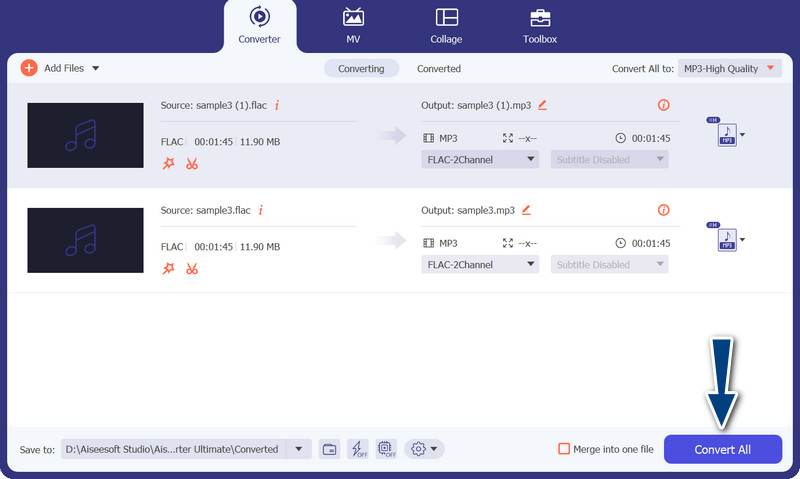
Nå velger du utdatamappen der du ønsker å lagre filene. Denne finner du helt nederst i grensesnittet. Klikk på den og angi utdatamappe. Når alt er klart, trykker du på knappen Convert All for å starte konverteringen. Slik bruker du denne MP3‑til‑FLAC‑konverteren eller FLAC‑til‑MP3‑konverteren.
Fordeler
- Det gir et brukervennlig grensesnitt og brukervennlige verktøy for konvertering.
- Programvaren inkluderer funksjoner for redigering av videoer.
- Rask konverteringshastighet uten å gå på bekostning av kvaliteten.
Ulemper
- Det er en betalt FLAC til MP3-omformer.
- Konverteringskvaliteten kan variere avhengig av kilden.
2. Gratis Video Converter Online
Hvis du ser etter et gratis program og vil lære hvordan du konverterer FLAC til MP3 på nettet, bør du vurdere å bruke Free Video Converter Online. Som navnet tilsier, hjelper det brukerne med å konvertere video‑ eller lydfiler helt gratis. Det gir deg også frihet til å redigere utdataene etter egen preferanse. I tillegg er konverteringshastigheten ikke noe å si på. Så lenge du har internettilgang, kan du regne med å få ønsket resultat. Finn ut hvordan dette gratisverktøyet for FLAC til MP3‑konvertering fungerer ved å følge trinn‑for‑trinn‑veiledningen nedenfor:
Trinn 1. Åpne en nettleser og gå til den foretrukne nettbaserte videokonverteren.
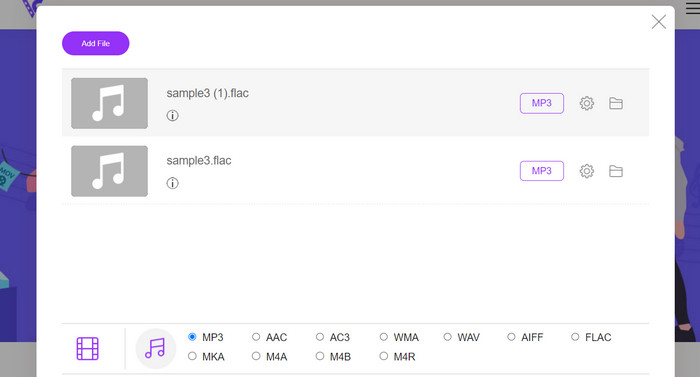
Trinn 2. Ved å klikke på Add Files to Convert kan du laste opp FLAC‑filen du ønsker å konvertere fra FLAC til MP3.
Trinn 3. Velg MP3 som utdataformat under menyen Audio fra listen over mulige formater. Velg deretter ønsket bitrate eller utgangskvalitet for MP3‑filen.
Trinn 4. For å starte konverteringsprosessen klikker du på knappen Convert. Det kan ta noen minutter før konverteringen er ferdig, avhengig av filstørrelsen og hastigheten på internettforbindelsen.
Fordeler
- Få tilgang til den beste gratis FLAC til MP3-konverteren når som helst.
- Det krever minimal teknisk kompetanse.
- Det kan spare tid og lagringsplass på en datamaskin.
Ulemper
- Den tilbyr ikke samme grad av tilpasning som stasjonær programvare.
- Det krever en stabil og rask internettforbindelse.
Del 2. Konverter FLAC til MP3 eller MP3 til FLAC på mobil
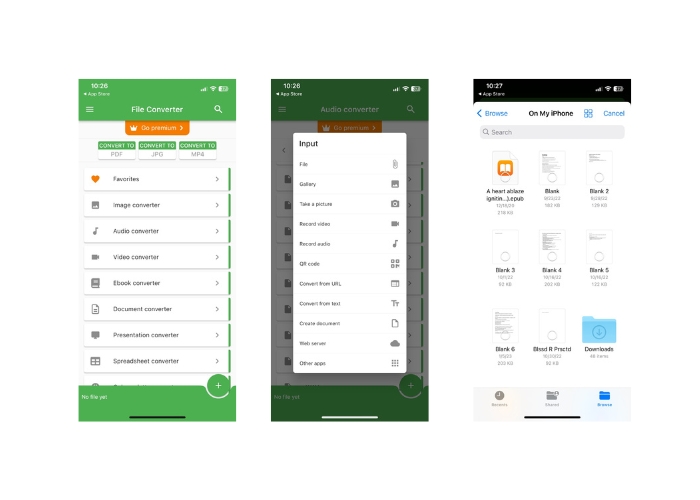
File Converter er en gratis mobilapp tilgjengelig for iOS-enheter som lar deg konvertere ulike filformater, inkludert lyd- og videofiler. Appen gir et enkelt og brukervennlig grensesnitt som lar deg konvertere filer uten behov for ekstra programvare. Appen støtter et bredt spekter av lyd- og videoformater, inkludert FLAC, MP3, WAV, M4A og mer.
Dette betyr at du enkelt kan konvertere lyd- og videofilene dine fra ett format uten problemer. En av de fremtredende funksjonene til File Converter er dens evne til å utføre batchkonvertering av FLAC til MP3. Dette betyr at du kan konvertere flere filer samtidig, noe som sparer deg for tid og krefter.
Trinn 1. Last ned og installer appen File Converter fra App Store. Åpne appen, og velg alternativet Audio.
Trinn 2. Velg FLAC to MP3 fra listen over tilgjengelige alternativer for lydkonvertering.
Trinn 3. Bruk knappen + for å legge til FLAC‑filene du vil konvertere. Når du har lagt til filene, kan du endre konverteringsinnstillingene hvis du ønsker det. Utgangskvalitet, bitrate og andre alternativer kan alle tilpasses.
Trinn 4. For å starte konverteringen, trykker du til slutt på knappen Convert. De konverterte MP3‑filene blir lagret lokalt på enheten din.
Fordeler
- Den kan konvertere flere filer samtidig.
- Konverteringsprosessen er relativt rask.
Ulemper
- Den har en filstørrelsesgrense på 250 MB.
- Det gir ikke avanserte alternativer.
Mer lesing:
WAV til MP3 – Topp 5 gratis konvertere for å konvertere WAV til MP3
Topp 3 FLAC-metadataredigerere på Mac og Windows [Oppdatert 2023]
Del 3. Vanlige spørsmål om konvertering av FLAC og MP3
Kan jeg konvertere FLAC til MP3 på Mac?
Ja det kan du. Hvis du har iTunes installert på Mac-en, kan du bruke den til å konvertere FLAC-filer til MP3. Bare importer FLAC-filene til iTunes, velg filene du ønsker å konvertere, og gå deretter til Fil > Konverter > Lag MP3-versjon. De konverterte MP3-filene vil bli lagret i iTunes-biblioteket ditt.
Kan Audacity batch konvertere FLAC til MP3?
Ja, Audacity kan batchkonvertere FLAC-filer til MP3 på Mac. For å gjøre det, åpner du først Audacity og oppretter en redigeringskjede som inkluderer Eksporter flere kommandoer. I dialogboksene Eksporter flere setter du filtypen til MP3-filer og konfigurerer alternativene for MP3-eksport etter eget ønske.
Vil konvertering av FLAC til MP3 påvirke lydkvaliteten?
Ja, konvertering av FLAC til MP3 innebærer noe tap av lydkvalitet, ettersom MP3 er et komprimeringsformat med tap. Men med en god koder og riktige innstillinger kan du minimere tapet av kvalitet og likevel ende opp med en anstendig MP3-fil.
Konklusjon
FLAC til MP3-konvertering kan være en praktisk måte å gjøre store lydfiler mer håndterlige på, samtidig som du bevarer en god lydkvalitet. Med så mange tilgjengelige verktøy for jobben, inkludert skrivebordsprogrammer og mobilapper, kan brukere enkelt finne en løsning som passer deres behov. Det er imidlertid viktig å merke seg at konvertering fra et tapsfritt format til et format med kvalitetstap, som MP3, uunngåelig vil føre til noe redusert lydkvalitet, og brukere bør vurdere fordeler og ulemper ved ulike konverteringsmetoder før de går i gang. Alt i alt kan konvertering fra FLAC til MP3, når det gjøres med omhu og oppmerksomhet på detaljer, være en effektiv måte å håndtere store lydfiler på.
-
 MP3-spillernedlasting – 10 beste gratis MP3-musikkspillere i 2023
 Hva er den beste MP3-musikkspilleren? Hvordan legger jeg musikk på en MP3-spiller? Hvordan laste ned MP3-musikkspilleren? Dette innlegget gir deg en detaljert gjennomgang av de 10 beste gratis MP3-spillerne for Windows PC og Mac.
-
 Praktisk opplæring i hvordan du konverterer videoer til MP3-format
 Har du problemer med å konvertere videoer til MP3? Deretter må du stole på denne oppskriften når vi undersøker hvilken omformer som gir den beste konverteringen.
-
 5 MP3-kuttere for å kutte hvilken som helst lyd enkelt [2023 Oppdatert]
 Trenger du en MP3-kutter for å trimme lyden? I så fall, les denne artikkelen fordi vi tilbyr verktøyene du kan stole på som gir enkel skjæring av lyden.
