


 Video Converter Ultimate
 Gravador de ecrã
 Reparo de vídeo
 Secure Download
Guia Como Girar um Vídeo em um iPhone e iPad com as Melhores Ferramentas
Are you tired of squinting your eyes to watch sideways or upside-down videos on your iPhone? We've all been there. But the good news is, you don't have to put up with wonky footage anymore. With a few simple steps, you can master how to rotate videos on an iPhone and get them looking just the way you want. Whether you're an aspiring filmmaker, a social media influencer, or just someone who likes to capture special moments, knowing how to adjust the orientation of your videos is a valuable skill to have.
Nesta postagem do blog, mostraremos como girar vídeos em seu iPhone como um profissional, para que você possa exibir suas imagens da melhor maneira possível. Então, prepare-se para levar seu jogo de edição de vídeo para o próximo nível!

Parte 1. Como Girar um Vídeo no iPhone
1. Fotos
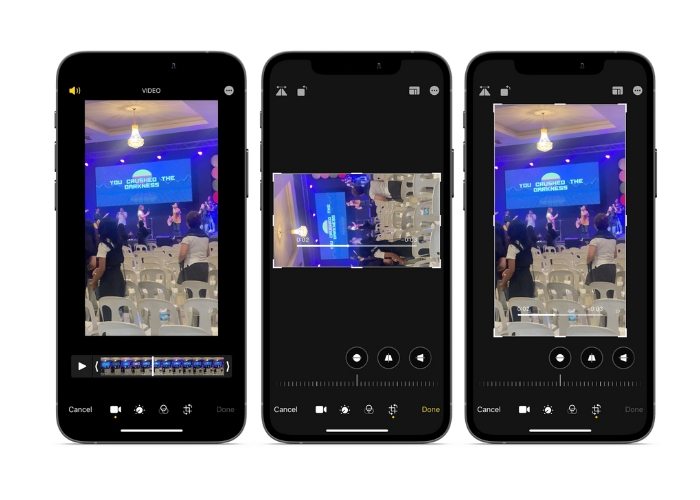
Se você é um usuário do iPhone, é provável que já esteja familiarizado com o aplicativo Fotos. É o aplicativo ideal para organizar e editar suas fotos e vídeos e está repleto de recursos que facilitam o gerenciamento de sua biblioteca de mídia. Este aplicativo não é apenas para organizar e editar fotos. Um recurso útil é a capacidade de girar vídeos, o que pode ser um salva-vidas se você acidentalmente filmou algo na orientação errada. Confira as etapas para aprender como converter um vídeo em modo retrato para um vídeo em paisagem do iPhone ou vice-versa.
Step 1. Fire up the Photos app on your iPhone and select the clip you want to rotate.
Step 2. Then, tap the Edit button in the top right corner of the screen.
Step 3. Tap the Crop and Rotate button, which looks like a square with an arrow curving around it.
Step 4. To rotate your video, use two fingers to twist it in the direction you want. You can also use the slider at the bottom of the screen to fine-tune the rotation. Once you've rotated your video to the desired orientation, tap Done in the bottom right corner of the screen. In a way, the Photos app also works as a rotate video app for iPhone users.
2. iMovie
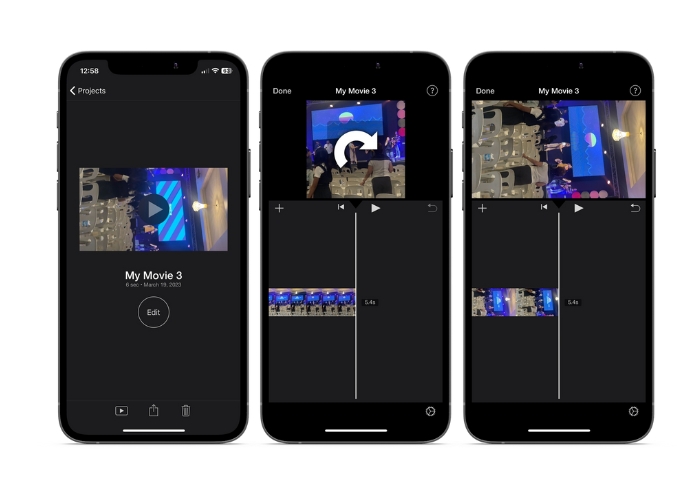
Para aspirantes a cineastas, criadores de conteúdo ou apenas alguém que adora capturar momentos especiais em vídeo, você precisa conferir o iMovie. O iMovie é um poderoso aplicativo de edição de vídeo para dispositivos Apple que permite criar filmes impressionantes. Com o iMovie, você pode facilmente girar seus vídeos e garantir que eles fiquem perfeitos em qualquer tamanho de tela ou ângulo de visão. Para executar o vídeo de rotação do iMovie em um iPhone, siga as instruções abaixo.
Step 1. First, launch the iMovie on your iPhone. Then, start a new project.
Step 2. After that, select a video you wish to edit from your phone's gallery.
Step 3. In the preview panel, place your two fingers on the video. Then, move clockwise or counterclockwise to rotate the video.
Step 4. Finally, tap the Done button in the upper left-corner of your screen. That is how to make a video rotate on an iPhone using iMovie.
3. Girar e Inverter Vídeo
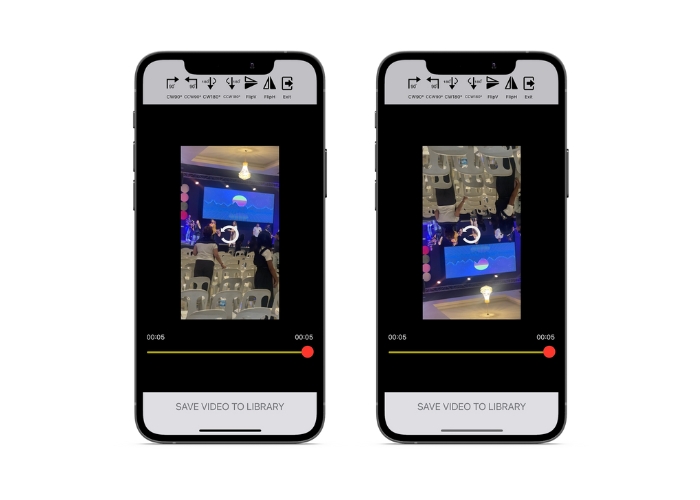
Video Rotate & Flip é um aplicativo de terceiros que você pode baixar na App Store. Ele permite que você gire e inverta vídeos facilmente. Basta abrir o aplicativo, selecionar o vídeo que deseja girar e usar a ferramenta de rotação para ajustar o ângulo do vídeo. Você também pode usar a ferramenta flip para virar o vídeo horizontalmente ou verticalmente. Quando terminar, salve o vídeo no rolo da câmera ou compartilhe-o diretamente do aplicativo.
Step 1. Install the program from the Play Store. Open the app and tap on the arrow up button from the main screen to choose the video you want to rotate.
Step 2. Once you've selected the video, it will appear in the preview window. You can use the controls below the preview window to rotate the video clockwise or counterclockwise by 90 degrees, or flip it horizontally or vertically.
Step 3. When you've rotated or flipped the video to your desired orientation, tap on the Save button to save the changes. That is how to get video to rotate on an iPhone with this program.
Parte 2. Como girar um vídeo em um iPad
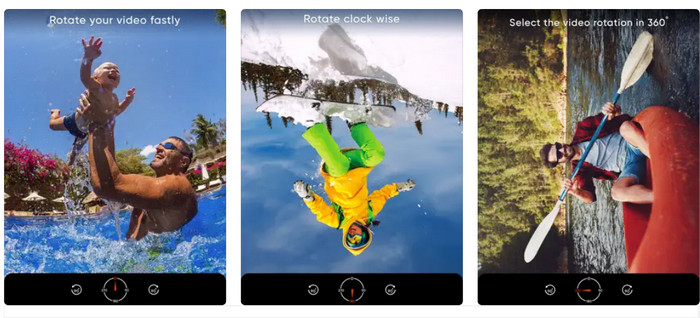
If you wish to work on a bigger screen like an iPad, you can use Video Rotate. It is a third-party app that you can download from the App Store. It allows you to rotate videos easily, and you can also flip them horizontally or vertically if needed. Video Rotate does more than just turn videos. It also has some other useful features. You can trim the video to get rid of parts you don't want, change the brightness and contrast, or even add text or effects.
Step 1. Get the app Video Rotate from the App Store and install it on your iPad.
Step 2. Open the app and tap the Select Video button to choose the video you want to rotate. You'll see the video playing on the screen.
Step 3. To rotate the video, use the rotation controls located at the bottom of the screen. You can rotate the video 90 degrees to the left or right by tapping the corresponding button. You may also flip the video horizontally or vertically by tapping the Flip button.
Parte 3. Como girar vídeos do iPhone em um computador
If you wish to learn how to rotate videos on a PC, you can use FVC Video Converter Ultimate. It is a versatile and comprehensive video converter that can also serve as a powerful video rotator. It offers a user-friendly interface and it supports a wide range of video formats, including MP4, AVI, MOV, and many others. To learn more about this tool, you can refer to the given steps.
Step 1. Get the tool and set it up.
Primeiro, você precisa pegar o aplicativo e instalar o programa no seu computador. Depois disso, comece imediatamente.
Free DownloadFor Windows 7 or laterSecure Download
Free DownloadFor MacOS 10.7 or laterSecure Download
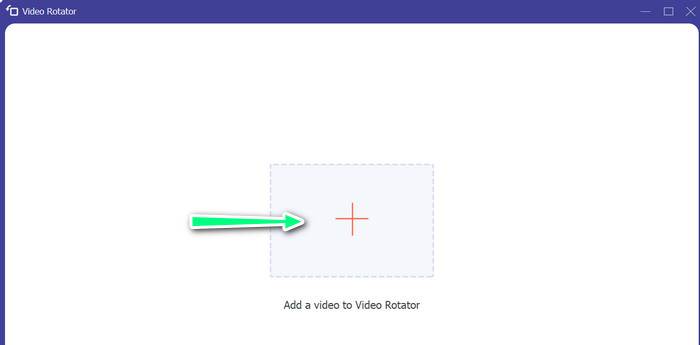
Step 2. Add a video file
Next, click on the Toolbox tab and use the program's Video Rotator feature. After clicking on this option, you will be asked to upload your video. Now, click on the plus sign to add the video you want.
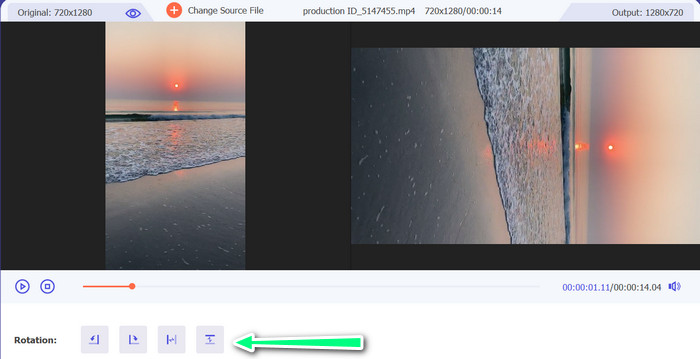
Step 3. Turn the video around
Neste ponto, clique no botão que faz o vídeo ficar do jeito que você quer. Como a visualização está ativa, você pode fazer alterações rapidamente.
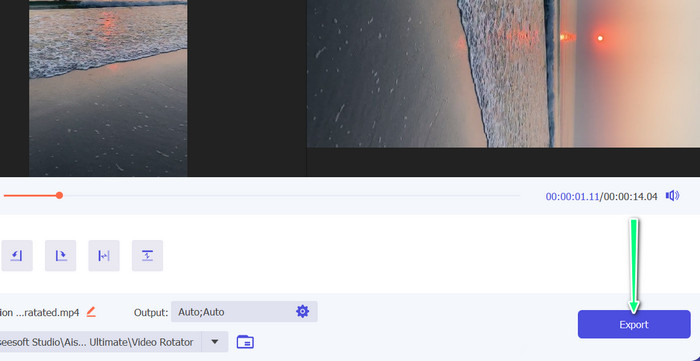
Step 4. Get a copy of the video that was rotated
Lastly, click the Export button to get a copy of the video you just edited. After that, an alert will pop up, and the folder where the video is will appear.
Parte 4. Perguntas frequentes sobre como girar vídeos no iPhone
Por que o vídeo do iPhone não gira?
Pode haver várias causas pelas quais o vídeo do iPhone não gira. As causas mais comuns são o bloqueio de orientação ativado, o formato de vídeo não compatível e muitos outros.
Como fazer um vídeo de retrato no iPhone 12?
Para fazer um vídeo de retrato no seu iPhone 12, comece abrindo o aplicativo Câmera e deslizando para a esquerda para alternar para o modo de vídeo. Em seguida, toque no botão 1× ou 2× para escolher a câmera que deseja usar. Em seguida, procure a opção Retrato acima do botão do obturador e toque nela para selecioná-la.
Girar um vídeo no meu iPhone afetará sua qualidade?
Rotating a video on your iPhone should not affect its quality as long as you're not resizing or compressing the video in the process.
Conclusão
Rotating videos on an iPhone can be a simple and effective way to enhance your visual content. With the built-in Photos app or third-party apps, you can rotate videos on an iPhone to the desired orientation and create stunning videos without having to worry about the orientation of the original footage.
-
 [4 soluções] Como desacelerar um vídeo no iPhone como um profissional
 Está com problemas para desacelerar um vídeo no iPhone? Se você encontrar esse problema, não se preocupe mais, pois ajudaremos você a resolver o problema lendo este artigo.
-
 Como encurtar um vídeo no iPhone [Tutoriais detalhados]
 Você é um usuário do iPhone e deseja cortar seus vídeos? Não se preocupe mais. Este guia fornecerá detalhes completos sobre como cortar um vídeo no iPhone e no iPad.
-
 Edite como um profissional: como cortar seus vídeos do iPhone sem esforço
 Se você'está procurando levar suas habilidades de edição de vídeo do iPhone para o próximo nível, os aplicativos de corte de vídeo são uma virada de jogo. Abordaremos alguns dos melhores aplicativos de corte de vídeo para iPhone.
