


 Video Converter Ultimate
 บันทึกหน้าจอ
 ซ่อมวิดีโอ
 ดาวน์โหลดอย่างปลอดภัย
3 วิธียอดนิยมในการแปลง FLV เป็น MOV
เนื่องจากบางรูปแบบไฟล์ไม่รองรับหรือด้วยเหตุผลอื่น คุณอาจจำเป็นต้องแปลงไฟล์ FLV เป็น MOV โดยเฉพาะเมื่อคุณใช้งานบน Mac.
คุณควรทราบว่าไฟล์ FLV ไม่สามารถรองรับได้โดยตรงบน QuickTime Player และ iMovie ดังนั้นคุณจึงไม่สามารถเปิดหรือแก้ไขไฟล์ FLV บน Mac ได้โดยตรง ไม่ว่าด้วยเหตุผลใดก็ตาม บทความนี้จะแสดงให้คุณเห็นวิธีแปลงไฟล์ FLV เป็น MOV.

โชคดีที่มีโปรแกรมแปลงวิดีโอจำนวนมาก รวมถึงตัวแปลงวิดีโอออนไลน์ฟรีหลายตัวที่ช่วยให้คุณเปลี่ยนไฟล์ FLV เป็น MOV ได้อย่างง่ายดาย บทความนี้จะแนะนำตัวแปลง FLV เป็น MOV ที่ยอดเยี่ยม 3 ตัวให้คุณ เมื่อคุณดาวน์โหลดวิดีโอ FLV จากเว็บไซต์วิดีโอสตรีมมิง คุณสามารถใช้ตัวแปลงเหล่านี้เพื่อทำการแปลงวิดีโอจาก FLV เป็น MOV ได้.
ส่วนที่ 1 แปลง FLV เป็น MOV ออนไลน์ฟรี
ตามที่เราได้กล่าวไว้ข้างต้น มีตัวแปลง FLV เป็น MOV ออนไลน์ฟรีจำนวนมากในท้องตลาด หากคุณยังไม่แน่ใจว่าจะใช้ตัวไหน ที่นี่เราขอแนะนำ FVC Free Online Video Converter ที่ได้รับความนิยมสำหรับใช้แปลง FLV เป็น QuickTime MOV ให้กับคุณ.
ขั้นตอนที่ 1: เปิดเบราว์เซอร์ของคุณและไปที่เว็บไซต์ตัวแปลง FLV เป็น MOV ออนไลน์นี้ คุณสามารถใช้งานได้บนเว็บเบราว์เซอร์ทุกตัวรวมถึง Chrome, IE, Safari และ Firefox.
ดาวน์โหลดเวอร์ชันเดสก์ท็อปเพื่อแปลงไฟล์แบบเป็นชุดได้.
ขั้นตอนที่ 2: คลิกปุ่ม Add Files to Convert เพื่อทำการติดตั้งตัวเรียกใช้งานสำหรับการแปลง FLV อย่างรวดเร็ว หลังจากนั้นจะมีหน้าต่างป๊อปอัปปรากฏขึ้นเพื่อให้คุณเลือกและอัปโหลดไฟล์ FLV ของคุณ.

ขั้นตอนที่ 3: เมื่อคุณเข้าสู่หน้าต่างหลักของตัวแปลง คุณจะเห็นว่ามีรูปแบบวิดียอดนิยมต่าง ๆ เช่น MP4, MOV, AVI, FLV, M4V, MKV, VOB, MPG, WMV และอื่น ๆ แสดงอยู่ ที่นี่คุณควรเลือก MOV เป็นรูปแบบไฟล์เอาต์พุต.
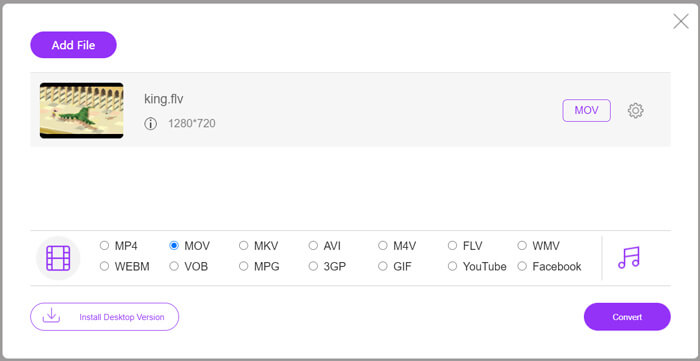
ขั้นตอนที่ 4: ก่อนทำการแปลง FLV เป็น MOV ขั้นสุดท้าย คุณสามารถคลิกไอคอน Settings เพื่อปรับแต่งการตั้งค่าวิดีโอและเสียงเพิ่มเติม เช่น ความละเอียดวิดีโอ ตัวเข้ารหัส บิตเรต อัตราเฟรม ระดับเสียง ช่องสัญญาณเสียง และอื่น ๆ หลังจากนั้นคุณสามารถคลิกปุ่ม Convert เพื่อเริ่มแปลง FLV เป็น MOV ออนไลน์.
ส่วนที่ 2 เปลี่ยน FLV เป็น MOV ด้วย VLC
VLC เป็นโปรแกรมเล่นสื่อแบบโอเพนซอร์สที่มาพร้อมกับฟังก์ชันการแปลงไฟล์พื้นฐานบางอย่าง หากคุณติดตั้ง VLC Media Player บน Mac หรือ Windows PC ของคุณ คุณสามารถใช้โปรแกรมนี้ในการแปลงไฟล์ FLV ได้.
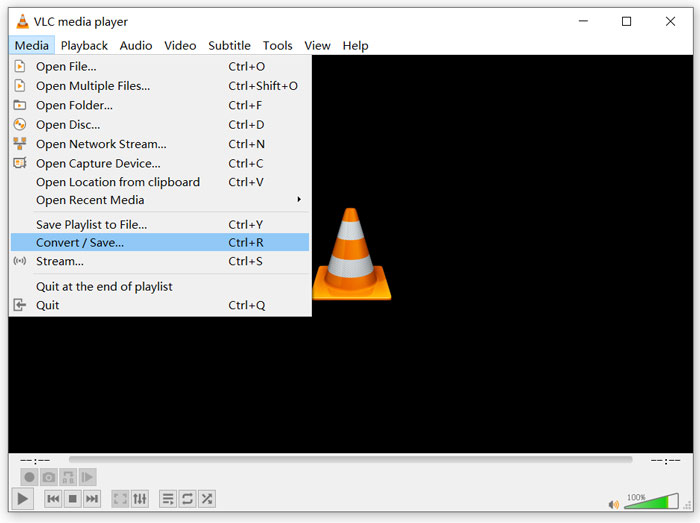
ขั้นตอนที่ 1: เปิด VLC Media Player บนคอมพิวเตอร์ของคุณแล้วคลิกที่เมนู Media จากเมนูแบบเลื่อนลง ให้เลือกตัวเลือก Convert/Save หากคุณใช้ VLC บน Mac ที่นี่คุณควรคลิกเมนู File แล้วเลือกตัวเลือก Convert/Stream.
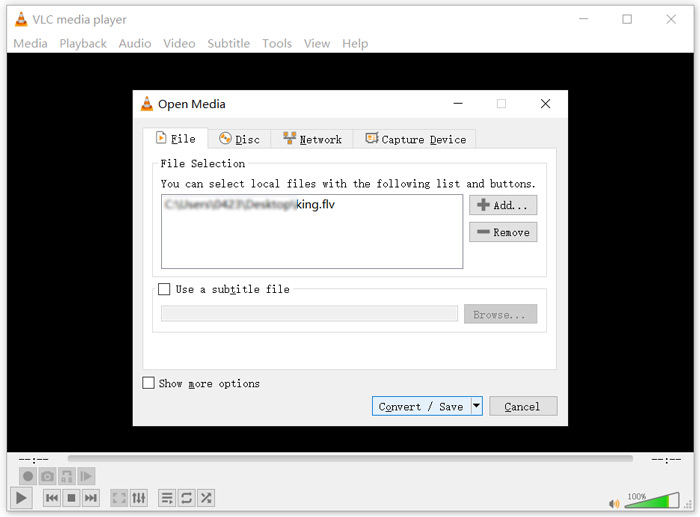
ขั้นตอนที่ 2: ตอนนี้คุณอยู่ในหน้าต่าง Open Media ที่นี่คุณสามารถคลิกปุ่ม Add เพื่อเพิ่มไฟล์ FLV ที่คุณต้องการแปลง จากนั้นคลิกปุ่ม Convert/Save เพื่อดำเนินการต่อ.
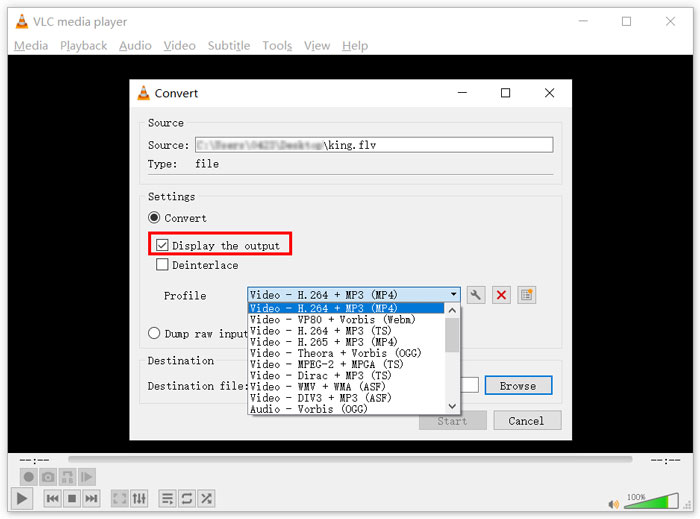
ขั้นตอนที่ 3: จากเมนูแบบเลื่อนลงของ Profile ให้เลือกฟอร์แมตเอาต์พุตที่เหมาะสม ที่นี่คุณสามารถแปลง FLV เป็น MP4, TS, OGG, WebM, YouTube HD, MP3, FLAC และอื่น ๆ ได้ ทำเครื่องหมายที่ช่องด้านหน้าตัวเลือก Display the output คลิกปุ่ม Browse เพื่อเลือกโฟลเดอร์ปลายทางที่เหมาะสมสำหรับไฟล์ FLV ที่แปลงแล้ว ในขั้นตอนนี้คุณสามารถกำหนดนามสกุลไฟล์เอาต์พุตให้เป็น .mov ได้.
ขั้นตอนที่ 4: หลังจากทำตามขั้นตอนทั้งหมดเหล่านี้แล้ว คุณสามารถคลิกปุ่ม Start เพื่อเริ่มการแปลงไฟล์ FLV.
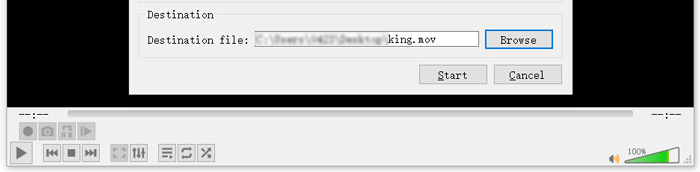
VLC Media Player จะเริ่มเล่นไฟล์วิดีโอเอาต์พุตโดยอัตโนมัติ คุณจะเห็นข้อความแจ้ง Converting file ที่ด้านบนของ VLC อย่าปิด VLC จนกว่าการแปลงจะเสร็จสมบูรณ์.
ส่วนที่ 3 วิธีที่ดีที่สุดในการแปลง FLV เป็น MOV โดยไม่สูญเสียคุณภาพ
เมื่อคุณต้องการแปลง FLV เป็น MOV คุณยังสามารถเลือกใช้โซลูชันแบบมืออาชีพได้ด้วย ที่นี่เราขอแนะนำซอฟต์แวร์แปลง FLV เป็น MOV ที่มีฟีเจอร์ครบครันอย่าง Video Converter Ultimate ให้คุณ เมื่อเทียบกับตัวแปลง FLV เป็น MOV ออนไลน์ฟรีและ VLC แล้ว โปรแกรมนี้มีฟีเจอร์มากกว่าและรองรับฟอร์แมตได้หลากหลายกว่า ที่สำคัญกว่านั้นคือมันสามารถแปลง FLV เป็น MOV ได้โดยคงคุณภาพดั้งเดิมไว้.
- 1. แปลงวิดีโอใด ๆ เช่น MKV, AVI, MP4, WMV, FLV เป็น MOV โดยไม่สูญเสียคุณภาพ
- 2. แปลงวิดีโอ 8K/5K/4K, 1080p/720p HD และ SD ให้เป็นรูปแบบมากกว่า 500 รูปแบบ เช่น MOV, MP4, AVI, MP3 และอื่นๆ
- 3. แก้ไขวิดีโอ เช่น ตัด หมุน ครอบตัด ผสาน ฯลฯ และเพิ่มตัวกรองและเอฟเฟกต์ และปรับปรุงคุณภาพ
- 4. กล่องเครื่องมือสามารถบีบอัด FLV แก้ไขข้อมูลเมตาของ FLV สร้าง GIF จาก FLV และอื่นๆ
ดาวน์โหลดฟรีสำหรับ Windows 7 หรือใหม่กว่าดาวน์โหลดอย่างปลอดภัย
ดาวน์โหลดฟรีสำหรับ MacOS 10.7 หรือใหม่กว่าดาวน์โหลดอย่างปลอดภัย
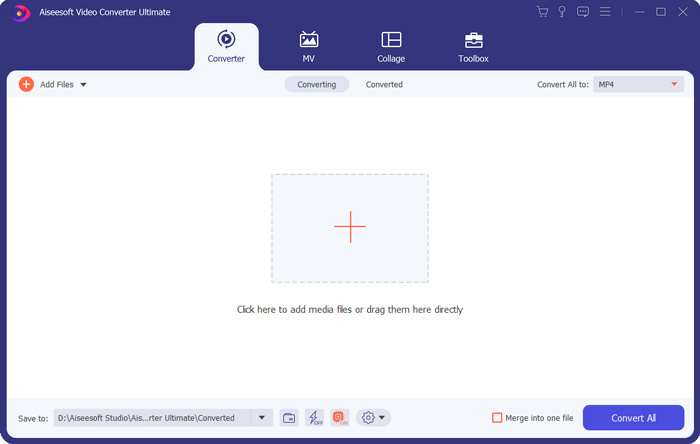
ขั้นตอนที่ 1: ติดตั้งและเปิดใช้งานโปรแกรมแปลง FLV เป็น MOV ตัวนี้ฟรีบน Mac หรือ Windows PC ของคุณ ตรวจสอบให้แน่ใจว่าคุณกำลังใช้ฟีเจอร์ Converter จากนั้นคลิกไอคอนเครื่องหมายบวกขนาดใหญ่เพื่อเพิ่มไฟล์ FLV ของคุณ.
ขั้นตอนที่ 2: คลิกที่ไอคอน format ที่ด้านขวาของไฟล์ FLV ที่นำเข้า ตั้งค่า MOV เป็นฟอร์แมตเอาต์พุตจากเมนูแบบเลื่อนลง.
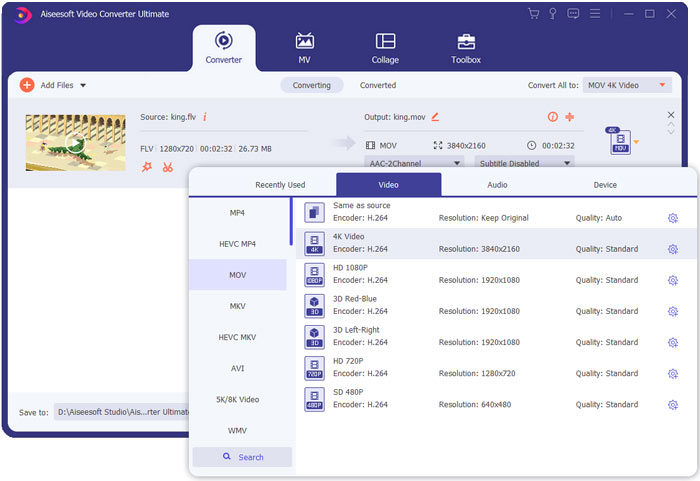
ขั้นตอนที่ 3: อย่างที่คุณเห็นจากด้านบน ตัวแปลง FLV ตัวนี้มาพร้อมฟังก์ชันการตัดต่อมากมาย ดังนั้นก่อนการแปลง FLV เป็น MOV คุณสามารถตัดต่อ เพิ่มฟิลเตอร์ เอฟเฟกต์ หรือปรับแต่งการตั้งค่าอื่น ๆ ตามต้องการได้ หลังจากนั้นคุณสามารถคลิกปุ่ม Convert All เพื่อเริ่มกระบวนการแปลง.
FLV เทียบกับ MOV
Adobe Flash Player ใช้ FLV เพื่อส่งเนื้อหาวิดีโอ เช่น ภาพยนตร์และรายการทีวี ปัจจุบัน Adobe ไม่ได้พัฒนาโปรแกรมเล่นอีกต่อไปและแนะนำให้ผู้ใช้ถอนการติดตั้งโปรแกรมดังกล่าวด้วยเหตุผลด้านความปลอดภัย อย่างไรก็ตาม คุณยังคงสามารถใช้รูปแบบ FLV ในโปรแกรมที่ไม่ใช่ Adobe/Macromedia จำนวนมากได้
รูปแบบ MOV สามารถใช้สำหรับจัดเก็บภาพยนตร์ รายการทีวี คลิปวิดีโอสั้น หรือภาพยนตร์ที่บ้าน ไฟล์นี้ถูกบันทึกในรูปแบบไฟล์ QuickTime (QTFF) ซึ่งเปิดตัวโดย Apple ในปี 1991 ไฟล์ MOV มักถูกใช้เมื่อผู้คนต้องการบันทึกวิดีโอคุณภาพสูง
ส่วนที่ 4 คำถามที่พบบ่อยเกี่ยวกับการแปลง FLV เป็น MOV
FLV กับ MOV ความแตกต่างระหว่าง FLV และ MOV คืออะไร
FLV หรือ Flash Video File คือไฟล์วิดีโอที่เข้ากันได้กับ Flash ซึ่งพัฒนาโดย Adobe Systems ภายในไฟล์จะมีส่วนหัวขนาดสั้น พร้อมแพ็กเก็ตวิดีโอ เสียง และข้อมูลเมตาแบบสลับกัน FLV ถูกออกแบบมาเพื่อฝังสตรีมวิดีโอในแอปพลิเคชันของ Adobe โดยเฉพาะ ไฟล์ FLV หนึ่งไฟล์มักมีสตรีมวิดีโอขนาด 640x360 และสตรีมเสียงที่ความถี่ 44.1 KHz 2 แชนเนล แบบ AAC
MOV เป็นฟอร์แมตวิดีโอมาตรฐานสำหรับอุปกรณ์ Apple และซอฟต์แวร์ที่เกี่ยวข้อง เช่น QuickTime Player และ iMovie และยังเป็นพื้นฐานของฟอร์แมตไฟล์ MPEG-4 ตามมาตรฐานของ International Organization for Standardization ไฟล์ MOV สามารถเก็บวิดีโอ เสียง ข้อความ คำบรรยาย รูปภาพ และไฟล์อื่น ๆ ได้
รูปแบบ FLV ไม่สามารถรองรับโดยอุปกรณ์ของ Apple รวมถึง Mac, iPhone, iPad และ iPod touch นอกจากนี้ เมื่อเทียบกับ MOV แล้ว FLV ให้คุณภาพวิดีโอที่ต่ำกว่า.
iMovie สามารถแก้ไข FLV ได้หรือไม่
ไม่ เนื่องจากคุณสามารถเรียนรู้ได้จากด้านบน อุปกรณ์และซอฟต์แวร์ของ Apple ไม่รองรับ FLV เนื่องจากเป็นโปรแกรมตัดต่อวิดีโอเริ่มต้นของอุปกรณ์ Mac และ iOS iMovie จึงไม่สามารถใช้งานร่วมกับไฟล์ FLV ได้
Windows Media Player สามารถเปิดไฟล์ MOV ได้หรือไม่
Windows Media Player เวอร์ชันส่วนใหญ่ไม่รองรับรูปแบบ MOV แต่ Windows Media Player 12.0 ล่าสุดสามารถเปิดไฟล์ MOV ได้
สรุป
บทความนี้แบ่งปัน 3 วิธีง่าย ๆ ในการแปลง FLV เป็น MOV เมื่อไฟล์ FLV ของคุณไม่สามารถเล่นหรือแก้ไขได้ คุณสามารถใช้ตัวแปลงที่แนะนำเหล่านี้เพื่อแปลงเป็น MOV หรือ MP4 ได้.
-
 วิธีการแปลงวิดีโอ FLV ของคุณเป็นไฟล์เสียง MP3 บนเดสก์ท็อปและออนไลน์
 จะแปลงไฟล์ FLV เป็นไฟล์ MP3 ได้อย่างไร? สิ่งที่คุณต้องทำคืออ่านบทความนี้อย่างละเอียดค้นหาวิธีที่คุณชื่นชอบและทำตามคำแนะนำทีละขั้นตอนเพื่อให้ได้สิ่งที่คุณต้องการ
-
 10 เครื่องเล่นวิดีโอ FLV ที่ดีที่สุดสำหรับ Windows 10/8/7, Mac, iOS และ Android ที่คุณต้องลอง (2021 ล่าสุด)
 เครื่องเล่น FLV ช่วยให้คุณเข้าถึงไฟล์ FLV บนอุปกรณ์ Windows, Mac, Android, iOS ได้อย่างง่ายดาย ตรวจสอบเครื่องเล่นไฟล์ FLV ที่ดีที่สุดที่คุณสามารถดาวน์โหลดได้ตอนนี้
-
 วิธีการแปลง MP4 เป็น FLV ออนไลน์ / Mac / Windows ฟรี
 โพสต์นี้เป็นคำแนะนำโดยละเอียดเกี่ยวกับการแปลง MP4 เป็น FLV คุณสามารถใช้ตัวแปลงฟรี 3 อันดับแรกเพื่อเปลี่ยน MP4 เป็น FLV ทางออนไลน์บนคอมพิวเตอร์ Windows หรือ Mac ได้อย่างง่ายดาย

