


 Video Converter Ultimate
 บันทึกหน้าจอ
 ซ่อมวิดีโอ
 ดาวน์โหลดอย่างปลอดภัย
วิธีที่ง่ายที่สุดในการแก้ไขรูปภาพ HEIC โดยใช้เครื่องมือที่ดีที่สุด
รูปถ่าย HEIC เป็นรูปแบบไฟล์ภาพที่ Windows ไม่สามารถเปิดได้โดยตรง แม้ว่าจะเป็นไฟล์ภาพที่ใช้อย่างแพร่หลายเพราะมีความละเอียดสูงและขนาดไฟล์เล็ก แต่คุณสามารถเปิดได้แบบเนทีฟเฉพาะบนอุปกรณ์ของ Apple เท่านั้น นอกจากนี้ หากรูปภาพของคุณสูญหายข้อมูลหรือได้รับความเสียหาย คุณจำเป็นต้องมีเครื่องมือที่จะช่วยซ่อมแซมรูปภาพและกู้คืนข้อมูลที่สูญหาย บทความนี้จะช่วยให้คุณรู้จักเครื่องมือที่ดีที่สุดในการเปิดไฟล์ HEIC บนพีซี Windows ของคุณ และบอกให้คุณรู้ว่าจะแก้ไขรูปถ่าย HEIC อย่างไรได้อย่างง่ายดาย.

ส่วนที่ 1 วิธีแก้ไขและดูภาพ HEIC ของคุณบนพีซี Windows ของคุณ
คุณไม่สามารถดูภาพ HEIC บนพีซีที่ใช้ Windows แม้ว่ารูปภาพของคุณจะไม่เสียหาย ดังนั้น ตัวเลือกที่ดีที่สุดสำหรับคุณคือการใช้เครื่องมือที่สามารถดูรูปภาพ HEIC ของคุณ หรือแปลงเป็นรูปแบบรูปภาพอื่นที่ Windows รองรับ เช่น JPG และ PNG ดังนั้น เราจะนำเสนอเครื่องมือที่ดีที่สุดในการดูภาพ HEIC บนพีซี Windows ของคุณและวิธีแปลงภาพ HEIC เป็นรูปแบบภาพ JPG
ใช้ตัวแปลง
Aiseesoft HEIC Converter เป็นตัวแปลง HEIC ออนไลน์ที่ให้คุณแปลงภาพ HEIC ของคุณเป็นรูปแบบภาพ JPG หรือ PNG เครื่องมือนี้มีอินเทอร์เฟซผู้ใช้ที่เรียบง่าย ทำให้เป็นเครื่องมือที่ใช้งานง่าย นอกจากนั้น คุณสามารถเปลี่ยนคุณภาพของภาพเมื่อแปลงภาพ HEIC นอกจากนี้ยังสามารถเก็บข้อมูล EXIF ของรูปภาพของคุณไว้ท่ามกลางการแปลงเป็นรูปแบบภาพอื่น ๆ นอกจากนี้ คุณสามารถใช้เครื่องมือนี้เพื่อแปลงภาพ HEIC เป็น JGP โดยไม่ต้องจ่ายอะไรเลย
ขั้นตอนที่ 1. ดาวน์โหลด Aiseesoft HEIC Converter ลงในพีซีของคุณ ทำตามขั้นตอนการติดตั้งแล้วเปิดแอป.
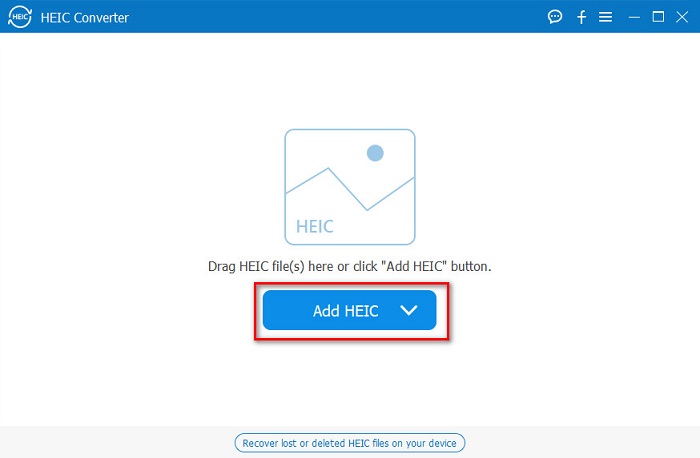
ขั้นตอนที่ 2. คลิกปุ่ม Add HEIC เพื่ออัปโหลดรูปภาพ HEIC ของคุณไปยังหน้าหลักของซอฟต์แวร์.
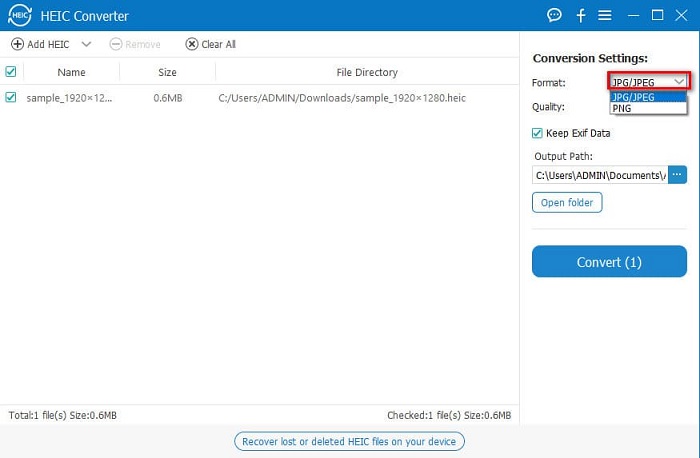
ขั้นตอนที่ 3. จากนั้น เลือกรูปแบบเอาต์พุตโดยคลิกปุ่มดรอปดาวน์ข้าง Format แล้วเลือกเป็นรูปแบบภาพ JPG/JPEG.
ขั้นตอนที่ 4. สุดท้ายคลิกปุ่ม Convert เพื่อแปลงรูปภาพ HEIC ของคุณให้เป็นรูปแบบภาพ JPG.
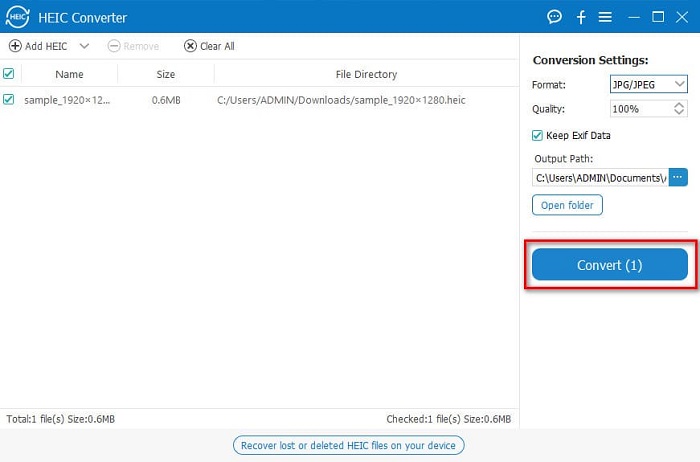
ทำตามขั้นตอนง่ายๆ เหล่านี้เพื่อแปลงภาพ HEIC เป็นรูปแบบภาพ JPG เพื่อดูบนอุปกรณ์ Windows
คุณยังสามารถลองใช้ FVC HEIC Converter ซึ่งมีฟีเจอร์อันทรงพลังเช่นเดียวกับ Aiseesoft Converter:
ดาวน์โหลดฟรีสำหรับ Windows 7 หรือใหม่กว่าดาวน์โหลดอย่างปลอดภัย
ดาวน์โหลดฟรีสำหรับ MacOS 10.7 หรือใหม่กว่าดาวน์โหลดอย่างปลอดภัย
ที่เกี่ยวข้อง:
ใช้โปรแกรมดู
1. HEIC Image Viewer Decoder
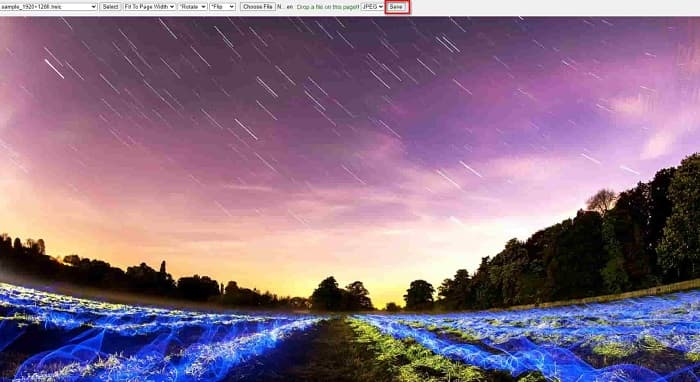
HEIC Image Viewer Decoder เป็นแอปดูไฟล์ HEIC ที่ให้คุณดูภาพ HEIC ออนไลน์ได้ หลังจากดูหรือถอดรหัสภาพ HEIC แล้ว คุณสามารถบันทึกเป็นไฟล์ภาพ PNG หรือ JPG ได้ นอกจากนี้ยังมีอินเทอร์เฟซที่เรียบง่าย ทำให้ดูภาพ HEIC ได้อย่างสะดวก.
ขั้นตอนที่ 1. บนเบราว์เซอร์ที่คุณใช้ ให้ค้นหา HEIC Image Viewer Decoder แล้วบนหน้าอินเทอร์เฟซหลักของซอฟต์แวร์ ให้ลากภาพ HEIC ของคุณมาวางในกรอบสี่เหลี่ยม หรือคลิกปุ่ม Choose Files.

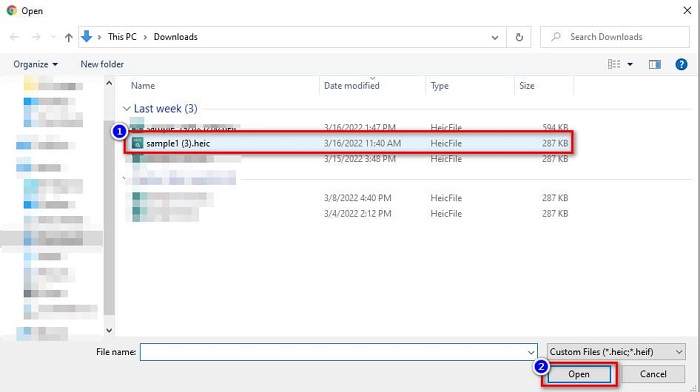
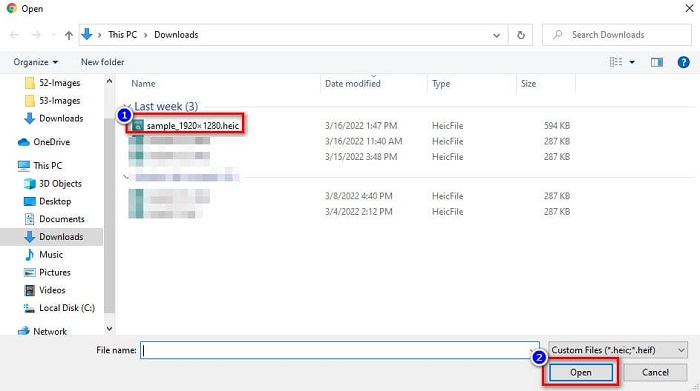
ขั้นตอนที่ 2. จากนั้นจะปรากฏโฟลเดอร์ในคอมพิวเตอร์ของคุณ ให้ค้นหาภาพ HEIC เลือกไฟล์ แล้วคลิก Open.
ขั้นตอนที่ 3. เมื่ออัปโหลดภาพ HEIC เสร็จแล้ว คุณก็สามารถดูภาพของคุณได้ จากนั้นคลิกปุ่ม Save เพื่อบันทึกภาพ HEIC ของคุณเป็นไฟล์ภาพ JPG.
2. CompressJPG.net
CompressJPG.net เป็นตัวดูไฟล์ HEIC ออนไลน์ที่มีอินเทอร์เฟซซอฟต์แวร์ที่เข้าใจง่าย สามารถใช้งานได้บนมือถือ Windows หรือแท็บเล็ต นอกจากนี้ยังไม่มีการจำกัดขนาดไฟล์เมื่อใช้ดูภาพ HEIC อย่างไรก็ตาม เนื่องจากเป็นแอปพลิเคชันบนเว็บ คุณอาจประสบปัญหาการโหลดช้าเมื่อความเร็วอินเทอร์เน็ตของคุณต่ำ ถึงอย่างนั้น ก็ยังเป็นเครื่องมือออนไลน์ที่มีผู้ใช้จำนวนมากสำหรับดูภาพ HEIC.
ขั้นตอนที่ 1. ค้นหา CompressJPG.net บนเบราว์เซอร์ของคุณ จากนั้นคลิกเข้าไปยังเว็บไซต์ของเครื่องมือที่ปรากฏบนหน้าผลการค้นหา บนหน้าอินเทอร์เฟซหลักของซอฟต์แวร์ ให้คลิกปุ่ม Choose Files.

ขั้นตอนที่ 2. ต่อไปจะปรากฏไฟล์ต่าง ๆ ในคอมพิวเตอร์ของคุณ ให้ค้นหาไฟล์ภาพ HEIC แล้วเลือก เมื่อเลือกภาพ HEIC แล้วให้คลิกปุ่ม Open เพื่ออัปโหลดภาพ HEIC ของคุณ.
ขั้นตอนที่ 3. จากนั้นคุณก็สามารถดูภาพ HEIC ของคุณบนพีซี Windows ได้แล้ว.

ง่ายใช่มั้ย? โดยการติดตามและใช้เครื่องมือออนไลน์ที่กล่าวถึงข้างต้น คุณสามารถดูภาพ HEIC ของคุณบนพีซี Windows ของคุณได้อย่างง่ายดาย
ส่วนที่ 2 แก้ไขภาพ HEIC ที่เสียหาย
หากภาพ HEIC ของคุณไม่สามารถเปิดบนอุปกรณ์ Apple ได้ แสดงว่ามีบางอย่างผิดปกติ ปัญหาที่พบบ่อยที่สุดที่หลายคนพบคือการสูญหายของข้อมูล เมื่อสิ่งนี้เกิดขึ้น แสดงว่าไฟล์รูปภาพของคุณเสียหาย ดังนั้นสิ่งที่คุณต้องทำคือใช้เครื่องมือที่สามารถกู้คืนข้อมูลที่สูญหายได้ ในส่วนนี้ คุณจะได้เรียนรู้วิธีกู้คืนข้อมูลของอิมเมจ HEIC ของคุณ
ใช้ EaseUS Data Recovery Wizard
EaseUS Data Recovery Wizard เป็นซอฟต์แวร์ที่ช่วยให้คุณกู้คืนข้อมูลที่สูญหายได้มากถึง 2GB เครื่องมือนี้ใช้งานง่ายเพราะมีอินเทอร์เฟซที่ไม่ซับซ้อน นอกจากนี้ยังสามารถสแกนที่จัดเก็บข้อมูลในอุปกรณ์ของคุณและแสดงรายชื่อไฟล์ที่สูญหายได้ แม้ว่าคุณจะสามารถใช้ได้ฟรี แต่เวอร์ชันทดลองจะสามารถค้นหาไฟล์ที่เสียหายได้เท่านั้น ไม่สามารถกู้คืนไฟล์ได้ ดังนั้นคุณยังต้องซื้อเวอร์ชันโปรของแอปพลิเคชัน อย่างไรก็ตาม มันก็ยังเป็นหนึ่งในเครื่องมือกู้คืนข้อมูลที่มีผู้ใช้งานมากที่สุดบนอินเทอร์เน็ต.
ข้อดี
- สามารถกู้คืนข้อมูลที่สูญหายได้ถึง 2GB
- มีส่วนต่อประสานกับผู้ใช้ที่ใช้งานง่าย
- พร้อมใช้งานบนแพลตฟอร์มสื่อเกือบทั้งหมด รวมทั้ง Windows และ Mac
จุดด้อย
- คุณต้องซื้อเวอร์ชันโปรเพื่อกู้คืนข้อมูลที่สูญหาย
ใช้ Recuva
อีกหนึ่งเครื่องมือกู้คืนข้อมูลที่คุณควรใช้คือ Recuva แอปพลิเคชันนี้มีอินเทอร์เฟซที่ใช้งานง่าย จึงเหมาะสำหรับผู้เริ่มต้น จุดเด่นของเครื่องมือนี้คือสามารถกู้คืนไฟล์ที่ลบถาวรไปแล้ว ซึ่งถูกระบบปฏิบัติการทำเครื่องหมายเป็นพื้นที่ว่าง นอกจากนี้ยังสามารถกู้คืนข้อมูลบนแฟลชไดรฟ์ USB ฮาร์ดไดรฟ์ การ์ดหน่วยความจำ และอุปกรณ์อื่น ๆ ได้ อีกทั้งยังมีทั้งเวอร์ชัน 32 บิต และ 64 บิต.
ข้อดี
- มี GUI ที่เรียบง่าย
- ช่วยให้คุณสามารถกู้คืนข้อมูลในแฟลชไดรฟ์ USB ฮาร์ดไดรฟ์ การ์ดหน่วยความจำ และอุปกรณ์เก็บข้อมูลอื่นๆ
- สามารถสแกนไฟล์ของคุณที่หายากได้ลึก
จุดด้อย
- ซื้อแอปพรีเมียมก่อนเข้าถึงคุณลักษณะเฉพาะของแอป
ส่วนที่ 3 คำถามที่พบบ่อยเกี่ยวกับวิธีการแก้ไข HEIC Photos
อะไรที่สามารถเปิดภาพ HEIC ได้โดยไม่ต้องใช้เครื่องมือของบุคคลที่สาม
เนื่องจาก Apple พัฒนาภาพ HEIC คุณจึงสามารถดูภาพ HEIC บนอุปกรณ์ Apple ใดก็ได้
ฉันสามารถกู้คืนข้อมูลของอิมเมจ HEIC บน Mac ได้หรือไม่
ใช่คุณสามารถ. คุณยังสามารถใช้เครื่องมือที่กล่าวถึงข้างต้นเพื่อกู้คืนข้อมูลที่สูญหายของรูปภาพของคุณ หรือหากรูปภาพ HEIC ของคุณเสียหาย
ฉันสามารถแปลงรูปแบบรูปภาพอื่นเป็นรูปภาพ HEIC ได้หรือไม่
ใช่. เครื่องมือบางอย่างช่วยให้คุณแปลงรูปแบบภาพอื่นๆ เช่น JGP และ PNG เป็น HEIC ดังนั้นจึงสามารถแปลงภาพ JPG และ PNG เป็นภาพ HEIC
สรุป
โดยสรุปแล้ว การแก้ไขรูปถ่าย HEIC ไม่ได้ซับซ้อนมากนักเมื่อคุณใช้เครื่องมือต่าง ๆ ที่แสดงไว้ข้างต้น ด้วยการใช้เครื่องมือเหล่านี้ คุณสามารถกู้คืนข้อมูลที่สูญหายของภาพและซ่อมแซมความเสียหายได้ แต่ถ้ารูป HEIC ของคุณยังปกติดีและคุณแค่อยากดูบนอุปกรณ์ Windows วิธีที่ดีที่สุดคือแปลงภาพ HEIC ของคุณเป็นไฟล์ JPG โดยใช้ Aiseesoft HEIC Converter.
-
 แปลง HEIC เป็น RAW อย่างง่ายดายโดยใช้ตัวแปลงที่ดีที่สุด
 วิธีการแปลง HEIC เป็น RAW? บทความนี้ให้วิธีที่ดีที่สุดในการแปลง HEIC เป็น RAW โดยใช้ตัวแปลงออนไลน์และออฟไลน์ที่ดีที่สุด
-
 CopyTrans HEIC รีวิว คุณสมบัติ และทางเลือก
 หากคุณต้องการทราบว่า CopyTrans HEIC สามารถทำอะไรได้บ้าง เราขอเสนอฟีเจอร์ ข้อดี และทางเลือกอื่นๆ ของเครื่องมือให้คุณ
-
 HEIC Viewer ที่ดีที่สุดทั้งแบบออนไลน์และออฟไลน์ [ฟรี]
 หากคุณกำลังมองหาตัวแสดง HEIC ที่ดีที่สุด เราก็มีสิ่งที่คุณกำลังมองหา ดูภาพ HEIC ของคุณได้ฟรีโดยใช้เครื่องมือเหล่านี้
