


 Video Converter Ultimate
 บันทึกหน้าจอ
 ซ่อมวิดีโอ
เสริมสร้างความรู้ของคุณโดยใช้วิธีปฏิบัติที่แตกต่างกันในการทำให้วิดีโอ MP4 ช้าลง
มองตาช์ (Montage) เป็นเทคนิคการตัดต่อภาพยนตร์ที่นำเศษส่วนของฟุตเทจที่มีความเกี่ยวข้องกันในเชิงธีมมารวมเป็นช็อตเดียวที่ลื่นไหลต่อเนื่อง มองตาช์ช่วยให้ผู้กำกับ คนตัดต่อภาพยนตร์ และช่างเทคนิคด้านภาพและเสียง นำส่วนต่าง ๆ ของหนังมาต่อกันทีละชิ้น โดยการตัดและประกอบให้เข้ากัน คลิปมองตาช์บางแบบจะใช้วิดีโอสโลว์โมชั่นในการสร้างมองตาช์ แต่การจะได้ฉากที่มีความเป็นภาพยนตร์แบบนี้ คุณจำเป็นต้องรู้วิธีทำให้วิดีโอ MP4 ช้าลง หรือไฟล์รูปแบบอื่น ๆ เช่น MOV, AVI เป็นต้น เพื่อแก้ปัญหาในประเด็นนี้ บทความนี้จึงนำเสนอหัวข้อหลากหลายให้คุณได้ศึกษาและเรียนรู้เพิ่มเติมเกี่ยวกับการสร้างมองตาช์ หรือสรุปสั้น ๆ คือการทำให้วิดีโอช้าลง.

ส่วนที่ 1 ทำไมคุณต้องทำให้วิดีโอช้าลง
คุณเคยสงสัยหรือไม่ว่าทำไมภาพยนตร์บางเรื่องที่คุณดูมีการเคลื่อนไหวช้า – การแสดงที่เน้นอยู่เสมอ โดยเฉพาะอย่างยิ่งหากมีการดำเนินการและการเปลี่ยนฉากในภาพยนตร์ – ฉาก? และเนื่องจากคุณเป็นแฟนตัวยงของภาพยนตร์แอคชั่น คุณจึงต้องการสร้างภาพยนตร์แอคชั่นเรื่องโปรดของคุณอีกครั้ง แต่เพื่อให้ได้รับผลตอบรับจากภาพยนตร์ คุณจะต้องลดความเร็วในการเล่นของบางฉากลง แต่คุณไม่รู้ว่าต้องทำอย่างไร งานนี้.
ส่วนที่ 2 เครื่องมือที่ดีที่สุดเพื่อลดความเร็ววิดีโอ MP4
มีเว็บทูลและซอฟต์แวร์มากมายที่ใช้ตัดต่อวิดีโอได้ รวมถึงการทำให้วิดีโอ MP4 ช้าลง แต่ตัวที่ยกมานี้คือเว็บทูลและซอฟต์แวร์ที่ดีที่สุดที่คุณควรใช้เพื่อสร้างวิดีโอตามแบบที่ต้องการ บางตัวต้องดาวน์โหลดและติดตั้งลงบนเดสก์ท็อปของคุณ ขณะที่บางตัวเพียงแค่ต้องใช้ที่อยู่อีเมล คุณก็สามารถเริ่มตัดต่อบนแพลตฟอร์มออนไลน์ได้ทันที.
วิธีที่ 1 ใช้ Video Converter Ultimate
Video Converter Ultimate เป็นซอฟต์แวร์ที่ดาวน์โหลดได้ฟรีซึ่งสามารถทำให้วิดีโอช้าลงได้แบบถาวร หนึ่งในฟีเจอร์ของโปรแกรมนี้คือสามารถเร่งหรือลดความเร็ววิดีโอได้อย่างง่ายดาย นอกเหนือจากการควบคุมความเร็ววิดีโอแล้ว โปรแกรมนี้ยังมีฟีเจอร์อื่น ๆ เช่น ตัดต่อ (trim) ย้อนกลับ (reverse) รวมคลิป (merge) แก้ไข (edit) และสร้างคอลลาจจากวิดีโอ เพื่อยกระดับวิดีโอให้เป็นแบบที่คุณต้องการ นอกจากนี้ เครื่องมือทั้งหมดในโปรแกรมนี้สามารถใช้งานได้ง่ายสำหรับผู้ใช้ทุกกลุ่ม ต่อไปนี้คือขั้นตอนที่คุณต้องทำตามเพื่อปรับแต่งวิดีโอตามที่ต้องการ.
ขั้นตอนที่ 1: คลิกปุ่ม Free Download เพื่อเริ่มดาวน์โหลดลงคอมพิวเตอร์ของคุณ จากนั้นติดตั้งและตั้งค่าซอฟต์แวร์ให้เหมาะกับระบบของคุณ.
ดาวน์โหลดฟรีสำหรับ Windows 7 หรือใหม่กว่าดาวน์โหลดอย่างปลอดภัย
ดาวน์โหลดฟรีสำหรับ MacOS 10.7 หรือใหม่กว่าดาวน์โหลดอย่างปลอดภัย
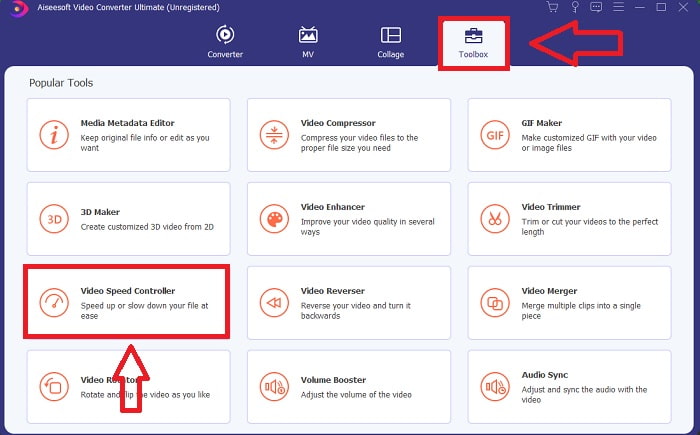
ขั้นตอนที่ 2: เมื่อติดตั้งซอฟต์แวร์เรียบร้อยแล้ว ให้เปิดโปรแกรมโดยเลือกตัวเลือก Toolbox จากแถบเมนู จากนั้นเลือก Video Speed Controller จากรายการที่ปรากฏ.
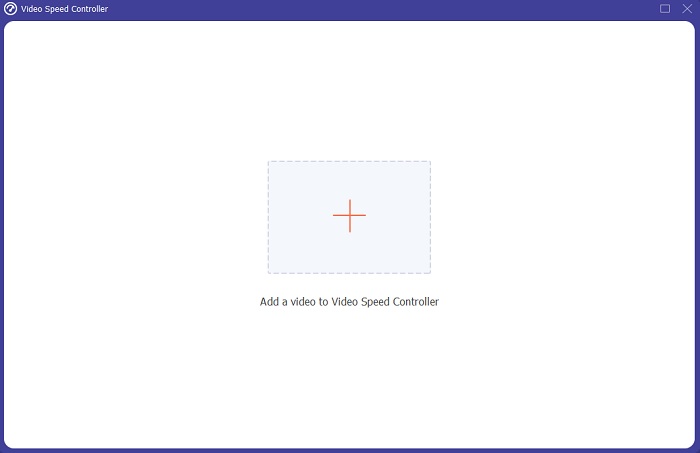
ขั้นตอนที่ 3: เพิ่มไฟล์ใดก็ได้โดยคลิกปุ่มเครื่องหมาย + แล้วเริ่มปรับแต่งคลิปวิดีโอ.
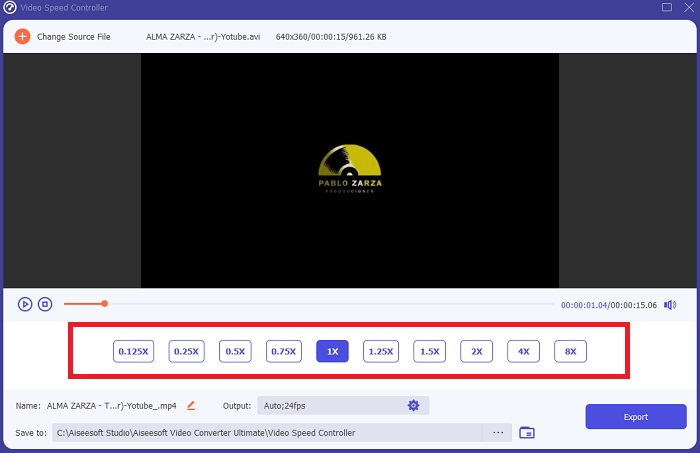
ขั้นตอนที่ 4: ปรับความเร็วการเล่นโดยเปลี่ยนอัตราความเร็วของวิดีโอ.
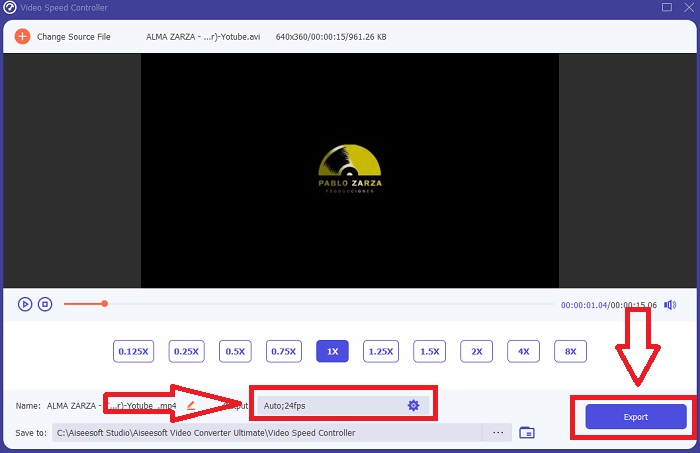
ขั้นตอนที่ 5: หลังจากปรับความเร็วการเล่นของคลิปวิดีโอเรียบร้อยแล้ว คุณสามารถเลือกฟอร์แมตส่งออก ความละเอียด คุณภาพ ฯลฯ จากนั้นคลิก Export และเลือกตำแหน่งในการบันทึกไฟล์.
วิธีที่ 2. ใช้ InVideo
เมื่อพูดถึงการสร้างและแชร์วิดีโอลงโซเชียลมีเดียและเว็บไซต์ InVideo คือเว็บทูลตัดต่อวิดีโอออนไลน์ที่เหมาะสำหรับธุรกิจทุกขนาด นอกจากนี้ยังมีคลังภาพและวิดีโอจากแหล่งออนไลน์ต่าง ๆ เช่น Storyblocks และ Shutterstock ให้ใช้ภายในแอปพลิเคชันได้ด้วย การใช้ InVideo คุณต้องกรอกที่อยู่อีเมลก่อน ซึ่งต่างจากเว็บทูลตัวก่อนหน้าที่กล่าวถึงในบทความนี้ เว็บทูลนี้มีเทมเพลตให้เลือกอย่างหลากหลายสำหรับการปรับแต่งวิดีโอของคุณ ด้วยฟีเจอร์ที่น่าประทับใจ แอปบนเว็บตัวนี้สามารถยกระดับทักษะการตัดต่อของคุณให้เข้าขั้นมืออาชีพ หนึ่งในฟีเจอร์ของมันสามารถทำให้วิดีโอ MP4 ช้าลงได้อย่างง่ายดาย โดยมีขั้นตอนดังนี้
ขั้นตอนที่ 1: สร้างบัญชีใช้งานบนเว็บทูลเพื่อรับสิทธิ์เข้าใช้ จากนั้นเลือกเทมเพลตที่คุณต้องการทำงานด้วย คลิกปุ่ม Upload ที่มุมซ้ายของอินเทอร์เฟซเพื่อเริ่มอัปโหลด.
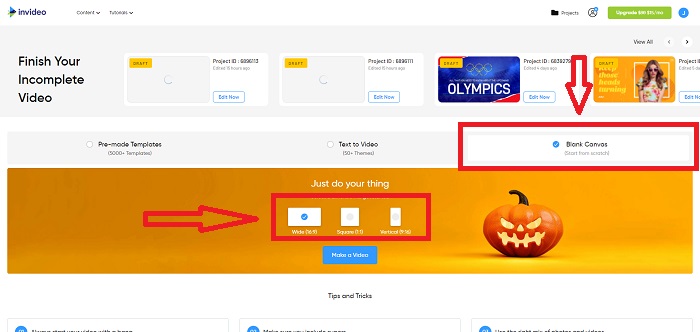
ขั้นตอนที่ 2: เพื่อแก้ไขความเร็วการเล่นของคลิปวิดีโอ ให้คลิกแท็บ Speed ที่มุมขวาบนของอินเทอร์เฟซแล้วลากลงไปยังไทม์ไลน์ จากนั้นลากแถบเลื่อน (Slider) เพื่อเพิ่มหรือลดความเร็วการเล่นของคลิปวิดีโอ.
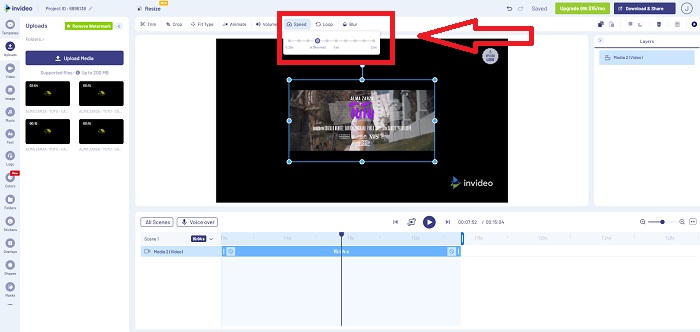
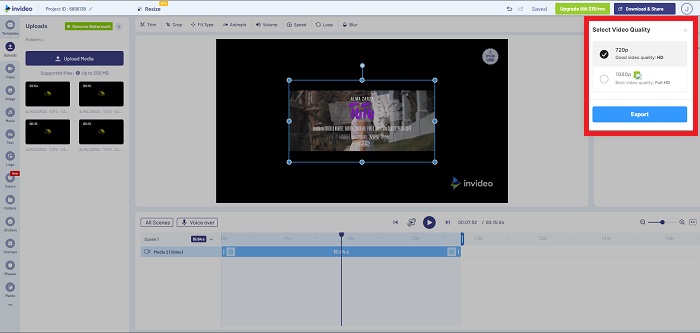
ขั้นตอนที่ 3: เมื่อแก้ไขเสร็จแล้ว ให้คลิก Download & Share และปลดล็อกเวอร์ชัน Premium เพื่อให้ได้ผลลัพธ์ที่ดียิ่งขึ้น.
วิธีที่ 3 VLC Media Player
เนื่องจากเป็นโปรแกรมฟรี VLC (Video Lan Client) จึงเป็นหนึ่งในโปรแกรมเล่นมีเดียที่ถูกใช้งานมากที่สุดบน Windows และ Mac การเล่นวิดีโอหลากหลายประเภท เช่น วิดีโอ 360 องศา หรือไฟล์วิดีโอที่ถูกบีบอัด ก็สามารถทำได้แม้จะเป็นวิดีโอความละเอียดสูง เพราะโปรแกรมนี้มีความยืดหยุ่น อย่างไรก็ตาม โปรแกรมเล่นมีเดียที่มีผู้ใช้มากที่สุดก็อาจมีปัญหาในการใช้งานได้เป็นบางครั้ง นอกจากนี้ โปรแกรมเล่นมีเดียตัวนี้ยังสามารถทำให้ไฟล์ MP4 ช้าลงได้อย่างง่ายดาย รายละเอียดเกี่ยวกับฟีเจอร์นี้มีดังต่อไปนี้
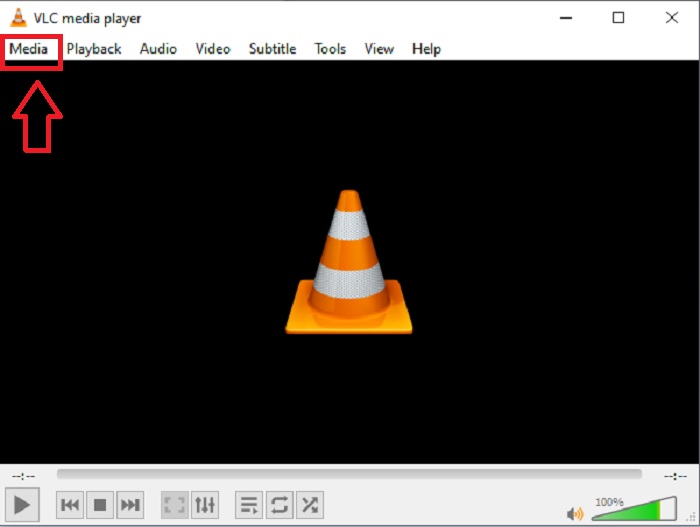
ขั้นตอนที่ 1: ก่อนอื่นให้เพิ่มไฟล์ของคุณในเมนู Media แล้วคลิก Open File.
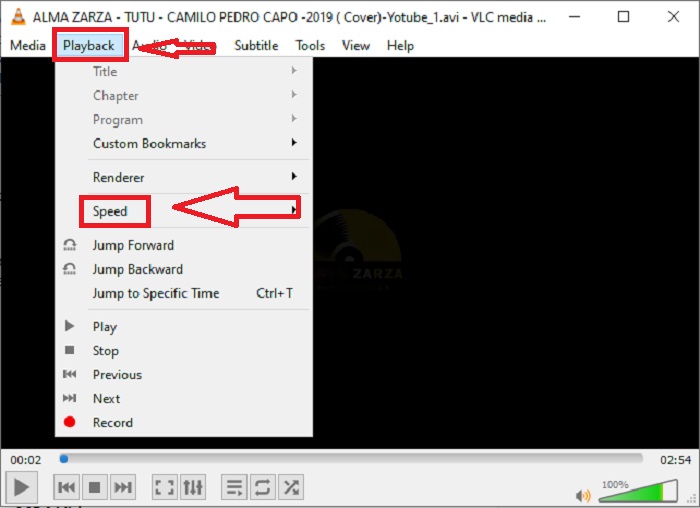
ขั้นตอนที่ 2: จากนั้นเลือกแท็บ Playback แล้วคลิกไปที่เมนู Speed.
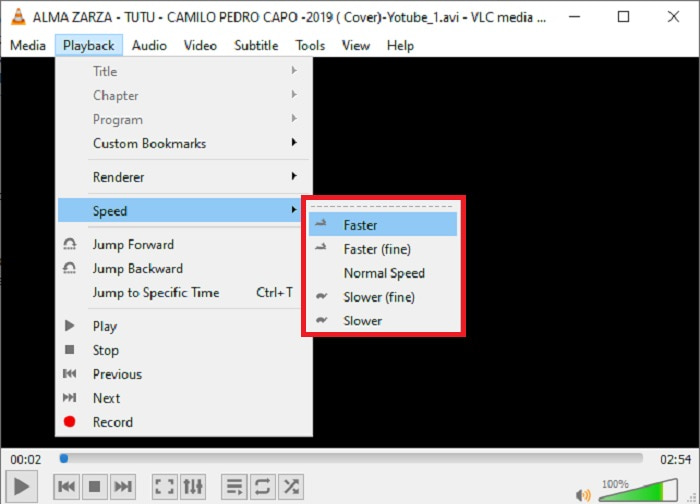
ขั้นตอนที่ 3: ระบบจะแสดงตัวเลือกความเร็วการเล่นให้คุณเลือก หากต้องการทำให้ความเร็วของไฟล์วิดีโอช้าลง ให้คลิก Slower (fine) และ Slower และหากต้องการเพิ่มความเร็ว ให้คลิก Faster (fine) และ Faster
ที่เกี่ยวข้อง:
วิธีแก้ปัญหา VLC เล่นแผ่น DVD ไม่ได้
ส่วนที่ 3 คำถามที่พบบ่อยเกี่ยวกับการทำให้วิดีโอ MP4 ช้าลง
ฉันจะสูญเสียคุณภาพของวิดีโอหรือไม่หากฉันช้าลง
ไม่เหมือนกับการเพิ่มความเร็วในการเล่นวิดีโอของคุณ การทำให้วิดีโอช้าลงจะไม่ทำให้คุณภาพของวิดีโอลดลง ด้วยเหตุผลบางประการว่าทำไมวิดีโอบางรายการจึงผิดพลาดเล็กน้อยหลังจากลดความเร็วในการเล่นวิดีโอลง เนื่องจากคุณภาพของวิดีโอนั้นน่าเบื่อและต่ำอยู่แล้ว นอกจากนี้ หากคุณเร่งความเร็วเพื่อลดความเร็วในการเล่นคลิปวิดีโอของคุณ อัตราเฟรมจะถูกแบ่งออกครึ่งหนึ่ง ทำให้เกิดความล่าช้าและทำให้คุณภาพลดลง
ฉันจะทำให้วิดีโอออฟไลน์ช้าลงได้ไหม
มีซอฟต์แวร์ที่ทำงานอย่างสมบูรณ์แบบในการลดความเร็วหรือทำให้วิดีโอช้าลง Video Converter Ultimate เป็นซอฟต์แวร์ที่ทำขึ้นเพื่อปรับปรุงและปรับปรุงวิดีโอจากมุมมองที่แตกต่างกัน นอกจากนี้ ตามวัตถุประสงค์แล้ว ดาวน์โหลดฟรี และสามารถเข้าถึงได้โดยผู้ใช้จากกลุ่มผู้ชมที่หลากหลาย
อะไรจะดีไปกว่าการทำให้วิดีโอช้าลง ออฟไลน์หรือออนไลน์?
ขั้นตอนบางอย่างในการทำให้วิดีโอช้าลงทางออนไลน์มีขั้นตอนมากมายที่ต้องปฏิบัติตาม ซึ่งทำให้ซับซ้อนกว่าการใช้แบบออฟไลน์ ซอฟต์แวร์ส่วนใหญ่สามารถดาวน์โหลดได้ฟรี ดังนั้นจึงสะดวกที่จะทำให้วิดีโอออฟไลน์ช้าลง
สรุป
โดยสรุปแล้ว ปัจจุบันโปรแกรมเล่นมีเดียส่วนใหญ่รองรับไฟล์รูปแบบ MP4 ดังนั้นการทำให้วิดีโอ MP4 ช้าลงจึงทำได้ง่ายขึ้นมากด้วยเว็บทูลและซอฟต์แวร์ที่นำเสนอในบทความนี้ หากต้องการปลดล็อกศักยภาพของวิดีโอให้เต็มที่ แนะนำให้ดาวน์โหลด Video Converter Ultimate ไม่เพียงแต่ช่วยทำให้วิดีโอของคุณช้าลงเท่านั้น ซอฟต์แวร์นี้ยังสามารถยกระดับวิดีโอของคุณไปอีกขั้น ด้วยฟีเจอร์ทั้งหมดที่มีอยู่ คุณแทบจะเรียกตัวเองว่าเป็นนักตัดต่อมืออาชีพได้เมื่อใช้โปรแกรมนี้.
-
 4 สุดยอดตัวแปลง MP4 เป็น M4V เพื่อเปลี่ยนวิดีโอ MP4 เป็น M4V ได้อย่างง่ายดาย
 เมื่อคุณต้องการเปลี่ยนไฟล์ MP4 เป็น M4V คุณควรเรียนรู้รายละเอียดเพิ่มเติมเกี่ยวกับความแตกต่างระหว่างสองรูปแบบรวมถึงตัวแปลง MP4 เป็น M4V ที่ดีที่สุดจากบทความ
-
 AMV Converter - 3 วิธีที่ดีที่สุดในการแปลง MP4 เป็น AMV บน Win / Mac
 ตัวแปลง MP4 เป็น AMV ที่ดีที่สุดในการเปลี่ยนวิดีโอเป็น Amine Music Video คืออะไรคุณสามารถเรียนรู้เพิ่มเติมเกี่ยวกับ 3 วิธีที่มีประสิทธิภาพสูงสุดเพื่อให้ได้วิดีโอที่ต้องการได้อย่างง่ายดาย
-
 WebM เป็น MP4 | ฟรีแปลง WebM เป็น MP4 (ออนไลน์และเดสก์ท็อป)
 จะดูไฟล์ WebM โดยไม่ใช้เว็บเบราว์เซอร์ได้อย่างไร? คุณต้องแปลง WebM เป็น MP4 นี่คือตัวแปลง WebM เป็น MP4 ฟรี 10 อันดับแรกเพื่อเปลี่ยน WebM เป็น MP4 ออนไลน์และบนคอมพิวเตอร์ Mac และ Windows
