


 Video Converter Ultimate
 บันทึกหน้าจอ
 ซ่อมวิดีโอ
ออฟไลน์เทียบกับ ออนไลน์: ปรมาจารย์วิธีเพิ่มความเร็ววิดีโอรูปแบบ MP4 อย่างง่ายดาย
คุณกำลังดูภาพยนตร์เรื่องโปรดซ้ำเป็นครั้งที่ 6 แทนที่จะดูตั้งแต่ต้นจนจบอีกครั้ง คุณตัดสินใจจะดูเฉพาะฉากสำคัญของหนัง จึงอยากเร่งความเร็ววิดีโอ แต่ไฟล์เป็นรูปแบบ MP4 นอกจากนี้ คุณอยากเร่งความเร็วคลิปวิดีโอของคุณ แต่ดันไม่มีอินเทอร์เน็ต ทั้งที่จำเป็นต้องใช้วิดีโอนี้สำหรับโปรเจกต์ที่โรงเรียน อีกทั้งคลิปวิดีโอของคุณก็ยังเป็นไฟล์ MP4 คุณเลยสงสัยว่ามีเครื่องมือที่ใช้แปลงไฟล์และสามารถเร่งความเร็ววิดีโอ MP4 ได้หรือไม่ บทความนี้ได้อธิบายทุกอย่างที่เกี่ยวข้องกับการแปลงไฟล์ MP4 ทั้งแบบออนไลน์และออฟไลน์ นอกจากนี้ ยังมีการใส่ขั้นตอนต่าง ๆ เพื่อให้มั่นใจว่าคุณจะดำเนินการเปลี่ยนค่าต่าง ๆ ได้อย่างถูกต้องครบถ้วน.

ส่วนที่ 1 วิธีเพิ่มความเร็ววิดีโอ MP4 โดยใช้ Video Converter Ultimate [ออฟไลน์]
Video Converter Ultimate เป็นซอฟต์แวร์ที่ดีที่สุดสำหรับการแปลงไฟล์วิดีโอและการตัดต่อไปพร้อมกัน ซอฟต์แวร์นี้มีเครื่องมือช่วยเพิ่มคุณภาพวิดีโอของคุณ พร้อมทั้งให้คุณปรับแต่งได้ตามต้องการจนกว่าจะได้วิดีโอในแบบที่พอใจ นอกจากนี้ เครื่องมือต่าง ๆ ยังใช้งานได้ง่าย ไม่ทำให้ผู้เริ่มต้นรู้สึกว่ายุ่งยาก ซอฟต์แวร์นี้สามารถดาวน์โหลดได้ฟรี และสร้างวิดีโอเอาต์พุตคุณภาพสูงที่รองรับได้ทุกฟอร์แมต โดยเฉพาะรูปแบบ MP4 เนื่องจาก MP4 เป็นหนึ่งในฟอร์แมตยอดนิยม Video Converter Ultimate จึงสามารถดึงศักยภาพของไฟล์ MP4 ออกมาได้เต็มที่ด้วยการปรับความละเอียดและอัตราเฟรม ในขณะที่ปัญหาเรื่องการควบคุมความเร็วการเล่นก็สามารถแก้ไขได้ด้วยเครื่องมือนี้เช่นกัน นี่คือขั้นตอนการใช้งานอย่างถูกต้อง:
ขั้นตอนที่ 1: คลิกปุ่ม Free Download เพื่อดาวน์โหลดซอฟต์แวร์ลงบนเดสก์ท็อปคอมพิวเตอร์ของคุณ จากนั้นติดตั้งโปรแกรมและตั้งค่าต่าง ๆ ตามต้องการ.
ดาวน์โหลดฟรีสำหรับ Windows 7 หรือใหม่กว่าดาวน์โหลดอย่างปลอดภัย
ดาวน์โหลดฟรีสำหรับ MacOS 10.7 หรือใหม่กว่าดาวน์โหลดอย่างปลอดภัย
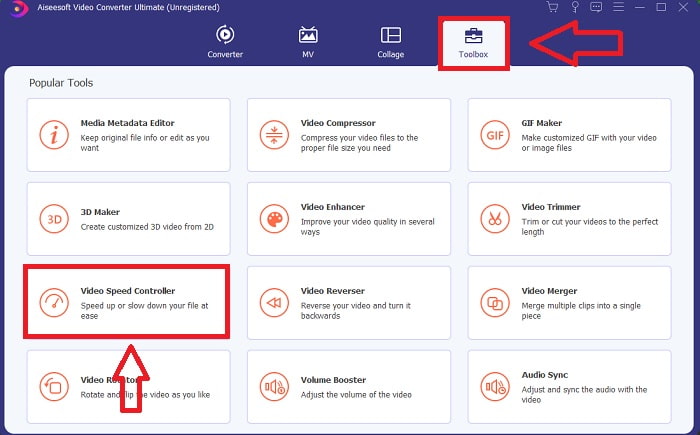
ขั้นตอนที่ 2: หลังการติดตั้ง เปิดโปรแกรม เลือกเมนู Toolbox แล้วเลือก Video Speed Controller
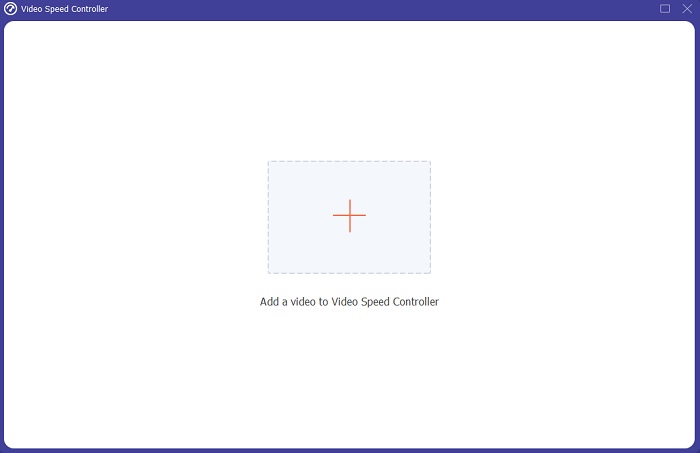
ขั้นตอนที่ 3: คลิกปุ่ม + ในแถบการเลือกไฟล์ เพื่อนำเข้าไฟล์วิดีโอ MP4 ที่คุณต้องการเร่งความเร็ว.
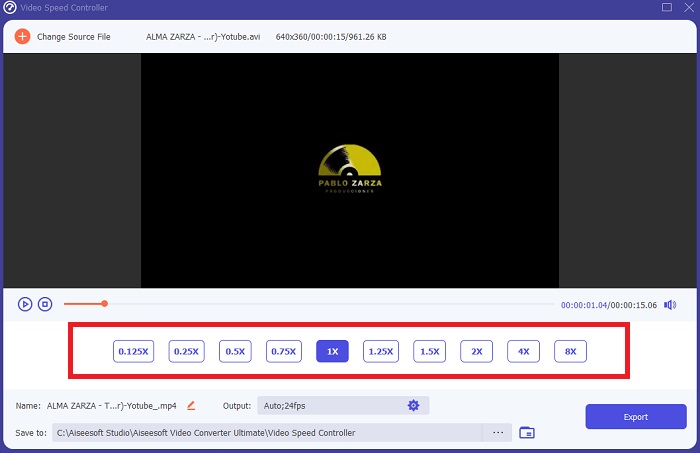
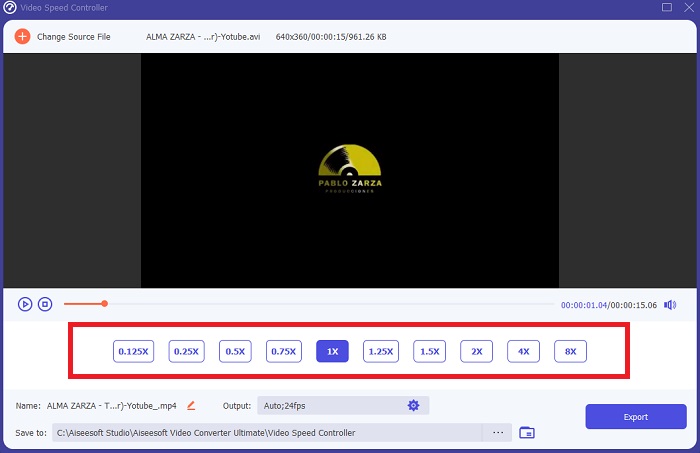
ขั้นตอนที่ 4: คุณสามารถเปลี่ยนความเร็วการเล่นได้โดยกำหนดว่าต้องการให้อัตราเฟรมของวิดีโอเพิ่มขึ้นหรือลดลงกี่เท่าในระหว่างการเล่น.
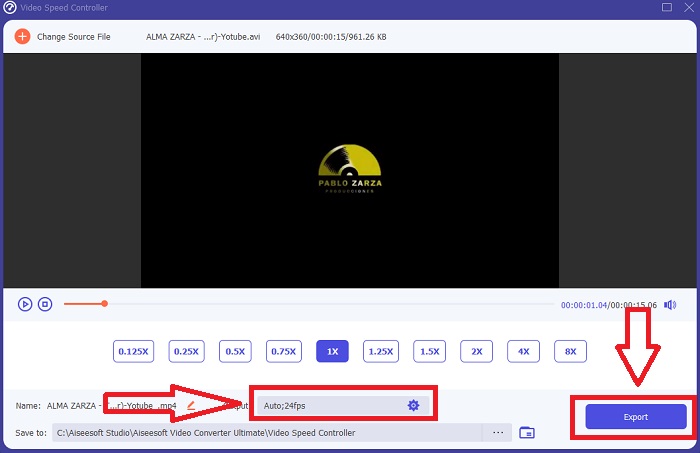
ขั้นตอนที่ 5: คุณสามารถปรับแต่งความเร็วการเล่นของคลิปวิดีโอได้ละเอียดขึ้น ด้วยการปรับฟอร์แมต ความละเอียด คุณภาพ และอื่น ๆ เมื่อพร้อมบันทึกผลงาน ให้คลิก Export แล้วเลือกตำแหน่งจัดเก็บ.
ส่วนที่ 2 วิธีอื่นในการเพิ่มความเร็ววิดีโอ MP4 [ออนไลน์]
เราจะนำเสนอเครื่องมือบนเว็บที่ดีที่สุดที่สามารถเปลี่ยนวิดีโอของคุณไปสู่อีกระดับหนึ่งได้ นอกจากนี้ Webtool ส่วนใหญ่มีคุณสมบัติที่สามารถเพิ่มหรือลดความเร็วในการเล่นของวิดีโอคลิป สิ่งที่ดีคือเครื่องมือเว็บเหล่านี้ฟรีและใช้งานง่าย เหมาะสำหรับผู้ใช้ทั่วไปที่จะใช้เครื่องมือเว็บเหล่านี้ เรามีขั้นตอนในการปฏิบัติตามเพื่อใช้งานอย่างถูกต้อง
เคล็ดลับที่ 1: ใช้ VEED
ครีเอเตอร์ทั่วโลกต่างไว้วางใจใช้ VEED และซอฟต์แวร์โอเพ่นซอร์สของแพลตฟอร์มนี้ในการสร้างวิดีโอสำหรับโซเชียลมีเดียและจุดประสงค์อื่น ๆ โดยไม่จำเป็นต้องมีประสบการณ์ตัดต่อวิดีโอมาก่อน และไม่ต้องดาวน์โหลดโปรแกรมใด ๆ ล่วงหน้า เครื่องมือตัดต่อวิดีโอบนเว็บของเราสามารถใช้ได้ฟรีทั้งหมด ไม่ว่าจะเป็นการใส่แถบความคืบหน้าบนคำบรรยายใน Instagram Story บนคลิป YouTube หรือการครอปวิดีโอให้พอดีกับโพสต์บน Twitter ก็ทำได้ทั้งหมดด้วย VEED เครื่องมือ ตัวแก้ไขความเร็ว MP4 นี้เป็นเว็บทูลที่ต้องใช้อินเทอร์เน็ตที่เสถียรจึงจะทำงานได้ดี คุณสามารถอัปโหลดวิดีโอและปรับความเร็วการเล่นได้โดยตรงบนหน้าต่างทำงาน นอกจากนี้ ยังมีฟีเจอร์อื่น ๆ ให้ใช้งานมากมาย รวมถึงการเพิ่มความเร็วการเล่นของวิดีโอด้วย.
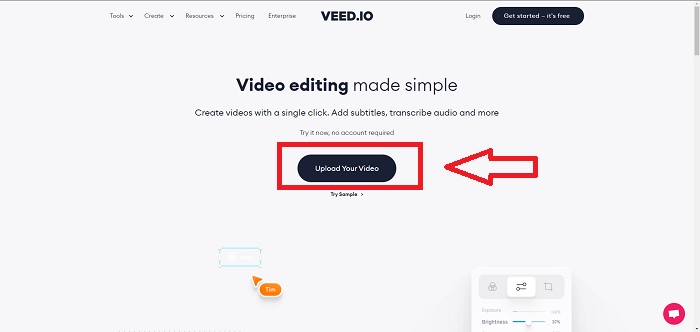
ขั้นตอนที่ 1: อัปโหลดวิดีโอจากเดสก์ท็อปของคุณโดยคลิก Upload Your Video.
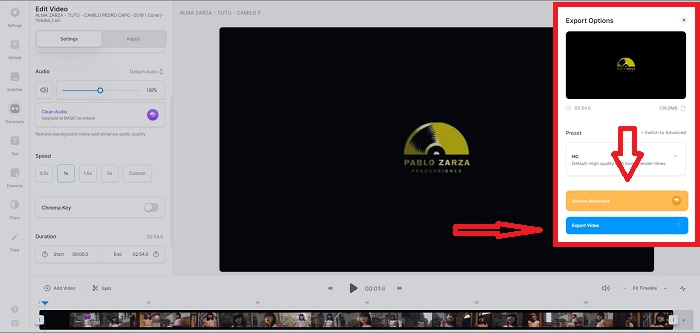
ขั้นตอนที่ 2: กดที่แทร็กวิดีโอเพื่อให้เห็นหน้าต่างตัดต่อที่มุมซ้ายของเว็บทูล จากนั้นค้นหาเมนู Speed แล้วเลือกความเร็วการเล่น 0.5x, 1x, 1.5x, 2x หากความเร็วที่คุณต้องการไม่มีอยู่ในตัวเลือก คุณสามารถกำหนดความเร็วการเล่นของคลิปวิดีโอเองได้โดยเลือก Custom.
ขั้นตอนที่ 3: หลังจากปรับความเร็ววิดีโอตามต้องการแล้ว ให้ไปที่แท็บส่งออกโดยคลิก Export. จากนั้นเลือกคุณภาพของวิดีโอที่คุณต้องการ และสามารถลบลายน้ำได้โดยการซื้อแพ็กเกจพรีเมียมของเว็บทูล หากทุกอย่างเรียบร้อย ให้ถ่ายโอนวิดีโอที่แปลงเสร็จแล้วมายังคอมพิวเตอร์ของคุณโดยคลิก Exporting Video.
เคล็ดลับ 2: ใช้ InVideo
InVideo เป็นเครื่องมือตัดต่อวิดีโอบนเว็บที่ช่วยให้ธุรกิจทุกขนาดสามารถสร้างและแชร์วิดีโอที่มีคอนเทนต์และแบรนด์ของตนเองไปยังแพลตฟอร์มโซเชียลมีเดียและเว็บไซต์ต่าง ๆ นอกจากนี้ ยังมีคลังเนื้อหาที่รวบรวมรูปภาพและวิดีโอจากแหล่งออนไลน์หลายแห่ง เช่น Storyblocks และ Shutterstock ให้ใช้งาน แตกต่างจากเว็บทูลก่อนหน้าที่แนะนำในบทความนี้ InVideo จะให้คุณกรอกอีเมลก่อนจึงจะเริ่มใช้งานเว็บทูลทั้งหมดได้ เครื่องมือนี้มีเทมเพลตจำนวนมากให้เลือกใช้สำหรับตกแต่งหรือเสริมคลิปวิดีโอของคุณ เครื่องมือนี้สามารถช่วยให้คุณตัดต่อวิดีโอได้อย่างมืออาชีพ ด้วยฟีเจอร์อันโดดเด่นของมัน.
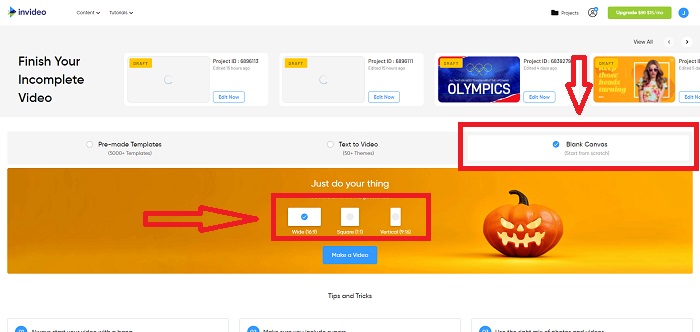
ขั้นตอนที่ 1: อันดับแรก เพื่อให้เข้าถึงเว็บทูลได้ คุณต้องสมัครบัญชีก่อน จากนั้นเลือกเทมเพลตที่คุณจะใช้ หรือเริ่มจากศูนย์ด้วยการเลือก Blank Canvas. แล้วดำเนินการอัปโหลดไฟล์ของคุณโดยคลิก Upload ที่มุมซ้ายของหน้าต่างทำงาน.
ขั้นตอนที่ 2: ลากคลิปวิดีโอของคุณลงบนแทร็กตัดต่อ และเริ่มปรับความเร็วการเล่นโดยคลิกแท็บ Speed ที่มุมบนของหน้าต่างทำงาน แล้วเริ่มลาก Slider เพื่อปรับความเร็วของคลิปวิดีโอ.
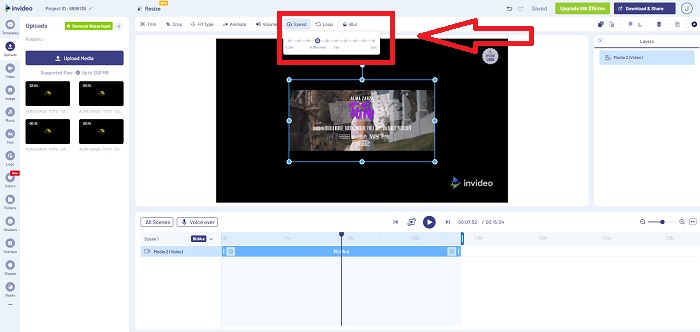
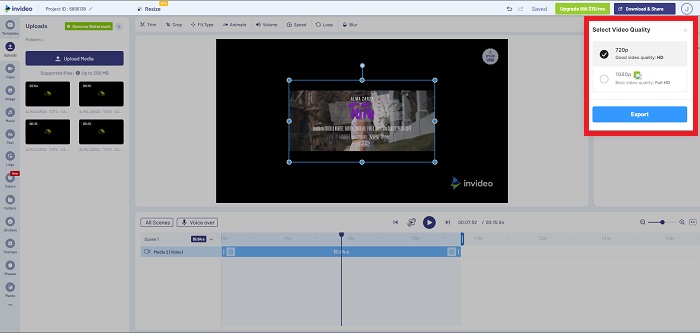
ขั้นตอนที่ 3: หลังจากตัดต่อเสร็จแล้ว ให้ส่งออกไฟล์โดยคลิก Download & Share และปลดล็อกเวอร์ชันพรีเมียมหากคุณเลือกใช้คุณภาพที่สูงขึ้น.
เคล็ดลับ 3: ใช้ Typito
คุณสามารถใช้ Typito ในการสร้างวิดีโอสวย ๆ ด้วยเทมเพลตและรูปภาพที่ช่วยให้ธุรกิจของคุณโดดเด่นกว่าคู่แข่ง เรียกได้ว่าเป็น Canva เวอร์ชันวิดีโอ เครื่องมือนี้ไม่จำกัดเฉพาะงานด้านธุรกิจเท่านั้น แต่ยังใช้ได้กับโปรเจกต์ในโรงเรียน และงานกึ่งมืออาชีพในสายมัลติมีเดียด้วย เว็บทูลนี้ก็ต้องใช้อีเมลในการเข้าใช้งานและแปลงคลิปวิดีโอของคุณตามการปรับแต่งที่ต้องการ.
ขั้นตอนที่ 1: เพิ่มไฟล์มีเดียโดยการลากไฟล์จากเดสก์ท็อปของคุณ หรือคลิกไอคอนโฟลเดอร์.
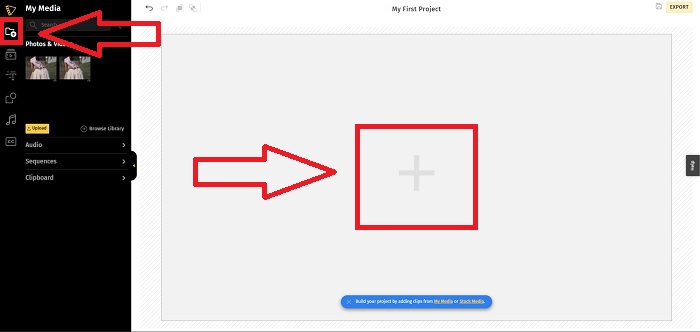
ขั้นตอนที่ 2: คลิกไฟล์วิดีโอแล้วคลิก Add Projects เพื่อให้ไฟล์วิดีโอของคุณถูกเพิ่มลงในแทร็กวิดีโอและเริ่มตัดต่อ จากนั้นคลิกที่แทร็กวิดีโอด้านล่าง ค้นหาเมนู Speed ที่มุมซ้ายของหน้าต่างทำงาน และปรับความเร็วการเล่นด้วยการเลื่อน Slider.
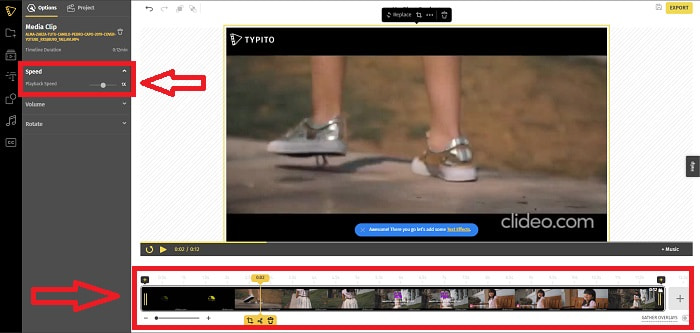
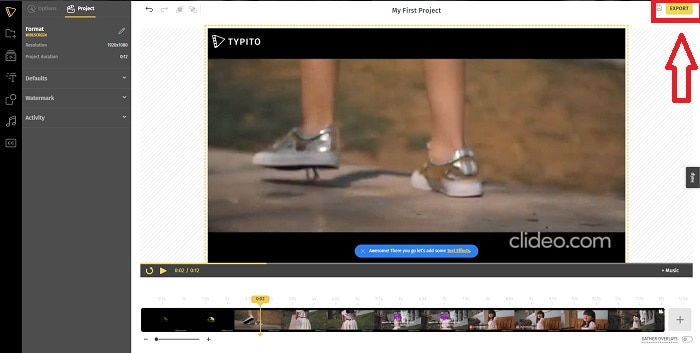
ขั้นตอนที่ 3: อัปโหลดไฟล์ที่แปลงแล้วกลับไปยังเดสก์ท็อปของคุณโดยคลิก Export ที่มุมขวาบนของหน้าต่างทำงาน และเลือกอีเมลที่จะใช้ดาวน์โหลด เมื่อทุกอย่างเรียบร้อยแล้ว ให้ดาวน์โหลดไฟล์นั้น.
ส่วนที่ 3 คำถามที่พบบ่อยเกี่ยวกับวิธีการเร่งความเร็ววิดีโอ MP4
จะดีกว่าไหมที่จะแปลงวิดีโอแบบออฟไลน์หรือออนไลน์
การแปลงไฟล์วิดีโอผ่านอินเทอร์เน็ตอาจเป็นเรื่องยุ่งยากสำหรับผู้ใช้บางคน ทั้งในแง่ของความสะดวกและความมั่นใจ อย่างไรก็ตาม ข้อดีของการแปลงแบบออฟไลน์คือคุณไม่ต้องกังวลกับรายละเอียดอย่างเช่นการต้องล็อกอินก่อนใช้งานโปรแกรมหรือเว็บทูล และไม่ต้องกังวลเกี่ยวกับกระบวนการแปลงเลย ไม่ว่าไฟล์ของคุณจะมีขนาดเล็กหรือใหญ่เพียงใด คุณก็ไม่ต้องห่วงเรื่องระยะเวลาในการแปลงเพราะไม่ได้ใช้อินเทอร์เน็ต คุณสามารถคลิกที่นี่เพื่อเรียนรู้วิธีแปลง MP4 เป็น M4V แบบละเอียดทีละขั้นตอน.
MP4 คืออะไร?
MP4 เป็นคำที่ใช้กันทั่วไปสำหรับไฟล์จัดเก็บมัลติมีเดียที่เก็บไฟล์มีเดียในรูปแบบ MP4 สำหรับเนื้อหาวิดีโอ มักใช้รูปแบบ MP4 รูปแบบนี้ยังสามารถใช้สำหรับคำบรรยาย เสียง และรูปภาพ เนื่องจากมีข้อมูลบีบอัดจำนวนมากในไฟล์ MP4 ประเภทไฟล์เหล่านี้จึงเรียกว่ารูปแบบคอนเทนเนอร์มัลติมีเดียดิจิทัล Standard อธิบายวิธีการจัดเก็บแต่ไม่ได้ระบุข้อมูลที่เข้ารหัสภายในคอนเทนเนอร์เหล่านี้
MP4 มีอยู่ในเครื่องเล่นสื่อทั้งหมดหรือไม่
ใช่แล้ว ปัจจุบัน MP4 กลายเป็นหนึ่งในรูปแบบสื่อยอดนิยมที่ใช้กัน แม้ขนาดไฟล์จะไม่ใหญ่ MP4 ได้กลายเป็นมาตรฐานบนโปรแกรมเล่นสื่อส่วนใหญ่ เพราะยังรองรับกับตัวแปลงไฟล์หลายประเภทด้วยเช่นกัน นี่คือโปรแกรมเล่น MP4 ที่ดีที่สุดที่คุณสามารถใช้
สรุป
โดยสรุปแล้ว การแปลงหรือตั้งค่าความเร็วของไฟล์ MP4 ให้ออนไลน์หรือออฟไลน์ ไม่ได้มีอะไรที่ดีหรือแย่ไปกว่ากันทั้งหมด ทุกอย่างต่างกันที่รายละเอียดในการแปลงเท่านั้น แต่ผลลัพธ์โดยรวมก็คล้ายกัน เนื่องจากตัวแปลงไฟล์บางตัวรองรับเฉพาะฟอร์แมตวิดีโอบางชนิด เราจึงยก MP4 มาเป็นหนึ่งในตัวอย่างฟอร์แมตที่เหมาะสำหรับใช้กับเครื่องมือต่าง ๆ ที่แนะนำในบทความนี้ แต่ถ้าคุณต้องการใช้ฟอร์แมตวิดีโออื่นเพื่อแปลงต่อ สามารถไปที่ลิงก์ด้านล่างนี้เพื่อเรียนรู้เพิ่มเติมเกี่ยวกับการแปลง MP4 เป็นฟอร์แมตอื่น.
-
 [แก้ไขแล้ว] วิธีเล่นไฟล์ MP4 ใน Google Drive
 MP4 ไม่เล่นใน Google Drive ของฉัน? จะเล่นไฟล์ MP4 ใน Google Drive ได้อย่างไร? โพสต์นี้บอก 3 วิธีในการเล่นวิดีโอ MP4 ใน Google Drive
-
 [แก้ไขแล้ว] เล่นไฟล์ MP4 บน Chromebook 2021
 คุณสามารถเล่นวิดีโอบน Chromebook ได้หรือไม่ วิธีเล่นไฟล์ MP4 จาก USB บน Chromebook โพสต์นี้แชร์ 3 วิธีในการเล่น MP4 บน Chromebook
-
 Windows Media Player ไม่เล่น MP4? 5 วิธีที่มีประสิทธิภาพในการแก้ไข
 ไม่สามารถเล่น MP4 ใน Windows Media Player? เรียนรู้เพิ่มเติมเกี่ยวกับเหตุผลและวิธีแก้ปัญหาขั้นสูงสุดในการเล่น MP4 ใน Windows Media Player บนคอมพิวเตอร์ Windows 10
