


 Chuyển đổi video Ultimate
 Trình ghi màn hình
 Sửa chữa video
 Tải xuống an toàn
100% Cách miễn phí để nén Kích thước tệp M4V từ GB sang MB
Định dạng tệp M4V, tương tự như MP4, là một bộ chứa video tuyệt vời do Apple sản xuất. Bạn có thể phát tệp M4V trên hầu hết các trình phát phổ biến, như iTunes, QuickTime, VLC Media Player, RealPlayer, v.v. Nhưng đôi khi, bạn có thể thấy video M4V của mình quá lớn để lưu trữ hoặc chia sẻ. Trong tình huống này, bạn cần giảm kích thước của tệp.
Nếu bạn chưa biết cách nén M4V, bạn có thể thử các phương án dưới đây.

Phần 1. Cách nén M4V trực tuyến miễn phí
Như chúng tôi đã đề cập, có thể hơi khó chỉnh sửa và chia sẻ tệp video lớn trên YouTube, Facebook, Instagram hoặc các trang web phát trực tuyến khác. Bởi vì các trang web này thường có giới hạn kích thước nghiêm ngặt đối với video bạn tải lên. Bên cạnh đó, các tệp lớn có thể chiếm nhiều dung lượng trên máy tính, ổ đĩa, điện thoại, ổ flash, thẻ nhớ, v.v.
Vì vậy, khi bạn có một tệp M4V dung lượng lớn, tốt nhất là nên thu nhỏ kích thước bằng một công cụ nén video chuyên nghiệp. Nếu bạn đang tìm một chương trình miễn phí, sao không thử FVC Free Video Compressor? Công cụ này hoàn toàn miễn phí. Hơn nữa, đây là một công cụ nén trực tuyến, nghĩa là bạn có thể nén bất kỳ video nào xuống kích thước mong muốn mà không cần cài đặt phần mềm nặng trên máy tính.
Bạn có thể sử dụng nó trên bất kỳ trình duyệt chính thống nào như Google Chrome, Mozilla Firefox và Microsoft Edge. Và sẽ không có hình mờ nào được thêm vào video nén. Bạn thậm chí có thể thưởng thức video với chất lượng hình ảnh cao.
Dưới đây là các bước về cách nén tệp M4V lớn trực tuyến.
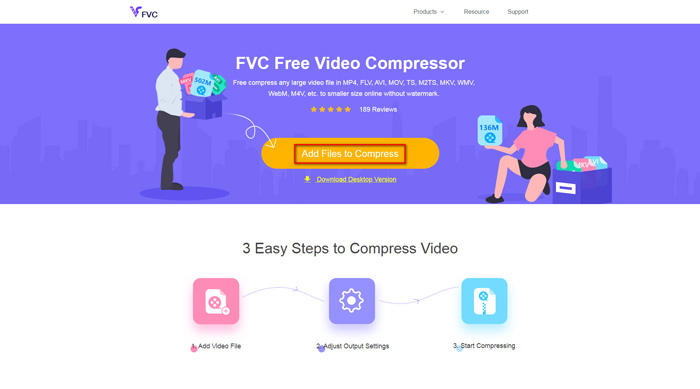
Bước 1. Truy cập trang web của FVC Free Video Compressor trên trình duyệt của bạn. Bạn sẽ thấy nút Add Files to Compress (Thêm tệp để nén) trong banner. Nhấp vào đó và làm theo hướng dẫn để tải xuống và cài đặt trình khởi chạy FVC trên máy tính.
Bước 2. Sau đó, bạn cần chọn tệp M4V muốn nén. Tiếp theo, bạn có thể kéo thanh trượt phía sau ô Size (Kích thước) để điều chỉnh và dễ dàng tìm được dung lượng tệp chính xác mà bạn muốn. Bạn cũng có thể thay đổi riêng độ phân giải và bitrate theo nhu cầu.
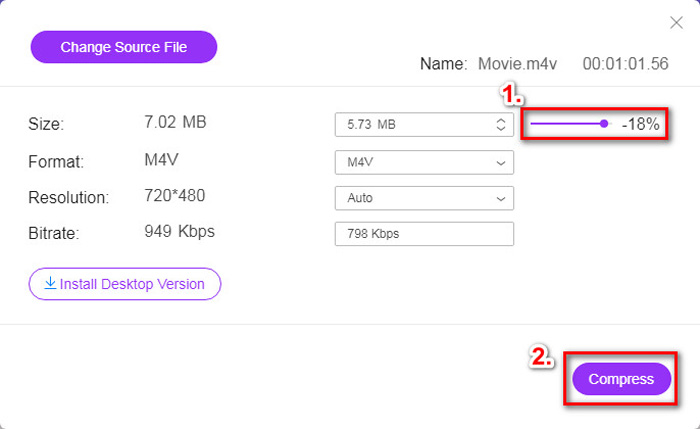
Bước 3. Nếu bạn muốn nén M4V sang MP4, thì tại đây bạn nên chọn MP4 làm định dạng đầu ra. Nếu không, bạn có thể nhấp trực tiếp vào Compress ở góc phải. Chọn một thư mục để lưu video đã nén và đợi vài giây để nhận được video như ý.
Phần 2. Cách giảm kích thước tệp M4V trên Mac / Windows
Vì M4V là định dạng do Apple phát triển, bạn cũng có thể dùng trình phát mặc định của Apple, QuickTime Player, để nén tệp M4V trên máy Mac. Ngoài ra, QuickTime Player còn có phiên bản Windows cho người dùng PC. Tuy nhiên, bạn cần lưu ý rằng phiên bản mới nhất cho Windows là QuickTime 7.7.9 được phát hành năm 2016. Vì vậy, nếu bạn muốn một chương trình mới hơn, bạn có thể thử FVC Free Video Compressor, công cụ này thậm chí còn xử lý được cả video 4K.
Dù sao, hãy làm theo các bước dưới đây để giảm kích thước tệp M4V trong QuickTime.
Bước 1. Mở tệp M4V cần nén bằng QuickTime.
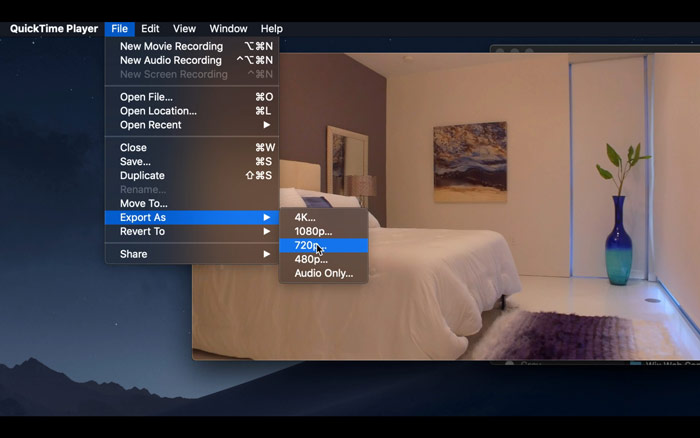
Bước 2. Tìm menu File ở góc trên bên trái. Nhấp vào đó và tìm tùy chọn Export As trong danh sách. Sau đó chọn một độ phân giải thấp hơn video gốc để nén video. Dù sao thì chúng ta cũng không muốn tăng kích thước ở đây.
Bước 3. Nếu bạn không muốn thay đổi đường dẫn lưu, bạn có thể nhấp trực tiếp vào Save. Vui lòng chờ quá trình xuất video hoàn tất.
Phần 3. Những câu hỏi thường gặp về Nén M4V
1. Tôi có thể đổi tên M4V thành MP4 không?
Không, nếu ý bạn là chuyển M4V sang MP4 chỉ bằng cách đổi đuôi thành .mp4 thì không được. Bởi vì mã hóa của chúng không giống nhau. Bạn cần dựa vào một công cụ chuyên nghiệp hơn để chuyển đổi M4V sang MP4.
2. YouTube có chấp nhận định dạng M4V không?
Đáng tiếc là YouTube chỉ hỗ trợ một số định dạng tệp hạn chế không bao gồm M4V. Vì vậy, nếu bạn muốn tải video M4V của mình lên YouTube, bạn nên chuyển đổi video đó sang định dạng được YouTube hỗ trợ như MP4.
3. Làm thế nào để ghép nhiều video M4V thành một?
Nếu bạn có vài tệp video M4V cần ghép thành một, bạn có thể thử FVC Free Online Video Merger để ghép nhiều tệp video.
Phần kết luận
Giờ đây bạn đã có 2 cách đơn giản và miễn phí để nén tệp M4V. Nếu bạn là người dùng Mac, bạn có thể dùng QuickTime Player để giảm dung lượng video. Nhưng nếu bạn không hài lòng với các độ phân giải cố định mà QuickTime cung cấp hoặc bạn đang dùng PC Windows, hãy thử FVC Free Video Compressor.
-
 M4V to MP3 Converter - 4 phương pháp tốt nhất để trích xuất MP3 từ tệp M4V
 Khi bạn muốn trích xuất âm thanh MP3 từ video M4V một cách dễ dàng, bạn có thể tìm hiểu thêm về 4 bộ chuyển đổi M4V sang MP3 tốt nhất để có được các tệp âm thanh mong muốn từ bài viết.
-
 4 cách chuyển đổi phim QuickTime sang MP4 miễn phí trên điện thoại / máy tính
 Đọc và nhận 4 cách chuyển đổi QuickTime sang video MP4 miễn phí trên điện thoại hoặc máy tính của bạn. Bạn có thể thay đổi định dạng tệp từ MOV sang MP4 trên Windows / Mac / iPhone / Android / trực tuyến một cách dễ dàng.
-
 4 Bộ chuyển đổi MP4 sang M4V tốt nhất để biến video MP4 thành M4V một cách dễ dàng
 Khi bạn cần thay đổi tệp MP4 sang M4V, bạn nên tìm hiểu thêm thông tin chi tiết về sự khác biệt giữa hai định dạng, cũng như các bộ chuyển đổi MP4 sang M4V tốt nhất từ bài viết.
