


 视频转换大师
 屏幕录影大师
 视频修复
视频修复
 安全下载
安全下载如何在一分钟内将 HEIC 照片从 iPhone 空投到 Mac
在所有 iOS 和 Mac 设备上共享文件,最可靠、最快速的方式就是使用 AirDrop。与其使用蓝牙,不如使用 AirDrop,因为它在不到一分钟内传输多个文件方面更出色。AirDrop 最早在 Mac OS X Lion 和 iOS 7 中推出。直到现在,它依然是 iOS 与 Mac 间无线传输图片、视频、文件、位置信息等内容的王牌功能。它不需要额外设置,对文件大小和可传输文件数量也没有限制。下面就来详细了解一下这一功能,并学习如何轻松地将 iPhone 中的 HEIC 照片隔空投送到 Mac。

第 1 部分。 如何将 HEIC 照片从 iPhone 轻松空投到 Mac
在您可以将 iPhone 上的 HEIC 照片 AirDrop 到 Mac 之前,请确保打开 AirDrop 和两台设备,您必须点击并按住 iPhone 上的 AirDrop 按钮。但在 Mac 上,您需要单击允许我被发现。执行此操作后,屏幕上将显示三个选项。这些是接收、仅限联系人和每个人。
接收关闭意味着它将关闭 AirDrop,如果您想在您的联系人上启用 AirDrop 文件,您必须触摸仅限联系人。最后,“所有人”,此选项将使您的设备从使用 AirDrop 的其他用户看不到。尽管我们全部介绍了它们,但我们建议您点击“所有人”而不是“仅限联系人”。因为您将需要仅联系人上的 iCloud,所以收件人和发件人必须在彼此的联系人列表中。
您需要打开蓝牙和 WiFi。虽然您不需要互联网连接,但您仍需要打开它才能在 Mac 上无线传输 HEIC 文件。下面指示的步骤将教您如何使用 AirDrop 功能将 iPhone 上的 HEIC 文件传输到 Mac。
步骤 1. 打开“照片”App,找到你想要传输的 HEIC 文件并点开。
步骤 2. 轻触共享按钮。
步骤 3. 点选接收方的名称,将该 HEIC 文件发送给对方。
发送后,接收方将收到通知,可选择接受或拒绝。要将其保存在您的 Mac 上,您必须选择获取它,但如果发送给您的文件有误,您可以拒绝它。
第 2 部分。 如何在 iPhone 到 Mac 上 AirDrop JPG 不是 HEIC 格式
如果要更改图像格式,请通过 AirDrop JPG 而不是 HEIC 捕获和发送。您必须按照以下步骤将图像的扩展名更改为 JPEG 而不是 HEIC。请注意,以下步骤不会将 HEIC 转换为 JPG,但会将您捕获的图像更改为 JPEG 而不是 HEIC。
步骤 1. 在 iPhone 上打开设置,找到并进入相机选项。
步骤 2. 在相机页面中点选格式。
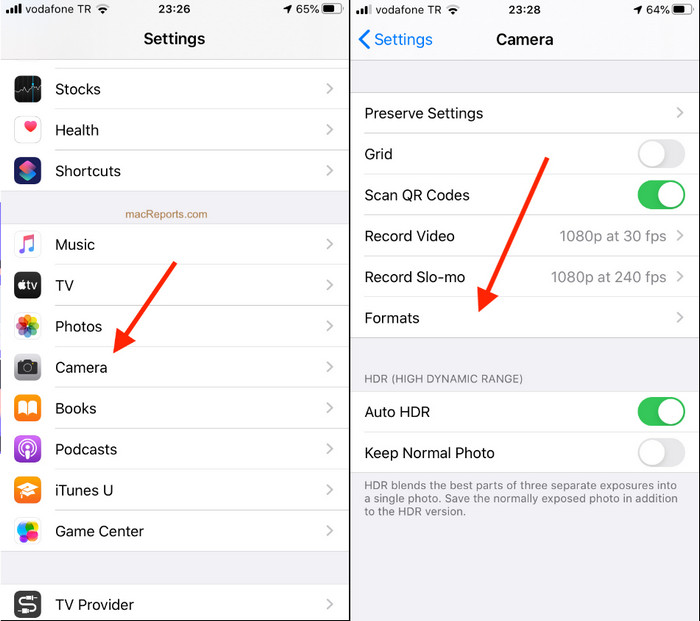
步骤 3. 轻触兼容性最佳,这样之后你在 iPhone 上拍摄的照片都会以标准 JPEG 格式保存,而不是 HEIC,然后就可以通过 AirDrop 以 JPG 格式将图片传输到其他设备。
第 3 部分。如何空投 JPG 而不是 HEIC 格式:您必须知道的最佳在线 HEIC 转换器
与其把 HEIC 文件直接隔空投送到 Mac,不如先把它转换成 JPEG 格式,这样还能方便地分享给除 iOS 和 Mac 以外的其他设备?FVC 免费 HEIC 转 JPG 转换器可以帮助你在传到 Mac 之前,将 HEIC 格式转换为兼容性更好的 JPG。与其在 iPhone 上下载 App,不如试试这个在线转换工具?它的功能和其他转换器一样高效,你也可以下载到自己的设备上使用。
此外,您无需购买该工具,也无需登录即可使用它。除此之外,即使网络工具可以免费使用并且没有任何广告,我们也可以向您保证,在您的设备上访问网络转换器是安全的。以下步骤将教您如何通过在此处转换 AirDrop JPG 而不是 HEIC。
步骤 1. 点击此链接打开转换器网站,即可直接进入在线转换页面。
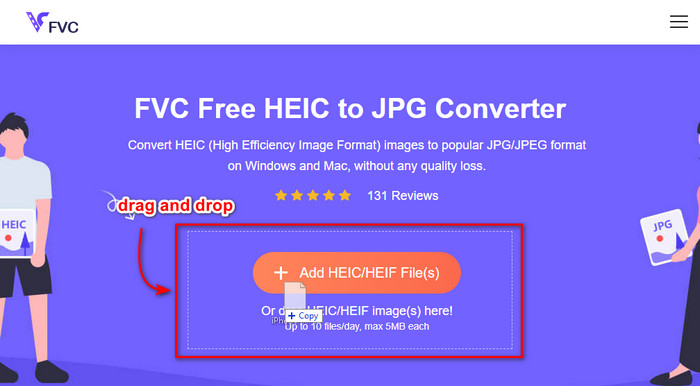
步骤 2. 你可以直接拖放文件到此处,将 HEIC 转换为 JPG,并轻松完成文件上传。
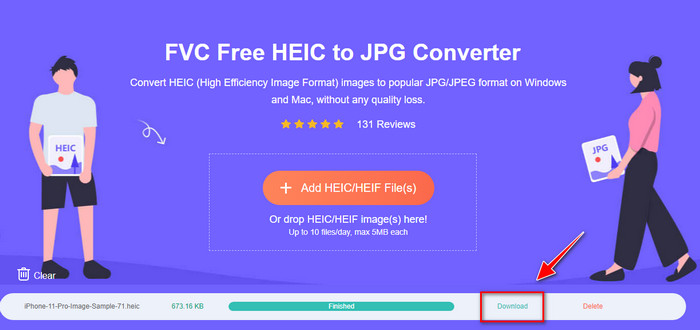
步骤 3. 转换会自动开始;完成后点击下载,将文件保存到你的设备中。现在你就可以轻松地将它分享到 iPhone、Mac、Windows 和 Android 等其他设备。
相关内容:
第 4 部分。有关如何将 HEIC 照片从 iPhone 空投到 Mac 的常见问题解答
AirDropping HEIC 照片从 iPhone 到 Mac 需要时间吗?
在 Mac 上传输 HEIC 照片不会花费太多时间,因为它使用蓝牙和 WiFi 两种方式传输文件。此外,HEIC 文件更小,因此移动它们既简单又有效。
空投 HEIC 文件会丢失质量吗?
使用 AirDrop 传输 HEIC 文件不会降低图像质量。因此,您可以期望收到与发件人在其设备上相同的费率。
为什么我需要在 Mac 上 AirDrop HEIC 文件?
许多因素可能是您需要 AirDrop 您在 iPhone 上的 HEIC 文件的原因,首先,如果您不小心在 iPhone 上删除了该文件,请保留该文件。接下来,如果您想释放设备上的一些空间但又不想删除 iPhone 上存储的图像,您可以将其他照片传输到 Mac。您需要将 iPhone 上的 HEIC 文件 AirDrop 到 Mac 的原因有数百万,但我们只列出了几个原因。无论您的原因是什么,在 Mac 上移动 HEIC 图像都是一个不错的选择。
结论
这篇文章教您如何在 Mac 上使用 iPhone AirDrop HEIC 转为 JPG 或在 Mac 上传输相同的图像格式,而无需将格式更改为 JPEG。无论您出于何种原因对 HEIC 文件进行 AirDropping,您都可以按照我们上面添加的指示步骤进行操作。但假设您想在 Windows 和 Android 等其他设备上共享 HEIC 文件。
在这种情况下,您需要将格式转换为 JPG,因为它是其他设备的默认图像格式。在在线转换器的帮助下,我们介绍将格式转换为 JPG 是免费且简单的。您不需要专家来使用在线转换器并将格式转换为 JPEG;按照上述步骤,您可以在几秒钟内拥有它。
-
 如何使用您拥有的打印机打印 HEIC 照片的终极方法
 您想知道如何以高质量打印 HEIC 照片吗?幸运的是,本文提供了打印您拥有的 HEIC 图像的步骤。
-
 你必须知道的Apowersoft免费HEIC转换器公平评测[2022]
 什么是 Apowesoft HEIC 转换器?要了解该软件的全部内容,我们将在下面提供有关该软件的完整详细信息。
-
 在 Android 上免费将 HEIC 转换为 JPG 的 3 种方法
 需要在 Android 上将 HEIC 转换为 JPG?如果是这样,我们将为您提供可以在 Android 设备上使用的前 3 个应用程序来完成任务。
