


 Video Converter Ultimate
 ضبط صفحه
 تعمیر ویدیو
نحوه تبدیل HEIC به JPG در Google Drive و Alternatives را بیاموزید
HEIC فرمت فایل جدیدتر اپل است. این فرمت تصویر جدید راه بهتری برای ذخیره تصاویر شما در دستگاه شما است. علاوه بر این، HEIC تصویر شما را با حفظ کیفیت بالا کوچکتر می کند. همچنین، بسیاری از مردم فرمت HEIC را دوست دارند زیرا فرمت تصویری عالی برای عکسهای زنده هستند. با این حال، HEIC توسط دستگاه های اپل پشتیبانی می شود. بنابراین، بر روی بسیاری از سیستم عامل ها سازگار نیست. بنابراین، اگر میخواهید از فایلهای HEIC استفاده کنید یا HEIC را روی پلتفرمهای دیگری که ویندوز پشتیبانی میکند آپلود کنید، باید آن را به فرمت فایل JPG تبدیل کنید، که بسیاری از پلتفرمها و وبسایتها از آن پشتیبانی میکنند.
و آیا میدانستید؟ گوگل درایو پشتیبانی از فرمتهای HEIC را آغاز کرده است تا دستگاههای iOS بتوانند فایلهای خود را با استفاده از این سرویس ابری پشتیبانگیری کنند. و اگر میپرسید آیا میتوانید در گوگل درایو HEIC را به JPG تبدیل کنید، برای دانستن پاسخ، مطالب زیر را بخوانید.

قسمت 1. نحوه تبدیل HEIC به JPG در گوگل درایو بدون ضرر
گوگل درایو احتمالا شناخته شده ترین سرویس ذخیره سازی ابری موجود است. با استفاده از این برنامه می توانید هر تصویر یا ویدیویی را که می خواهید آپلود کنید ذخیره و بازیابی کنید. همچنین، بسیاری از کاربران دستگاه های اپل ترجیح می دهند از Google Drive برای ذخیره تصاویر یا فیلم های خود استفاده کنند. علاوه بر این، این برنامه می تواند فضایی را در دستگاه شما که حجم فایل بزرگی اشغال می کند آزاد کند. با این حال، Google Drive نمی تواند تصاویر یا ویدیوها را تبدیل کند. بنابراین، اگر یک فایل HEIC را روی درایو خود آپلود کرده اید، نمی توانید آن را به فرمت فایل JPG تبدیل کنید.
اما در این قسمت روشی را به شما نشان می دهیم تا تصویر HEIC خود را به فرمت JPG در گوگل درایو آپلود کنید. توجه داشته باشید که این فقط در نسخه وب Google Drive در دسترس است، نه نسخه برنامه.
نحوه تبدیل HEIC به JPG در Google Drive با دانلود HEIC به صورت JPG:
مرحله 1. برای شروع، به برنامه Photos بروید و فایل HEIC مورد نظر برای تبدیل را انتخاب کنید. سپس روی آیکون Share ضربه بزنید و گزینه Google Drive را انتخاب کنید.
مرحله 2. دستگاه آیفون خود را به یک شبکه متصل کنید تا عکسها به حساب کاربریتان منتقل شوند.
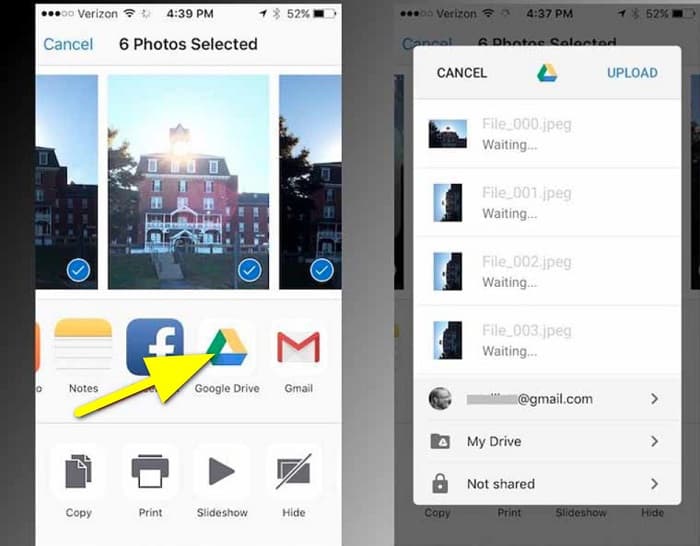
مرحله 3. سپس، یک کامپیوتر را باز کنید، مرورگر خود را اجرا کرده و در نوار جستجو، Google Drive را جستجو کنید. وارد همان حسابی شوید که برای پشتیبانگیری تصویر HEIC استفاده کردهاید.
مرحله 4. سپس روی تصویر HEIC در گوگل درایو کلیک کرده و آن را با حداکثر وضوح باز کنید. بعد روی عکس راستکلیک کرده و گزینه Save image as را بزنید.
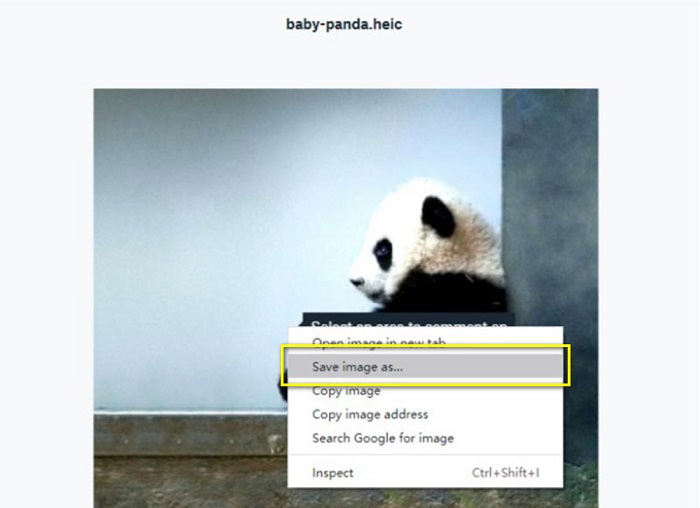
مرحله 5. در منوی پاپآپ، پوشهای را که میخواهید تصویرتان را در آن ذخیره کنید، انتخاب کنید. پسوند فایل را روی .jpg تنظیم کرده و سپس برای ذخیره تغییرات، روی دکمه Save کلیک کنید.
قسمت 2. نحوه تبدیل HEIC به JPG در Google Drive Alternative
از آنجایی که Google Drive قابلیتی برای تبدیل تصاویر یا ویدیوها ندارد، ما آن را جستجو می کنیم که بتوانید از آن برای تبدیل تصاویر HEIC خود استفاده کنید. با این حال، بسیاری از ابزارهای تبدیل در بازار موجود هستند، همه از فرمت HEIC پشتیبانی نمی کنند. بنابراین، ما در وب برای شگفتانگیزترین مبدلی که از فرمتهای تصویر HEIC پشتیبانی میکند، جستجو کردیم. علاوه بر این، در مورد استفاده از این مبدل تصویر برای تبدیل HEIC به JPG بدون ضرر صحبت خواهیم کرد.
مبدل FVC رایگان HEIC به JPG
FVC Free HEIC to JPG Converter یک مبدل HEIC آنلاین است که میتوانید در تمام مرورگرهای وب، مانند گوگل، اینترنت اکسپلورر و سافاری به آن دسترسی داشته باشید. این برنامه آنلاین از فرایند تبدیل HEIC به JPG پشتیبانی میکند؛ کاری که بسیاری از برنامهها قادر به انجام آن نیستند. علاوه بر این، میتوانید HEIC خود را به JPG تبدیل کنید و در عین حال دادههای EXIF مانند ابعاد، فرمت، اندازه، تاریخ/زمان ثبت، نوردهی و موارد دیگر را حفظ کنید. این برنامه به شما امکان میدهد تصویر HEIC خود را بدون کاهش کیفیت تبدیل کنید. همچنین از روش تبدیل مبتنی بر هوش مصنوعی استفاده میکند که تصاویر را بهصورت بدون افت، خودکار تبدیل میکند. از مزایای دیگر استفاده از این ابزار آنلاین این است که میتوانید دو یا چند تصویر را به صورت گروهی و همزمان تبدیل کنید.
تبدیل FVC رایگان HEIC به JPG برای استفاده از آن نیازی به ثبت نام، مشترک شدن یا استفاده از افزونه های شخص ثالث ندارد. و لازم نیست در مورد ایمنی داده های خود مضطرب باشید زیرا استفاده از آن 100% ایمن است. برای یادگیری نحوه تبدیل HEIC به JPG با استفاده از مبدل FVC Free HEIC به JPG، مراحل آسان زیر را بخوانید.
نحوه تبدیل HEIC به JPG در Google Drive جایگزین:
مرحله 1. ابتدا مرورگر وب خود را باز کنید و در نوار جستجو، FVC Free HEIC to JPG Converter را جستجو کنید.
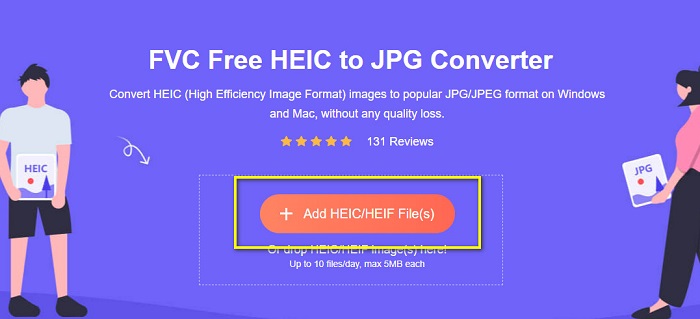
مرحله 2. سپس، قبل از استفاده، برنامه را اجرا کنید. بعد روی دکمه Add HEIC/HEIF Files در همان رابط کلیک کنید تا تصویر HEIC مورد نظر برای تبدیل را اضافه کنید.
مرحله 3. FVC Free HEIC to JPG Converter پس از بارگذاری فایل HEIC شما، بهطور خودکار تصویرتان را تبدیل میکند. آیکون Finished را در پایین رابط مشاهده خواهید کرد.
مرحله 4. در نهایت، با کلیک روی دکمه Download تصویر تبدیلشده خود را دانلود کنید. سپس خروجی را در فایلهای کامپیوتر خود پیدا کنید.
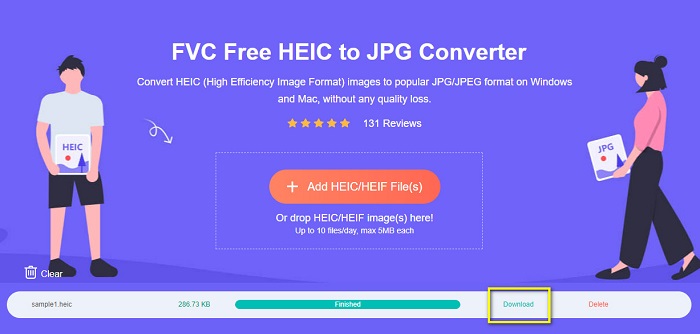
به همین سادگی، می توانید HEIC خود را به راحتی در رایانه خود به JPG تبدیل کنید.
مبدل HEIC Aiseesoft
Aiseesoft HEIC Converter یک برنامه قابل دانلود رایگان است که اگر بهدنبال بهترین مبدل HEIC هستید میتوانید از آن استفاده کنید. علاوه بر این، این برنامه به شما امکان میدهد HEIC را به JPG تبدیل کنید و در عین حال دادههای EXIF تصویر خود را حفظ نمایید. همچنین اگر میخواهید حجم تصویر را کاهش دهید، میتوانید کیفیت تصویر را تغییر دهید. علاوه بر این، از تبدیل دستهای پشتیبانی میکند و به شما اجازه میدهد دو یا چند فایل HEIC را بهطور همزمان تبدیل کنید. مهمتر اینکه میتوانید آن را بهصورت رایگان روی تمام پلتفرمها، مانند ویندوز، مک و لینوکس دانلود کنید.
Aiseesoft HEIC Converter یک ابزار کاربرپسند است زیرا دارای رابط کاربری بصری است. علاوه بر این، از فرمت های استاندارد فایل مانند HEIC، JPG و PNG پشتیبانی می کند. با این حال، قبل از اینکه بتوانید از سایر ویژگی های آن استفاده کنید، ابتدا باید برنامه را خریداری کنید.
نحوه تبدیل HEIC به JPG با استفاده از Aiseesoft HEIC Converter:
مرحله 1. برنامه Aiseesoft HEIC Converter را روی کامپیوتر خود دانلود کنید. پس از نصب برنامه، آن را روی دستگاه خود اجرا کنید.
مرحله 2. روی دکمه Add HEIC در رابط اصلی کلیک کنید تا تصویر HEIC مورد نظر برای تبدیل را وارد کنید.
مرحله 3. سپس در گزینه Format، فرمت خروجی را روی JPG/JPEG تنظیم کنید. فراموش نکنید که تیک کنار گزینه Keep EXIF Data را بزنید.
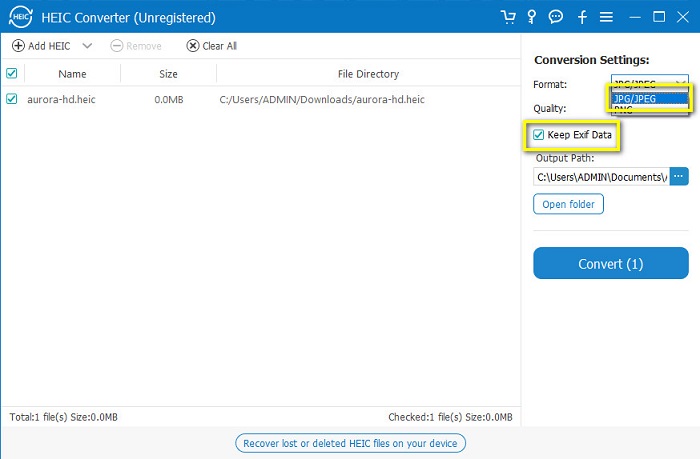
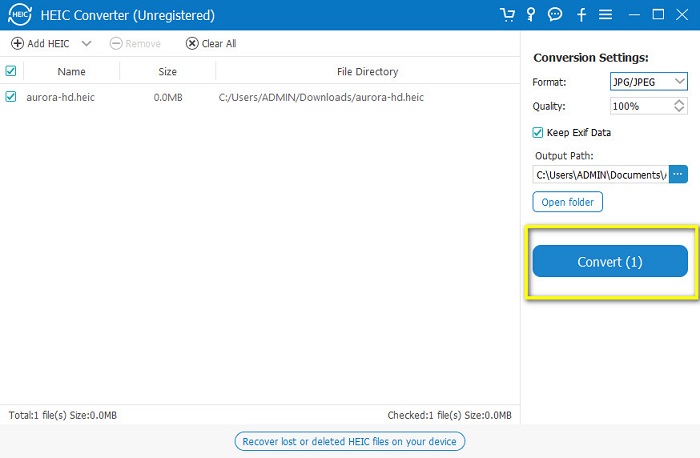
مرحله 4. در نهایت، برای شروع تبدیل HEIC به JPG روی دکمه Convert کلیک کنید. صبر کنید تا فرایند تبدیل به پایان برسد و تمام! اکنون تصویر HEIC شما به یک تصویر JPG تبدیل شده است.
بخش 3. سؤالات متداول در مورد تبدیل HEIC به JPG در Google Drive
چگونه تصاویر HEIC را در Google Drive مدیریت کنیم؟
میتوانید تصاویر HEIC خود را از طریق Google Photos در گوگل درایو مدیریت کنید. از زمانی که گوگل فناوری هوش مصنوعی را در Google Photos معرفی کرده است، اکنون میتوانید عکسهای خود را بر اساس شخص، دستهبندی یا موضوع مدیریت کنید.
چرا عکس های من به عنوان HEIC در Google Drive آپلود می شوند؟
Google Drive فایل های آپلود شده شما را به عنوان HEIC ذخیره می کند زیرا مرورگر شما فقط نسخه پیش نمایش تصویر شما را در رایانه شما ذخیره می کند.
آیا HEIC بهتر از فرمت JPG است؟
در مورد فشرده سازی و کیفیت تصویر، HEIC بهتر از فرمت های JPG است. HEIC به شما امکان می دهد کیفیت تصویر خود را با شفافیت و پویایی گسترده تر افزایش دهید.
نتیجه
حالا که میدانید نمیتوانید در برنامه گوگل درایو، HEIC را به JPG تبدیل کنید، میتوانید از روشی استفاده کنید که در آن تصویر HEIC خود را در نسخه وب گوگل درایو بهصورت JPG ذخیره میکنید. با این حال، در این روش فقط میتوانید یک تصویر را در هر نوبت پردازش کنید و باید از طریق مرورگر کار کنید. بنابراین ما توصیه میکنیم از FVC Free HEIC to JPG Converter استفاده کنید که رایگان و کار با آن آسان است.
-
 HEIC را با استفاده از 4 روش برتر در سال 2022 به PDF تبدیل کنید
 برای کسب اطلاعات بیشتر در مورد بهترین مبدل HEIC به PDF میتوانید این 2022 را دانلود کنید. میتوانید این مقاله را بخوانید زیرا ما بررسی آنها را ارائه کردهایم.
-
 5 مورد از بهترین مبدلهای HEIC به JPG را در سال 2022 انتخاب میکنند
 با مبدل HEIC به JPC می توانید به راحتی فرمت تصویر را به JPG قابل حمل تغییر دهید. می خواهید بدانید این 5 ابزار چیست؟ این مقاله را بخوانید.
-
 بهترین مبدل رایگان و پولی HEIC که باید بدانید [به روز رسانی 2022]
 آیا می خواهید بدانید مبدل HEIC چیست؟ اگر چنین است، ما 5 مبدل برتر HEIC رایگان و پولی را که می توانید برای تغییر قالب HEIC استفاده کنید، اضافه می کنیم.
