


 Video Converter Ultimate
 Enregistreur d'écran
 Réparation vidéo
5 GIF Resizers que vous pouvez utiliser pour redimensionner votre GIF animé en ligne et hors ligne
Redimensionner un GIF est une tâche simple avec n’importe quel éditeur, mais tous les éditeurs ne prennent pas en charge ce type de format. Plutôt que de tester différents outils et de perdre beaucoup de temps, pourquoi ne pas lire cet article ? Pourquoi ? Parce que nous vous présentons des redimensionneurs que vous pouvez utiliser et nous ne donnerons que des faits à propos de ces cinq outils. Alors, êtes‑vous prêt à découvrir les redimensionneurs de GIF animés disponibles sur vos plateformes ? Si c’est le cas, passons maintenant à l’examen détaillé de ces cinq redimensionneurs de GIF ci‑dessous et voyons en quoi chaque outil est différent des autres.

Partie 1. Top 5 des redimensionneurs GIF en ligne et hors ligne
1. FVC Video Converter Ultimate [Recommandé]
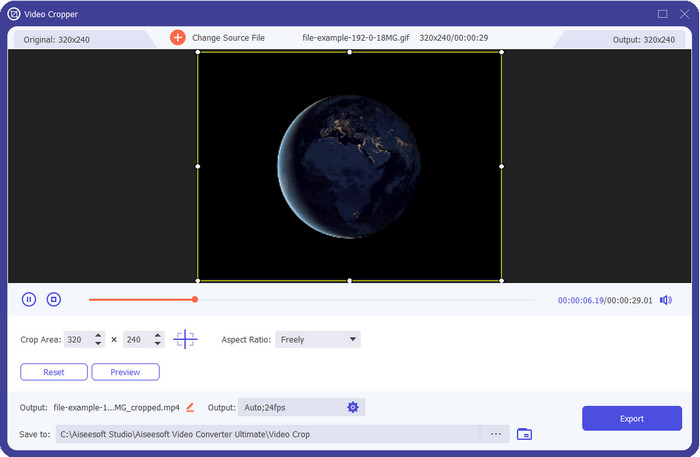
Aucun des outils présentés ici n’offre ce que FVC Video Converter Ultimate peut apporter à vos GIF. Vous vous demandez peut‑être ce qui rend cet outil unique ? Cet outil ultime propose un redimensionnement de GIF complet et économique que vous adorerez utiliser. Il est excellent pour obtenir un rendu professionnel, comme Photoshop peut vous l’offrir, mais beaucoup plus rapide, aussi bien pour les débutants que pour les pros. De plus, cet outil peut non seulement redimensionner votre GIF, mais aussi convertir vos GIF en MP4, MOV, AVI, MKV et plus de 200 autres formats afin de les rendre compatibles avec d’autres appareils. Si vous devez créer un GIF et souhaitez le définir comme fond d’écran, vous avez de la chance de disposer de cet outil ultime, car il intègre un créateur de GIF qui vous y aidera. Si vous voulez savoir comment créer un GIF et le définir comme fond d’écran, cliquez sur ce lien. Quoi qu’il en soit, cet outil est recommandé à tous les utilisateurs pour apprendre à redimensionner des GIF en toute tranquillité, sans avoir à lire un manuel d’utilisation.
Téléchargement gratuit pour Windows 7 ou version ultérieure Téléchargement sécurisé
Téléchargement gratuit pour macOS 10.7 ou version ultérieure - Téléchargement sécurisé
Avantages
- Redimensionnez votre GIF selon la taille que vous voulez librement en faisant glisser les points librement.
- Il a un aperçu que vous pouvez consulter pour vous assurer qu'il s'agit de la taille exacte dont vous avez besoin sur vos GIF.
- Il dispose d'un rendu ultra-rapide intégré pour un processus d'exportation éclair.
- Disponible dans n'importe quel système d'exploitation de bureau tel que Windows et Mac.
Les inconvénients
- Besoin d'être acheté.
2. Adobe Photoshop
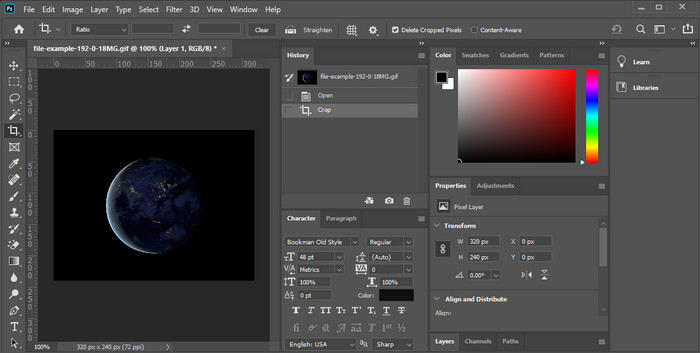
Et si vous avez besoin d’un outil de redimensionnement professionnel ? Dans ce cas, Adobe Photoshop est une option. Cet outil téléchargeable vous aide à redimensionner facilement n’importe quel GIF en quelques minutes. Pour entrer dans le détail, cet outil est le choix de tous les utilisateurs professionnels qui veulent retoucher leurs images, comme les GIF, pour les rendre plus agréables et attrayantes. Bien que l’outil soit professionnel, il reste difficile à utiliser pour ceux qui ne sont pas à l’aise avec la technologie. De plus, si vous voulez simplement redimensionner votre GIF, cet outil est coûteux pour cette seule tâche. Mais si vous souhaitez utiliser PhotoShop pour redimensionner des GIF et ajouter quelques détails subtils, alors cet outil vous aidera ; toutefois, apprendre à l’utiliser demandera plus de temps que pour les autres outils.
Avantages
- C'est le meilleur choix pour l'édition d'images professionnelles.
- Outil professionnel pour un usage professionnel.
- Fonctionnalités d'édition avancées pour les GIF.
Les inconvénients
- Cher.
- Difficile à utiliser si vous êtes nouveau dans le domaine de l'édition.
3. GIFGIF
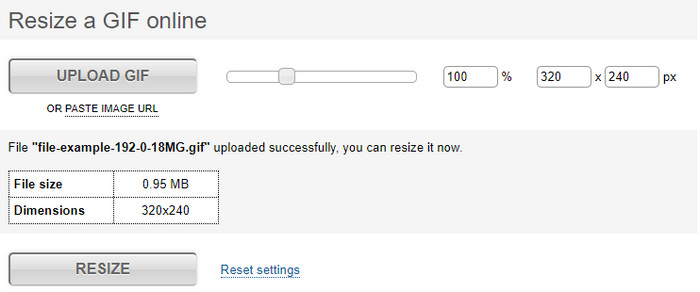
GIFGIFs possède l’une des plus vastes bibliothèques de GIF que vous pouvez utiliser pour enregistrer des GIF prêts à l’emploi sur votre disque, et propose un éditeur simple pour redimensionner de gros GIF. Cet outil est disponible depuis un certain temps pour aider les utilisateurs à ajuster leurs GIF si nécessaire via des services en ligne. Même si ce redimensionneur web est gratuit et en ligne, il ne comporte aucune publicité dans son interface susceptible de vous déranger, ce qui est excellent. Mais le principal problème de son redimensionneur est que vous devez indiquer précisément la taille ou le ratio de l’image que vous souhaitez obtenir. Ce problème est plus pénible que les publicités, car vous devrez essayer encore et encore pour être sûr d’obtenir exactement le redimensionnement voulu. Cependant, si vous avez une idée du rapport d’aspect dont vous avez besoin, c’est une bonne option pour redimensionner vos GIF.
Avantages
- Bibliothèque intégrée pour les GIF.
- Il n'y a pas de publicité sur le Web qui puisse vous ennuyer ou vous déranger lors du redimensionnement du GIF.
- Facile et gratuit à utiliser.
Les inconvénients
- Internet est nécessaire pour terminer la tâche de redimensionnement des GIF.
- Difficile de savoir si c'est la taille exacte dont vous avez besoin.
4.RedKetchup.io
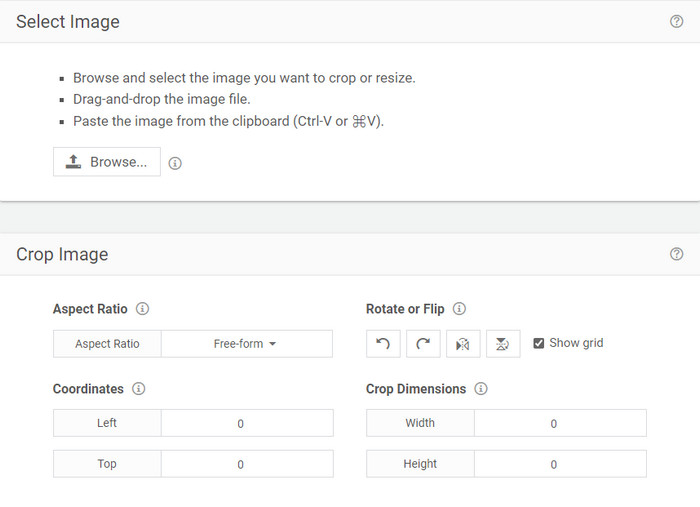
RedKetchup.io offre une méthode simple et interactive pour redimensionner des GIF animés dans la limite précise que vous souhaitez. Cet outil en ligne permet aux internautes d’améliorer l’apparence de leurs GIF grâce aux fonctions d’édition qu’il propose. En outre, vous pouvez y effectuer un redimensionnement beaucoup plus détaillé que ce que Ezgif peut vous offrir. Même si cet outil est beaucoup plus simple à utiliser que le premier, son interface manque de couleurs pour paraître professionnelle. La seule couleur que vous verrez en y accédant est celle de son nom, et elle est rouge. De plus, l’outil est en accès gratuit ; malgré cela, quelques publicités sur l’interface peuvent être un peu fatigantes à regarder.
Avantages
- Accessible à toute personne disposant d'une connexion Internet.
- Resizer GIF très détaillé.
- Gratuit mais simple à utiliser.
Les inconvénients
- Il a des publicités embêtantes sur l'interface.
- Dépendant d'Internet.
5. Ezgif
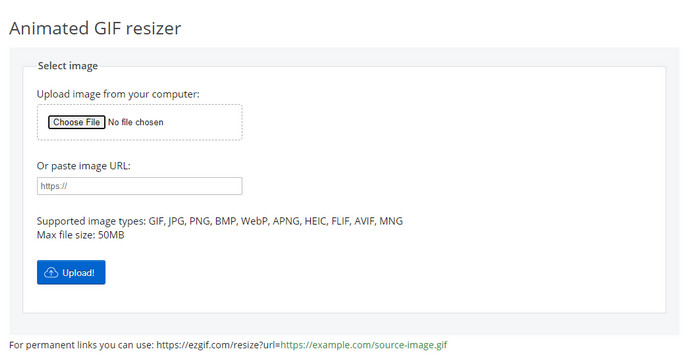
Il est connu comme l’un des meilleurs créateurs de GIF et peut également redimensionner des GIF en ligne si vous en avez besoin. Ezgif propose une interface intuitive pour améliorer votre GIF sans trop d’efforts. De plus, si vous n’êtes pas à l’aise avec la technologie, cet outil est un excellent choix pour ce type d’utilisateurs. Cependant, si vous n’avez pas de connexion internet, cet outil n’est pas une option pour redimensionner votre GIF, car il dépend d’internet, comme l’autre outil web ci‑dessus. En outre, les publicités sur l’interface peuvent vous déranger pendant le redimensionnement des GIF. Si vous utilisez cet éditeur, assurez‑vous de connaître les valeurs de largeur et de hauteur que vous voulez définir, car il n’y a pas d’aperçu pour vérifier si le GIF redimensionné correspond à vos besoins, et vous ne pouvez pas faire glisser le ratio pour l’ajuster comme vous le souhaitez.
Avantages
- Meilleur créateur de GIF en ligne.
- Il dispose de fonctionnalités d'édition GIF simples dont vous aurez besoin.
- Accédez-y gratuitement.
Les inconvénients
- Il n'a pas de prévisualisation pour vérifier si la taille du GIF est correcte.
- Les publicités sont sur l'interface qui peuvent vous irriter.
Partie 2. Tableau de comparaison sur les 5 GIF Resizers
| traits | Video Converter Ultimate [Recommandé] | Photoshop | GIFGIF | RedKetchup.io | Ezgif |
| Modification des fonctionnalités |  | | | | |
| Sans publicité | | |  | | |
| Convivial | | | | | |
| Dépendant d'Internet | | | | | |
| Peu coûteux ou gratuit | | | | | |
| Volet de prévisualisation | | | | | |
Partie 3. FAQ sur GIF Resizer
Après le redimensionnement, la qualité du GIF change-t-elle ?
En termes de qualité, le GIF ne doit pas être modifié radicalement en un GIF flou, mais la qualité changera après le redimensionnement du GIF, mais il ne devrait pas être loin du GIF d'origine. Ainsi, si vous rencontrez ce problème, cela signifie que la qualité a changé lors de l'exportation et non lors du redimensionnement du GIF.
La taille du fichier du GIF devient-elle petite ?
Après avoir comparé les deux GIF, l'original et le redimensionné, nous avons constaté un changement significatif dans la taille du fichier. Même s'il s'agit d'un petit changement, on peut dire que sa taille est devenue plus petite que celle d'origine.
Puis-je revenir au GIF d'origine après le redimensionnement ?
Après avoir redimensionné votre GIF, vous pouvez le remettre dans son état d'origine si vous ne l'avez pas encore exporté. Cependant, si vous exportez le GIF et que vous n'êtes pas satisfait du résultat, vous ne pouvez pas revenir à la taille GIF d'origine. Pour éviter ce problème, vous devez utiliser un redimensionneur GIF doté d'un aperçu pour vérifier la sortie avant de l'exporter.
Après la conversion de JPG en GIF, va-t-il bouger ?
Non, cela ne sera pas le cas, car les JPEG ne sont pas animés comme les GIF animés. Mais vous pouvez transformer plusieurs JPEG en un GIF si vous en faites plutôt un GIF photo. Vous voulez apprendre à le faire ? Dans ce cas, cet article vous aidera grandement à transformer votre compilation de JPEG en GIF.
Conclusion
Maintenant que nous savons quels redimensionneurs de GIF vous pouvez utiliser, il est temps de choisir. Tous les outils en ligne et hors ligne ont été testés individuellement pour fournir des informations exactes sur ces outils et leurs capacités. Mais nous avons constaté que Video Converter Ultimate offre le meilleur rendu pour le redimensionnement de GIF. Bien que l’outil soit payant, nous pouvons affirmer en toute confiance que votre argent ne sera pas gaspillé après l’acquisition de cet outil ultime. Donc, si vous avez encore des doutes sur ce que nous avançons, vous devez essayer et télécharger l’outil ultime en cliquant sur le bouton de téléchargement.
Téléchargement gratuit pour Windows 7 ou version ultérieure Téléchargement sécurisé
Téléchargement gratuit pour macOS 10.7 ou version ultérieure - Téléchargement sécurisé
-
 Comment créer un GIF sur iPhone à partir de plusieurs photos que vous avez prises et enregistrées
 Voulez-vous savoir comment créer des GIF sur iPhone à partir de vos photos ? Cet article partage 3 logiciels que vous pouvez utiliser pour créer des GIF sur votre iPhone.
-
 Top 3 des convertisseurs à ne pas manquer pour convertir PNG en GIF animé
 Voulez-vous donner vie à votre PNG ? Essayez ensuite de convertir le format animé PNG en GIF avec les outils utiles disponibles et les étapes à suivre pour le faire.
-
 Les 4 meilleures façons de transformer un GIF animé en FLV sur PC/Mac/en ligne/Android/iOS
 Vous voulez convertir votre GIF en FLV et les partager en ligne ? Si tel est le cas, examinons les meilleurs convertisseurs GIF vers FLV que vous pouvez utiliser sur PC, Mac, en ligne, Android et iOS.
