


 Video Converter Ultimate
 Enregistreur d'écran
 Réparation vidéo
 Téléchargement sécurisé
Comment ralentir une vidéo sur Tiktok ? 2 façons meilleures et gratuites
De nos jours, vous trouverez de nombreuses vidéos circulant sur Internet provenant de TikTok. Cette application est très tendance et propose de nombreuses fonctionnalités et outils pour créer du contenu vidéo : mèmes hilarants, vidéos éducatives, covers de danse et bien plus encore. Et si vous venez tout juste de commencer sur TikTok, vous voulez sans doute apprendre comment ralentir une vidéo sur TikTok. Heureusement, TikTok dispose d’un outil intégré de ralentissement ou d’accélération qui vous permet d’obtenir une vidéo en slo-mo. Vous êtes au bon endroit, car vous allez découvrir comment ralentir une vidéo sur TikTok.

Partie 1. Ralentissez facilement une vidéo sur Tiktok
L'application Tiktok dispose d'un outil de ralenti intégré que vous pouvez utiliser pour ralentir ou accélérer la vidéo que vous enregistrez. Et si vous avez déjà une vidéo enregistrée dans votre galerie et que vous souhaitez la publier sur TikTok, vous pouvez toujours la ralentir sur l'application Tiktok. Dans cette partie, vous saurez comment ralentir votre vidéo sur TikTok.
Ralentissez votre vidéo pendant l'enregistrement
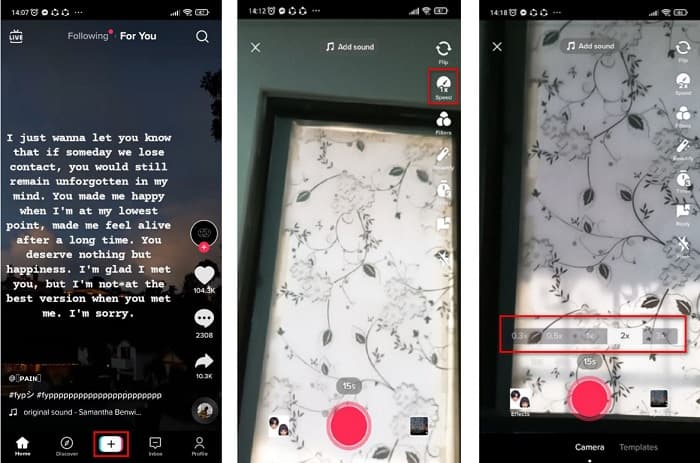
Voici la réponse si vous vous demandez comment ralentir une vidéo TikTok pendant l'enregistrement. Suivez les étapes simples ci-dessous pour enregistrer une vidéo au ralenti.
Étape 1. Commencez par ouvrir votre application TikTok et touchez le signe + au centre de votre écran.
Étape 2. Lorsque vous êtes sur l’interface de la caméra, touchez l’option Vitesse.
Étape 3. Pour finir, sélectionnez la vitesse souhaitée. 0,3x et 0,5x rendent votre vidéo plus lente, tandis que 2x et 3x la rendent plus rapide.
Ensuite, appuyez simplement sur le bouton d'enregistrement pour commencer à enregistrer votre vidéo, et lorsque vous avez terminé, appuyez sur le bouton d'arrêt. Vous verrez que la vitesse de la vidéo que vous avez enregistrée est modifiée.
Ralentir une vidéo enregistrée
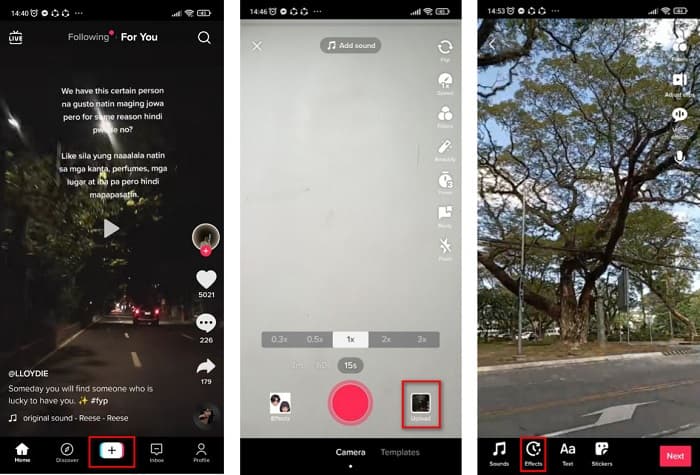
Si vous avez déjà une vidéo enregistrée, vous pouvez toujours ralentir ou accélérer votre vidéo sur TikTok. Suivez les étapes simples ci-dessous pour ralentir une vidéo enregistrée. Cependant, lorsque votre vidéo est déjà enregistrée, votre seule option est de ralentir votre vidéo sans les options de vitesse.
Étape 1. Ouvrez l’application TikTok et touchez le bouton avec le signe + au milieu de l’interface du logiciel.
Étape 2. Ensuite, touchez l’option Importer à côté du bouton d’enregistrement. Puis sélectionnez votre vidéo enregistrée et cliquez sur Suivant.
Étape 3. Enfin, touchez Effets puis l’option Ralenti. Ensuite, ajustez la vitesse que vous souhaitez.
Après avoir réglé la vitesse de votre vidéo, appuyez sur le bouton Enregistrer pour enregistrer votre enregistrement vidéo.
Simple, non ? En utilisant l'application Tiktok, vous pouvez avoir une vidéo au ralenti sans utiliser d'autre outil.
Partie 2. Ralentissez vos vidéos TikTok enregistrées à l'aide du meilleur outil de changement de vitesse vidéo
L'utilisation du changeur de vitesse de l'application TikTok est simple et sans tracas. Cependant, il ne peut ralentir votre vidéo que jusqu'à 0,3x et ne peut accélérer votre vidéo que jusqu'à 3x. Si vous souhaitez ralentir votre vidéo jusqu'à 0,125 fois la vitesse, nous avons des outils alternatifs en ligne et hors ligne.
Convertisseur vidéo FVC Ultimate
FVC Video Converter Ultimate est un outil hors ligne qui vous permet de modifier la vitesse de votre vidéo. Avec cet outil, vous pouvez ralentir ou accélérer votre vidéo comme vous le souhaitez. Il peut ajuster la vitesse de votre vidéo à 0,125x, 0,25x, 0,5x, 0,75x, 1,25x, 1,5x, 2x, 4x et 8x.
De plus, cet outil possède une interface logicielle facile à utiliser, ce qui le rend facile à utiliser pour les débutants. Cet outil est impressionnant car il possède des fonctionnalités plus avancées, comme un éditeur de métadonnées multimédia, un compresseur vidéo, un créateur 3D et bien d'autres. En plus de cela, lorsque vous modifiez la vitesse de votre vidéo, vous ne perdrez pas sa qualité, contrairement aux autres outils. Donc, si vous souhaitez utiliser ce convertisseur, suivez les étapes ci-dessous.
Étape 1. Téléchargez FVC Video Converter Ultimate en cliquant sur le bouton Télécharger ci‑dessous. Suivez le processus d’installation, puis lancez l’application.
Téléchargement gratuit pour Windows 7 ou version ultérieure Téléchargement sécurisé
Téléchargement gratuit pour macOS 10.7 ou version ultérieure - Téléchargement sécurisé
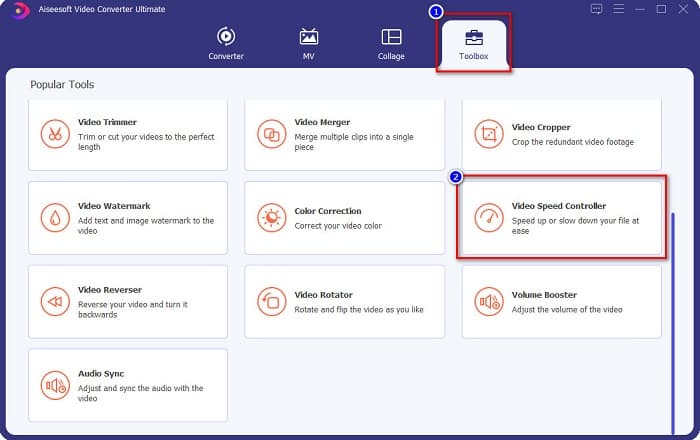
Étape 2. Ensuite, sur l’interface principale du logiciel, cliquez sur le panneau Boîte à outils. Dans l’interface de la boîte à outils, cliquez sur Contrôleur de vitesse vidéo.
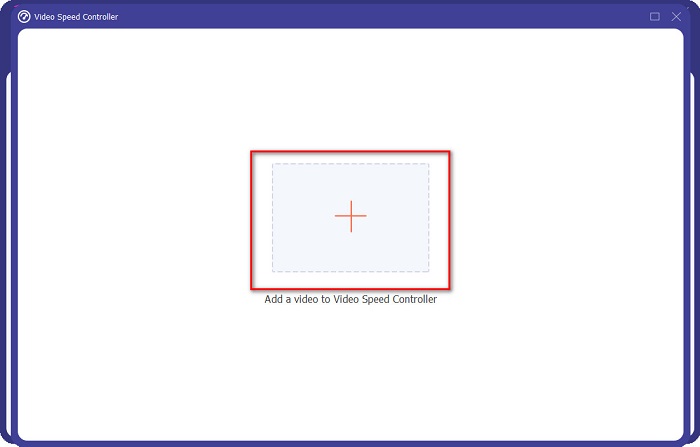
Étape 3. Cliquez sur le bouton avec le signe + pour importer la vidéo que vous souhaitez ralentir sur l’interface suivante.
Étape 4. Puis sélectionnez la vitesse vidéo que vous voulez, puis passez à la dernière étape.
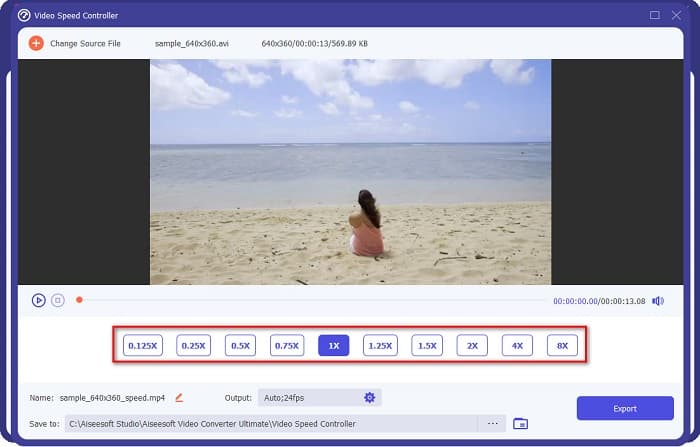
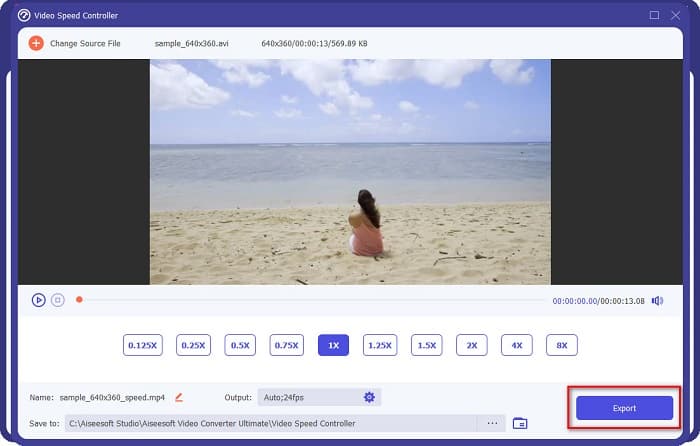
Étape 5. Enfin, cliquez sur le bouton Exporter pour appliquer la vitesse à votre vidéo. La vidéo de sortie sera automatiquement enregistrée dans les dossiers de votre ordinateur.
Avantages
- Il peut régler la vitesse de votre vidéo de 0,125x à 8x.
- Il a une interface utilisateur intuitive.
- Il dispose de fonctionnalités d'édition avancées telles que le créateur de GIF, le créateur 3D, le filigrane vidéo, etc.
- Disponible sur toutes les plateformes cross-média, y compris Windows et Mac.
Les inconvénients
- Vous devez acheter l'application avant d'accéder à ses fonctionnalités uniques.
Kapwing
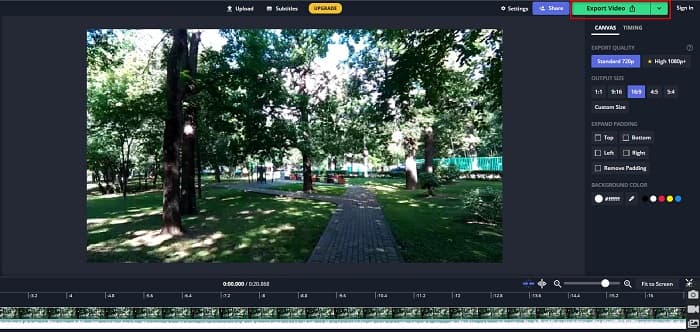
Kapwing est un outil en ligne qui est l’un des changeurs de vitesse vidéo les plus utilisés. Cet outil possède une interface simple, ce qui le rend très facile à utiliser. Il vous permet également de couper et de recadrer votre vidéo facilement. De plus, il peut modifier la vitesse de votre vidéo à 0,25x, 0,5x, 0,75x, 1,15x, 1,25x, 1,75x, 2x et 4x. En outre, vous pouvez changer la taille de sortie de votre vidéo. Cependant, comme il s’agit d’une application web, vous pouvez parfois rencontrer un temps de chargement lent en l’utilisant. Néanmoins, de nombreuses personnes utilisent ce convertisseur pour changer la vitesse de leurs vidéos.
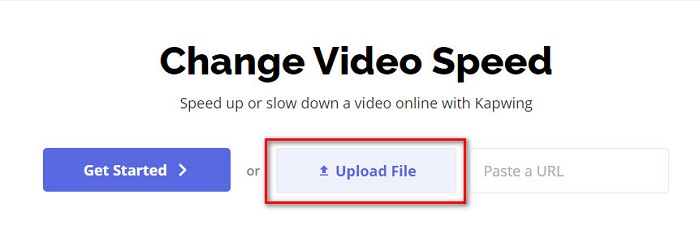
Étape 1. D’abord, recherchez Kapwing dans votre navigateur, puis cliquez sur le bouton Upload File. Les fichiers de votre ordinateur apparaîtront et vous sélectionnerez la vidéo dont vous voulez modifier la vitesse.
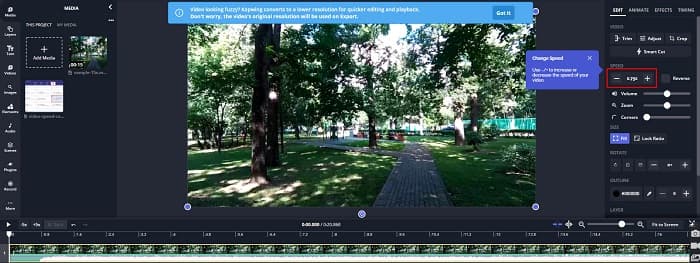
Étape 2. Ensuite, ajustez la vitesse de la vidéo sur l’interface suivante en cliquant sur le signe - ou le signe + dans le panneau de vitesse.
Étape 3. Cliquez sur le bouton Exporter pour modifier la vitesse de votre vidéo. Puis attendez quelques minutes, et c’est tout !
Avantages
- Il dispose d'une interface logicielle facile à utiliser.
- Vous permet de couper votre sortie vidéo.
Les inconvénients
- Lorsque la connexion Internet est lente, le processus de chargement de l'application est lent.
Partie 3. FAQ sur la façon de ralentir une vidéo sur Tiktok
Est-ce que ralentir une vidéo sur Tiktok réduit la qualité ?
Non. Étant donné que Tiktok dispose d'un changeur de vitesse vidéo intégré, cela n'affectera pas la qualité de votre vidéo lorsque vous ralentirez une vidéo sur TikTok.
L'exportation d'une vidéo au ralenti sur TikTok contient-elle un filigrane ?
Oui. Chaque vidéo exportée par TikTok contient un filigrane. Mais si vous voulez enlever le filigrane de votre vidéo TikTok, lisez cet article pour savoir comment faire.
Combien de temps pouvez-vous tourner une vidéo Tiktok ?
Un seul enregistrement vidéo Tiktok a une durée maximale de 15 secondes. Cependant, si vous enchaînez quatre vidéos de 15 secondes, elles ont un maximum de 60 secondes.
Conclusion
Cela étant dit, la question de savoir comment ralentir une vidéo sur TikTok est résolue. Vous savez maintenant comment ralentir ou accélérer une vidéo dans l’application TikTok. Mais si vous voulez ajuster la vitesse de vos autres vidéos, FVC Video Converter Ultimate est l’outil qui peut vous y aider.
-
 Principaux faits que vous devez savoir sur QuickTime Slow Motion
 Avez-vous essayé d'utiliser QuickTime Media Player pour lire une vidéo au ralenti ? Lisez cet article pour en savoir plus sur l'excellent service de ce lecteur multimédia.
-
 5 créateurs professionnels de vidéos au ralenti disponibles pour Windows/Mac/en ligne
 Voulez-vous savoir comment faire jouer votre vidéo au ralenti ? Ensuite, lisez cet article pour découvrir ce que sont les 5 créateurs de vidéos au ralenti professionnels.
-
 Meilleures façons d'utiliser iMovie pour créer des vidéos au ralenti [Résolu]
 Avez-vous déjà utilisé l'application iMovie pour convertir votre vidéo à vitesse normale en ralenti ? C'est l'occasion d'en savoir plus sur cette application, alors continuez à lire.
