


 वीडियो कनवर्टर अंतिम
 स्क्रीन अभिलेखी
 वीडियो मरम्मत
नवीनतम ऑनलाइन और ऑफलाइन सॉफ्टवेयर जिसका उपयोग आप MP4 वीडियो को आसानी से रिवर्स करने के लिए कर सकते हैं
ज़्यादातर बार जब हम अपना वीडियो रिवर्स करने की कोशिश करते हैं, तो हम कुछ मज़ेदार रिएक्शंस बना देते हैं, जो हमें ऐसा महसूस कराते हैं कि वह हम ही हैं। क्योंकि वीडियो उल्टा चलाया जाता है, इसका असर हमारी आंखों को कुछ नया दिखाता है। तो, अगर आप यह जानना चाहते हैं कि MP4 वीडियो को रिवर्स करने के असरदार तरीके क्या हैं, तो इस लेख को पढ़ना ज़रूरी है। इसमें अलग‑अलग ऑनलाइन और ऑफलाइन सॉफ़्टवेयर दिखाए गए हैं जिनका इस्तेमाल करके आप बहुत सारे रिवर्स वीडियो आसानी से बना सकते हैं। तो बिना देर किए, आइए इन्हें एक‑एक करके आपके सामने पेश करते हैं।.

भाग 1. MP4 वीडियो को कैसे रिवर्स करें (ऑफ़लाइन)
पूरे वेब पर जो बेहतरीन टूल है, वह है Video Converter Ultimate. इस टूल ने पहले ही लाखों यूज़र्स की मदद की है जिन्हें MP4 को रिवर्स करने में दिक्कत हो रही थी। इस सूची के किसी भी और टूल के विपरीत, आप इस सॉफ़्टवेयर को तब भी इस्तेमाल कर सकते हैं जब आपके पास इंटरनेट कनेक्शन न हो। इसके अलावा, यह टूल फाइलों को बहुत तेजी से इम्पोर्ट और एक्सपोर्ट कर सकता है, मानो आप पलक झपकें उससे पहले ही वीडियो रिवर्स हो जाए। साथ ही, इस टूल की एक और कमाल की बात यह है कि इसमें आपके इस्तेमाल के लिए ढेरों एडवांस्ड फीचर्स मौजूद हैं। तो अब चलिए, जानते हैं कि वीडियो को असरदार ढंग से रिवर्स करने के स्टेप्स क्या हैं।.
वीडियो कन्वर्टर अल्टीमेट पर वीडियो को रिवर्स करने के तरीके
स्टेप 1. सबसे पहले आपको इस टूल को अपने ड्राइव पर डाउनलोड करना होगा। फिर इसे इंस्टॉल करें और दिए गए सेट‑अप को फ़ॉलो करें।.
फ्री डाउनलोडWindows 7 या बाद के संस्करण के लिएसुरक्षित डाउनलोड
फ्री डाउनलोडMacOS 10.7 या बाद के संस्करण के लिएसुरक्षित डाउनलोड
स्टेप 2. सॉफ़्टवेयर लॉन्च करें, Toolbox पर क्लिक करें और Video Reverser को सेलेक्ट करें।
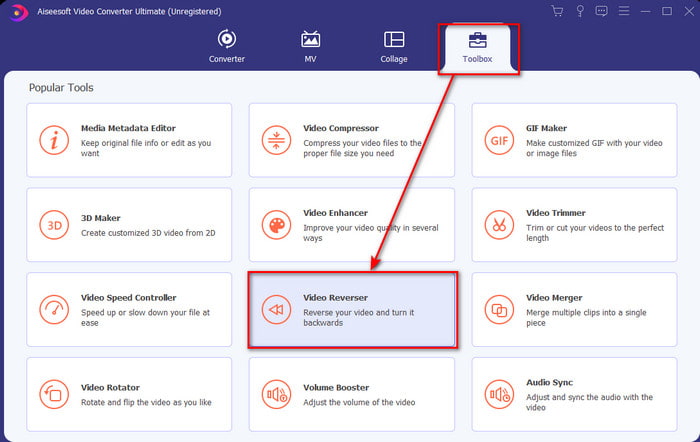
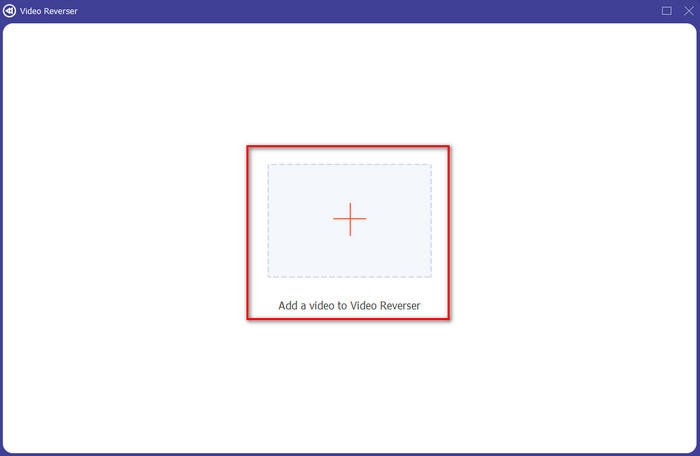
स्टेप 3. फिर + निशान पर क्लिक करके MP4 फ़ाइल जोड़ें और कंप्यूटर के फ़ोल्डर से चुनें। उसके बाद .mp4 फ़ाइल को इंटरफेस में डालने के लिए Open पर क्लिक करें।.
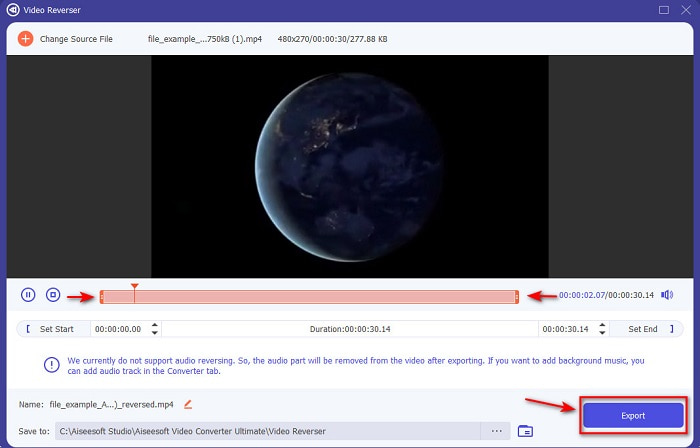
स्टेप 4. अब वीडियो की अवधि बदलने के लिए playback in and out को एडजस्ट करें। आगे बढ़ने के लिए Export पर क्लिक करें।.
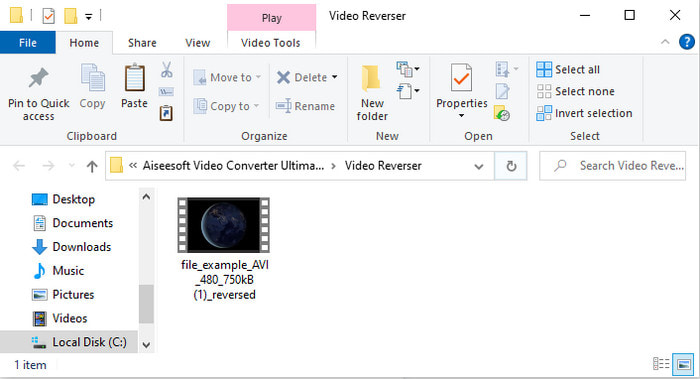
स्टेप 5. एक्सपोर्ट पूरा हो जाने के बाद, फ़ोल्डर में बनी फ़ाइल पर क्लिक करें ताकि रिवर्स वीडियो चलाकर देख सकें और यह भी जान सकें कि वह कहां सेव हुई है।.
भाग 2. MP4 वीडियो को कैसे रिवर्स करें (ऑनलाइन)
1. फाइल कन्वर्टो
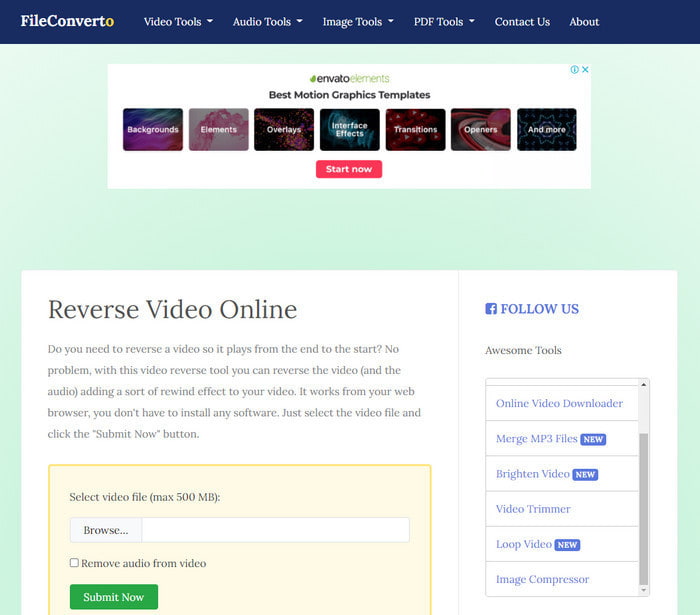
ऑनलाइन MP4 वीडियो रिवर्स करने वाला FileConverto कई वेब‑टूल फीचर्स के साथ आता है जिनका इस्तेमाल करके आप अपने वीडियो को बेहद खास बना सकते हैं। जो लोग कोई सॉफ़्टवेयर डाउनलोड नहीं करना चाहते, उनके लिए इस वेब टूल का परफ़ॉर्मेंस काफी अच्छा है। हालांकि, इसकी वेब इंटरफेस देखने में थोड़ा फीका लगता है, अपलोडिंग प्रोसेस में काफी समय लग सकता है और यह सभी वीडियो फ़ॉर्मैट को सपोर्ट भी नहीं करता। इसके अलावा, जब आप वीडियो रिवर्स करने की कोशिश करेंगे तो कुछ बग्स और पॉप‑अप वेब पेजेज़ भी सामने आ सकते हैं। फिर भी, इतनी कमियों के बावजूद यह टूल इस्तेमाल करने लायक है और काम आ सकता है।.
पेशेवरों
- सॉफ्टवेयर का उपयोग करना आसान है और इसमें बहुत सारी बुनियादी संपादन सुविधाएँ हैं जिनकी आपको आवश्यकता होगी।
- बहुत उपयोगकर्ता के अनुकूल है कि एक उपयोगकर्ता जिसे उलटने का अनुभव नहीं है, वह भी इसे यहाँ कर सकता है।
- यह आपके रूपांतरण को 500mb तक सीमित करता है जो बहुत अच्छा है।
विपक्ष
- यहां फ़ाइलें आयात करना और निर्यात करना अपेक्षा से बहुत धीमा है।
- इसके वेबटूल में बहुत सारे विज्ञापन हैं जो आपको परेशान कर सकते हैं। और जब आप किसी वेब टूल फीचर पर क्लिक करते हैं तो एक विज्ञापन दिखाएगा कि आपको उस पर फिर से क्लिक करना होगा।
- यह सभी वीडियो प्रारूपों का समर्थन नहीं करता है।
2. पिकफ्रॉम
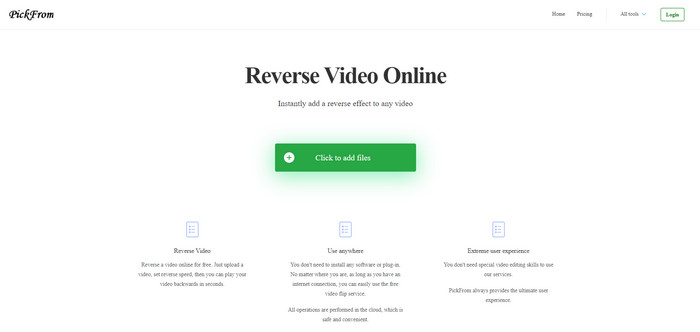
अगर तुलना की जाए तो PickFrom का इंटरफेस FileConverto से बेहतर है। क्योंकि इसमें मिनिमलिस्ट डिज़ाइन दिखाया गया है और सफेद तथा सियान रंगों का कॉम्बिनेशन इसे बेहतरीन बनाता है। लेकिन टेक्स्ट थोड़ा पतला है, जिसे पढ़ना मुश्किल हो सकता है। यानी अगर आपकी नज़र बिल्कुल 20‑20 नहीं है तो इस टूल को पढ़ना आपको कठिन लग सकता है। साथ ही, जब आप यहां MP4 वीडियो रिवर्स करने लगते हैं, तो विकल्प सरल चीनी (Simplified Chinese) में लिखे हुए मिलते हैं। इसलिए इन्हें समझना थोड़ा मुश्किल हो सकता है, लेकिन यहां फ़ाइल इम्पोर्ट करना FileConverto की तुलना में तेज़ है।.
पेशेवरों
- इसमें FileConverto की तुलना में काफी बेहतर वेब इंटरफेस है।
- वेबसाइट के ऊपरी हिस्से में कोई विज्ञापन नहीं है, लेकिन अगर आप नीचे स्क्रॉल करते हैं तो बहुत सारे परेशान करने वाले विज्ञापन हैं।
- बहुत सारी बुनियादी संपादन सुविधाओं का समर्थन करता है।
विपक्ष
- उपकरण सेटिंग्स चीनी भाषा में लिखी गई हैं जिसे समझना मुश्किल है यदि आप चीनी बोलना नहीं जानते हैं।
- आपके द्वारा प्रारंभ बटन पर क्लिक करने के बाद उपकरण अनुत्तरदायी हो जाता है और निर्यात प्रक्रिया में बहुत समय लगता है।
- यह निर्यात किए गए वीडियो की गुणवत्ता को कम करता है।
3. मीडिया.आईओ
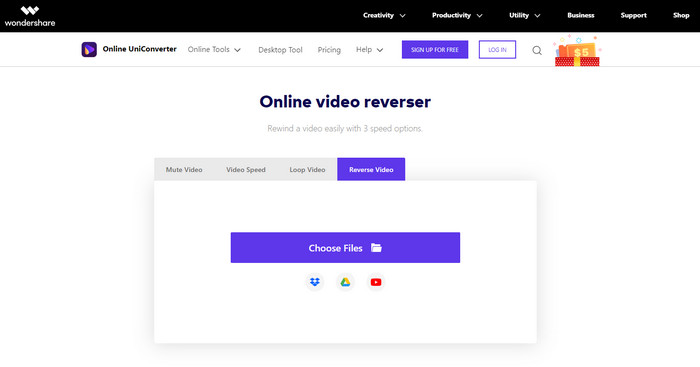
Media.io में रिवर्स स्पीड के 3 अलग‑अलग विकल्प हैं: x 0.5, x 1, x 2। इसकी रिवर्स सुविधा की मदद से आप आसानी से वीडियो को रिवर्स कर सकते हैं और MP4 को उल्टा चल सकते हैं। हालांकि यह टूल देखने में अच्छा लगता है, फिर भी Media.io का इस्तेमाल करते समय आपको कुछ दिक्कतें आ सकती हैं। जैसे, जब आप फ़ाइल एक्सपोर्ट करने लगेंगे, तो सबसे पहले आपसे साइन‑इन करने को कहा जाएगा, तभी आप फ़ाइल एक्सपोर्ट कर पाएंगे। साथ ही, यहां आप सिर्फ 10 रिवर्स वीडियो ही बना सकते हैं, वह भी सीमित फ़ाइल साइज के साथ।.
पेशेवरों
- टूल इंटरफ़ेस बढ़िया और आकर्षक है।
- यदि आप चाहें तो रिवर्स वीडियो के अंतिम आउटपुट स्वरूप को बदल सकते हैं या मूल स्वरूप को बनाए रख सकते हैं।
- आप वीडियो को म्यूट या अन-म्यूट कर सकते हैं।
विपक्ष
- निर्यात करने से पहले वेबसाइट आपको साइन-अप करने के लिए कहेगी जिसका अर्थ है कि आप उन्हें ईमेल के माध्यम से सूचनाएं भेजने देंगे।
- x 2 का उल्टा अन्य उपकरणों के x 2 की तुलना में कम धीमा है।
- टूल वेब टूल की उपलब्धता को सीमित करता है। उदाहरण के लिए, आप एक दिन में 10 से अधिक फ़ाइलों को रिवर्स नहीं कर सकते हैं और इसमें फ़ाइल आकार की अधिकतम सीमा है।
भाग 3. MP4 को उलटने के बारे में अक्सर पूछे जाने वाले प्रश्न
वीडियो को उलटने के बाद क्या उसकी गुणवत्ता कम हो जाती है?
टूल पर किसी वीडियो को रिवर्स करने से उस वीडियो की गुणवत्ता कम नहीं होनी चाहिए जिसे आप रिवर्स करना चाहते हैं। हालाँकि, बहुत सारे सॉफ़्टवेयर हैं जो वीडियो की गुणवत्ता को कम करते हैं। लेकिन कुछ मामले ऐसे होते हैं जहां आप इसकी गुणवत्ता को कम सेट करते हैं और उच्च नहीं।
मेरी रिवर्स फ़ाइल पर ऑडियो कैसे जोड़ें?
यहां सूचीबद्ध ज़्यादातर सॉफ़्टवेयर ऑडियो को रिवर्स करने का सपोर्ट नहीं देते, लेकिन आप इस लिंक पर जाकर सीख सकते हैं कि ऑडियो कैसे जोड़ा जाए।
मैं अपने रिवर्स वीडियो को आईफोन पर कैसे मर्ज कर सकता हूं?
iPhone पर वीडियो को असरदार ढंग से मर्ज करने के कई अलग‑अलग तरीके हैं। बस इस लेख को पढ़कर ही आप iPhone पर वीडियो मर्ज करने के 4 अलग‑अलग तरीके जान जाएंगे।
निष्कर्ष
अंत में, अब जब हम यह जान चुके हैं कि इन कई टूल्स की मदद से एक MP4 को रिवर्स कैसे किया जाए, तो आप अपने लिए कोई एक चुन सकते हैं। इसके अलावा, इस लेख में बताए गए सभी टूल्स इतना शानदार फाइनल वीडियो आउटपुट नहीं देते जितना कि Video Converter Ultimate. तो अगर आप इस टूल से प्रभावित होना चाहते हैं, तो सबसे पहले इसे डाउनलोड करना ज़रूरी है। क्योंकि इस टूल का कामकाज समझने के लिए आपको कोई बड़ी किताब पढ़ने की ज़रूरत नहीं पड़ेगी।.
फ्री डाउनलोडWindows 7 या बाद के संस्करण के लिएसुरक्षित डाउनलोड
फ्री डाउनलोडMacOS 10.7 या बाद के संस्करण के लिएसुरक्षित डाउनलोड
-
 [2021 अपडेट किया गया] पीसी, मैक, आईओएस और एंड्रॉइड के लिए 9 सर्वश्रेष्ठ जीआईएफ संपादक
 अपने जीआईएफ पर एक व्यक्तिगत स्पर्श जोड़ने की आवश्यकता है ताकि यह अधिक अभिव्यंजक बन सके? कैसे संपादित करें और नौकरी के लिए सबसे अच्छा टूल जानने के लिए इस लेख को पढ़ना जारी रखें।
-
 एंड्रॉइड फोन पर नहीं चल रहे वीडियो को कैसे ठीक करें, इस पर गाइड
 जानना चाहते हैं कि आपके एंड्रॉइड डिवाइस पर वीडियो क्यों नहीं चलाए जा सकते हैं? और यदि हां, तो क्या समस्या को स्वयं ठीक करने का कोई तरीका है? अधिक जानने के लिए पढ़ना जारी रखें।
-
 PS4 पर MKV फ़ाइलें कैसे चलाएं, इस पर विस्तृत गाइड [अद्यतित 2021]
 इस लेख को पढ़कर आप PS4 पर MKV चलाने के तरीके और वीडियो नहीं होने की स्थिति में वीडियो फ़ाइल को कन्वर्ट करने के कुछ तरीके सीखेंगे' प्ले Play।
