


 Video Converter Ultimate
 Screen Recorder
 Videó javítás
 Biztonságos letöltés
MP4-videók és #91Mac- és Windows-megoldás egyszerű kivágása
Nowadays, trimming or splitting a video is a very useful thing to do, especially when you want to remove unnecessary and boring parts from a lengthy video. If you’re someone who wants to trim MP4 videos but doesn’t know how and what tools to use, we've got you covered! In this article, learn 6 video cutter tools that can help you easily cut down the unwanted videos on Windows and Mac.

1. rész: Az MP4 vágása Windows és macOS rendszeren a teljes funkcionalitású MP4 trimmerrel
If you are a Windows or macOS user and want to cut a video using a full-featured MP4 trimmer video tool, FVC Video Converter Ultimate is the perfect for you. This is a video converter tool, but it comes with a lot of features, including a video trimmer. With this feature, users can split or cut any MP4 videos, especially those that are not practically lengthy and those that contain unwanted parts or segments. Moreover, you can manually select the part of the video that you want to cut or trim the segment automatically using its fast slip feature. Lastly, this powerful tool supports various video formats to ensure compatibility with video inputs like MP4, MKV, MOV, FLV, AVI, MP3, etc. Therefore, whether you're cutting out unnecessary footage, extracting specific segments, or refining timing, FVC Video Converter Ultimate is a perfect tool to seamlessly trim MP4 video on both Windows and macOS systems.
1. lépés. Töltse le és telepítse a FVC Video Converter Ultimate programot Windows vagy Mac számítógépére.
Ingyenes letöltés Windows 7 vagy újabb rendszerre Biztonságos letöltés
Ingyenes letöltés macOS 10.7 vagy újabb rendszerre Biztonságos letöltés
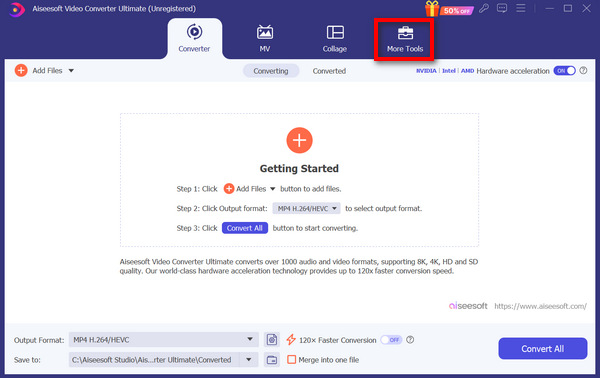
Step 2. Next, click on the Toolbox and look for the Video Trimmer.
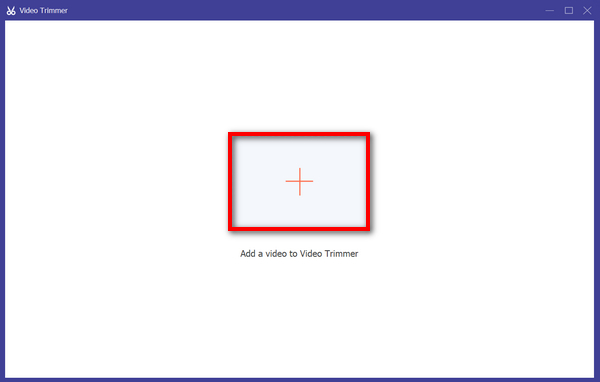
Step 3. Now, from there, click on the Add a Video to Video Trimmer button to add the MP4 file that you want to trim.
Step 4. To trim the video, you can do it manually by easily adjusting or moving the start and end bar on the clip by dragging, moving it from left to right, or typing in the start and end times of the part of the MP4 video that you want to trim.
Ez a folyamat automatikusan levágja a videó részét a vágás megkezdésének és befejezésének időpontja alapján.
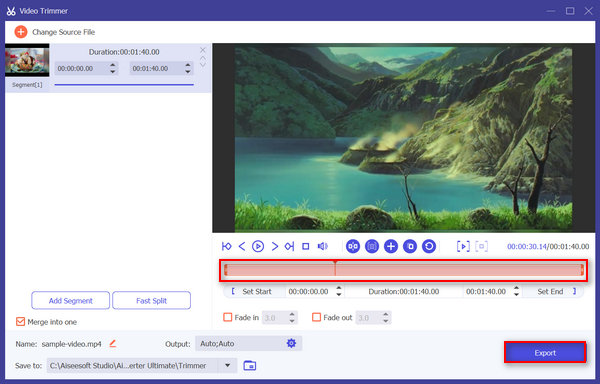
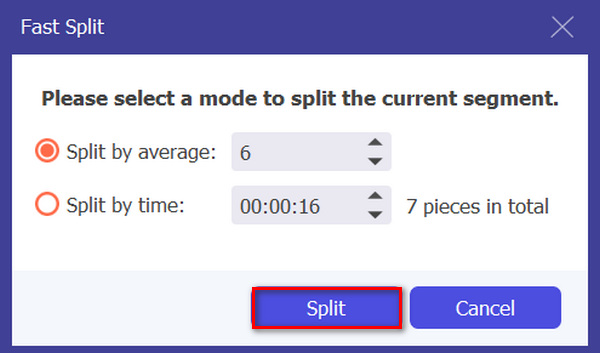
Meanwhile, if you want to cut it using the Fast slip trimmer feature. You just need to click on the Fast Slip button beside the Add Segment button. Next, select a mode in which you want to split the segment. If you choose to Split it by average, then just indicate the number, but if you want to split it by time, then indicate the time. After that, click the Split button.
Step 5. Lastly, to export the trimmed video, click on the Export button.
Ha MP4-videófájlok kivágásáról van szó, az FVC Video Converter Ultimate valóban jó megoldás. Intuitív kezelőfelülete biztosítja, hogy könnyedén és precízen vághassa MP4-videóit, a különféle vágási lehetőségek pedig rugalmasságot biztosítanak a videók egyszerű vágásához.
Előnyök
- A videó bemeneti formátumok széles skáláját támogatja.
- Precíz vágás.
- Intuitív szerkesztő felület.
- Megőrzi a vágott videó minőségét.
- Egy szolgáltatásba egyesült.
Hátrányok
- A teljes funkcióhoz való hozzáférés korlátozott lehet az ingyenes verzió használatával.
2. rész: Hogyan vágjuk le az MP4-et online ingyen
Ha módot keres MP4-videók online vágására, ingyenes és elérhető eszközöket használhat. Nos, az online videovágó használata rendkívül hasznos lehet, különösen akkor, ha gyorsan kell szerkesztenie videóit speciális szoftverek vagy letöltések nélkül. Minden további nélkül a következő öt ingyenes online videovágó 2025-ben:
Ezgif
Ezgif is a free and simple toolset that allows users to trim GIF and MP4 online and for free. Also, it has a very simple and user-friendly interface. However, at some point the tool’s interface is sloppy and might be overwhelming for new users to use it. Nonetheless, this tool is still great when you want to trim short videos.
Step 1. First, go to their official website.
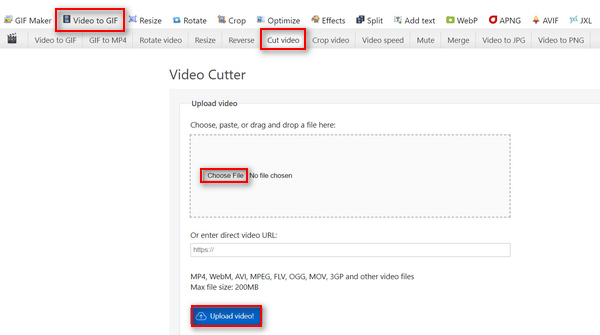
Step 2. Click on Video to GIF, select Cut Video, and upload the MP4 video that you want to trim from your device by clicking the Choose File button, or else paste the URL of the MP4 video in the space provided below.
Step 3. Now, once the video is uploaded, trim your video. Ensure to set the start and end times of the video that you want to trim.
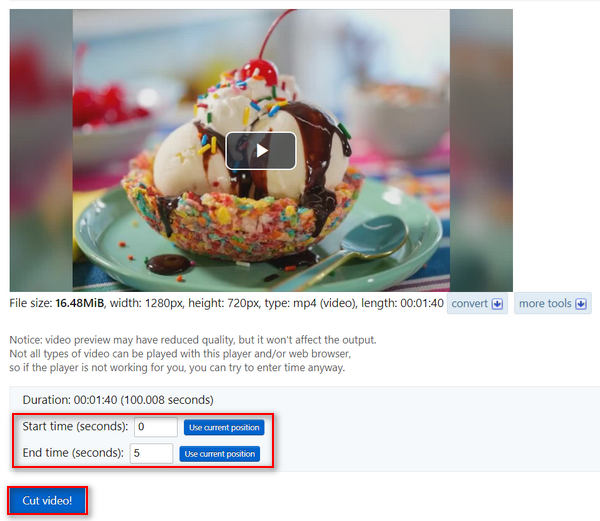
Step 4. Once you have set the time when you want to start and end the video that you want to trim, click the Cut the Video button.
Az Ezgif Video Cutter nagyszerű eszköz, ha olyan MP4 videókat szeretne vágni, amelyek nem igényelnek bonyolult vágást. Tehát, ha fejlettebb és összetettebb MP4 trimmerre van szüksége, akkor ez nem az Ön számára.
Előnyök
- Egyszerűen használható.
- Több formátumot támogat, például MP4, WebM, AVI, MPEG, FLV, OGG, MOV és 3GP.
- URL-eken működik.
Hátrányok
- Hanyag felület.
- A méretkorlát legfeljebb 200 MB.
Fastreel
A Fastreel egy egyszerű online videószerkesztő eszköz, amellyel könnyen vághatók le MP4-videók a felhasználóbarát és intuitív kezelőfelülete miatt. A felhasználók könnyen navigálhatnak az eszközben, és csak át kell húzniuk a fájljaikat, majd egyszerűen eltávolítaniuk kell a nem kívánt részeket. Ezenkívül ez az eszköz különféle videoformátumokat támogat, például MP4, MOV, MKV, AVI és WMV fájlokat. Végül ezzel az eszközzel ingyenesen mentheti és letöltheti szerkesztett videóit.
Step 1. Go to their official website.
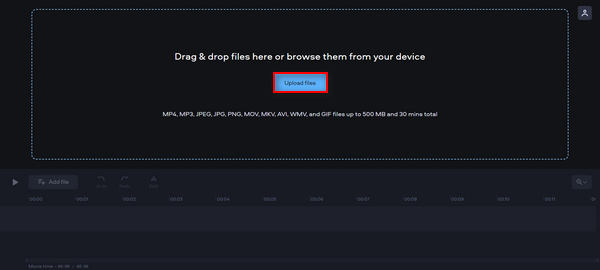
Step 2. To upload the MP4 video that you want to trim, click on the Add Files button.
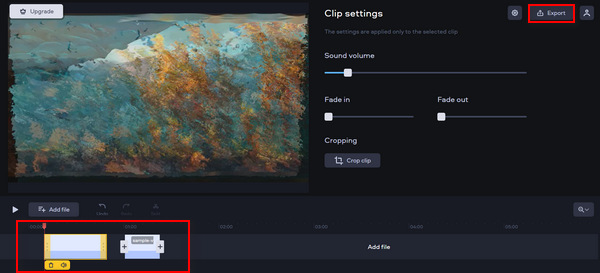
Step 3. Now, to trim the MP4 video, move the red marker to where you want to make a cut and click the Scissors icon.
Step 4. Lastly, after trimming the MP4 video, click on the Export button to save it.
Ezzel az eszközzel hihetetlenül egyszerűen megvághatja az MP4 videókat. Néha azonban időbe telik a vágni kívánt videó feltöltése.
Előnyök
- Felhasználóbarát és intuitív felület.
- Precíz szerkesztés.
- Több videó formátumot támogat.
Hátrányok
- A videó feltöltése lassú.
- A mentett videókon vízjel található.
- A méretkorlát legfeljebb 500 MB.
Online Video Cutter
Online Video Cutter is an online video editing tool that you can use to trim MP4 videos online is the Online Video Cutter. With this tool, you can easily trim MP4 videos and further edit them using its other editing features. Moreover, compared to other free MP4 trimming tools, this free online MP4 trimmer can handle a much bigger video size, catering to a maximum of 4GB video file.
Step 1. Visit their official website.
Step 2. To add the MP4 video that you want to trim, Click on the Open File button.
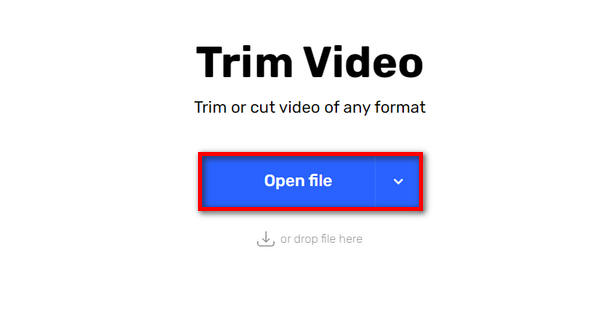
Step 3. Now, to trim MP4 video using this tool, click on the Trim or Cut menu above, then select the part of the video that you want to adjust by adjusting both the start and the end indicator. Once set, click on the Trim or Cut button below and click Save to save to export the video.
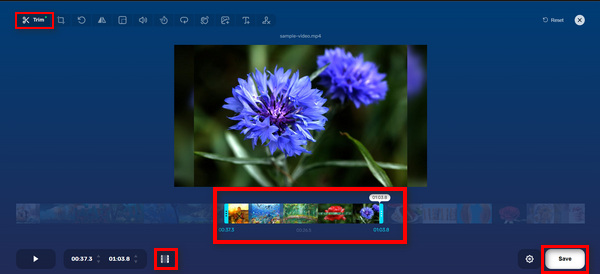
Nagy méretkorlátjával, egyszerű kezelőfelületével és egyéb szerkesztési funkcióival az Online Video Cutter valóban ígéretes, ingyenes online MP4 vágóeszköz.
Előnyök
- 5 másodpercig megtekintheti a videók előnézetét.
- Támogatja a legalább 4 GB méretű videófájlt.
- Egyéb szerkesztési funkciókkal rendelkezik a videóvágó felületen belül.
Hátrányok
- A videó feltöltése lassú.
- A mentett videókon vízjel található.
- A méretkorlát legfeljebb 500 MB.
Kapwing
A Kapwing egy felhasználóbarát online videószerkesztő eszköz, amely könnyen használható MP4 videók vágására. Ennek az eszköznek az egyik kivételes tulajdonsága, hogy támogatja a YouTube-videókat, lehetővé téve a felhasználók számára, hogy közvetlenül vágjanak ki MP4-videókat a YouTube-ról az URL-cím beillesztésével a rendszerbe.
Step 1. Go to their official website.
Step 2. Click on the Upload Video button to go to its main interface.
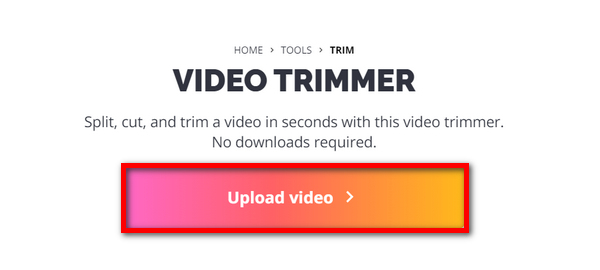
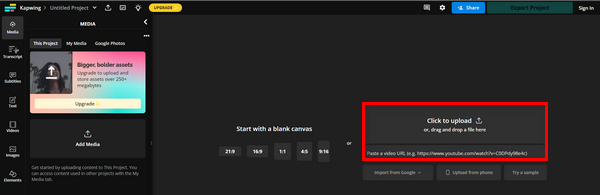
Step 3. From there, you have two options for how you can add your files. It’s either uploading the MP4 video by clicking the Click to Upload button or by pasting the YouTube URL if the video that you want to trim is from YouTube.
Step 4. Now, click on the Trim menu to be redirected to another Window where you can trim the video.
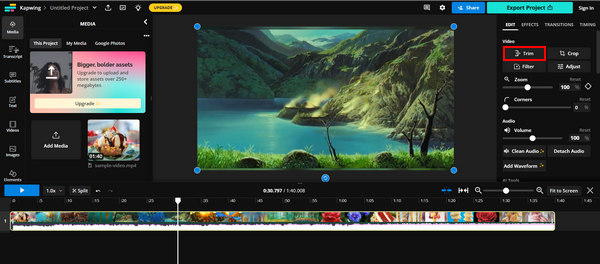
Step 5. To trim your video, just move on to the trim indicator, where you want to start the trim at where it ends, or else you can just type in the time where you want to start and end the trim. After that, click on the Trim button.
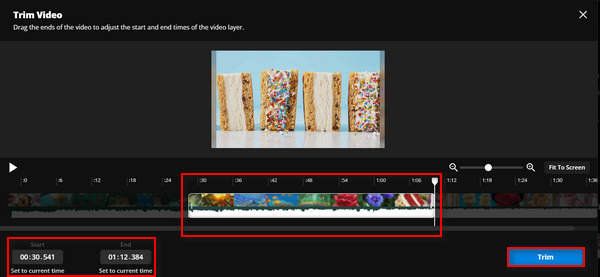
Step 6. To save the file, click on Export Project.
Győződjön meg arról, hogy létrehozott egy fiókot a vágott videó exportálásához.
Előnyök
- Könnyen kezelhető.
- Támogatja a népszerű videoformátumokat, például MP4 fájlokat, MOV videókat, WMV-t és még sok mást.
- Ingyenes hozzáadása.
Hátrányok
- Jelentkezni kell.
- Csak legfeljebb 250 MB-ot engedélyez.
FreeConvert
FreeConvert.com is an online video editing platform that offers various multimedia conversion and editing tools. One of its prominent features is the video trimmer, which allows users to trim MP4 and other video formats up to 1GB in size. Moreover, with its intuitive interface, there's no doubt that users can easily navigate the trimming process of their videos.
Step 1. Go to their official website.
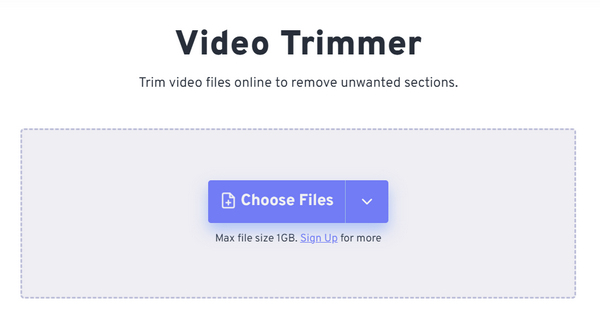
Step 2. Click on the Choose Files drop-down button and add the MP4 video that you want to trim from your Device, Dropbox, and Google Drive. You can also just paste the link of the video that you want to trim.
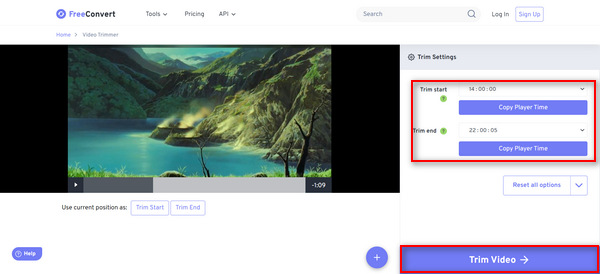
Step 3. Now, to trim the video, just indicate the time when you want to start the trim, as well as when you want the trim to end. After that, click the Trim Video button.
A FreeConverter egy nagyszerű ingyenes online MP4-eszköz, amely manapság elérhető. Bár ingyenes, a hirdetéseket nehéz kezelni ebben az eszközben. Tehát, ha Ön olyan ember, aki ezt nem akarja, akkor ez az eszköz nem az Ön számára való.
Előnyök
- Nincs vízjel.
- Nem igényel semmilyen regisztrációt.
- Több mint 40 videóformátumot támogat, beleértve az MP4-et, MOV-t, AVI-t és WebM-et.
Hátrányok
- Túl sok hirdetése van.
3. rész: GYIK az MP4 Trimmerről
Mi a különbség a videó vágása és a videó felosztása között?
A videó megvágása az, amikor eltávolítja a videó elejét vagy végét. Másrészt a videó felosztása az, amikor egy videoklipet két különálló részre vág.
Fizetnem kell a videóim vágásához szükséges szoftverért?
Ez valóban az Ön egyedi igényeitől és preferenciáitól függ. Bár számos fizetős videószerkesztő szoftver áll rendelkezésre fejlett funkciókkal, vannak ingyenes online eszközök is, amelyek fizetés nélkül kínálnak alapvető vágási lehetőségeket. Ha azonban fejlettebb szerkesztési funkciót szeretne, akkor érdemes lehet fizetős videóvágó szoftverbe fektetni.
A videó vágása rontja a minőséget?
Ez a használt vágószerszámtól függ. A videó kivágása nem rontja jelentősen a minőségét mindaddig, amíg a vágási folyamat megfelelően történik, és a videót ugyanabban a formátumban és felbontásban menti. Ha azonban a vágott MP4 videót újrakódolják vagy alacsonyabb felbontásban mentik, a videó minősége romlik.
Következtetés
Trimming MP4 videos is now a thing for most of us, especially in terms of editing and enhancing videos. So, whether you're a beginner or an experienced user, learning how you can benefit from trimming videos can greatly improve your video quality outputs, especially in this digital age. If you want to master this craft, don't hesitate and start trimming your videos today!
-
 5 MP3 vágó bármilyen hang egyszerű vágásához [2025-ben frissítve]
 Szüksége van egy MP3 vágóra a hang vágásához? Ebben az esetben olvassa el ezt a cikket, mert mi biztosítjuk az egyszerű hangvágáshoz szükséges eszközöket.
-
 Videók vágása a TikTok segítségével [Részletes utasítások]
 Szeretné tudni, hogyan rövidíthet le egy videót a TikTok segítségével? Ezután egyszerű módszereket kínálunk. Ezenkívül más módszereket is elsajátíthat az offline alkalmazások/programok használatával.
-
 3 kiváló módszer a videó vágására Androidon
 Android-eszközével szeretné kivágni a videót? Akkor ez a bejegyzés neked szól. Értékes módszerekről fogunk beszélni arról, hogyan rövidíthetünk le egy videót Androidon.
