


 ビデオコンバーター究極
 スクリーンレコーダー
 ビデオ修復
ビデオ修復
 安全なダウンロード
チュートリアル–品質を損なうことなく無料でビデオを圧縮する7つの方法
ご存知のように、特に高品質のビデオの場合、ビデオが長いほどファイルサイズが大きくなります。 2GB以上の映画を約2時間ほど見ることができます。ただし、大きなビデオを保存または共有するのは不便です。ソーシャルメディアの共有と利用可能なストレージスペースの制限により、ビデオを圧縮できます。電子メールにビデオを添付したり、プラットフォームにアップロードしたりできない場合は、ファイルサイズを確認して縮小する必要があります。良質を維持しながらビデオファイルを小さくする主な方法は3つあります。
1.ビデオコンプレッサーを使用する
2.ビデオをMP4またはFLV形式に変換します
3.ビデオをトリミングして、黒いエッジを削除します
明らかに、ビデオコンプレッサーを使用してビデオサイズを縮小することが最初の選択肢です。特定の出力ファイルサイズを制御できます。ビデオの圧縮率は、需要によって異なります。さらに、ビデオコンテンツ全体と元のビデオ形式を保持できます。

市場には多くのオンライン無料ビデオコンプレッサーがあります。 Webブラウザを介してビデオを任意のファイルサイズに自由に圧縮できます。ビデオファイルをターゲットファイルサイズまたはビットレートに圧縮する方法を見てみましょう。
方法1:FVC Free VideoCompressorを使用してビデオを圧縮する方法
A flexibly video compressor really matters. Sometimes you need to compress a really large video into smaller file size. To compress any large video file online for free, you can take a look at FVC Free Video Compressor. There is no maximum file size limit. Moreover, you can reduce the file size of a video for email, YouTube, Instagram, Twitter and more.
たとえば、添付ファイルの最大サイズ制限は25MBに達します。電子メール用にビデオを圧縮するには、ビデオサイズを25MB以下、たとえば24MB以下に縮小する必要があります。そのカスタマイズ可能なビデオファイルサイズスライダーは大いに役立ちます。他のビデオ共有およびソーシャルメディアプラットフォームはそれほど深刻ではありません。ただし、ビデオをGBからMBに圧縮する必要があります。この間、ビデオの形式、解像度、ビットレートを変更して、1GBのビデオファイルを圧縮することもできます。
無料ダウンロードWindows 7 以降に対応安全なダウンロード
無料ダウンロードMacOS 10.7 以降に対応安全なダウンロード
ビデオファイルをオンラインで圧縮するときに取得できる主な機能は次のとおりです。
1. 4K、HD、またはSDビデオファイルを、品質を損なうことなく小さいサイズに縮小します。
2.大きなファイルを30倍速い圧縮速度でバッチ圧縮します。
3.ビデオ解像度、フレームレート、ビットレートを調整します。
4.圧縮後、小さいサイズのビデオに透かしは追加されません。
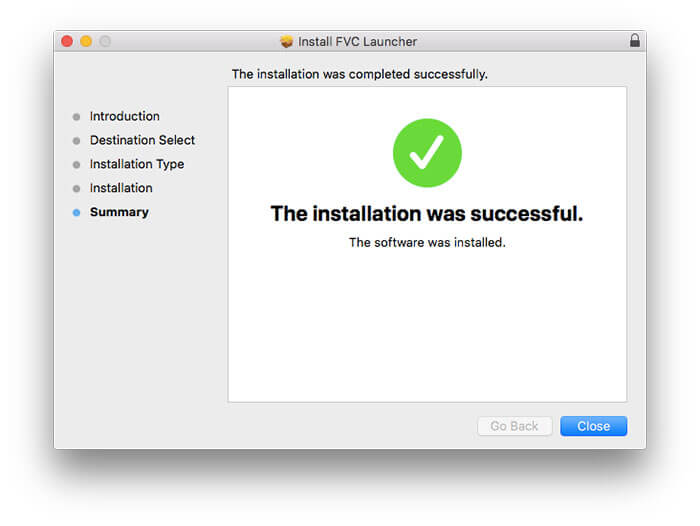
Step 1: Visit the online video compressor. Click Add Files to Compress. The first time you use it, you need to install its launcher.
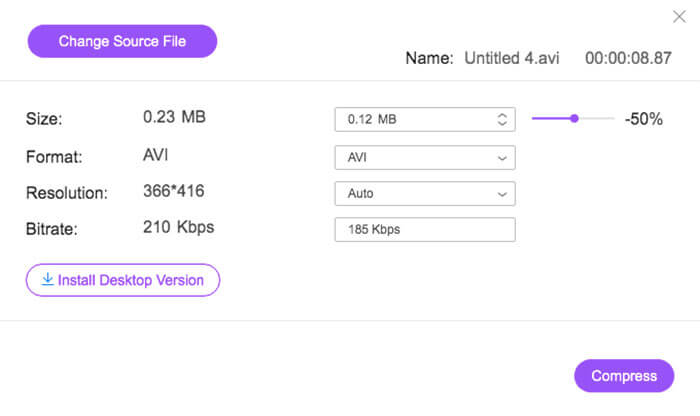
Step 2: Browse and add the source file. You can see the file size and video length on the top right corner.
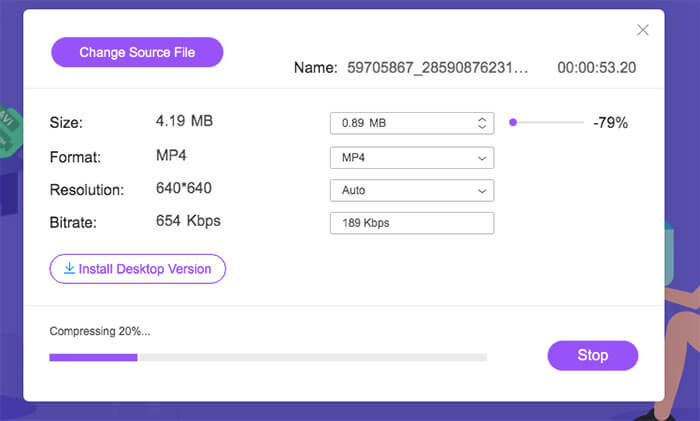
Step 3: Use the up and down icons to change video file size. You can use the slider to set the video compression ratio.
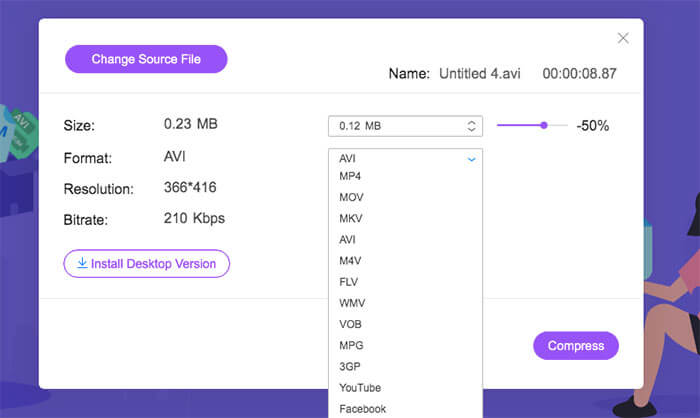
Step 4: Unfold the Format, Resolution and Bitrate options to customize video settings.
Step 5: Click Compress and set the output folder. Later, wait for a while to get your compressed video.
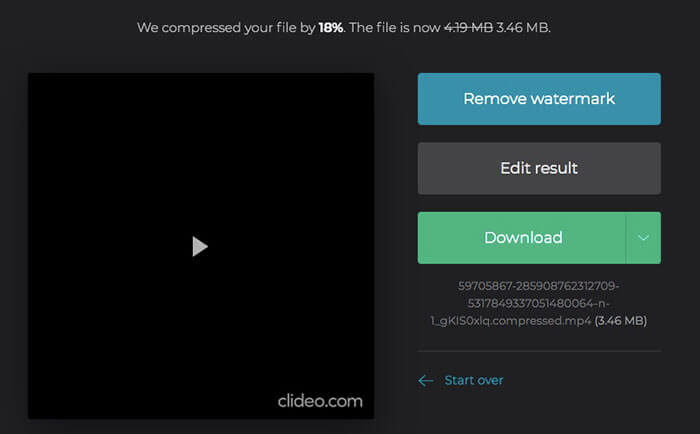
方法2:Clideoでビデオサイズを縮小する方法
Clideoは、オンラインでビデオファイルのサイズを小さくするのにも適しています。 URL、Googleドライブ、Dropbox、ローカルドライブから動画をアップロードして圧縮できます。さらに、Clideo内でビデオを小さなファイルサイズの形式に変換することもできます。
Step 1: Visit Clideo online video compressor on your browser.
Step 2: Click Choose file to import your large video.
Step 3: Wait for a while to complete the video compression process.
Step 4: Clideo will compress your video automatically.
Step 5: Click Download to save the compressed video file.
方法3:無料の変換でビデオを小さくする方法
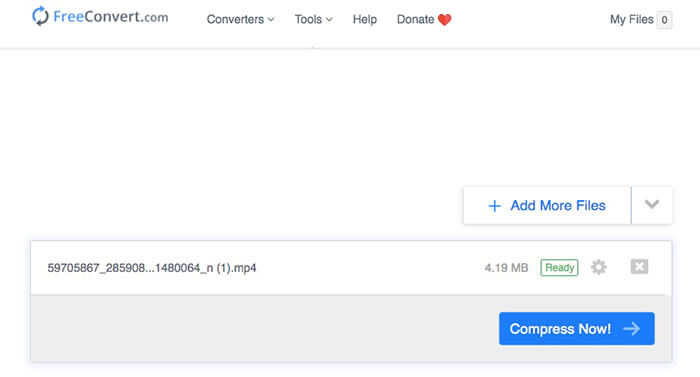
FreeConvertは、ビデオをオンラインで圧縮するための無料のビデオコンプレッサーになります。デフォルトのビデオ圧縮率は40%です。または、代わりにカスタマイズ可能な比率で変更することもできます。オプションの詳細設定により、ユーザーはサイズ、ビデオ品質、または最大ビットレートでビデオを圧縮できます。
Step 1: Launch the online video file compressor. Drag and drop your file into the webpage.
Step 2: Click the gear Settings icon to change the video output format, codec and more. Then click Apply settings to save changes.
Step 3: Click Compress Now to reduce video file size.
方法4:YouCompressでビデオサイズを変更する方法
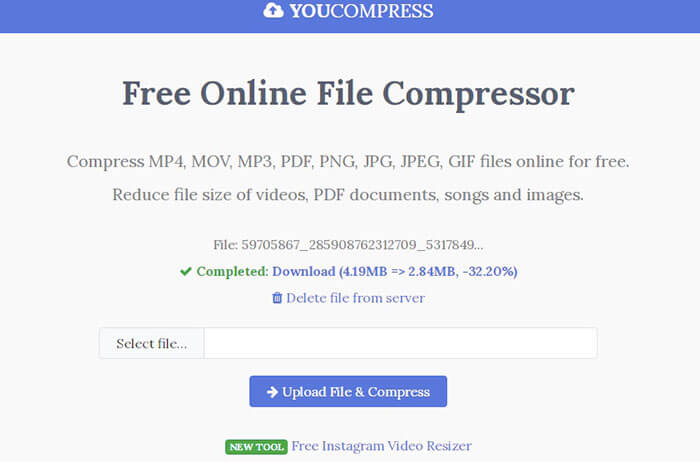
YouCompressは、ビデオ、オーディオ、ドキュメントをオンラインで無料で圧縮できます。したがって、MP4、MOV、その他の形式でビデオを圧縮できます。オンラインのビデオコンプレッサーは、ほとんどのプラットフォームで動作します。そのため、YouCompressを使用して、Android、iOS、Windows、Mac、およびLinuxでビデオを無料で圧縮できます。
Step 1: Open YouCompress free online file compressor on your web browser.
Step 2: Click Select file and import a video from your storage space.
Step 3: Click Upload File & Compress to compress a video file without changing video format or other details.
Step 4: Find and click the Download icon to download a compressed video from YouCompress.
方法5:オンラインコンバーターでビデオファイルのサイズを減らす方法
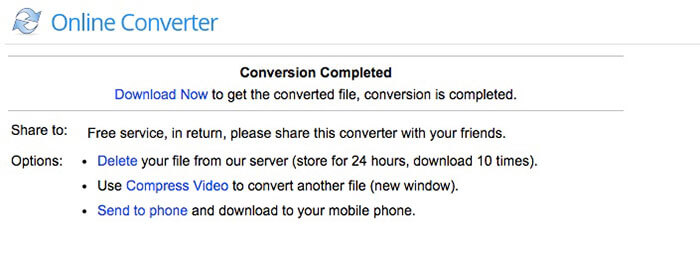
Online Converterを使用すると、200MB以下のビデオをより小さなファイルサイズに圧縮できます。最も一般的なビデオ形式がサポートされています。したがって、ここで無料でMP4、MOV、AVI、MKV、3GPおよびその他の形式でビデオを圧縮できます。
Step 1: Click Choose File to upload a video to Online Converter.
Step 2: Enter the detailed output file size in the Desired Video Size blank.
Step 3: Unfold Audio Quality and set the output audio quality.
Step 4: Click Compress to make a video smaller online.
Step 5: Click Download Now to save your video after the online compression.
方法6:ビデオを小さくしてビデオファイルサイズを圧縮および縮小する方法
Video Smallerは、ユーザーがオンラインでビデオファイルのサイズを縮小するための無料サービスです。 MP4、AVI MPEG、またはMOVビデオ形式では、品質を損なうことなくビデオを小さくすることができます。ビデオファイルの合計サイズは500MB以下にする必要があります。したがって、ビデオをGB単位で圧縮する場合は、別のビデオを選択することをお勧めします。
Step 1: Click Browse to select a video on your web browser.
Step 2: To get a better output quality, enable Use low compression level.
Step 3: Under the Scale (reduce video width) list, you can scale a video among 160 to 1920 width.
Step 4: Click Upload Video to upload and compress a video online.
Step 5: Click Download File next to Completed to save your video with a smaller size.
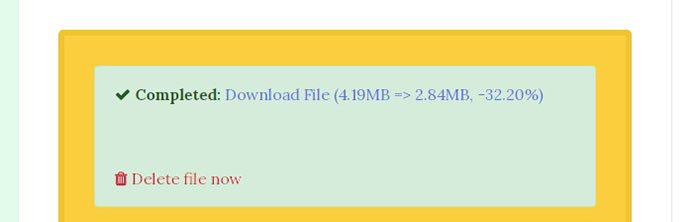
方法7:MP4CompressでMP4ビデオを圧縮する方法
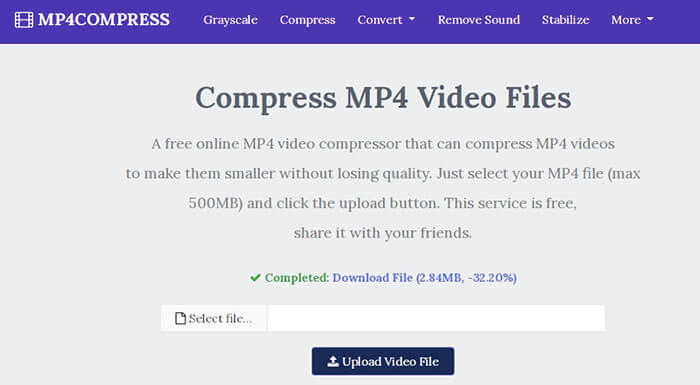
MP4Compress is a free online MP4 video compressor that compress MP4 videos only. The total MP4 files should be less than 500MB. The uploaded and compressed videos will be deleted a few hours later. Thus, you can feel free to compress videos for WhatsApp and other applications.
Step 1: Open MP4Compress. Click Select file to browse and import your MP4 video.
Step 2: Click Upload Video File to continue MP4 video compression.
Step 3: Click Download File to compress video online and save it into the local drive.
ビデオの圧縮に関するFAQ
iPhoneおよびAndroid用のビデオコンプレッサーアプリはありますか?
上記のオンラインビデオコンプレッサーを使用して、iPhoneおよびAndroidでビデオを無料で圧縮できます。ビデオ圧縮を開始するには、Webブラウザでいずれかを開くだけです。または、VideoCompressアプリを使用できます。このアプリケーションは、Facebook、Google +、WhatsAppなどのビデオを圧縮できます。したがって、データ使用量を削減し、ストレージスペースを正常に節約できます。
YouTube用にビデオを圧縮する方法は?
YouTubeの最大アップロードサイズは128GBです。 YouTubeにアップロードする前にビデオを圧縮する必要はないようです。ただし、大きなサイズの動画を圧縮して、YouTubeのアップロード時間を短縮することができます。オンラインビデオコンプレッサーを選択するだけで、ビデオを圧縮し、YouTubeの品質を維持できます。
ビデオやInstagramを圧縮できますか?
はい。 10分間のInstagramビデオの最大ファイルサイズは650MBです。キャプチャしたビデオが大きすぎてInstagramにアップロードできない場合は、Instagramのビデオサイズを手動で縮小する必要があります。
MP4やその他の形式のビデオをオンラインで無料で圧縮するのはこれだけです。この記事では、Windows10 / 8/7とMacで無料でビデオを圧縮する7つの簡単な方法を紹介します。圧縮率、ビットレート、幅、フォーマットなどを調整することで、ビデオファイルのサイズを小さくすることができます。ほとんどのオンライン無料ビデオコンプレッサーは、35%から45%の範囲の固定圧縮比を持っています。ビデオファイルのサイズを完全に制御したい場合は、FVC Free VideoCompressorを使用して問題を解決できます。個別またはバッチの両方のビデオ圧縮は、100%フリーで迅速です。
-
 MP4をVOBにすばやく変換するためのトップ3の無料の方法
 Windows PCとMacでMP4をVOBに変換する方法は?この問題を解決するために、この投稿では、MP4をVOBに無料で変換するのに役立つ3つの最良の方法を共有します。
-
 Windows / MacでMP4をM4Aに変換する方法
 オンラインでMP4をM4Aに変換するにはどうすればよいですか? MP4ファイルからオーディオを抽出できますか?この投稿を読むと、MP4からM4Aへの変換に関するすべての回答が得られます。
-
 元の品質でビデオをMP4に変換する方法
 ビデオをMP4に変換する方法がわからない場合は、必ずこの投稿を読む必要があります。それはあなたとMP4への最高のビデオコンバーターとPCでオンラインまたはローカルビデオを変換する秘訣を共有します。
