


 ビデオコンバーター究極
 スクリーンレコーダー
 ビデオ修復
ビデオ修復Windows/Mac/iPhone/Android で GIF にフィルターを追加する方法 (手順あり)
GIFにフィルターを追加して、もっと魅力的にする方法を知りたいですか?心配はいりません。この記事では、デスクトップとスマホの両方で使える、最も人気のあるGIFエディターを紹介し、フィルターをかける方法を解説します。ここで紹介する情報は、GIFにフィルターを追加する際の信頼できる参考資料となるでしょう。では早速、あなたのOSで使えるGIFフィルターソフトにはどんなものがあるのか、詳しく見ていきましょう。

パート1.GIFにフィルターを追加する必要があるのはなぜですか
WebでGIFを共有している場合は、カスタマイズに応じて、最初にGIFにフィルターを追加して色を強調する必要があります。調査によると、フィルタリングされたGIFは、含まれていないGIFよりも視聴者を引き付けます。したがって、多数のオーディエンスを引き付けたい場合は、使用しているGIFエディターで作成したすべてのGIFにフィルターを追加し始める必要があります。さて、GIFにフィルターを追加する方法がわからない場合は、記事全体を読むことを強くお勧めします。
パート2。WindowsおよびMacの驚異的なGIFエディターを使用してGIFにフィルターを追加する[最も簡単な方法]
Video Converter Ultimateは、市場で私たちが確認し、選び抜いた中で最も優れたGIFエディターです。動画やGIFにフィルターを追加できるなど、複数の編集機能を備えた、まさにオールインワンのGIFエディターとして知られています。このツールは、プロでなくても簡単に使えますが、素晴らしいのは、数回の操作だけでプロ並みの仕上がりを得られる点です。では、GIFにフィルターを追加したい場合は、これから紹介するチュートリアルに沿って、気軽に作業を進めてみましょう。
ステップ1. GIFエディターを使うには、まず下のダウンロードボタンをクリックして、使用しているオペレーティングシステムを選択します。ダウンロードが完了したら、画面の指示に従ってソフトをインストールし、起動してGIFにフィルターを追加する準備をします。
無料ダウンロードWindows 7 以降に対応安全なダウンロード
無料ダウンロードMacOS 10.7 以降に対応安全なダウンロード
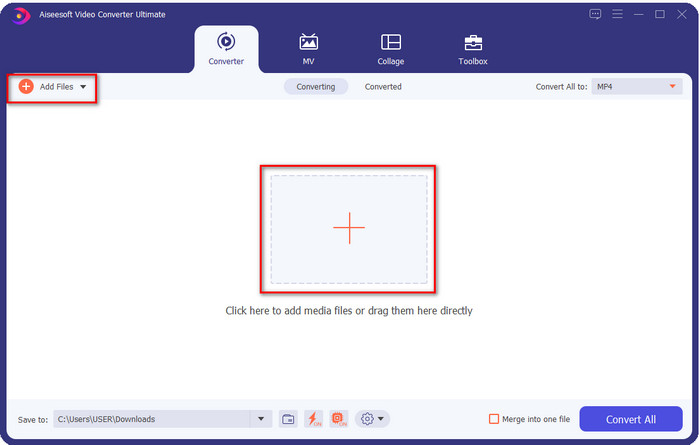
ステップ2. メイン画面中央にある+アイコンをクリックして、フィルターをかけたいGIFを読み込みます。あるいは、Add Filesをクリックしてもかまいません。どちらを選んでも同じ機能です。画面に表示されるデスクトップ上のフォルダーからGIFファイル(.gif)を探し、Openをクリックして読み込みます。
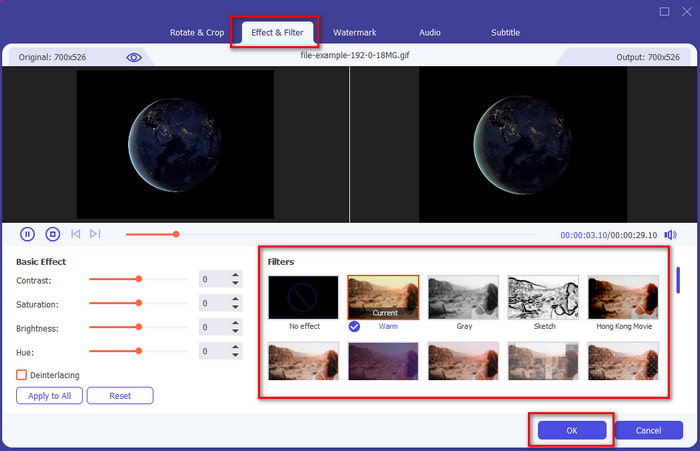
ステップ3. 魔法の杖(wand)ボタンをクリックして、新しいウィンドウを開き、GIFにフィルターを追加します。その中のEffect & Filtersタブに移動すると、GIFをウェブ上の他のGIFよりも魅力的に見せるための、さまざまなフィルターが表示されます。フィルターは、1つずつクリックして試すことができます。気に入ったフィルターが見つかったら、OKをクリックしてGIFにフィルターを適用します。
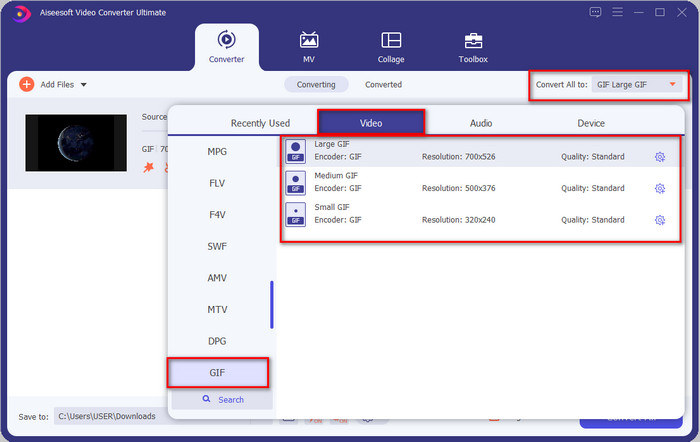
GIFの形式をそのまま保ちたい場合は、Convert All toをクリックし、GIF形式を探します。希望するGIFフォーマットを選択してクリックします。
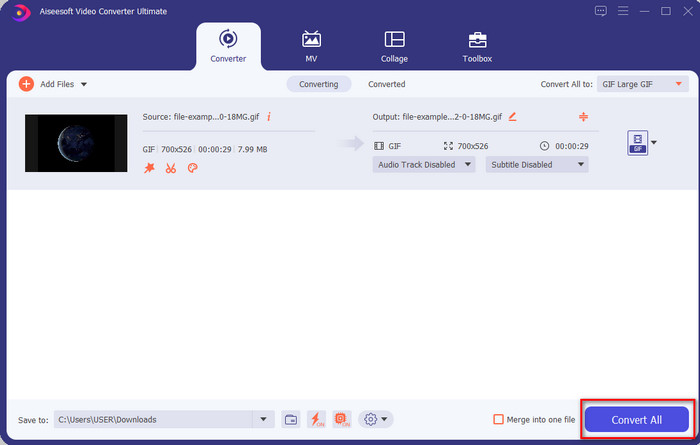
ステップ4. フィルターを適用したGIFを保存するには、Convert Allボタンをクリックします。とても簡単ですよね。Video Converter Ultimateがあれば、GIFに関するほとんどの作業を、ほとんど手間をかけずに行うことができます。
パート3。Androidデバイスで利用可能なGIFメーカー-エディターを使用してGIFにフィルターを追加する方法
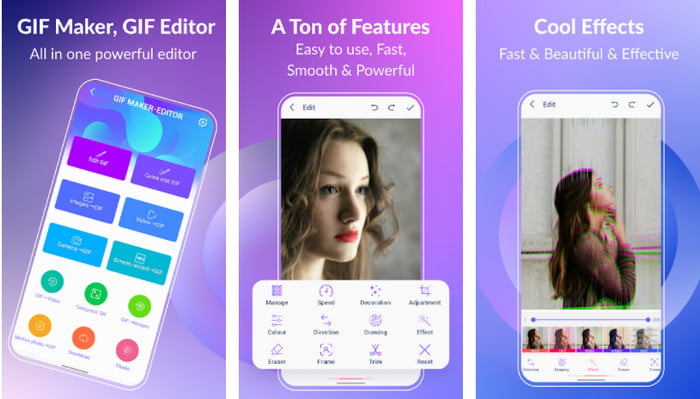
GIF Maker-Editorは、Androidにダウンロードできるオールインワンのツールです。このツールには、GIFを美しく仕上げるためのさまざまなフィルターが用意されています。非常に便利なツールですが、突然表示される広告があるため、誤ってタップしないよう注意が必要です。では、ここからはGIFにカラー フィルターを追加する手順を説明します。
ステップ1. Playストアからツールをダウンロードして起動します。
ステップ2. Edit GIFをタップし、画像ライブラリ内のGIFを選択します。
ステップ3. オプションをスライドしてエフェクトを探し、タップします。使いたいフィルターを選び、チェックアイコンをタップし、さらにOKをタップしてGIFを保存します。
パート4。iPhoneデバイスで利用可能なGIFメーカーを使用してGIFにフィルターを適用する方法
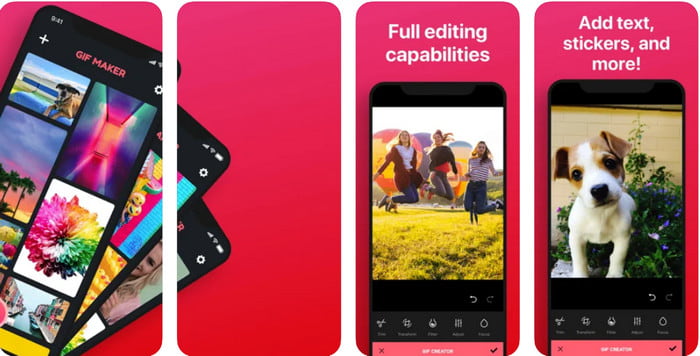
GIF Makerは、iPhoneにダウンロードできるオールインワンのGIFエディターです。このツールを使えば、数回のタップでオリジナルGIFを作成できます。ただし、GIF形式は直接サポートされていないため、そのままGIFを使うことはできません。代わりに、このリンクをクリックして、GIFをライブ壁紙に変換する方法を確認してください。GIFをライブ壁紙に変換したら、次の手順に従ってGIFにフィルターを追加できます。
このツールの無料バージョンは、エクスポートするGIFに透かしを残します。
ステップ1. App Storeから無料でアプリをダウンロードできます。
ステップ2. アプリを開き、+アイコンをタップし、Choose Live Photo From Libraryをタップして、アップロードしたいライブフォトを選択します。
ステップ3. ライブフォトをアップロードしたら、Filterをタップし、GIFに追加したいフィルターを選びます。チェックをタップして動画に適用し、さらにもう一度チェックをタップしてファイルを書き出します。
パート5。GIFへのフィルターの追加に関するFAQ
フィルタはGIFの色に影響しますか?
フィルタを追加すると、色の組み合わせがGIFまたは任意のメディアに影響します。これらのフィルターは、必要な色の組み合わせを修正するために使用されるため、GIFの生のビジュアルよりもはるかに濃い色または明るい色になっても驚かないでください。
Instagramで利用できる効果は何ですか?
Instagramには多数のビデオフィルターが用意されています。どんなフィルターがあるのか知りたい場合は、このリンクをクリックして、Instagramフィルターのトップ10セレクションを確認してください。
フィルタを使用して高品質のビデオを作成できますか?
動画の色味を強調することで、高画質に見せることができます。ただし、フィルターで強化できるのは主に色合いであり、映像そのものの品質を根本的に向上させるわけではありません。もし動画の画質自体を良くしたい場合は、こちらを読んで動画の画質を改善する方法を学んでみてください。
結論
GIFにフィルターを追加する方法がわかったので、上記のツールを試してみる必要があります。ツールはGIFのフィルタリングにさまざまな長所を提供しますが、Video Converter Ultimateは、優れたフィルタリングされたGIFを作成するために使用できる最高のフィルターを提供すると信じています。それだけでなく、このツールを使用すると、切り取り、マージ、トリミング、個人用GIFの作成などを行うことができます。私たちが提供する情報に納得していませんか?このツールがGIFの編集に関して最良の選択であることを証明する方法が1つあると思います。それは、上のダウンロードボタンをクリックし、提示して楽しんでいるチュートリアルに従うことです。
-
 コンピュータ/電話で無料でビデオにオーディオと音楽を追加する方法
 この記事では、ビデオにオーディオを無料で追加する4つの簡単な方法を紹介します。ビデオに追加するオーディオトラックに関係なく、ここで満足のいく結果を得ることができます。
-
 GIFをビデオ形式に変換:GIFミームをビデオに変換[2021]
 以下にリストされているツールを使用して、GIFをビデオ形式に変換する方法を決定します。それらについて十分な証拠を収集するので、どれを選択し、それを行う方法を学びます。
-
 AndroidおよびiOSデバイス用のビデオアプリへの素晴らしいGIF
 GIFを携帯電話を使用して好きなビデオ形式に変換できることをご存知ですか? AndroidまたはiOSで最高のアプリを選択してください。
