


 Video Converter Ultimate
 Skjermopptaker
 Videoreparasjon
Slik legger du til et filter til GIF på Windows/Mac/iPhone/Android med trinn
Vil du vite hvordan du kan krydre GIF-en din ved å legge på et filter? Ikke noe å bekymre seg for – denne artikkelen presenterer de mest populære GIF-redigeringsverktøyene du kan bruke på både datamaskin og mobil for å legge til filtre. Informasjonen vi har samlet her gir pålitelig veiledning om hvordan du legger til filtre på en GIF. La oss uten videre se nærmere på hvilke GIF-filterprogrammer du kan bruke på operativsystemet ditt.

Del 1. Hvorfor trenger jeg å legge til filter til GIF
Hvis du deler GIF-en på nettet, må du først legge til et filter i GIF-en for å forbedre fargen, avhengig av tilpasningen din. I følge forskning tiltrekker filtrert GIF publikum mer enn GIF-er som ikke har. Så hvis du vil tiltrekke deg et stort publikum, må du begynne å legge til et filter på hver GIF du har laget med GIF-editoren du har. Nå, hvis du ikke har noen anelse om hvordan du legger til et filter til GIF-en din, anbefaler vi sterkt at du leser hele artikkelen.
Del 2. Legg til filtre til GIF-en med den fenomenale GIF-redigereren på Windows og Mac [Enkleste måten]
Video Converter Ultimate er den beste GIF-redigereren vi har sett og valgt ut på markedet. Den er kjent som et komplett GIF-verktøy, siden den tilbyr en rekke redigeringsfunksjoner, som å legge til filtre på video eller GIF. Med dette verktøyet trenger du ikke være proff for å bruke det, men vet du hva som er bra? Du får et resultat på proffnivå med bare noen få trykk. Så hvis du vil legge til et filter på en GIF, kan du følge denne veiledningen uten problemer.
Trinn 1. For å bruke GIF-redigereren må du trykke på nedlastingsknappen nedenfor og velge hvilket operativsystem du bruker. Etter nedlasting installerer du programmet ved å følge installasjonsveiledningen, og åpner det deretter for å begynne å legge til et filter på GIF-en.
Gratis nedlastingFor Windows 7 eller nyereSikker nedlasting
Gratis nedlastingFor MacOS 10.7 eller nyereSikker nedlasting
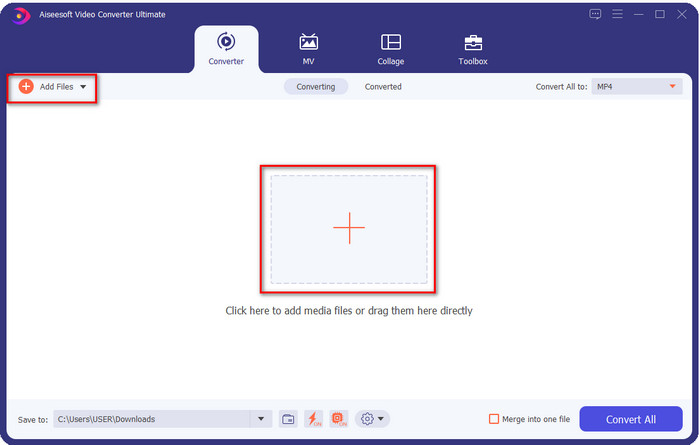
Trinn 2. Last opp GIF-en du vil bruke ved å klikke på +-ikonet midt i hovedvinduet, men du kan også klikke på Add Files hvis du vil – de to valgene fungerer på samme måte. Finn .gif-filen i skrivebordsmappen som vises på skjermen, og klikk Open for å laste den opp.
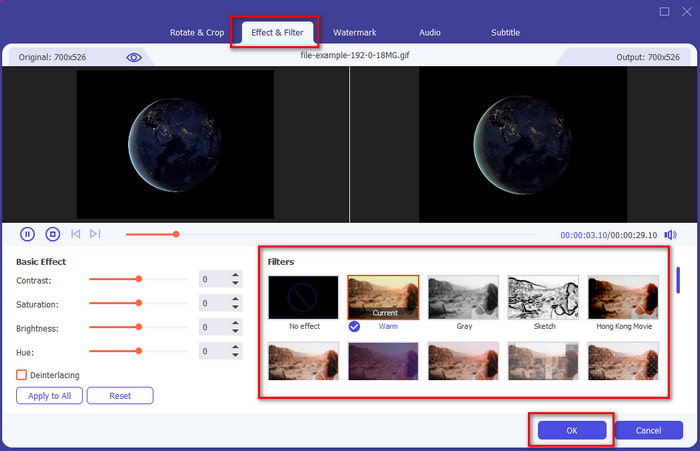
Trinn 3. Klikk på tryllestav-knappen for å åpne et nytt vindu der du kan legge til et filter på GIF-en. Gå til Effect & Filters under, og du vil se ulike filtre du kan bruke for å få GIF-en din til å se bedre ut enn andre GIF-er på nettet. Du kan prøve alle filtrene ved å klikke på dem én og én; når du er fornøyd med filteret, må du klikke OK for å bruke filteret på GIF-en.
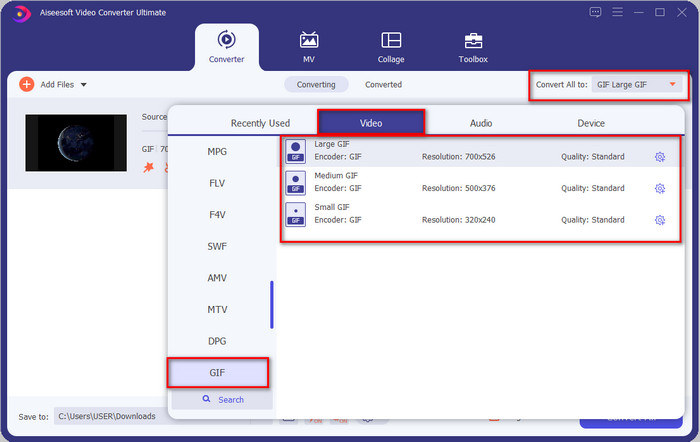
Hvis du vil beholde GIF-formatet, klikker du på Convert All to og ser etter GIF-formatet. Velg GIF-formatet du vil ha, og klikk på det.
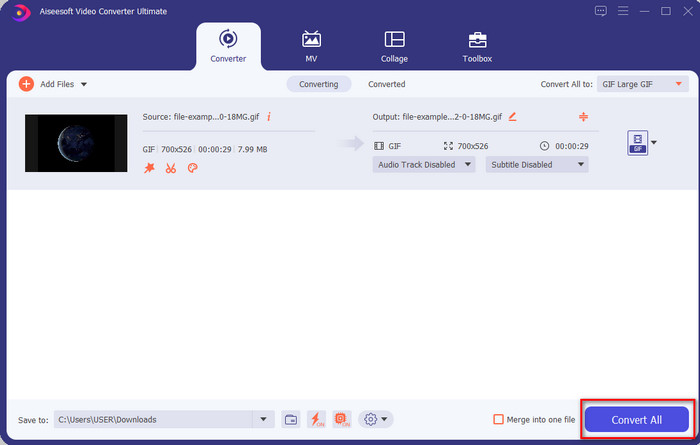
Trinn 4. For å laste ned GIF-en med filteret på, klikker du på Convert All-knappen. Enkelt, ikke sant? Med Video Converter Ultimate kan du nesten gjøre alt som har med GIF å gjøre, uten å anstrenge deg.
Del 3. Slik legger du til filter på GIF med GIF Maker- Editor tilgjengelig på Android-enheter
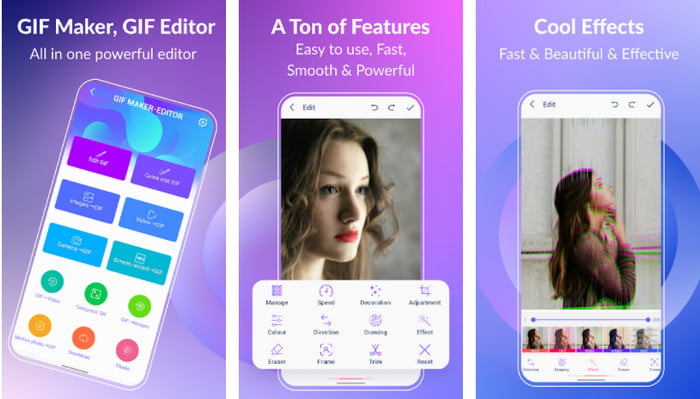
GIF Maker-Editor er et alt-i-ett-verktøy du kan laste ned på Android-enheten din. Dette verktøyet støtter ulike filtre som hjelper deg med å lage en vakker GIF. Selv om verktøyet er bra, dukker det opp reklame hele tiden, så du må passe på at du ikke klikker på dem. Her er trinnene for hvordan du legger til et fargefilter på GIF til GIF-ene dine.
Trinn 1. Last ned verktøyet fra Play Store og åpne det.
Trinn 2. Trykk på Edit GIF og velg GIF-en fra bildebiblioteket ditt.
Trinn 3. Finn effektene ved å skyve gjennom alternativene, og klikk på det du vil ha. Velg filteret du ønsker, klikk på check-ikonet og deretter OK for å lagre GIF-en.
Del 4. Slik bruker du filter på GIF med GIF Maker tilgjengelig på iPhone-enheter
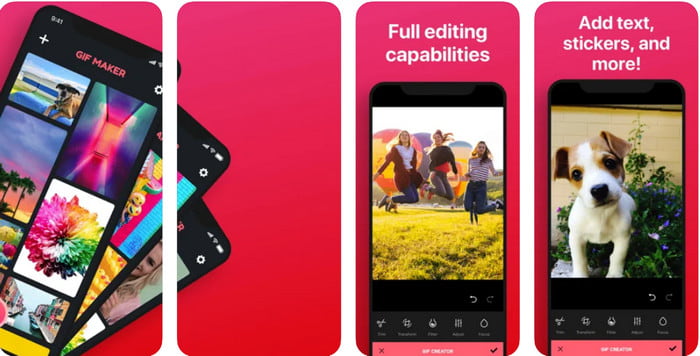
GIF Maker er en komplett GIF-redigerer du kan laste ned på iPhone. Med dette verktøyet kan du lage egendefinerte GIF-er med bare noen få trykk. Du kan imidlertid ikke bruke en GIF direkte, fordi formatet ikke støttes, men du kan klikke på denne lenken og lære hvordan du konverterer GIF-er til en Live Wallpaper. Etter at du har konvertert GIF-en til en Live Wallpaper, kan du følge neste trinn for å legge til et filter på GIF-ene.
gratisversjonen av dette verktøyet vil etterlate et vannmerke til GIF du eksporterer.
Trinn 1. Du kan laste ned appen gratis fra App Store.
Trinn 2. Åpne verktøyet, klikk på +-ikonet, klikk Choose Live Photo From Library, og velg Live Photo-en som skal lastes opp.
Trinn 3. Etter at du har lastet opp Live Photo-en, klikker du på Filter og velger hvilket filter du vil legge til på GIF-en. Klikk på check for å bruke det på videoen, og klikk på check igjen for å eksportere filen.
Del 5. Vanlige spørsmål om å legge til filtre til GIF
Påvirker filtre fargen på GIF-en?
Fargekombinasjonen vil påvirke GIF-en eller andre medier hvis du legger til filteret. Disse filtrene brukes til å korrigere fargekombinasjonen du vil ha, så ikke bli overrasket om fargen vil være mye dypere eller lysere enn den rå visuelle GIF-en.
Hva er effektene tilgjengelig på Instagram?
Det finnes mange videofiltre du kan bruke på Instagram, og hvis du lurer på hvilke disse er, kan du klikke på denne lenken og se topp 10 utvalgte filtre på Instagram.
Kan jeg lage en video av høy kvalitet gjennom filtre?
Du kan fremheve fargene i videoen for å få den til å se mer høyoppløselig ut. Filtre kan imidlertid bare forbedre fargene i videoen, ikke den generelle kvaliteten. Men hvis du vil heve kvaliteten på videoen, kan du lese dette og lære hvordan du forbedrer videokvaliteten.
Konklusjon
Og nå som vi har en idé om hvordan du legger til et filter til GIF, må du prøve verktøyene vi tilbyr ovenfor. Selv om verktøyene presenterer forskjellige styrker ved filtrering av GIF-en din, tror vi fortsatt at Video Converter Ultimate vil tilby deg de beste filtrene du kan bruke for å lage en flott filtrert GIF. Ikke bare det, med dette verktøyet kan du klippe, slå sammen, trimme, lage personlige GIF-er og gjøre mer. Er du ikke overbevist med informasjonen vi gir? Vi tror det er én måte å bevise for deg at dette verktøyet er det beste valget når det gjelder redigering av GIF, og det er ved å klikke på nedlastingsknappen ovenfor og følge veiledningen vi presenterer og liker!
-
 Hvordan legge til lyd og musikk til video gratis på datamaskinen / telefonen
 Denne artikkelen viser 4 enkle måter å legge til lyd til video gratis. Uansett hvilket lydspor du vil legge til i videoen din, kan du få tilfredsstillende resultater her.
-
 Gjør GIF til videoformat: Konverter GIF-memer til video [2021]
 Bestem hvordan du transformerer GIF til videoformat ved hjelp av verktøyene som er oppført nedenfor. Velg hvilken og lær hvordan du gjør det, ettersom vi samler nok bevis på dem.
-
 Fantastisk GIF til videoapper for Android og iOS -enheter
 Visste du at du kan konvertere GIF-er til alle videoformater du vil bruke telefonen din? Velg de beste appene på Android eller iOS.
