


 Video Converter Ultimate
 Screen Recorder
 Video Repair
HitPaw Photo Enhancer Review: Does It Really Work?
The moment before you press the shutter button, the scene in your viewfinder appears flawless. But when you see the finished photo, you might feel frustrated: the image is blurry from camera shake, the resolution is abysmal, or the colors and lighting are distorted. Capturing the same scene again is so difficult that you're left with no choice but to tweak the existing photo. At this point, a restoration expert like HitPaw Photo Enhancer is your only hope.
But is it truly reliable? Can its capabilities genuinely address the issues in your photos? Read this HitPaw Photo Enhancer review. We've compiled all the essential information for you, including its key features and how to use it.

Part 1. HitPaw Photo Enhancer Review
HitPaw Photo Enhancer has now been renamed HitPaw FotorPea. This AI-powered desktop software for image enhancement and restoration leverages artificial intelligence to help users complete tasks quickly without manual intervention. It currently supports both Windows and Mac devices, with similar services available on the App Store and Google Play.
The software currently offers the following services:
Main Features
- • Upgrade old photos or selfies to professional-level portrait quality.
- • Enhance every aspect of an image, including sharpness, resolution, color, detail, brightness, and more.
- • Correct issues like blurriness, noise, and low-light problems caused by camera shake or poor shooting conditions.
- • Offers 7 specialized AI models, such as Nano Banana Pro.
- • Utilizes AI models to support users in repairing damaged or blurry photos by providing text instructions.
- • Includes additional tools like colorization for black-and-white photos and background removal.
- • Process multiple images simultaneously to boost your workflow efficiency.
- • Intuitive interface and straightforward operation make it user-friendly for everyone.
Pros
- Built-in 7 AI models, each with unique strengths, to solve all your problems.
- Supports batch processing.
- Desktop version can be used offline.
- Offers additional features like background removal.
- Extremely beginner-friendly interface.
- Enhanced images can reach 4K resolution.
Cons
- Expensive subscription pricing.
- Image enhancement speed is average.
Price
HitPaw Photo AI Enhancer is not a free product. While it does offer a free trial, you cannot export any results normally. You can consider the following paid plans based on your current needs:
• Free
At this level, you can only preview enhanced images but are not permitted to export them.
The following three paid plans grant access to all features:
• Monthly Plan: $22.39/Month
• Yearly Plan: $90.39/Month
• Perpetual Plan: $130.39
Part 2. How I Use HitPaw Photo Enhancer to Enhance My Photo
In this section, let's experience HitPaw Photo Enhancer's performance through practical usage steps.
On Desktop
Let's take the most basic image upscaler feature as an example:
Step 1. Download and install HitPaw FotorPea on your computer.
Once everything is complete, launch it and open the main interface.
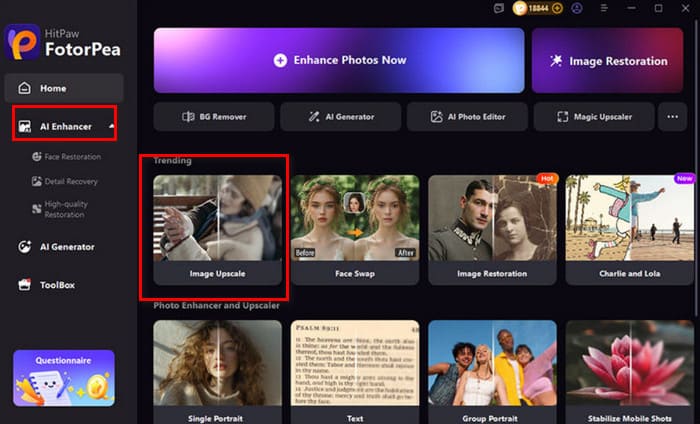
Step 2. Select AI Enhancer from the left-hand menu, then choose Image Upscale from the right-hand features. Now upload the photo you wish to enhance.
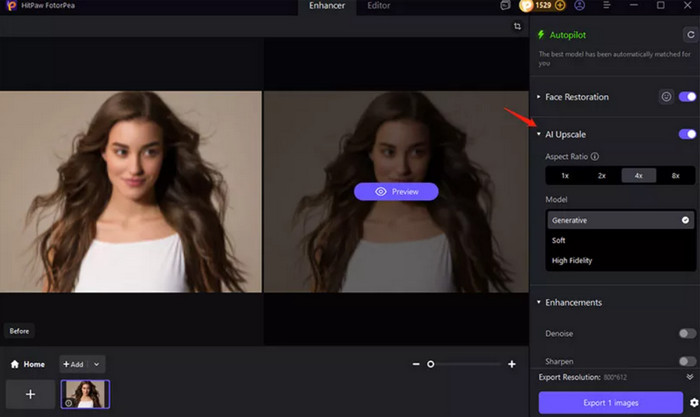
Step 3. If the image contains faces, activate the Face Restoration feature. Then enable AI Upscale.
Select the desired upscaling factor for your image, or customize it manually.
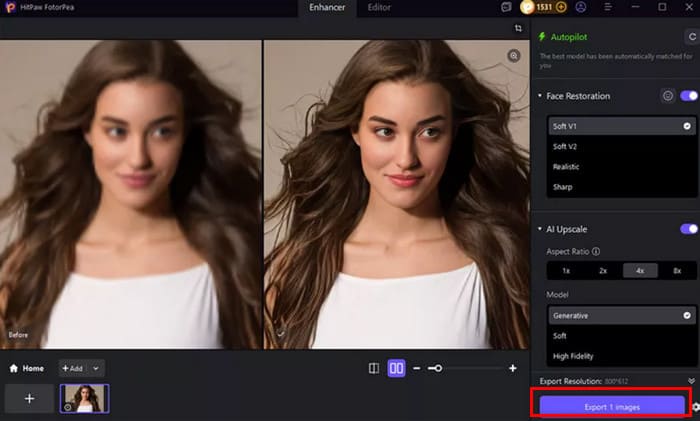
Step 4. Preview the enhanced result. If satisfied, click the Export X images button.
Online
If you'd rather skip lengthy software downloads and installations, HitPaw Photo Enhancer Online Free is a solid alternative. While its features are simpler than the desktop version, you'll still find several AI models and upscaling tools to enlarge images to 4K. The platform also offers straightforward output settings that get the job done.
Here's how to use HitPaw Photo Enhancer Online.
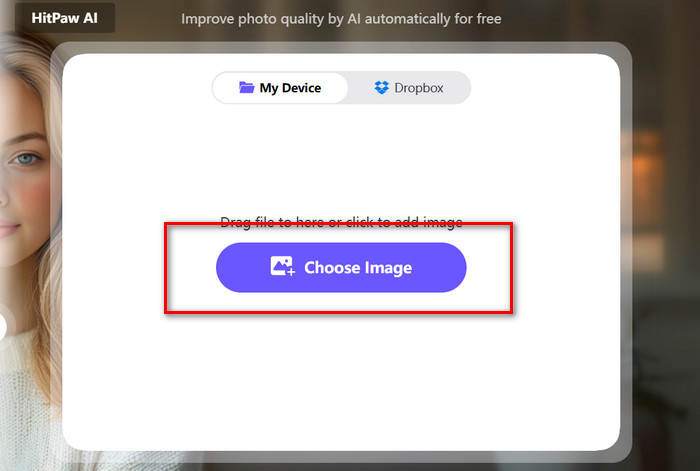
Step 1. Visit the HitPaw Photo Enhancer Online page using your browser. Click Choose Image to upload the photo you want to process.
Step 2. After uploading the image, select the AI Model that suits your needs. Then, under AI Upscale, choose the percentage by which you want to enlarge the image. Click Process.
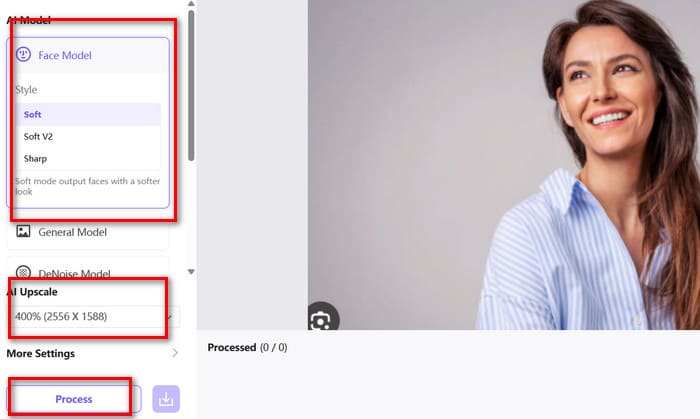
Step 3. Finally, click the download button.
Part 3. Best Alternative to HitPaw Photo Enhancer
Regarding the issue that HitPaw Photo Enhancer does not offer a free option, we also recommend trying another free tool: FVC Image Upscaler.
FVC Image Upscaler is also powered by AI technology, enhancing image quality by repairing lost pixels, strengthening colors, and improving texture. Compared to HitPaw Photo Enhancer Online, it has a distinct advantage: it offers two distinct modes tailored for regular and cartoon-style images.
It can currently enhance images up to 4K or even 8K resolution. You also needn't worry about the usage method. Few tools offer simpler steps than this one.
Here's how to use FVC Image Upscaler:
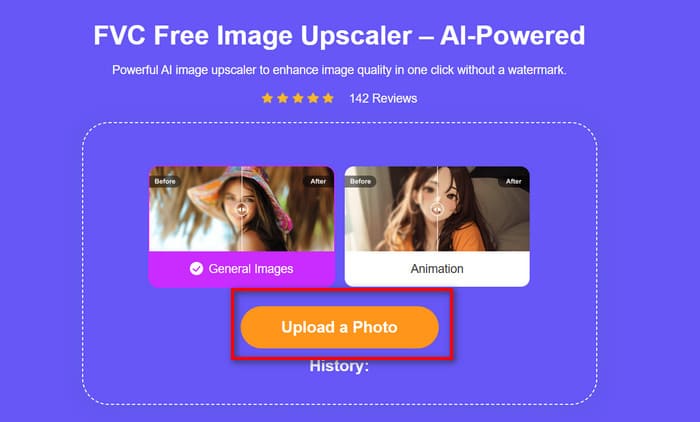
Step 1. Open the FVC Free Image Upscaler interface in your browser.
Click Upload a Photo to upload the image you want to enhance.
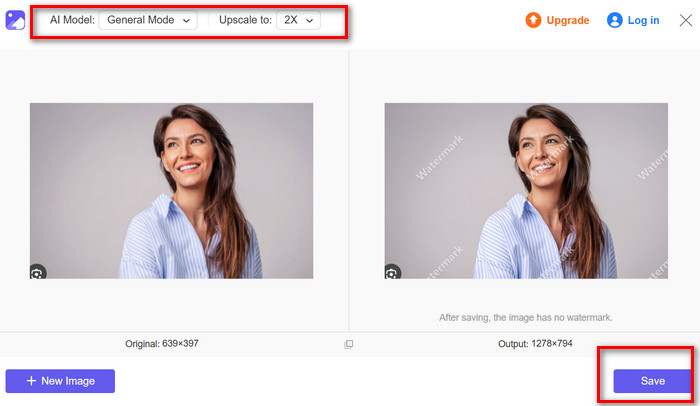
Step 2. In the preview window, select an AI Model and choose your desired upscaling factor.
If you're satisfied with the results, click Save.
Part 4. FAQs of HitPaw Photo Enhancer Review
Which is the best photo enhancer?
HitPaw Photo Enhancer is definitely a strong contender. It boasts excellent compatibility with desktop, online, and mobile versions. Plus, it offers several AI repair models tailored for various issues, along with features like colorization for black-and-white photos and background removal.
What is the alternative to HitPaw Photo Enhancer?
HitPaw Online Photo Enhancer can be considered a straightforward alternative. It still provides several AI models and allows users to make simple customizations. Another more user-friendly alternative is FVC Free Image Upscaler.
What is the best free online image upscaler?
FVC Free Image Upscaler. Its usage steps are extremely simple, and the entire enhancement process completes remarkably fast. Additionally, it features a dedicated Mode specifically designed for anime and cartoon styles.
Conclusion
This HitPaw Photo Enhancer review demonstrates the software's formidable capabilities in repairing image issues and enhancing quality. Beyond its specialized models for various problems, it includes auxiliary features like colorizing black-and-white photos and background removal. The only drawback is its lack of free export support. For this limitation, we recommend using FVC Free Image Upscaler as an alternative.
-
 What is VanceAI: Is it Really Worth Having this 2025?
 Looking for a powerful and efficient image enhancer tool? Read our in-depth review of Vance AI Image Enhancer and see how it can transform your photos.
-
 Media.io Review: Everything You Need to Know About
 Discover what Media.io can do for you, learn its key features, pros and cons, and find out if it’s safe to use. Also, don’t miss out on its best alternative.
-
 GIMP Review: Features, Safety, and its Best Alternative
 Looking for a free photo editor? Read this GIMP review to learn about its features, pros and cons, and safety. Also, don’t miss out on its best alternative.
