


 Video Converter Ultimate
 Screen Recorder
 Video Repair
Remove Image Background in Canva: 2 Ways + Alternative
Canva has emerged as one of the most utilized photo editing tools nowadays. This tool allows its users to edit, enhance, and create creative visual content such as social media posts, presentations, posters, marketing materials, and more. Among its most widely used editing capabilities is the Canva Background Remover. This feature allows users to easily erase the background of any photo with just one click, making it ideal for creating clean product images, profile photos, and professional layouts without the need for advanced editing knowledge.
In this guide, we’ll walk you through two quick ways to remove backgrounds in Canva, plus an alternative tool that you can use freely. Let’s get started!

Part 1. How to Use Canva to Remove Photo Background [Android & iPhone]
Image background removal is one of the most important features that a photo editor has, especially for users who want clean and professional-looking images.
The very reason why you need to learn how to remove image background in Canva is that it helps make your subject stand out and look more polished, whether you’re using the image for marketing, social media, or personal branding. By eliminating unnecessary distractions, you can place your photo on any background, match your brand colors, or create a cleaner and more professional design. This simple technique can instantly improve the overall look of your visuals and make them more appealing.
Now, the great thing about Canva is that it has a built-in image background removal feature that is accessible both on Android and iPhone devices. This feature allows users to remove image backgrounds anytime and anywhere.
How to Remove Image Background in Canva Using an Android Device:
Canva is available on Android devices, and it provides easier access to image editing, especially removing the image background. You can simply import the photo and do the magic in just a few steps. Below is the step-by-step guide on how you can remove the image background in Canva using your Android phone:
Step 1. First, on your Android mobile phone, download and install the tool. After that, open it and create your account if you don’t have an account yet, or just log in to your account.
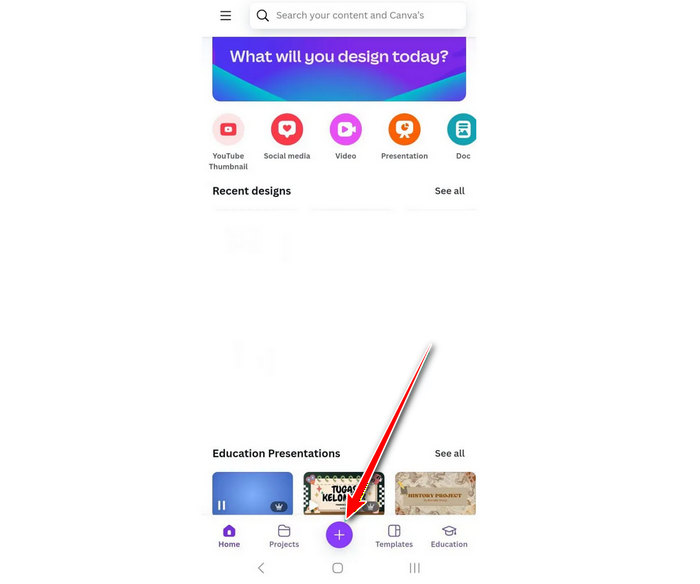
Step 2. Once installed, click on the + button on the lower part of your mobile screen to select the photo that you want to use for Canva image background removal.
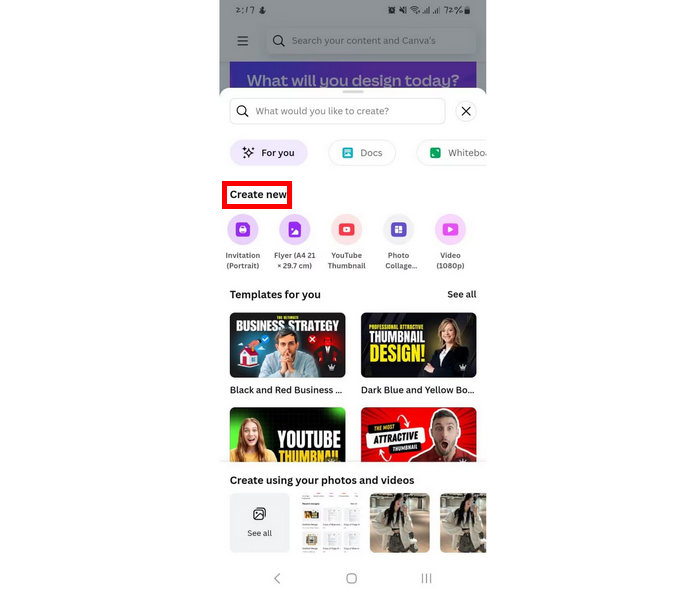
Step 3. You will notice, a new interface will pop up on your screen, from there just choose the Create new option.
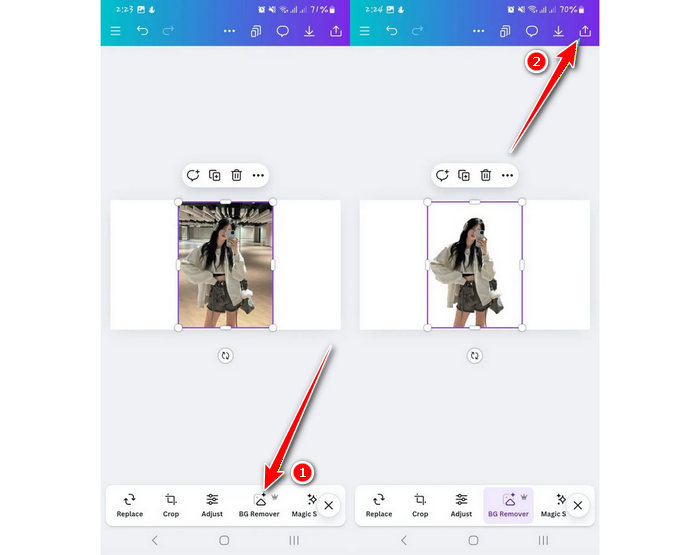
Step 4. Now, select the photo and upload it. After that, click the BG Remover option below. Once done, tap the Export icon in the upper-right corner of your screen to download it.
How to Use the Image Background Feature in Canva on iPhone:
Meanwhile, if you’re using an iPhone and you want to use the Canva app to remove an image background, here’s how to do it easily:
Step 1. The same thing with Android, you first have to download and install the app on your iPhone.
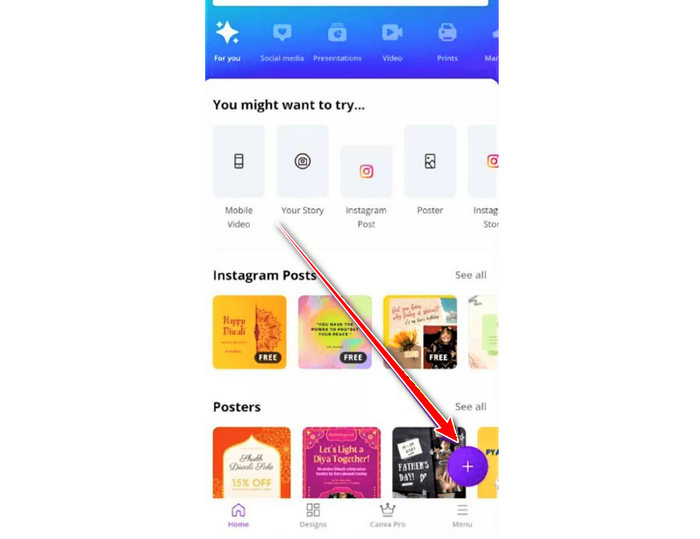
Step 2. Then, tap the + button and select the photo
Step 3. Choose the Create new option in the popped-up new interface.
Step 4. Use the BG Remover option and tap the Export icon to download it.
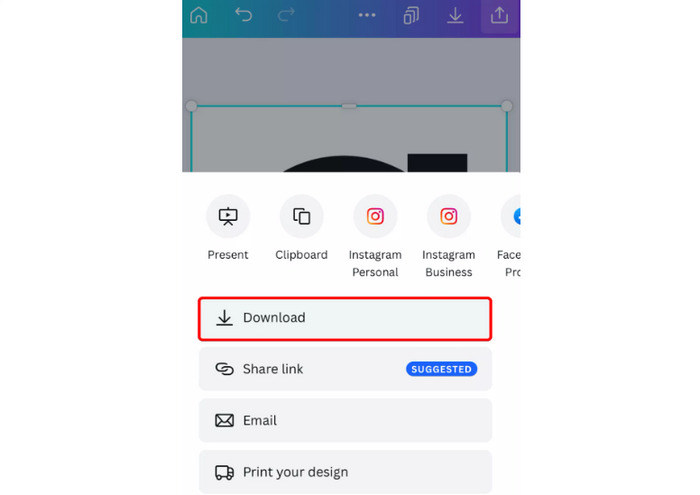
Learning how to remove image background in Canva through mobile devices is a convenient and great way for users who want to remove the background of their image on the spot. So, there’s no reason, regardless of where you are, as long as you have Canva on your phone, image background removal will no longer be a problem.
Part 2. Best Alternative to Canva
While Canva offers great work in removing image backgrounds, it comes with a few restrictions. Yes, the Canva remove BG feature is only available in Pro and paid accounts. With this, free users cannot use this feature, but don’t worry, there’s an alternative tool that you can use freely online.
FVC Free Background Remover is an online tool that allows users to easily remove the image background. With this, you can automatically or manually remove the background of your photo. You just need to import the photo that you want to edit. Moreover, you can see the preview of your photo while manually removing its background for you to visualize what it looks like before saving it.
Main Features:
- • Uses artificial intelligence to remove the image background.
- • Packed with complex algorithms to detect and analyze the exact regions for image background removal.
- • Supports multiple image formats such as JPG, JPEG, and PNG.
- • Ensures lossless quality when exporting altered images to your desktop.
- • Retains the original image quality after the image background removal process.
- • The interface is very user-friendly.
To use this tool, follow the steps below:
Step 1. First, you need to access the tool on their official website. To do that, on your search engine, search for FVC Free Background Remover.
Step 2. Once you’ve accessed the tool, click on the Upload Image and import the photo that you want to remove its background.
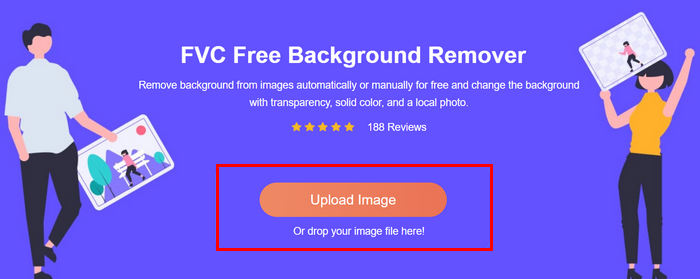
Step 3. After uploading, choose the Keep option above, adjust your brush, and start brushing the part that you want to keep. Alternatively, with the Erase option above, you can use that to directly remove the background of the photo. Both work in removing the background of the photo. Once done, just click the Download button below.
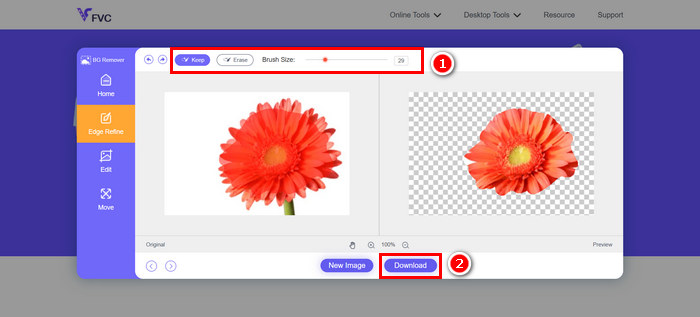
With FVC Free Image Background Remover, you can guarantee a seamless way of removing the background of your image. Moreover, it’s a great alternative to the Canva Background Remover feature, which is only available for paid versions.
Part 3. FAQs about Removing Image Background in Canva
Is the Background Remover feature in Canva free?
Unfortunately, no. The Canva Background Remover is only available for Canva Pro, Canva for Teams, Canva for Education, and Canva for Nonprofits accounts. Free plan users can still edit their images, but removing backgrounds requires an upgrade or using a free alternative tool.
Can I manually refine the removed background in Canva?
Yes. After applying the Background Remover, Canva allows you to fine-tune the result using Erase and Restore brushes. This helps you clean up edges or bring back important details for a more precise result.
Can I change or replace the background after removing it in Canva?
Absolutely. Once the background is removed, you can add solid colors, upload a new background, or use Canva templates and design elements to match your project style.
Conclusion
Nowadays, learning how to remove image background in Canva is becoming an essential skill, especially when you are into image editing. With just a single click, you can instantly enhance the appearance of your photos. Meanwhile, if you’re using the free version of Canva, there are reliable online alternatives that can help you achieve a clean background removal, like the FVC Free Background Remover.
So, what are you waiting for? Do you want to enhance your photo or your presentation? Let’s get started!
-
 4 Effective Ways to Remove Background in Photoshop
 Learn in this article how to remove the background in Photoshop. Each method is simplified to better guide you, along with an alternative tool that you can try.
-
 The Best Apps to Change Background of Picture for Android/iPhone
 Need an app to change the background of your picture? Check out the 5 candidates to see if any suit your needs. Each one comes with a list of pros and cons.
-
 How to Remove Background from Image on Mac: 4 Methods
 This guide will provide four tools for removing the background from an image on a Mac, including one third-party online tool and three built-in system tools.
