


 Video Converter Ultimate
 Screen Recorder
 Video Repair
 Secure Download
How to Smooth Choppy Videos with Topaz Video AI Frame Interpolation
Every time we get a video, it is not always the best and smoothest one right off the bat. It sometimes happens that fast-moving shots appear to be broken, or slow-motion ones are not very fluid. But the thing is that you do not have to make a video twice every time. Topaz Video AI frame interpolation is a software that allows you to add more frames in between the original ones to generate smoother and more natural motion. So, if you want to restore old movies, enhance your gameplay footage, or add fineness to slow-motion clips, appropriate settings will definitely have a really great impact. To begin with, this article will show you how to get started with Topaz Video AI for frame interpolation, provide you with tips for better outcomes, and also offer you an alternative in case you want another simple tool.

Part 1. How to Smooth Video in Topaz Video AI
If the footage you have looks stuttering or the slow-motion shots are not very smoothly done, Topaz Video AI from Topaz Labs will be a nice choice as it is able to produce extra frames inserted between the ones already present. With the Topaz Video Enhance AI frame interpolation video enhancement tool, it is possible to make the motion appear more continuous without losing the high quality of the video. So, here are the steps to do that:
Step 1. First, get the latest version of Topaz Video AI by downloading it and then installing it on your Windows or Mac computer. Run the software, then locate your video by clicking on Browse, or simply drag your video into the main window.
Step 2. On the settings panel on the right side, find the Enhancement options and, under the processing model, toggle on Frame Interpolation.
Step 3. Pick the interpolation model that best suits your footage and then decide on your output frame rate, let’s say 60 FPS or 120 FPS.
Step 4. Use the preview feature to see if the motion appears smooth and natural. Fine-tune the interpolation settings if required.
Step 5. Choose the output format you want, the resolution, and where to save the file.
Step 6. Hit Start Export to start the creation of new interpolated frames. After the AI process is complete, watch the exported video to see smoother playback.
Part 2. Best Practices for Flawless Interpolation
Frame interpolation is most effective when the original video is tidy and simple for the AI to understand. Though Topaz Video AI frame interpolation sensitivity may influence the level of new frame generation, sticking to a few simple guidelines will get you the smoother and more natural results you are looking for.
1. Record in a Good Light
Videos with plenty of light have more details for the AI to recognize objects and create more accurate intermediate frames. On the contrary, dark or grainy videos may result in the presence of visual artifacts.
2. Steer Clear of Strong Motion Blur
If the subject is moving and motion-blurred so much, the AI won't be able to figure out its position. Choosing a faster shutter speed is better for recording highly moving scenes.
3. Use the Highest-Quality Original
The quality of your source video partially determines the quality of the interpolation results. Make sure to use the best resolution available and refrain from using heavily compressed files if possible.
4. Don't increase the frame rate excessively
Upscaling a video right from 30 FPS to 240 FPS might give rise to the type of distortions you wouldn't want in your video. A more natural way of frame rate transfer is to increase the frame rate little by little, e.g., from 30 FPS to 60 FPS or 120 FPS.
5. Preview before export
Make it a point to preview the frame-interpolated video first before you go and do the entire video processing. It will give you an opportunity to detect and fix any ghosting, flickering, or unnatural motion issues.
6. Keep the camera movement steady
It is well-known that a tripod or a stabilized camera results in much smoother footage than an unstable handheld shooting.
7. Make AI enhancement a minority choice
Many times, the indiscriminate use of these types of technology will really hike up the processing time, and at times, the results might not even be very authentic. Achieving the best quality versus realism ratio entails turning on only those features that your video really needs.
Part 3. Best Alternative to Topaz Video AI for Frame Interpolation
If you want a simpler option compared to Topaz Video AI, you might want to check out FVC Video Converter Ultimate. It is mainly a video converter and editor, yet it can also change a video's frame rate to make the playback smoother and help you prepare the video for various devices. Also, it has a user-friendly interface and works quickly, so if you are a beginner wanting immediate results without spending too much time on learning, this would be a suitable choice.
Main Features
- • Change the frame rate of a video, including 24 FPS, 30 FPS, and 60 FPS.
- • Convert videos from one of the 1,000+ video and audio formats to another one.
- • Change resolution, bitrate encoder, and other output settings.
- • Process multiple videos in a batch at the same time.
- • The program has video editing features like cutting, cropping, merging, and changing the orientation of a video. There is also a selection of filters and effects.
Free DownloadFor Windows 7 or laterSecure Download
Free DownloadFor MacOS 10.7 or laterSecure Download
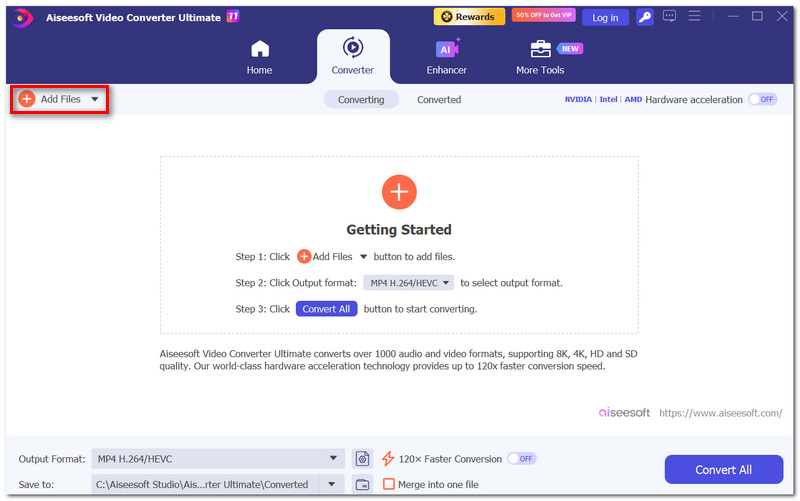
Step 1. Get the FVC Video Converter Ultimate for your PC or Mac, install it, and open it. Hit the Add Files button and import the video for editing.
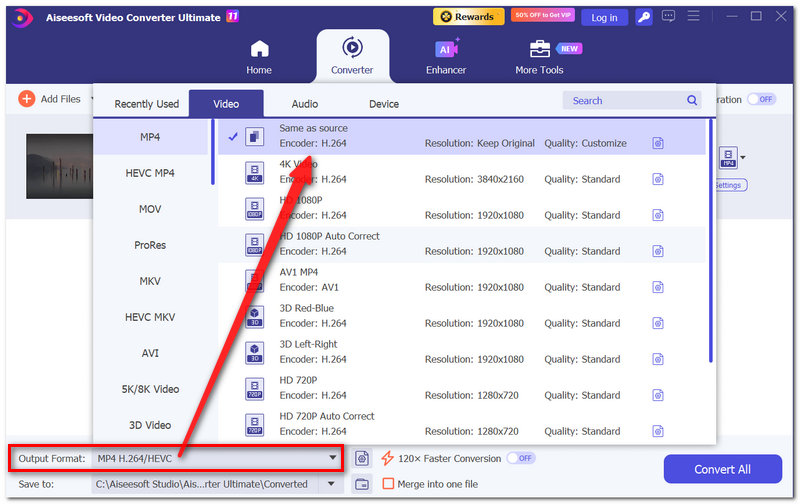
Step 2. Choose the video format that you want for your file by clicking on Output Format.
Step 3. Hit the gear icon located next to the selected format. Locate Frame Rate, then pick the frame rate that fits your video project best, for example, 60 frames per second (FPS) for a very smooth motion effect or 30 FPS for ordinary video viewing.
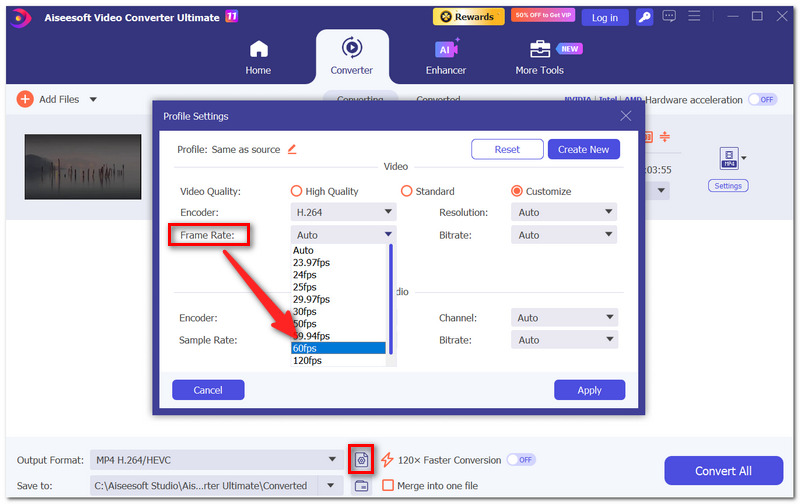
Step 4. Change other options, like resolution or bitrate, if necessary, then click on Create New.
Step 5. Decide on the directory where the output video will be saved. Then, hit Convert All, and the video will be processed with the new frame rate.
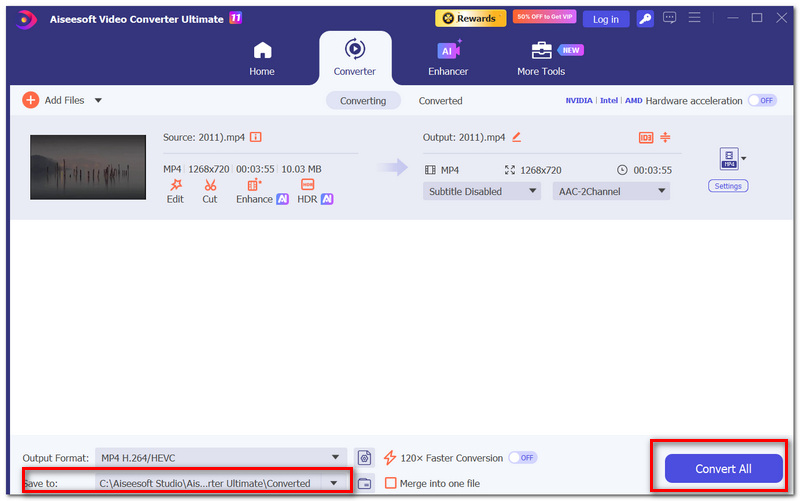
When the process of conversion finishes, you will get a video exported at a different frame rate that can give your clip smoother motion and is more aligned with the requirements of your intended usage or editing flow.
Part 4. FAQs about Topaz Video AI Frame Interpolation
Is it better to interpolate my video before or after color grading?
Typically, the best approach is to first do frame interpolation and then color grade the fully processed video. This way, the results will be more harmonious.
Can frame interpolation make old family videos look newer?
It can help in making the motion more fluid, but it cannot refresh the image quality, the colors, or the condition of the footage that is physically damaged. If you want to do it, you can try to upscale the video to 4K.
Does AI frame interpolation affect my video's color profile?
Absolutely not. Its main function is simply to create new frames, whereas the color settings are a matter of your export setup.
Conclusion
If you configure the correct settings and apply some methods, Topaz Video Enhance AI frame interpolation would be capable of changing disjointed or low-speed videos into stunningly smooth and natural ones. In fact, having knowledge about the process of frame interpolation, adhering to established guidelines, and selecting an appropriate instrument as per your requirements will enhance your video editing experience and yield higher output quality of your videos.
-
 Learn How CapCut Can Enhance Video Quality: 3 Easy Methods
 Do you want to enhance your video quality using CapCut but are not sure where to start? Read this article and learn how CapCut enhances video quality easily.
-
 Step-by-Step Guide to Screenshots in VLC Media Player
 Learn the simple steps to take VLC screenshots effortlessly. Follow our guide for quick and easy snapshot captures via shortcut keys and menu settings.
-
 GIF Player – 5 Best GIF Players for Windows, Mac, Android and iPhone
 What program opens GIF files? How do I view GIFs on Android? Does iPhone have a GIF player to open GIFs? This post shares 5 best GIF players for you.
