


 Video Converter Ultimate
 Screen Recorder
 Video Repair
 Secure Download
How to Fix Windows Media Player Not Playing MP4 Files: Proven Solutions [2026 Guide]
Suppose you have ever tried to open an MP4 file and found out that Windows Media Player won’t play MP4. One of the main reasons for this problem is the lack of codec support, mainly in older versions of Windows Media Player. Although MP4 is a popular video format, the video and audio codecs inside the file may not be compatible with your current player. Because of this, the video may not load, play audio only, or show an error message.
Fortunately, fixing this issue is mostly quite simple. Here, you'll find the best ways to get rid of the problem, which are: installing the correct codecs, changing to a player that supports the media better, changing the video format, and using Windows' built-in troubleshooting tools for restoring good playback.

Fix 1: Install the K-Lite Codec Pack
In case of an “MP4 won't play in Windows Media Player” error, it usually means one of the codecs for video or audio is left out of your computer. When the K-Lite Codec Pack is downloaded, it can support the use of many kinds of codecs, which means Windows Media Player will be able to both identify and play back a larger portion of MP4 files.
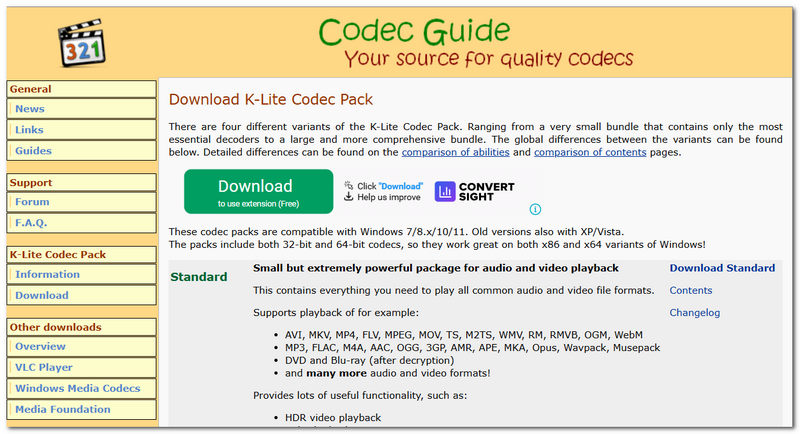
Step 1. Go to the official website of the K-Lite Codec Pack and get the latest version. Once the download is done, open the setup file.
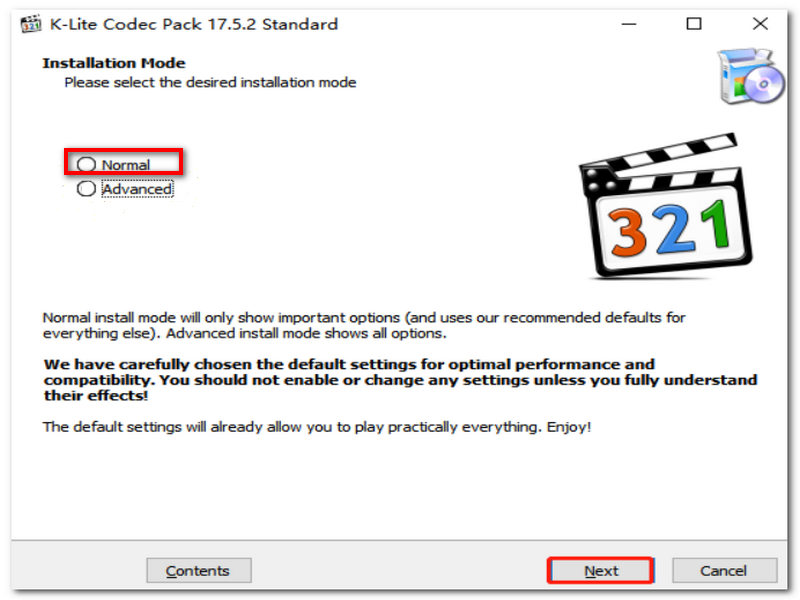
Step 2. When asked, choose Normal Mode. Either set your media player preferences or just leave the default options.
Step 3. Go ahead with the installation and hit Install. Let the installation be completed.
Step 4. Restart the PC so that the new codecs get registered properly. Launch Windows Media Player and attempt to play the MP4 file again.
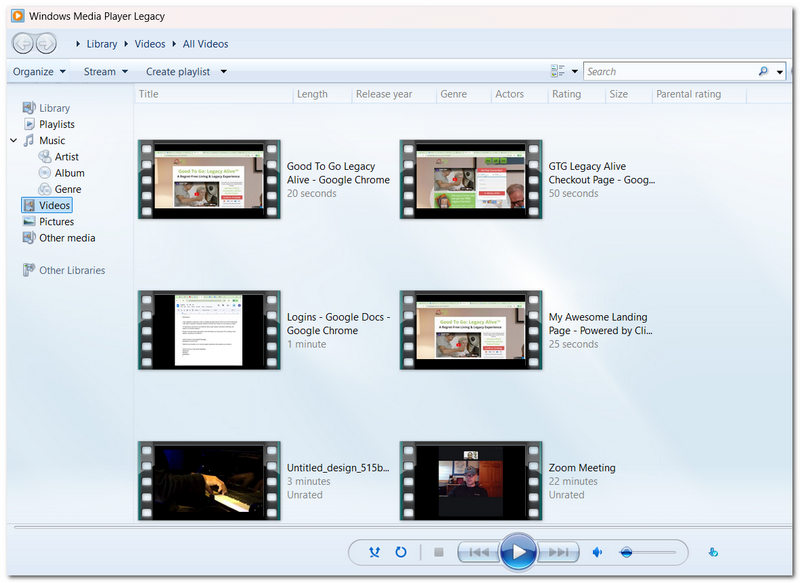
With K-Lite installed, you'll be able to open a wider range of file formats, and can play MP4 in Windows Media Player.
Fix 2: Switch to VLC Media Player
If the problem is that Windows Media won't play MP4, then the fastest fix is probably to use a different media player that plays the file. Most MP4s can be played by VLC Media Player as it has almost all video and audio codecs built-in without needing you to install anything extra.
Step 1. Get the most up-to-date version of VLC Media Player from its official website. Open the installer and finish the installation process.
Step 2. Click on Media in the top menu and choose Open File.
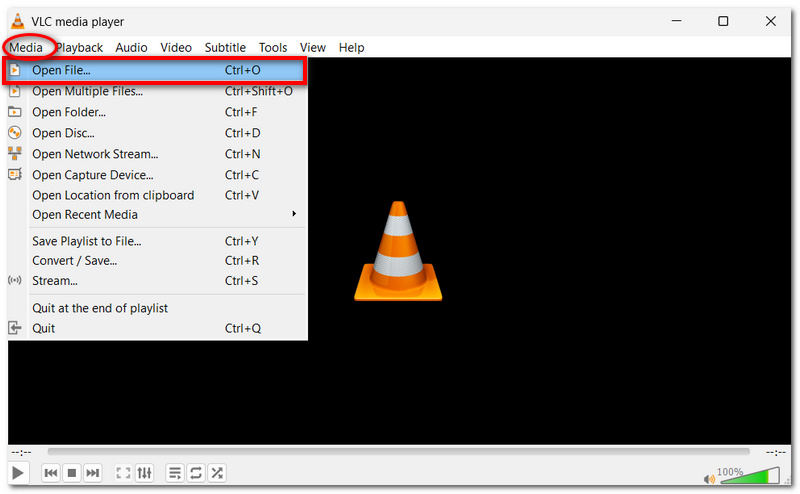
Step 3. Find the MP4 file that Windows Media Player wouldn't play. Hit Open to bring the video up.

Step 4. Make sure that the video and sound work fine.
Since VLC has its own internal codecs, it can sometimes play MP4 files that Windows Media Player is not capable of handling. You can also try other Windows Media Player alternatives.
Fix 3: Convert the Video File Format
If the codec for Windows Media Player to play MP4 installation still doesn't fix your problem, then it is quite possible the video is encoded in a format that Windows Media Player can't decode properly. So, changing the file format is usually the best way to go.
FVC Video Converter Ultimate is a tool that not only allows for video conversion but also supports hundreds of both video and audio formats. It helps you convert the unsupported video into a format that will work seamlessly with Windows Media Player and at the same time keep the video quality intact.
Steps to Convert MP4 with FVC Video Converter Ultimate
Step 1. Download FVC Video Converter Ultimate and install it on your computer.
Free DownloadFor Windows 7 or laterSecure Download
Free DownloadFor MacOS 10.7 or laterSecure Download
Step 2. Open the program and click Add Files to add your MP4 video.
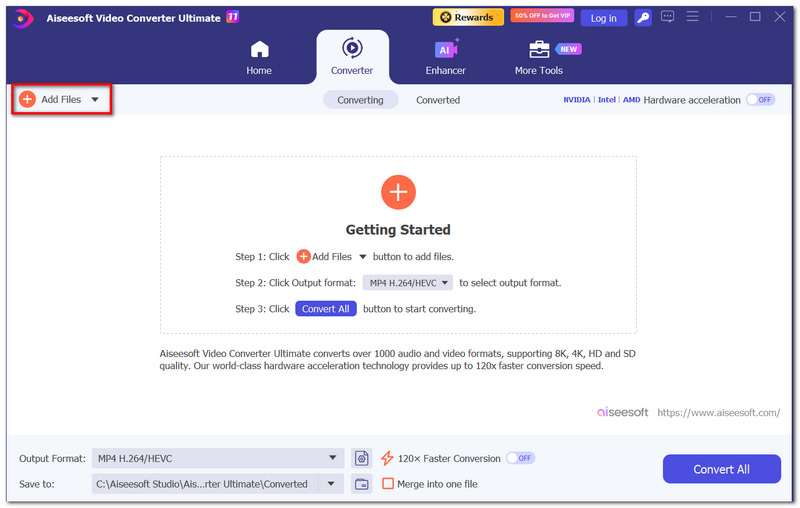
Step 3. Pick MP4 (H.264) or some other format supported by Windows Media Player.
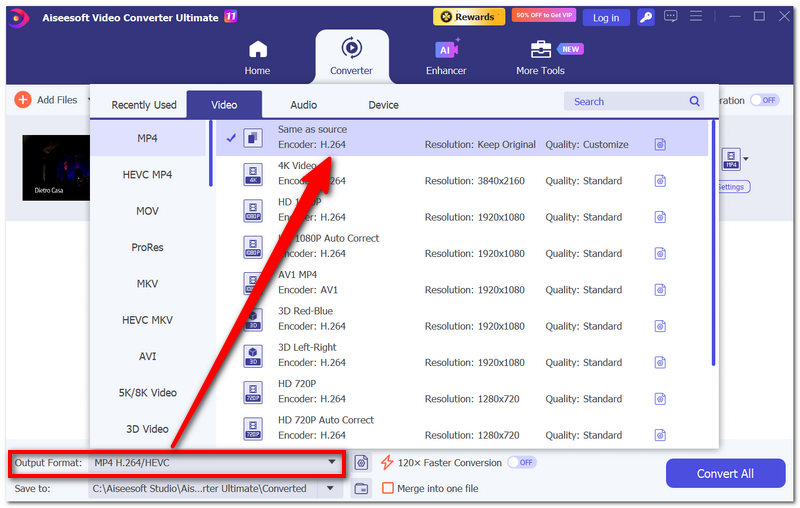
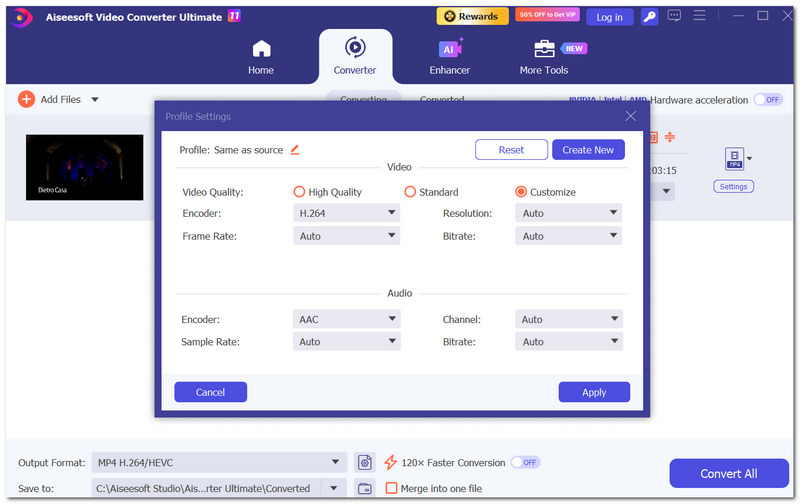
Step 4. If necessary, set the video parameters like resolution, bitrate, or frame rate. Specify a folder to save the converted video.
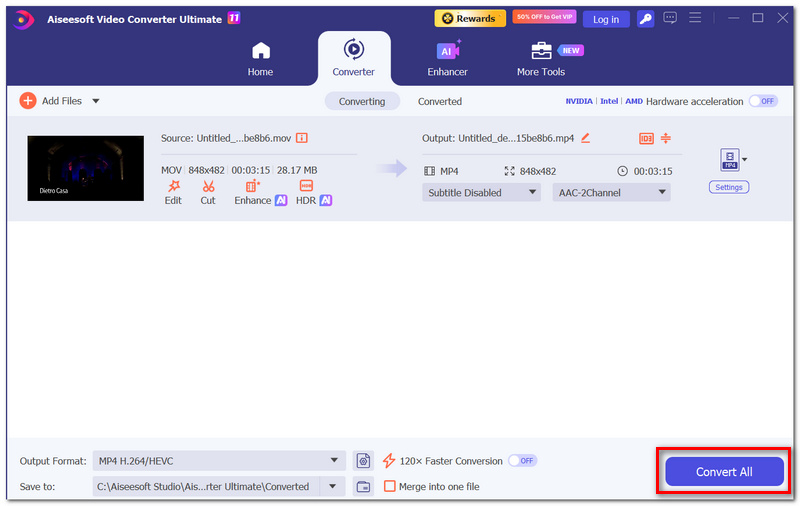
Step 5. Hit the Convert All button to initiate the conversion. Allow the video processor to finish the conversion.
Step 6. Play the converted video file with Windows Media Player to make sure it works fine.
By converting the video to a format that your player supports, you can generally fix compatibility problems and be able to enjoy your video without interruption.
Fix 4: Run the Built-in Windows Troubleshooter
Step 1. Press the Windows key to open Settings.
Step 2. Then, System > Troubleshoot and click on Other Troubleshooters.
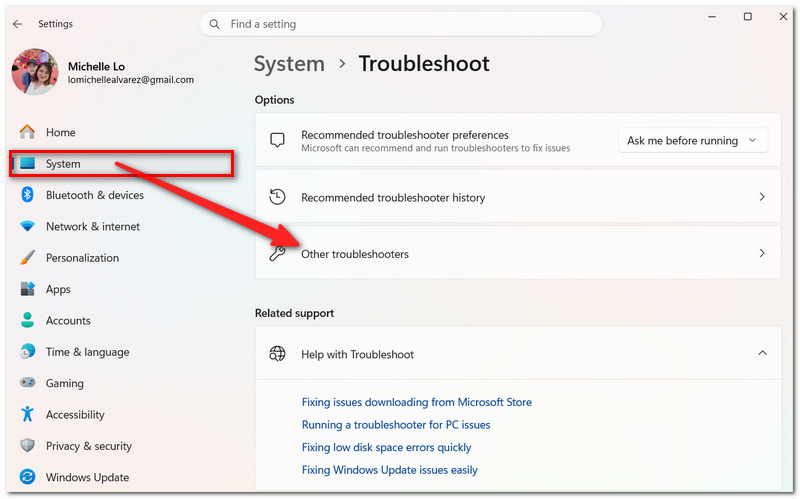
Step 3. Find the appropriate troubleshooter, e.g., Video Playback (if it is available on your Windows version).
Step 4. Hit Run beside the troubleshooter. Keep following the instructions as the on-screen piece walks you through Windows, examining your system for playback-related problems.
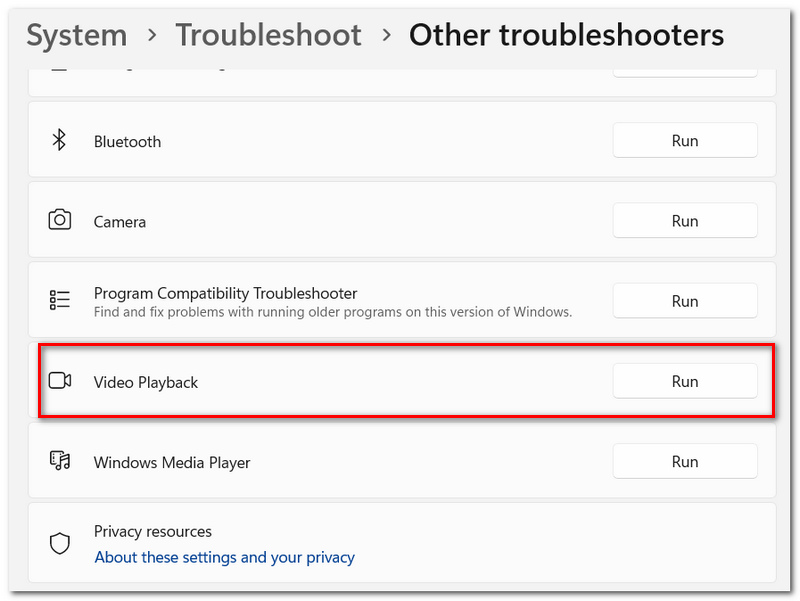
Step 5. Do the changes that the troubleshooter proposes. If the troubleshooter recommends it, restart your computer after applying the changes.
Step 6. Try to play the MP4 file with Windows Media Player.
The troubleshooter won't be able to fix all codec problems, but it can locate and resolve common system issues that hinder video from playing properly.
FAQs about Windows Media Player Won’t Play MP4
Why does an MP4 file play on my laptop but not on my desktop computer?
It could be that your desktop computer is missing some necessary elements like codecs, media components, or even the right version of Windows. Also, graphics drivers play a part in supporting a file format for playback.
Why do some MP4 files show a thumbnail but don't play?
You can think of a thumbnail simply as a preview or a snapshot of the video. A video player gets just enough info to make a thumbnail but not quite enough to play the whole video. So, it might see the file and still not be able to decode what's inside.
Can the date an MP4 was created affect whether Windows Media Player can play it?
Yes, it can. New MP4 files are typically encoded with the latest codecs, which older versions of Windows Media Player might not have the capability to decode.
Conclusion
If your MP4 file won't play in Windows Media Player, it is most likely that you do not have the right codecs installed on your computer, or the format of the video is not supported, or there are problems with the system configuration. You can locate the problem and use the correct solution by going through the methods in this guide, like installing codecs, changing players, video converting, or using Windows built-in troubleshooting tools. You will be able to solve the playback issues faster and watch your favorite videos without any hassle after you learn the reasons for these issues.
-
 How to Play DVD on Windows Media Player in 2025
 Why does my DVD not play on Windows Media Player? How to play DVD on Windows 7 media player? This post shares 3 ways to play DVDs with or without WMP.
-
 Open MKV File in Windows Media Player
 Can you play MKV files on Windows Media Player? How to convert MKV to Windows Media Player? Find 3 ways to open MKV file in Windows Media Player here.
-
 How to Screenshot in Windows Media Player Efficiently
 Discover the simplest methods to capture screenshots in Windows Media Player effortlessly. Elevate your screen capture experience with our comprehensive guide.
