


 Video Converter Ultimate
 Screen Recorder
 Video Repair
 Secure Download
GoPro Videos Not Playing on PC: What Should I Do? [2026]
GoPro is known for its superb video recording qualities. It is mostly used by athletes, content creators, sports enthusiasts, and many more who love recording extreme environments or fast-paced situations. But despite being built for this kind of thing, there are moments when GoPro MP4 files do not play on PC that leaves many users frustrated. But worry no more, because this article will teach you 2 ways to easily solve the issue. Moreover, you’ll understand why these errors or issues happen in GoPro videos.

Part 1. Why High-Frame-Rate GoPro Footage (4K/5K) Causes Lag or Black Screens?
Before jumping into the solutions, it is important to understand why your GoPro videos are not playing on your PC. In most cases, the issue is not with the video itself but with compatibility, hardware limitations, or file corruption. Since GoPro cameras often record videos in high resolutions such as 4K and 5K with high frame rates, some computers struggle to process them properly.
Reason 1: HEVC Requirements and Old Hardware
Modern GoPro cameras commonly use the HEVC (H.265) codec to compress video files while maintaining excellent quality. While this format is efficient, it also requires more processing power than older codecs like H.264.
If your computer has outdated hardware, insufficient RAM, or an older graphics card, it may not support HEVC decoding properly. As a result, the GoPro video may lag, stutter, freeze, display a black screen, or fail to play altogether.
Reason 2: The GoPro CineForm Codec Is Not Widely Supported
Some GoPro videos are edited or exported using the GoPro CineForm codec. Although CineForm is designed for high-quality video editing, not all media players support it.
When your preferred video player lacks the necessary codec support, the video may refuse to open, play only the audio, or display a blank screen. This compatibility issue is one of the common reasons why GoPro videos do not play on PC.
Reason 3: The GoPro Video Player or Device Doesn't Support 4K
Not every media player is optimized for handling ultra-high-definition videos. Since GoPro footage is often recorded in 4K, 5K, or high-frame-rate settings, some players may struggle to decode and render the content smoothly. Additionally, if your monitor, graphics card, or operating system lacks proper support for high-resolution playback, you may experience lagging, choppy playback, or black-screen issues while watching the video.
Reason 4: The GoPro Video Is Corrupted
Another possible reason is file corruption. GoPro videos can become damaged during recording, file transfer, storage, or unexpected interruptions such as battery failure or sudden device shutdowns.
When corruption occurs, the video player may fail to recognize the file, display an error message, show only a black screen, or stop playing the video entirely. In such cases, repairing the damaged GoPro video is often necessary before it can be played normally again.
Now that you understand the possible causes behind the issue, let's move on to the best solutions you can use to fix GoPro videos not playing on your PC.
Part 2. How to Fix GoPro Videos Not Playing on PC
There are two straightforward solutions if your GoPro videos do not play on PC.
Method 1: Using Aiseesoft Blu-ray Player
If your GoPro videos won’t play on your PC because of codec issues, high-resolution playback problems, or an incompatible media player, switching to a more powerful video player may solve the problem. Aiseesoft Blu-ray Player supports a wide range of video formats and codecs, including HD and 4K videos, making it a good choice for playing GoPro footage smoothly. With better format compatibility, you can reduce common playback issues like errors, lag, or black screens caused by limited media player support.
How to Play GoPro Videos on Aiseesoft Blu-ray Player:
Step 1. First, you need to download and install the tool.
Step 2. Next, once installed, open the media player and click Open File and choose the GoPro video that you want to play.
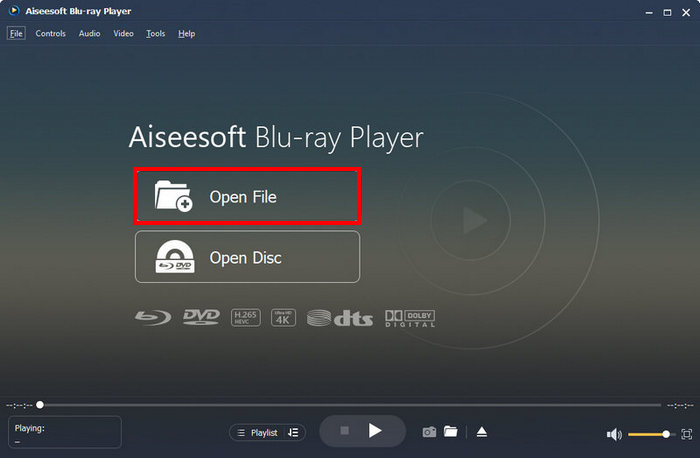
Now, you can enjoy watching your GoPro videos.
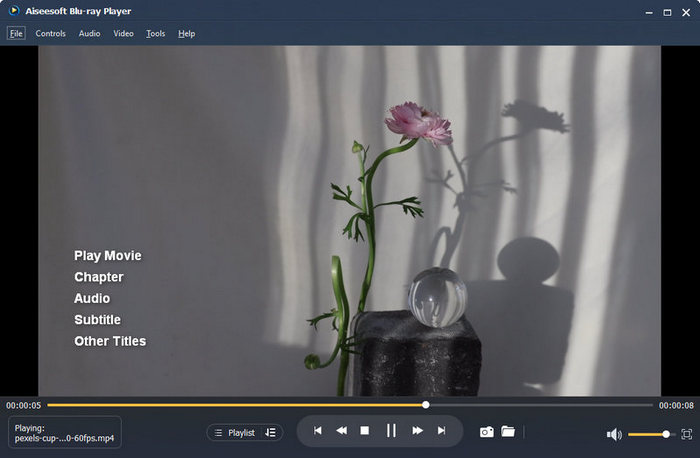
There you have it, you can now easily play your GoPro videos using the Aiseesoft Blu-ray Media Player.
Method 2: Using FVC Video Repair
If your GoPro video still won’t play after trying different media players, the problem may be with the file itself. In that case, using a video repair tool can help restore the footage. FVC Video Repair is designed to repair damaged or corrupted videos caused by issues like interrupted recordings, incomplete transfers, storage errors, or system crashes. Once the file is repaired, you can get your GoPro videos playing again and recover access to your footage without affecting the original quality.
How to Fix GoPro Videos Not Playing on PC with FVC Video Repair:
Step 1: First, go to their official website and then download and install the program.
Free DownloadFor Windows 7 or laterSecure Download
Free DownloadFor MacOS 10.7 or laterSecure Download
Step 2: Next, add the GoPro video you want to repair by clicking the Red Plus button. Click the Blue Plus button to add the sample video.
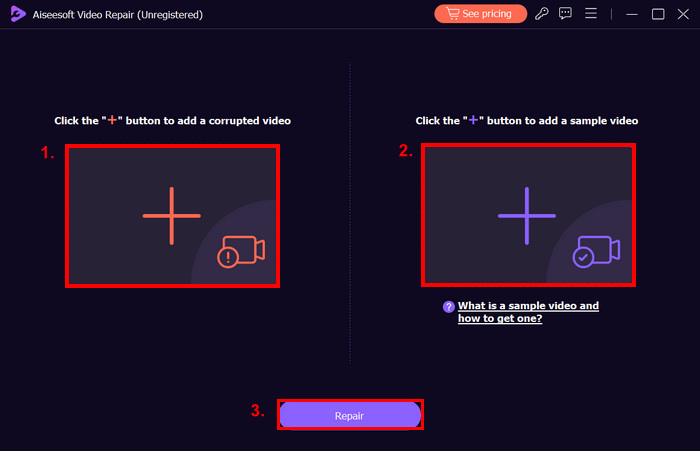
Step 3: After that, click the Repair button.
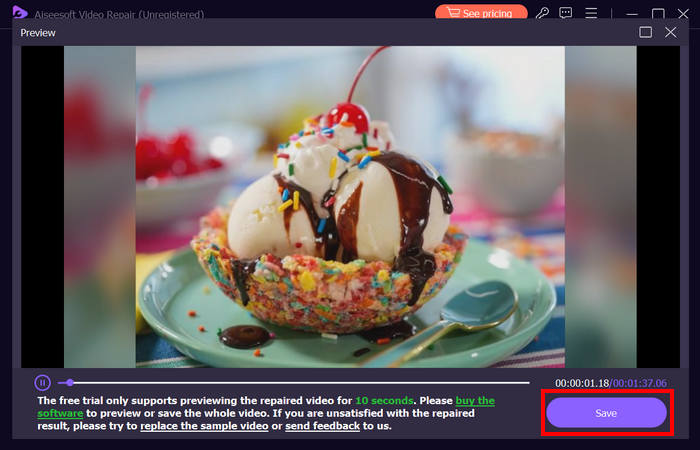
Step 4: Lastly, click the Preview button to check if the GoPro video is still not playing. When the repair is successful, you can save it by clicking the Save button.
Then your corrupted video file will be fixed.
Part 3. FAQs About GoPro Videos Not Playing on PC
Why do my GoPro videos play on the camera but not on my PC?
GoPro videos not playing on PC usually happens because your PC does not support the codec used by the video. Some computers also lack the hardware requirements needed to smoothly play high-resolution GoPro footage. Using a compatible media player or updating your system's codecs can often resolve the issue.
Can a corrupted GoPro video be repaired?
Yes. If the video file became damaged during recording, transfer, or storage, you can use a video repair tool to restore it. Most video repair software can fix common corruption issues and make the file playable again without significantly affecting its quality.
How can I make 4K or 5K GoPro videos play smoothly on my computer?
You can try using a media player that supports high-resolution videos and modern codecs. Updating your graphics drivers, installing HEVC support, closing unnecessary background applications, or converting the video to a more compatible format can also help improve playback performance.
Conclusion
It’s really frustrating when your GoPro videos do not play on PC, but this is something that you shouldn’t worry about anymore. By understanding why it happens and the methods that you can use to fix it, you can quickly get your GoPro videos back to normal. Whether the issue is caused by unsupported codecs, hardware limitations, or file corruption, tools like Aiseesoft Blu-ray Player and FVC Video Repair offer simple and effective solutions. With the right approach, you can enjoy your GoPro footage again without missing a single moment.
-
 How to Fix VLC Media Player Not Playing Video: 5 Methods
 Don't panic after encountering a VLC Media Player not playing video issue. We have prepared all the 5 solutions you may use in this article. Read and explore.
-
 How to Fix Videos Not Playing on Windows Media Player
 In this article, we will dismantle the causes of videos not playing on Windows Media Player in detail, and give the most effective solutions to the problem.
-
 No Sound on Tiktok Videos? Here’s How to Fix It [2025]
 Are you experiencing sound issues on your TikTok videos? Well, check out these common fixes and solutions for resolving the no sound on Tiktok videos problem.
