


 Video Converter Ultimate
 Screen Recorder
 Video Repair
 Secure Download
Game Bar Won't Record? Here’s Why and How to Fix It Fast
You’re in the middle of an epic clutch in Valorant, or maybe you just discovered the most insane glitch in Minecraft that you need to show your friends. You hit Windows + Alt + R, waiting for that little recording timer to pop up in the corner of your screen, but… nothing. Absolutely nothing happens. Or worse, you get that annoying little pop-up saying, Recording isn't working.
If your game bar won't record the screen on Windows 10 or 11, don't panic. It’s usually just a weird Windows glitch or a setting that got toggled off during an update. In this guide, we will explain why and share the exact steps to get my setup back in action.

Part 1. Quick Fixes for Game Bar Won't Record
Before we delve into the more advanced topics, such as the Registry Editor, let’s begin with the basics. You’d be surprised how often the simplest solution is the one we overlook.
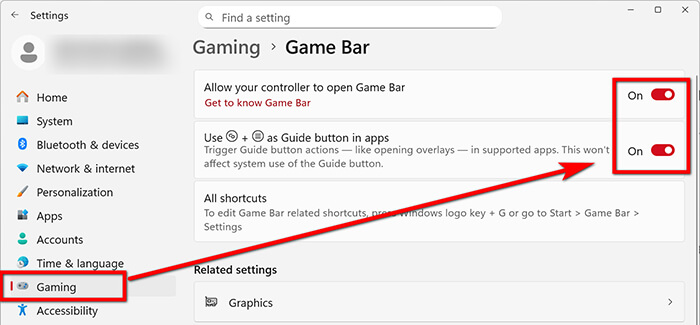
Fix 1: Make Sure Game Bar is Actually Enabled
It may sound silly, but Windows updates can sometimes reset your preferences.
1. Open your Settings (click the gear icon in the Start menu).
2. Go to Gaming.
3. Under the Xbox Game Bar tab, make sure the toggle for Enable Xbox Game Bar for things like recording game clips, chatting with friends, and receiving game invites is set to On.
4. If it was already on, try toggling it off and back on again. It’s the classic turn it off and on trick, and honestly, it works more than it should.
In this fix, you can easily resolve the issue, and record gameplay on PC.
Fix 2: Check Your Permissions
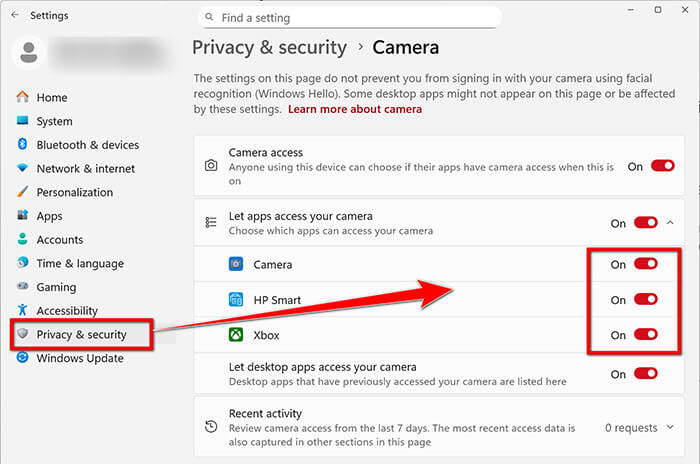
If the Windows Game Bar is not recording issue persists, Windows might be blocking the app from accessing your hardware.
1. Go to Settings > Privacy (Or Privacy & security on Windows 11).
2. Scroll down on the left sidebar to Background apps.
3. Make sure apps are allowed to run in the background, and that Xbox Game Bar is specifically enabled.
4. Also, check the Camera and Microphone privacy settings. If you’re noticing that the Xbox Game Bar mic is not working, this is usually the culprit. Make sure the option that lets desktop apps access your microphone is turned on.
Fix 3: Verify Your Shortcuts Aren't Conflicted
I once spent twenty minutes wondering why my Game Bar was not recording, only to realize I had remapped the Record shortcut in Steam to the same keys as the Game Bar.
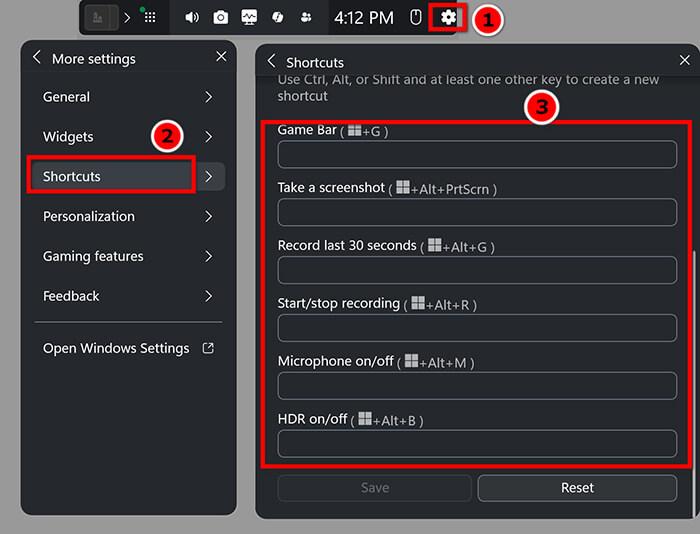
1. Open the Game Bar (Windows + G).
2. Click the Settings (gear icon) on the Game Bar overlay.
3. Go to Shortcuts.
4. Check if the Start/stop recording shortcut is actually rWin + Alt + R. If you’ve changed it by accident, that’s your problem!
Fix 4: Check Your Storage Space
If your hard drive is nearly full (red-lining), Windows will simply refuse to start a new recording.
Head over to your Videos > Captures folder. If you have 50GB of old League of Legends losses taking up space, delete them! The Game Bar requires a buffer of space to save your new files.
Part 2. More Advanced Fixes for Game Bar Won't Record
Okay, so the easy stuff didn't work. Now we’re getting into the Pro Gamer territory. If your recording isn't working and the Game Bar error is still staring you in the face, we need to dig deeper.
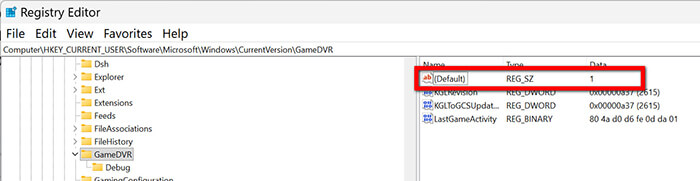
Fix 5: Enable GameDVR via Registry Editor
Sometimes the Game DVR (the engine behind the recording) gets disabled at the system level.
Disclaimer: Be careful in the Registry! Changing the wrong thing can be messy. Follow these steps exactly:
1. Press Win + R, type regedit, and hit Enter.
2. Navigate to: HKEY_CURRENT_USERSoftwareMicrosoftWindowsCurrentVersionGameDVR.
3. Look for a key named AppCaptureEnabled. Double-click it and set the Value data to 1.
4. Then go to: HKEY_LOCAL_MACHINESOFTWAREPoliciesMicrosoftWindowsGameDVR. (If you don't see a GameDVR folder, you can skip this.) If you do see AllowGameDVR, set it to 1.
5.Restart your computer. This forces Windows to acknowledge the recording feature.
Fix 6: Update Your Graphics Driver
If your graphics card (GPU) driver is outdated, the Game Bar may not be able to connect to your game to record it.
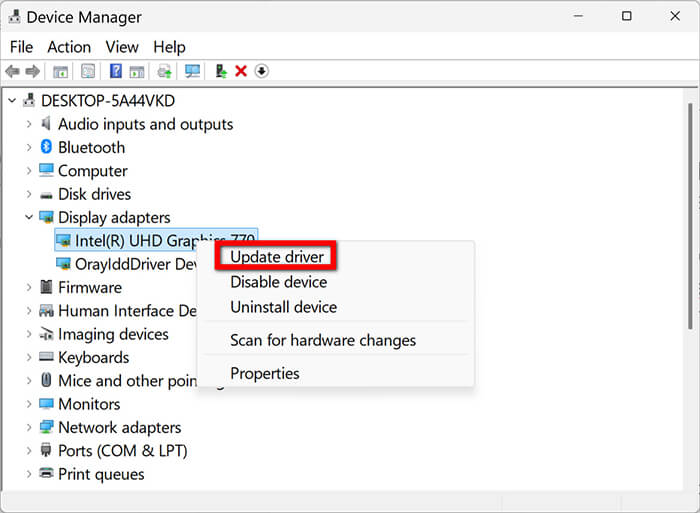
1. Right click the Start button and choose Device Manager from the menu.
2. Expand Display adapters.
3. Right-click your GPU (NVIDIA, AMD, or Intel) and select Update driver.
4. Better yet, download the GeForce Experience or AMD Software to get the latest Game Ready drivers. This often fixes the Game Bar not recording issue because it optimizes how the OS interacts with your hardware.
Fix 7: Repair or Reset the Game Bar App
If the app itself is corrupted, Windows has a built-in self-repair tool that can help resolve the issue.
1. Go to Settings > Apps > Apps & features.
2. Search for Xbox Game Bar.
3. Click on it and select Advanced options.
4. Scroll down and click Repair. This won’t delete your data.
5. If that doesn't work, go back and click Reset. This will wipe the app’s cache and usually clears up any Xbox Game Bar recording not working bugs.
While you’re adjusting these settings, please check your audio. A common complaint is that the Xbox Game Bar microphone is not working. In the same Advanced options menu for the Game Bar, ensure that your default input is set to your actual headset, not a random webcam mic that may have been plugged in without your knowledge.
Part 3. Try an Alternative Recorder to Game Bar
Look, I love the convenience of the Game Bar, but let’s be real: sometimes Windows is just stubborn. If you’ve tried everything and your Game Bar won't record, or if you're tired of the low bitrate and limited features, it’s time to use what the pros use.
Whenever my Game Bar acts up, I switch to FVC Screen Recorder. It is a powerhouse of a tool that basically does everything the Game Bar wishes it could do. Whether you need to record a high-stakes match or a simple how-to video, this software is incredibly reliable. It doesn't lag your game, supports 4K recording, and most importantly, it features a separate Game Recorder tool to capture game video with the camera. It's a set-it-and-forget-it kind of tool that handles system sound, microphone audio, and webcam overlays all at once, making it the perfect backup for when the Windows Game Bar fails to record, ruining your day.
It is easy to use this game recorder software on your Windows 11/10 or Mac computer.
Step 1. Download this software for free by clicking the buttons below to install it on your Windows or Mac computer.
Free DownloadFor Windows 7 or laterSecure Download
Free DownloadFor MacOS 10.7 or laterSecure Download
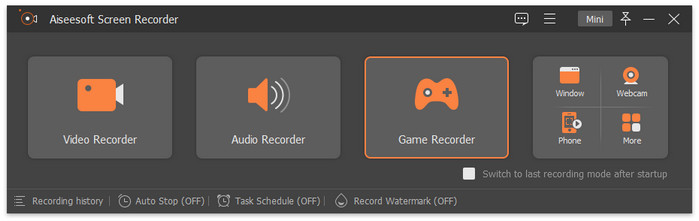
Step 2. On the main interface, select the Game Recorder option.
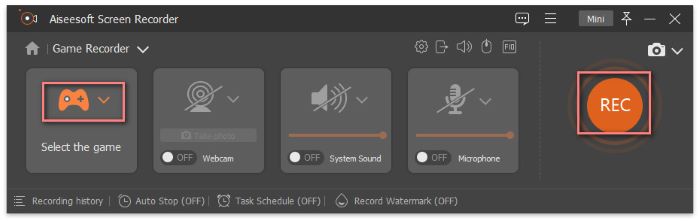
Step 3. Choose the game from the drop-down lists. Toggle the System Sound to ON to capture game music, and the Microphone to ON if you want to record your commentary (great for resolving the frustration of an Xbox Game Bar mic not working!).
Once you're ready, just click the big orange REC button.
Once you’re done, click Stop. You can trim the video right there before saving it to your PCAfter using FVC Screen Recorder for a few weeks, I’ve found it to be much more stable than the native Windows tools. What I like most is the ability to draw on the screen in real-time, super helpful for tutorials. The Task Schedule feature is also a game-changer if you want to record a live stream while you're away. The limitation? The free version has a recording limit, so if you’re planning to create a 10-hour Let's Play series, you'll eventually want to upgrade to the Pro version of the game recorder. But for capturing clips and 10-minute matches, it’s flawless.
| Feature | Xbox Game Bar | FVC Screen Recorder |
| Ease of Use | Very High (Built-in) | High (Simple Interface) |
| System Impact | Low | Very Low (Optimized) |
| Reliability | Hit or Miss (Glitchy) | Very Reliable |
| Mic Support | Basic (Often Bugs Out) | Advanced (Noise Cancellation) |
| Recording Quality | Up to 1080p | Up to 4K / Lossless |
| Editing Tools | None | Real-time Drawing & Trimming |
| Customization | Limited | High (Hotkeys, Formats, etc.) |
Part 4. FAQs
Why isn't my Game Bar recording, even though it's on?
This often occurs when the game is running in Protected mode or when you are in Fullscreen mode, and the Game Bar isn't hooking correctly. Try switching the game to Borderless Windowed mode.
How do I resolve the issue with the Xbox Game Bar microphone not working?
Check your Sound Control Panel. Sometimes, the Game Bar attempts to use a Virtual Audio Cable or the incorrect input device. Set your main microphone as the Default Communication Device in Windows.
Is there a shortcut for how to record the screen on Windows 10/11?
Yes! The default is Windows + Alt + R. If that doesn't work, use Windows + G to open the menu and click the circle icon.
Conclusion
Dealing with a Game Bar won't record errors is like trying to play a game with a 500ms ping; it's annoying, disruptive, and makes you want to quit. However, by following the steps above, starting with the easy permission checks and progressing to Registry fixes, you can usually restore things to normal.
If you’re a student like me or just someone who wants to share their gaming highlights without a headache, I highly recommend having a backup plan. The Xbox Game Bar is great when it works, but having FVC Screen Recorder on your desktop ensures that even if Windows has a moment, your legendary plays are still captured in high definition.
-
 How to Record Games with Steam [Ultimate Guide] 2025
 Looking for a guide to help you record games with Steam easily? Continue reading this article and be guided by four methods, including an alternative tool.
-
 A Full Guide on How to Record Games with NVIDIA ShadowPlay
 Do you know how to record games with NVIDIA? Is it easy to use? Here is a detailed guide to help you operate!
-
 [Full Review] FBX Game Recorder: Is It Really Worth a Try?
 If you want to use the FBX Game Recorder but don’t know where to start, this article covers everything you need to know, including its best alternative.
