


 Video Converter Ultimate
 Screen Recorder
 Video Repair
 Secure Download
How to Capture Only One Screen on a Dual-Monitor Setup
Have you ever hit the Print Screen button just to find that it has taken a screenshot of both of your monitors when you actually wanted only one? That can be quite irritating, mainly if the time you had a single window to share, you were trying to keep your second screen with private content away from the eyes of the others, or simply wanted to save yourself the trouble of editing later. However, the positive side is that you are not forced to crop every screenshot manually. After learning how to screenshot one screen only, taking a screenshot of exactly the part you want will be as easy as a breeze. This post will provide you with a few techniques, starting with the simple keyboard shortcuts and the full-fledged capture tools that will enable you to take neat screenshots of a single monitor in a multi-display environment.

Part 1. How to Screenshot One Screen Only When You Have Dual Monitors
With two monitors, work is quite a bit easier. Though snapshots of your entire desktop might not be as straightforward. If you don't want Print Screen to catch both screens, there are several ways to isolate just one display or a single window. The techniques listed below will help you get a shot where you need to print screen only one monitor or a portion of your screen.
Method 1: Capture the Active Window (Alt + PrtScn)
Usually, a single window will be displayed when you open the desired content, so you won't have to screenshot your full desktop. The Alt + PrtScn shortcut is very handy for taking a screenshot of only the active window. Based on the last point, this combination can be considered one of the fastest ways for a user to figure out how to screenshot only one monitor without showing everything you have displayed over the dual-monitor setup.
Step 1. Launch the app or the window you'd like to take a screenshot of. Select a part of the window by clicking to ensure it's in focus.
Step 2. Hit the Alt + PrtScn keys on your keyboard at the same time. The clipboard will be used to store your screenshot.
Step 3. Run a program like Paint, Microsoft Word, or another photo editing software. Hit Ctrl + V to insert the screenshot.
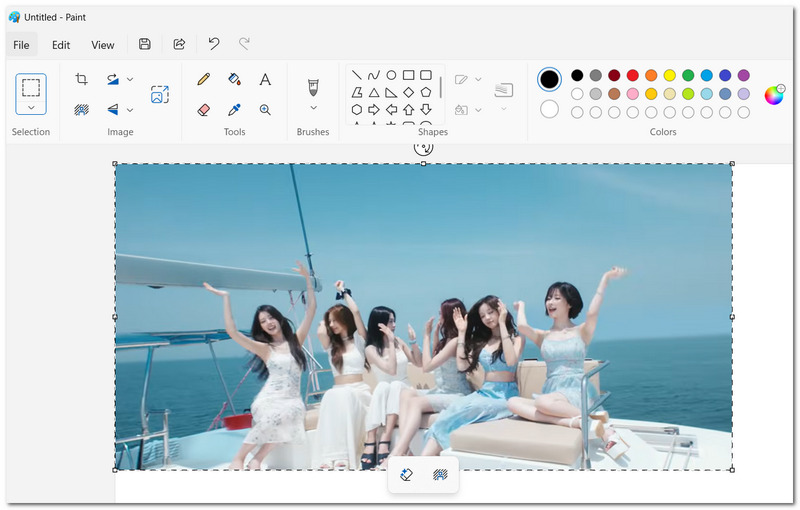
Step 4. Make any changes or notes you want. After that, navigate to File > Save As, select the file type you want (e.g., PNG or JPEG), and save the screenshot on your computer.
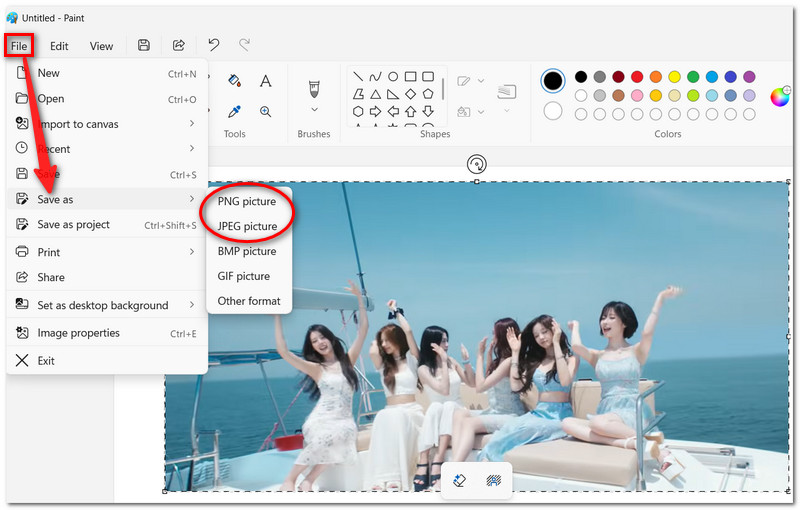
This is the best way to capture a single window, especially when you want to avoid other unwanted content from your second monitor.
Method 2: Use FVC Screen Recorder to Select a Specific Screen Area
When I want more control over my screenshots, my go-to tool is FVC Screen Recorder. With it, I can select only the part I need instead of snapping the entire screen or the whole window. How to only screenshot one monitor. This program not only simplifies but also offers some handy editing features that enable you to make quick annotations.
Main Features
• Take a screenshot of a certain window or a specific area.
• Screenshot files can be stored in PNG, JPG, BMP, and other popular formats.
• Configure screenshot shortcuts for quicker capturing.
• Perform the creation of high-resolution screenshots that maintain image sharpness.
• Lightweight and easy to use for beginners.
Free DownloadFor Windows 7 or laterSecure Download
Free DownloadFor MacOS 10.7 or laterSecure Download
Steps to Screenshot One Monitor with FVC Screen Recorder
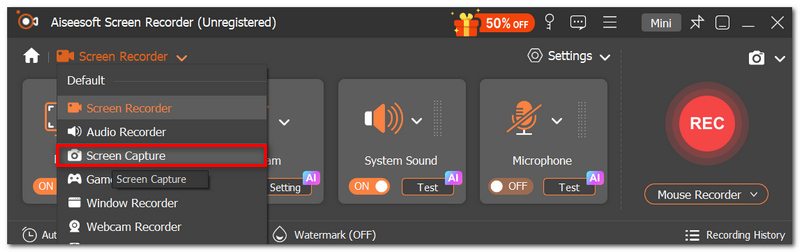
Step 1. Install the FVC Screen Recorder and launch the software. Click Screen Capture on the main window.
Step 2. Point your mouse at the monitor you want to take a picture of. Holding down the mouse button, select the precise screen area you want to capture.
Step 3. Release the mouse button to complete the screenshot of the area that has been outlined. If you want, you can use the editing toolbar to add annotation parts such as text, arrows, or shapes.
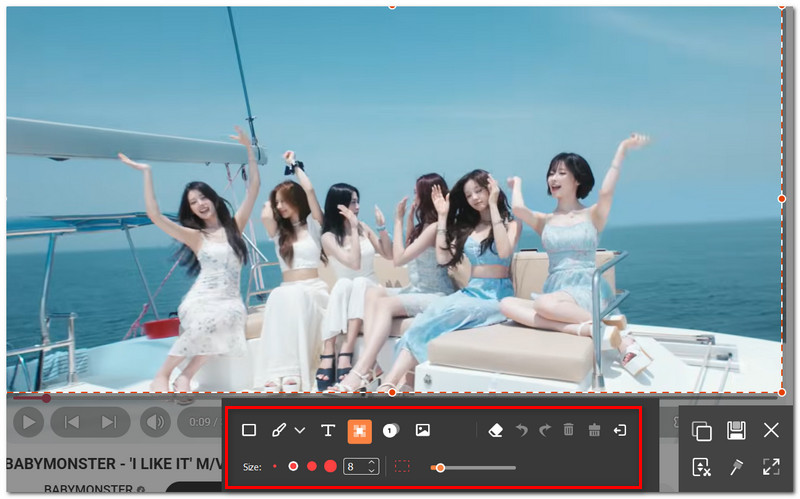
Step 4. Click the Save icon. Select the image format you like and the folder location where you want to save the screenshot.
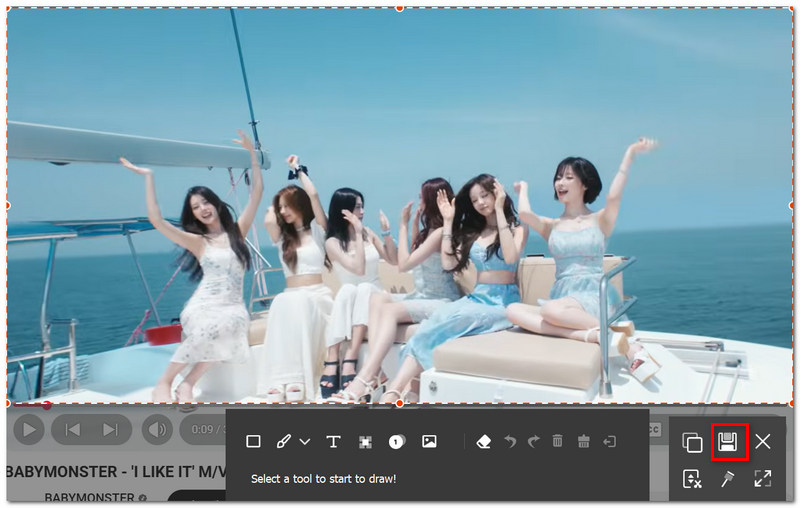
When you use FVC Screen Recorder, you are able to define exactly what you want to capture, so it works really well when you want to screenshot the content on only one monitor without getting your other display in the screenshot.
Method 3: Use ShareX for Advanced Multi-Monitor Control
If a multi-monitor setup is your daily working environment and you want more advanced options for capturing screenshots, then ShareX is an excellent option. This tool supports various capture modes, such as choosing a particular monitor, window, or drawing a custom region. When you Google how to take a screenshot of only one monitor, ShareX screen recorder not only answers that question but also offers you a lot of handy tools if you are a power user.
Step 1. Download ShareX and install it on your Windows computer. Open ShareX and click Capture in the left panel.
Step 2. Pick Monitor if you want to shoot the whole display, or pick Region if you prefer to only take a part of the screen. In case you chose Monitor, simply click the monitor that you want to screenshot.
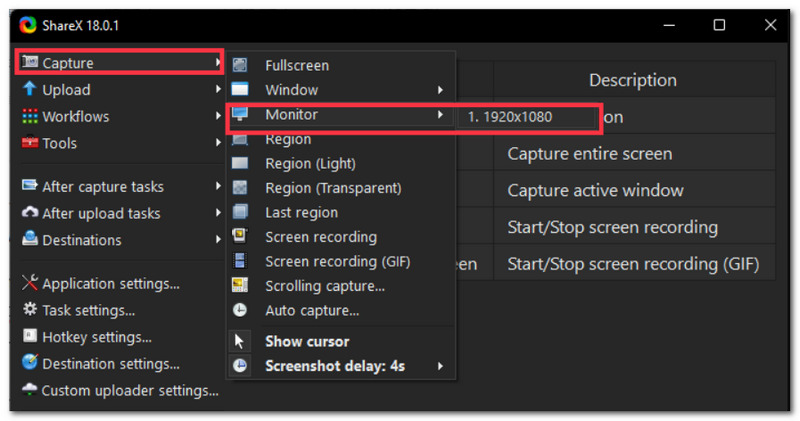
If you picked Region, move your cursor to draw a rectangle around the desired area to capture.
Step 3. Let go of the mouse to take the screenshot. Then, your screenshot will show up. View the snapshot, edit as necessary with ShareX's onboard features, or immediately share it online.
Step 4. Store the snapshot in a folder or put it on the clipboard for on-the-spot usage.
ShareX enables you to capture only the monitor that you want to use to get that screenshot, while at the same time allowing you to make use of the very powerful screenshot and workflow automation features the program offers.
Part 2. FAQs about Screenshot One Screen Only
Is it possible for me to set a default monitor for screenshots in Windows?
Unfortunately, Windows does not provide you with the option of setting a default monitor for screenshots. Yet, there are many third-party screenshot utilities that will allow you to select the display you want to capture.
If I disconnect my second monitor, will that change the screenshot shortcuts I use?
No. Your shortcut keys will stay the same. The only difference is that Windows will regard your remaining monitor as the main one.
How can I make a screenshot of a vertical monitor only without including the horizontal display?
Of course. Most of the cutting-edge screenshot programs can distinguish a portrait monitor from a landscape monitor and capture only one of them.
Conclusion
Managing several monitors doesn't imply that your screenshots should turn into a puzzle. After I figured out how to print screen only one monitor, getting a clean and precise shot of the thing I was looking for became a breeze and super quick. Besides using the shortcut keys or the screenshot utilities, selecting the best approach is time-saving and will enable you to produce nicely detailed screenshots without unnecessary editing.
-
 Snipping Tool Chrome Extension
 Explore the 5 best snipping tool Chrome extensions for capturing screenshots in your browser.
-
 How to Get 4K Quality on OBS: Most Detailed Description
 If you're playing a high-resolution game and want to record the clearest video of your actions, read this guide. We'll teach you how to get 4K quality on OBS.
-
 How to Stream DVD to Chromecast
 Learn how to stream DVD to Chromecast easily.
