


 Video Converter Ultimate
 Screen Recorder
 Video Repair
5 Methods to Convert Codec H.265 to H.264 (Increase File Quality)
Converting H.265 to H.264 is understandable, whatever the reason you need it. H.265 has a smaller file size and sharper quality, but at a lower bitrate. Yet, the H.264 codec has better support for devices, compression, and other factors you need. The good thing is, this article exists to help you do the process using the 5 best effective methods. Allow us to guide you in this matter. Kindly read the details below; we have everything you need to know

Can You Convert H.265 to H.264 Without Losing Quality?
Yes. You can always convert H.265 to H.264 without noticeable quality loss. That will be possible if you configure the proper encoder and choose the best tool for it. In this matter, the key elements are to always have the same resolution, a high bitrate, and to avoid settings that can lead to aggressive compression.
4 Best Ways to Convert H.265 to H.264 on Windows/Mac
Method 1: Video Converter Ultimate: Best for Batch & Fast GPU Encoding
Best For: Fast GPU encoding.
Speed: 30 times faster with GPU acceleration.
Batch Conversion: Up to 11 GB files.
Price: $37.50
Overall rating: 4/5
The first method here is using Video Converter Ultimate by FVC. It is a great tool that can help you manage popular and unusual media files. This includes transforming your H.265 to H.264 with ease. One unique feature you can enjoy in this article is its ability to intelligently recognize the video files you have from external devices. Overall, FVC Video Converter Ultimate is a great option to convert your H.265 to H.264 codec.
Steps to use FVC Video Converter Ultimate
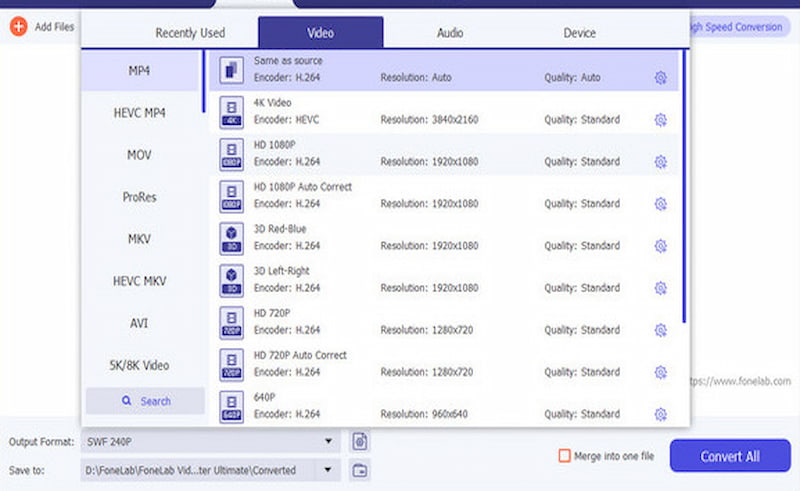
Step 1. Open the software on your computer after you install it. Then select the Converter button.
Step 2. Proceed to click Add Files to import the H.265 videos you have.
Step 3. From the interface, select H.264 in MP4 as your output format.
Step 4. Go to the settings and enable GPU acceleration. Finally, click Convert All and let the tool process the files.
Method 2: FVC Free Online Video Converter:
Best For: Best for Quick, free, and no installation required.
Speed: Standard.
Batch Conversion: Available for small files.
Price: Free
Overall rating: 4.5/5
FVC Free Online Converter is the next tool on the list that can convert your H.265 to H.264 online. This tool requires no software installation. More than that, it is very easy to use and provides a straightforward process. Therefore, if you want to get things done with ease, then FVC Free Converter Online is a suitable tool for you. You can get and use it now because it is free.
Steps to Use FVC Free Converter Online
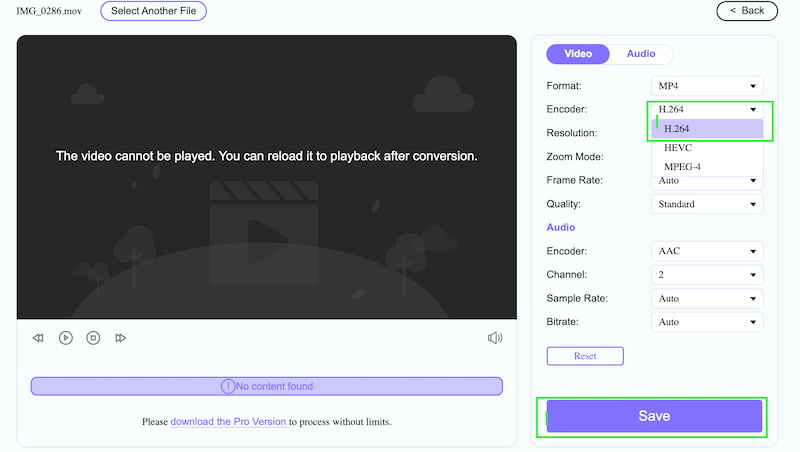
Step 1. Access the official website of FVC Free Video Converter. From there, click the Add a File button.
Step 2. Add the H.265 video you have. Then set the Encoder to H.264.
Step 3. After that, click the Save button and let the tool process the file. After a few seconds, your video is now ready.
Method 3: HandBrake: Best Free, Open-Source Desktop Tool
Best For: Free and open-source tool.
Speed: Moderate.
Batch Conversion: Yes, but with a queue system.
Price: Free
Overall rating: 4/5
HandBrake is a trusted open-source tool that can transform your H.264 to H.265 with ease. This tool has the capability to balance video quality and file size. More than that, it has a CRF setting that can give you precise control.
Steps to Use HandBrake
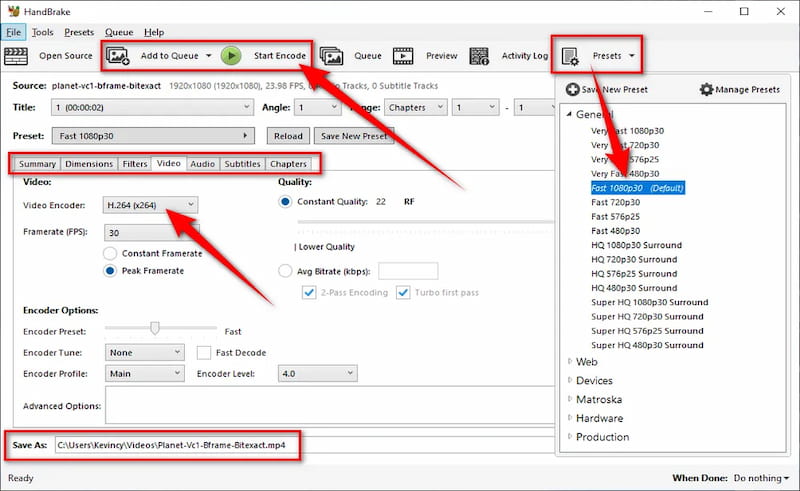
Step 1. Open HandBrake on your PC and import the H.265 file.
Step 2. See the Video Codec and select H.264 as the output format.
Step 3. You will also have the option to adjust the CRF (Constant Quality) to 22 to 24. Then click the Start button.
Method 4: VLC Media Player: The Hidden Convert Feature
Best For: SideQuest converting tool.
Speed: Normal.
Batch Conversion: No.
Price: Free
Overall rating: 4.2/5
We all know that VLC Media Player is popular for giving us great playback with different file formats. Yet, more than that, it is also capable of converting our H.254 to H.264 codec with ease. That is possible because it has a hidden feature to do so. Yet, you cannot expect a wide range of options for batch automation and advanced settings. Despite that, it can pretty much do the basic conversion you need.
Steps to Use VLC Media Player as a Converter
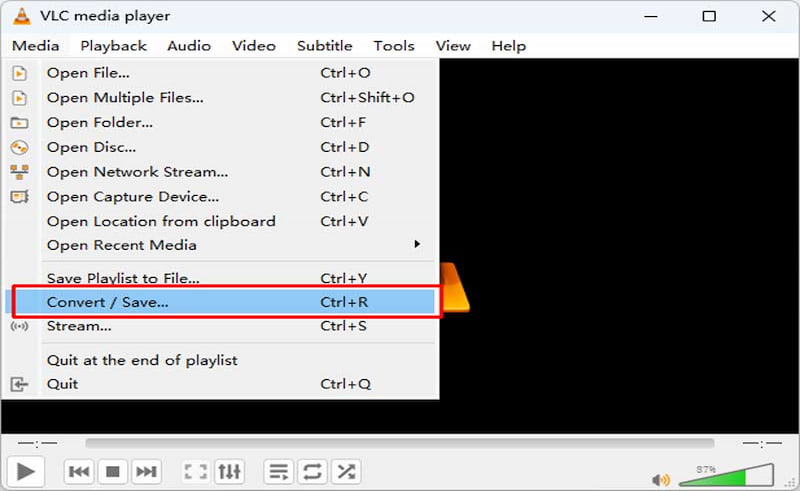
Step 1. Open VLC Media Player on your computer and see the Media option as you click on the Convert/Save setting.
Step 2. You can now add the H.265 file you have. Then click the Convert setting.
Step 3. Select H.264 in MP4 as your profile or output format.
Step 4. Select the destination of your file. Then click the Start button to begin conversion.
Method 5: FFmpeg (Best for Advanced Users & Pro Automation)
Best For: Advanced users and pro automation.
Speed: Fast and scriptable.
Batch Conversion: Yes, via scripts.
Price: Free
Overall rating: 4/5
FFmpeg is another on the list with its powerful command-line tool for professional media personnel. This tool can support you in converting files of unlimited size with customizable parameters. This tool is the most flexible option you need for an advanced workflow. Yet, this is not for beginners.
Steps to Use FFmpeg
Step 1. You need to install FFmpeg on your system. Then, please open the command line or terminal.
Step 2. You can now run the command: ffmpeg -i input.mp4 -c:v libx264 -crf 23 output.mp4.
Step 3. Adjust the CRF of the tool; you need to lower it to get higher quality, or vice versa.
Step 4. Please use a script now to automate batch conversion if needed. Then, review the output files in H.264 format.
Comparison Table of H.265 to H.264 Converters
You have seen different descriptions and guides on using the best converters for H.265 to H.264. Now, allow us to give you a comparison table of the five tools. Here, you will see a bigger picture to compare each tool so that the process of choosing your own will become easy. Take a look at the table below:
| Method | Best For | Speed | Batch Conversion | Price | Overall Rating |
| Video Converter Ultimate | Fast GPU encoding | 30× faster with GPU acceleration | Yes (up to 11 GB files) | $37.50 | 4/5 |
| FVC Free Online Video Converter | Quick, free, no installation | Normal (internet‑dependent) | Limited (small files only) | Free | 4/5 |
| HandBrake | Free, open‑source desktop tool | Moderate (CPU/GPU dependent) | Yes (queue system) | Free | 4.3/5 |
| VLC Media Player | Hidden convert feature | Normal speed | Limited (manual, one by one) | Free | 4.2/5 |
| FFmpeg | Advanced users & automation | Fast with scripting | Yes (via scripts) | Free | 4.6/5 |
FAQs about Converting H.265 to H.264
Q: Why did my converted H.265 get a bigger file size in H.254?
A: You got a bigger file size in H.264 because it commonly has a bigger file size. It is 25 to 50 percent bigger than H.265 because of its higher quality and compatibility with many devices.
Q: Why is the audio lost after converting H.265 to H.264?
A: This is an issue with some tools because they are failing to reset the audio codec of your video. That's why it is very important to choose the best one.
Q: Why cannot I upload my H.265 video to CMS or social platforms?
A: There are many CMS systems that re-encode and reject your HEVC upload, especially when the file comes with the H.265 codec. Thus, converting it to H.264 is a great way to ensure a smooth upload process.
Conclusion
We get to the conclusion that converting H.265 to H.264 is not possible with ease because of the amazing tools we have. In this post, you encountered five of the leading tools you can use, from quick conversion to advanced processing. For a recommendation, FVC Free Converter Online is probably the best among the options since it has a streamlined and straightforward process. On the other hand, Wondershare Video Converter Ultimate if you need a desktop tool. Use them now and make your video compatible across devices.
-
 H.264 to MP4: What’s the Difference and How to Convert them
 Looking for ways to convert H.264 to MP4? This article is for you! Learn how to easily convert H.264 to MP4 for improved compatibility with various devices.
-
 3 Methods to Easily Convert DVD to H.264 [Windows & MacOS]
 Looking for a solution to convert DVD to H.264, we’ve got you covered! Read this article and learn 3 various tools that you can try to easily convert your DVDs.
-
 Effortlessly Convert iPhone Videos to MP4 on PC Without Quality Loss
 Discover how to convert your iPhone videos to MP4 format without losing quality. Learn both online and offline methods to ensure smooth playback on any device.
