


 Video Converter Ultimate
 Screen Recorder
 Video Repair
 Secure Download
How to Batch Convert in HandBrake: Step-by-Step Guide
Converting videos one by one can be time-consuming, especially when you have dozens of files waiting to be processed. Fortunately, HandBrake includes a batch conversion feature that lets you queue multiple videos and convert them all in one go, saving you both time and effort.
In this guide, you'll learn how to batch convert in HandBrake with easy-to-follow steps, including how to add multiple files, apply your preferred encoding settings, and start the conversion process. Also, don’t miss the alternative tool that offers a more straightforward workflow and additional features, making batch video conversion even easier if HandBrake doesn't fully meet your needs. Want to know more? Continue reading!

Part 1. How to Batch Convert in HandBrake
If you're new to HandBrake, don't worry, the batch conversion process is easier than it may seem. While the software doesn't let you drag and convert multiple videos instantly like some dedicated converters, it does provide a Queue feature that allows you to add several videos and process them one after another automatically. Once everything is set up, HandBrake handles the rest, so you don't have to manually convert each file.
Follow the steps below to learn how to batch convert in HandBrake and save time when working with multiple videos.
Step 1. Open HandBrake and click Folder (Batch Scan). After that, select the folder containing all the videos you want to convert.
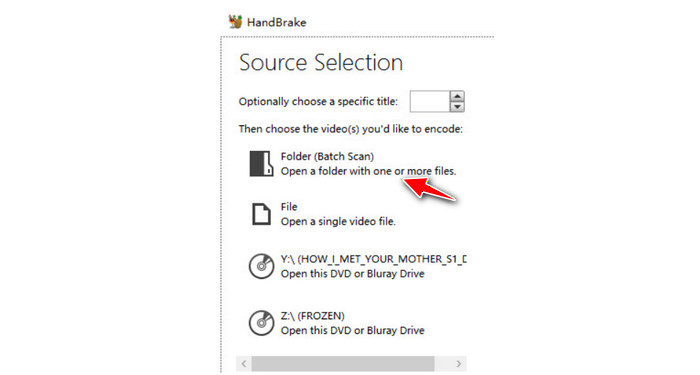
Note: Before doing this, make sure you've placed all the videos you want to process into a single folder. Also, if you're converting a VIDEO_TS folder or videos directly from a DVD, select the appropriate folder or DVD drive instead.
Step 2. Next, click Tools, go to Preferences, then open the Output Files tab. Select Browse and choose where you want your converted videos to be saved. Once done, return to the main window.
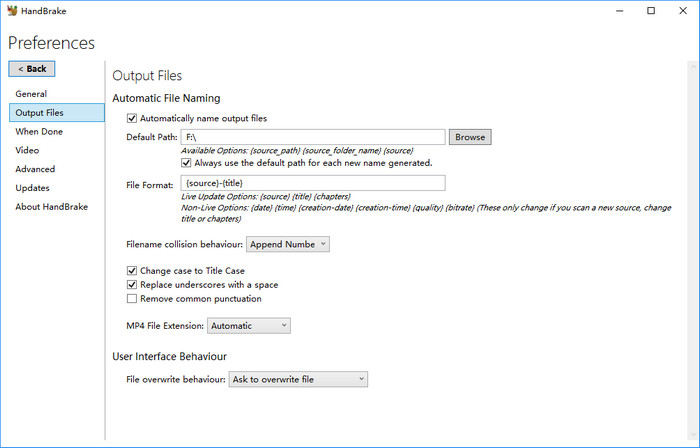
Setting an output folder in advance prevents errors when adding multiple videos to the queue.
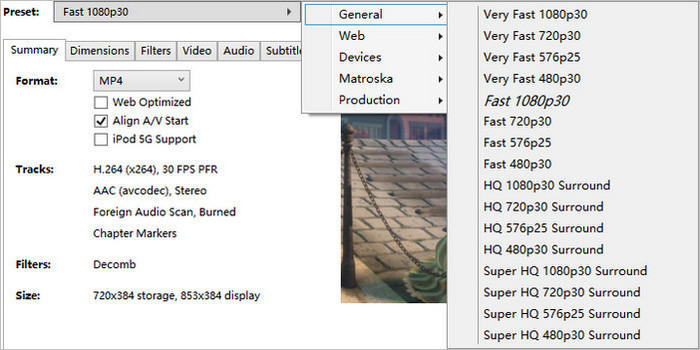
Step 3. After HandBrake scans your videos, select the output preset that best fits your needs. You can use one of HandBrake's built-in presets or customize settings such as the video dimensions, subtitles, audio, and more.
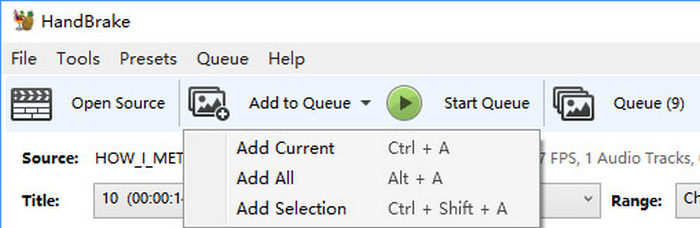
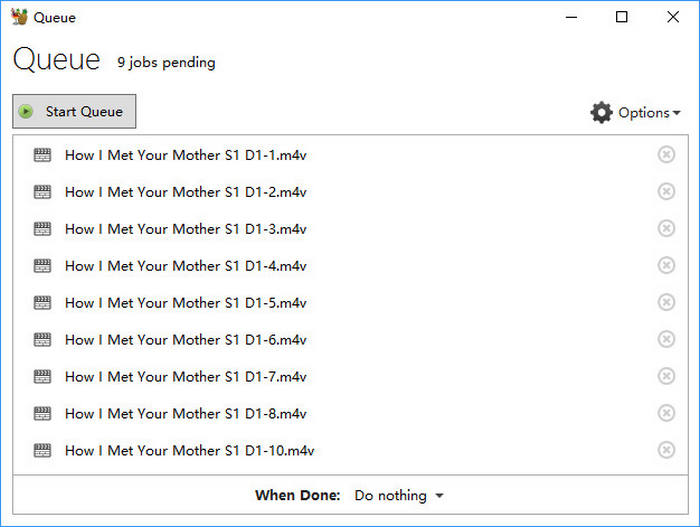
Step 4. Now, click the drop-down arrow next to Add to Queue, then choose Add All to include every video in the folder or Add Selection to add only specific files. Once added, the Queue button will display the total number of pending conversion tasks.
Step 5. Lastly, click Queue to review the videos you've added. When everything is ready, click Start Queue to begin converting all your videos automatically.
Part 2. Why the Conversion Queue Stops or Fails
If you're using HandBrake to batch convert, you may notice that the queue suddenly stops or one or more videos fail to convert. This can be frustrating, especially when you're processing a large batch. The good news is that these issues are usually caused by a few common problems and can often be resolved without starting over.
Here are some of the most common reasons why the HandBrake conversion queue stops or fails:
Corrupted or damaged video files: If one of the videos in the queue is corrupted or incomplete, HandBrake may fail to process it, causing the conversion to stop or skip that file.
Unsupported video formats or codecs: While HandBrake supports many video formats, it cannot convert every file type or codec. If a video uses an unsupported format, the conversion may fail.
Incorrect output settings: Choosing incompatible encoding options, containers, or filters can result in conversion errors. Using a preset that matches your intended output is usually the safest option.
Insufficient storage space: Batch conversions create multiple output files. If your drive runs out of available storage during the process, HandBrake may stop the queue before it finishes.
Permission or file access issues: HandBrake needs permission to read the source videos and save the converted files. If it cannot access either location, the conversion may fail.
System interruptions: Restarting your computer, putting it to sleep, or closing HandBrake while the queue is running will interrupt the conversion process.
Part 3. Best Alternative to HandBrake for Batch Conversion
While HandBrake batch conversion is a great feature, its workflow can feel limiting, especially if you need a faster and more user-friendly experience. If you frequently convert multiple videos, you may benefit from a tool that lets you add files, choose an output format, and start the conversion with fewer steps and more customization options.
One of the best alternatives is FVC Video Converter Ultimate.
Main Features:
- • Supports a wide range of video and audio formats like MP4, MKV, MOV, AVI, FLV, WMV, WEBM, and more.
- • Customizable output settings like codec, resolution, bitrate, frame rate, etc.
- • High-speed conversion with up to 30× faster processing.
- • Maintains high-quality output, including support for up to 4K resolution.
- • Batch conversion to process multiple files at once.
- • Built-in editing tools for trimming, cropping, and enhancing videos.
- • Compatible with both Windows and macOS systems.
Steps on How to Batch Convert Using FVC Video Converter Ultimate:
Step 1. First, download the software tool and install it on your computer.
Free DownloadFor Windows 7 or laterSecure Download
Free DownloadFor MacOS 10.7 or laterSecure Download
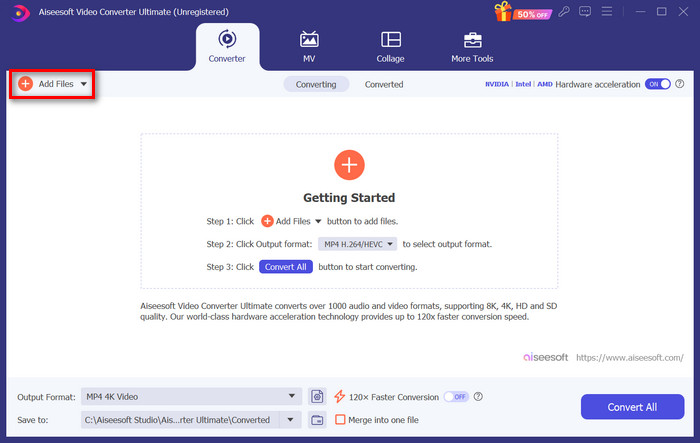
Step 2. On the Converter tab, click on the Add Files button and import your video files.
Step 3. Once the video files are imported, select your desired format by clicking the Output format button.
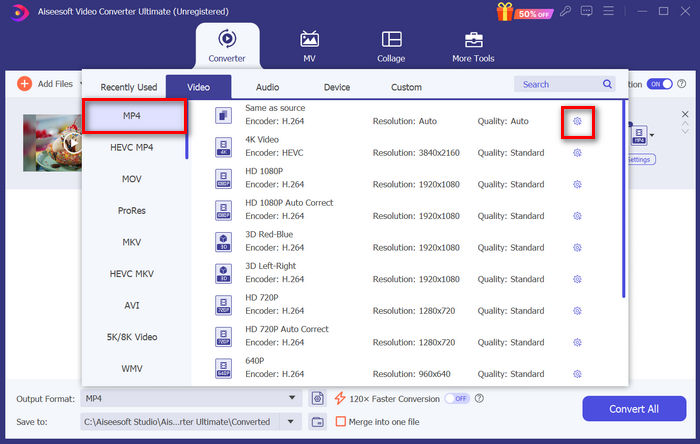
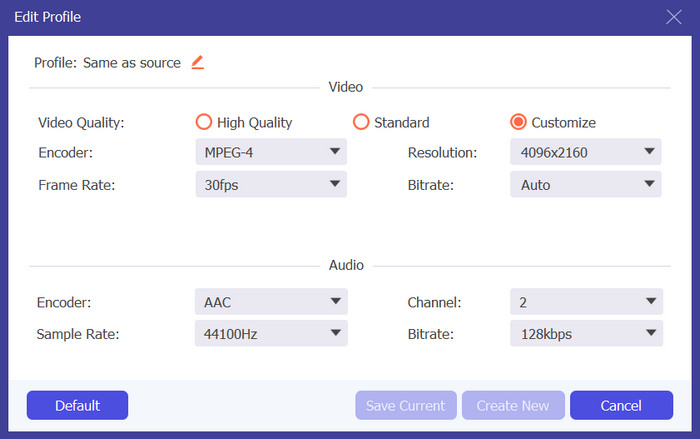
Meanwhile, if you want to customize the Custom Profile, go to the Settings dialog box. From there, you can edit the video codec, quality, file name, etc. When done, just click the Create New button to save.
Step 4. Once done, just click the Convert All button and these will automatically convert all the videos at once.
Part 4. FAQs about HandBrake Batch Conversion
Can I apply the same settings to all videos in a HandBrake batch conversion?
Yes. HandBrake lets you apply the same preset and output settings to multiple videos in the queue. This is especially useful when you want all converted files to share the same format, resolution, codec, or quality level, helping you keep the results consistent across the entire batch.
Can HandBrake batch convert videos into MP4?
Yes. HandBrake can batch convert videos to MP4, MKV, and WebM. Simply choose your preferred output format before adding the videos to the queue.
Can I stop and resume a HandBrake batch conversion?
Yes. You can stop the queue at any time, but HandBrake batch conversion does not support resuming a partially converted video. If the process is interrupted, you'll need to restart the unfinished conversions.
Conclusion
Learning how to batch convert in HandBrake is a great way to save time when working with multiple videos. By using its built-in Queue feature, you can process an entire folder of videos without having to convert each file individually. However, if you want a faster, more intuitive workflow with broader format support and additional editing features, FVC Video Converter Ultimate is an excellent alternative. Choose the tool that best suits your needs and make batch video conversion quicker, easier, and more efficient.
-
 [Free & Online] 6 Ways to Convert MTS to MP4 in High Quality
 Don’t know how to convert MTS file to MP4? In this guide, you will find 6 free and easy ways to change MTS format to MP4 on Windows or Mac without quality loss.
-
 4 Ways to Convert QuickTime Movies to MP4 for Free on Phone/Computer
 Read and get 4 ways to convert QuickTime to MP4 videos for free on your phone or computer. You can change file format from MOV to MP4 easily.
-
 Transform M4A to MP3: 5 Best Converters You Should Know
 If you want to convert M4A to MP3 for easy playback and editing, please refer to the 5 converters we provide. You will get the most detailed steps guide.
