


 Video Converter Ultimate
 Screen Recorder
 Video Repair
 Secure Download
5 Options: Find the Best Video Converter for Android for You
I need to convert a video to a format compatible with my Android device. How should I go about it?
Your first thought might be to use a standard video converter, media player, or editor on your computer. But you can't be sure you'll have a computer handy, not to mention that you'd first need to transfer the video from your phone to your computer. So, let's simplify things - use a video converter for Android to complete the format conversion right on your phone.
This guide was created specifically to solve this problem for you. To save you time choosing an Android video converter, we've pre-selected five reliable options on the market. By highlighting their key features, pros, and cons, we're confident you'll be able to make an informed decision.

How We Test and Review
- • Based on hands-on testing: We have personally tested all the converters recommended in this article and have compiled this review based on our actual experience and the quality of the final results.
- • Referencing reliable sources: We consult reviews and recommendations from major websites and platforms to identify reliable product options.
- • Gathering user feedback: We collect user reviews of various Android video converters from major forums and review sites, paying close attention to the advantages and issues that users care about most.
Part 1. 5 Best Video Converter Apps for Android
Let's get right to the point and take a look at the 5 video format converters for Android we'd like to recommend to you - all of which can be downloaded and installed from Google Play.
We'll provide a brief introduction to each product, highlighting its most notable features along with its pros and cons, to ensure you get the most comprehensive overview.
InShot
Best for: Ease of use; Most comprehensive features
Score: 4.5/5
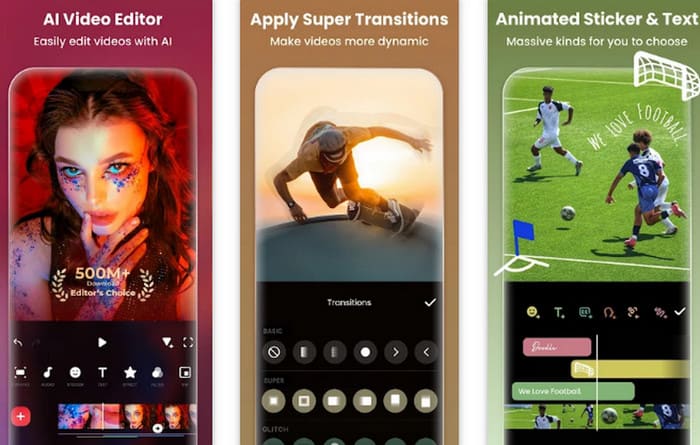
After conducting our research, we found that many users agree InShot is the easiest-to-use and most feature-rich video-to-video converter for Android. This single app combines a video converter, editor, voice-over tool, effects library, music library, 3D editor, background remover, and more. By reviewing the app's update log, we've seen it gradually add AI portrait editing, beauty filters, an audio equalizer, and other advanced video editing options.
It's also worth noting that the app runs quite smoothly, with virtually no errors or bugs. However, some users have mentioned that the process for unlocking paid features is somewhat inconvenient and hope the developers will address this soon.
Pros
- Runs smoothly and offers a comprehensive set of features.
- No lag or errors, and no intrusive ads that disrupt the user experience.
- New features are constantly being released.
Cons
- A significant portion of the features requires a paid unlock, and the subscription process seems somewhat cumbersome.
CapCut
Best for: Supports converting videos in multiple formats; ideal for creating content to post on social media
Score: 4.8/5
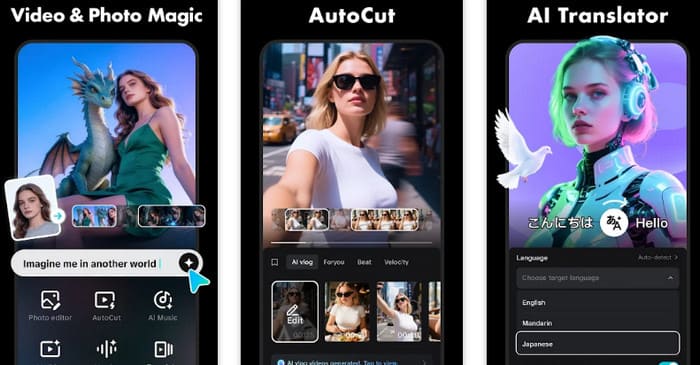
If you've ever tried editing videos, you're probably familiar with CapCut - its online video converter Android and editor are incredibly professional and well-known, not to mention that it now comes with an AI-powered generation model. Surprisingly, CapCut has also launched a mobile app that replicates the main features of its online version.
The mobile app currently supports converting a wide range of formats (MOV, MP4, M4V, MKV, AVI, WEBM, RM, RMVB, etc.) into standard MP4 and MOV formats. It also offers advanced features such as automatic subtitles, motion tracking, background removal, text-to-speech, AI avatars, stabilization, keyframe animation, slow motion, and more.
It's worth noting that if you're planning to edit videos for sharing on popular social media platforms like Instagram, TikTok, WhatsApp, and YouTube, CapCut is the best choice for you.
Pros
- Integration of the latest AI technology.
- Very comprehensive features, combined with a clear and intuitive user interface.
- Offers the most popular effects and editing features, perfect for creating trending social media content.
Cons
- A significant number of users have reported that the app lags considerably when importing video footage.
- The subscription fee is on the high side.
Video Converter & Compressor
Best for: Highly Detailed Control Options
Score: 4.3/5
I want to make sure every aspect of the converted video meets my expectations. Is there a tool that lets me control the settings with this level of precision?
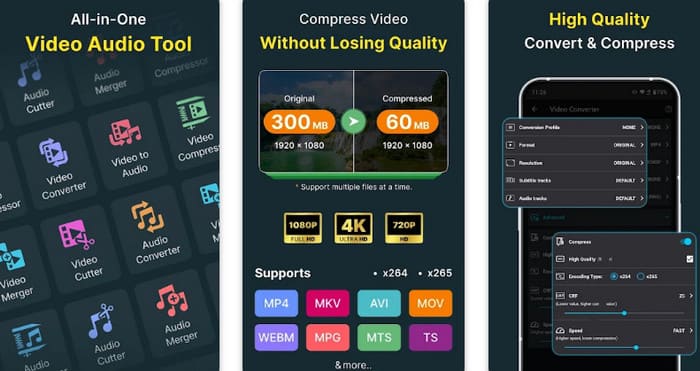
Based on reliable information, we recommend you try Video Converter & Compressor by Inverse.AI. It's a truly detailed and comprehensive video-to-audio converter app for Android. First, it supports a wide range of file formats, such as MP4, MKV, AVI, MOV, WEBM, MPG, MTS, TS, and more. It also features simple and easy-to-use options for frame rate, bitrate, and resolution, and you can even trim and merge clips before exporting the converted file. Second, you can also use it as an audio or video-to-MP3 converter for Android. Finally, you can convert and compress videos in batch, which are very useful for improving productivity.
Pros
- Allows users to precisely control video parameters.
- Supports video and audio conversion.
- Supports batch conversion.
- Offers additional features such as audio and subtitle addition, as well as video compression.
Cons
- May cause the phone to overheat at times, so it's not suitable for prolonged use.
Video Converter - Remux
Best for: Practical; supports a wide range of formats
Score: 4/5
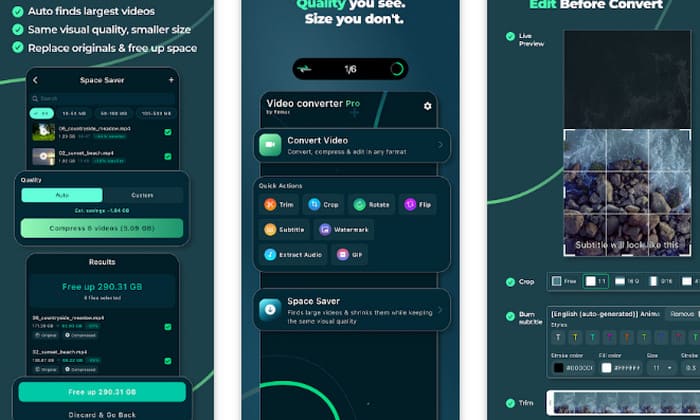
If you're worried that your original video format is too obscure, then Remux is likely the best converter for you.
This app supports over 20 output formats, including video formats such as MOV, MP4, WEBM, MTS, GIF, WMV, TS, M4V, OGV, FLV, 3GP, F4V, and MPG, as well as audio formats such as WAV, FLAC, MP3, AIF, and M4A.
There are also some other useful features we'd like you to know about: If you only want to keep the audio from a video, you can export the audio separately; if you want to create an animated image from a video, you can extract a clip and export it as a GIF. All converted videos are compressed appropriately to help you save storage space.
Pros
- Extremely strong format compatibility.
- Offers a very useful cropping feature.
Cons
- Occasionally, errors such as conversion failure or excessively large output files may occur.
Wondershare Filmora
Best for: Features as powerful as desktop software
Score: 4.1/5
Wondershare Filmora has long been a well-known desktop video conversion and editing program, and now the developers have released a mobile app that perfectly replicates the desktop version.
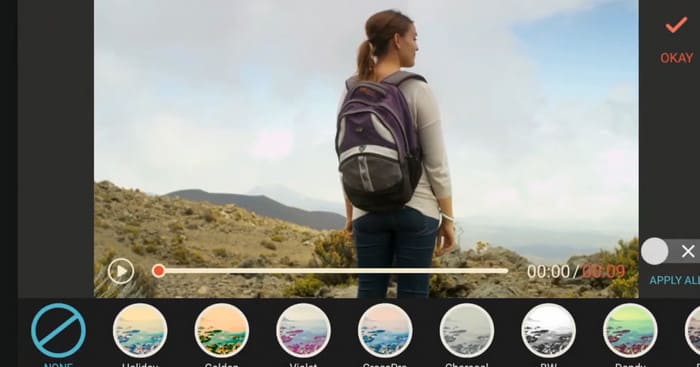
With this app, you can easily convert video formats and perform basic video editing tasks, such as trimming, rotating, merging clips, adding background music, voiceovers, and special effects. You can also unlock trendy animated text and title styles, filters, and dynamic elements.
Pros
- Comprehensive features on par with the desktop version.
- A media library worth exploring.
Cons
- The user interface isn't intuitive enough.
Part 2. More Advanced Video Converter for Desktop
With the help of these five video converter apps for Android, you can easily convert video formats on your phone even without a computer nearby.
However, since smartphone screens are limited in size, we still recommend using a computer and professional format conversion software whenever possible if you want to perform more detailed video editing. A product like FVC Video Converter Ultimate will be your best assistant.
FVC Video Converter Ultimate possesses all the features a top-notch converter should have. First is its exceptional compatibility: the software supports over 1,000 multimedia formats and offers versions compatible with both Windows and Mac systems. Second, FVC supports batch conversion, and with the help of hardware acceleration technology, its conversion speed is now up to 120 times faster. Finally, regarding output quality, FVC promises that converted videos will retain their original quality to the greatest extent possible. Of course, users can also select the output quality and adjust parameters such as frame rate themselves before starting the conversion.
Free DownloadFor Windows 7 or laterSecure Download
Free DownloadFor MacOS 10.7 or laterSecure Download
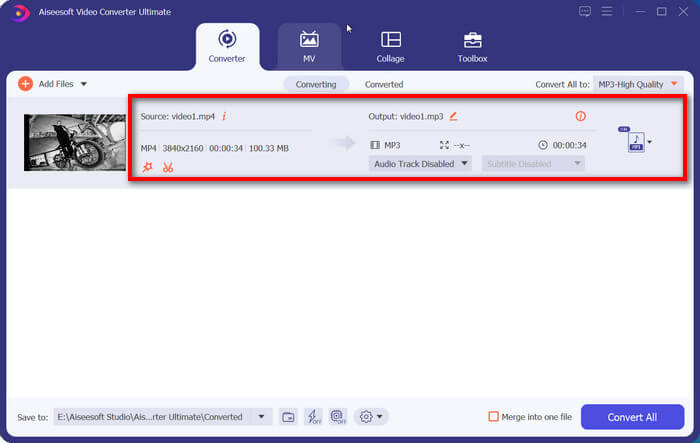
Here's how to convert video formats using FVC Video Converter Ultimate.
Step 1. Download and install FVC Video Converter Ultimate on your computer.
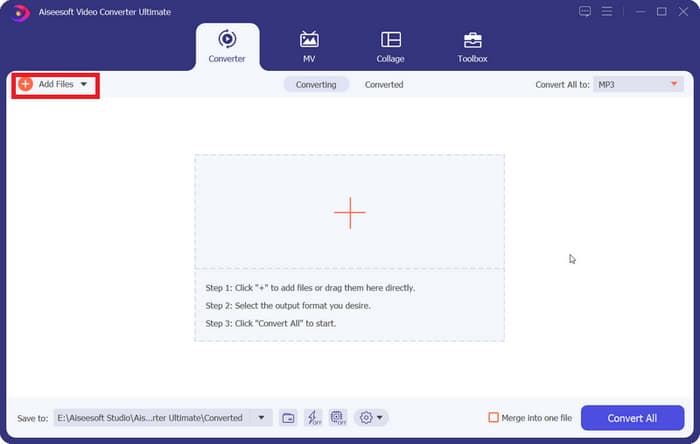
Step 2. Click the Add Files button to upload the video files you want to convert.
Next, locate the Output Format option (in the lower-left corner of the page), expand the drop-down menu, and select Video > MP4 or any other output format you need.
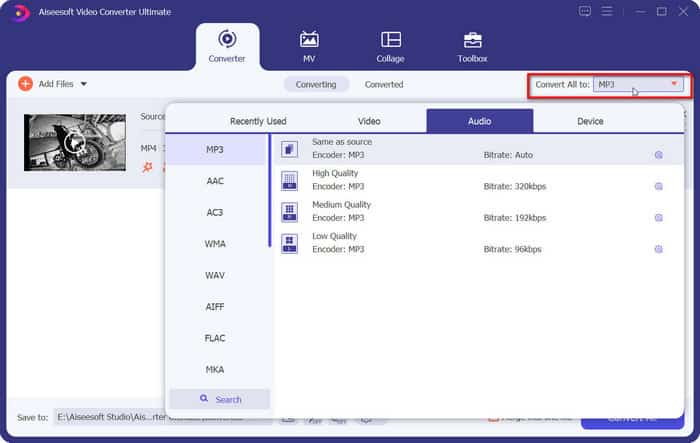
Step 3. Click Convert All to start the conversion.
Part 3. FAQs of Video Converter for Android
What is the best video converter for Android?
It depends on what features you value most in a tool. If you prioritize a wide range of supported formats, then Video Converter - Remux might be the best choice; if you want the most comprehensive editing features, we recommend CapCut.
What is the best free video converter?
When it comes to free video converters, desktop or online tools may better meet your needs. A well-known free option is Handbrake. VLC Media Player is also considered one of the best free format converters.
What video converter is easiest to use?
Format converters that are quite simple to use include Handbrake and VLC Media Player. If you're looking for a more professional option with additional editing features, we recommend trying FVC Video Converter Ultimate.
Conclusion
This guide recommends a total of five video converters for Android. Based on their features, here are our recommendations: If you want a feature-rich, professional-grade solution, use InShot, CapCut, or Wondershare Filmora; if you prioritize practicality and compatibility, try Video Converter & Compressor or Video Converter - Remux.
Of course, the most convenient video editing is still done on a computer, and in that case, FVC Video Converter Ultimate is the perfect tool for you.
-
 Top 4 Mac MP4 Video Converter: Comprehensive Review [2026]
 Looking for the best MP4 Video Converter for Mac? Read this in-depth review and be guided with each tool's features, pros and cons, and their performances.
-
 Top 8 4K Video Converters for Windows/Mac/Online
 Looking for the best 4K video converters for your videos? Find the perfect tool here to convert and enhance your videos with our full list.
-
 Best 3 AI Audio to Video Converter Tools to Generate Movies
 Struggling to find an AI audio to video converter? That struggle ends today because, in this review, we will provide you with the best AI converter you can use.
