


 Video Converter Ultimate
 Screen Recorder
 Video Repair
 Secure Download
Make Dark iPhone Videos Brighter: 4 Simple Ways That Work
While the iPhone has great camera quality, features, and settings, using it to record videos doesn't always guarantee good results. Factors like low lighting, backlighting, or fast-moving subjects can leave your videos looking dark or underexposed. This can make important details hard to see and affect the overall quality of your footage, especially for videos you plan to share with friends, on social media, or for professional use.
The good news is that you don’t always have to re-record your video. iPhones come with built-in tools that let you adjust brightness, exposure, and even color balance after recording. From simple tweaks in the Photos app to more advanced edits in iMovie, there are several ways to enhance your dark videos. In this article, we’ll guide you through four easy methods to make a dark video brighter on your iPhone, including one best alternative for users who want even more control over lighting and video quality.

Part 1. How to Make a Dark Video Brighter on iPhone?
Sometimes, videos recorded on an iPhone can turn out darker than expected due to low lighting or incorrect camera settings. While this can make important details hard to see, you don’t necessarily need to re-record the video. Fortunately, iPhones offer several built-in ways to brighten dark videos quickly and effectively.
In this section, we’ll show you how to make a dark video brighter on an iPhone using different methods. These methods range from adjusting settings while recording to editing the video after it’s been captured, depending on what works best for your situation.
Method 1: Using a Camera
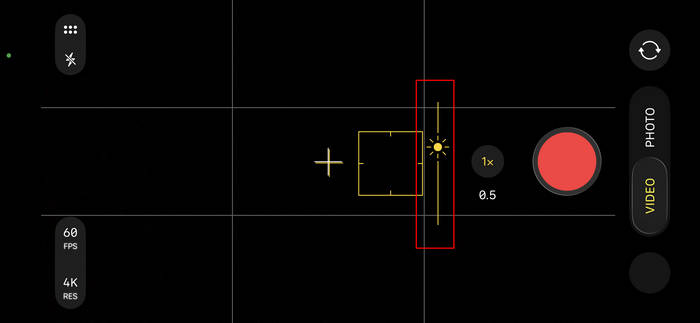
If you’re directly shooting a video using your camera, you can actually make the adjustment from there to make your videos brighter. To do that, go to your Camera app, tap on your screen, and adjust the brightness by simply swiping up the brightness feature.
Pros
- Instant adjustment while recording.
- No need for editing apps or extra steps.
- Ensures the video is properly lit from the start.
Cons
- Limited control over advanced lighting settings.
- May not fully correct extremely dark conditions.
Verdict:
Great for real-time adjustments when recording and ensures a well-lit video from the start. However, if the lighting is too poor, this method alone may not fully brighten the video, and post-editing might still be needed.
Method 2: Using Photos
Meanwhile, if you already have the video and you want to adjust its brightness. The iPhone’s built-in Photos app lets you quickly adjust brightness, contrast, and exposure so your video looks clear and well-lit. It’s an easy and convenient way to enhance your dark videos in just a few taps.
Step 1. First, on your Photos app, browse your albums and tap on the video you want to brighten.
Step 2. Next, tap the Edit button in the top-right corner of the screen. In the bottom menu bar, tap the Brightness icon. Use the slider at the bottom to increase brightness by dragging it to the right.
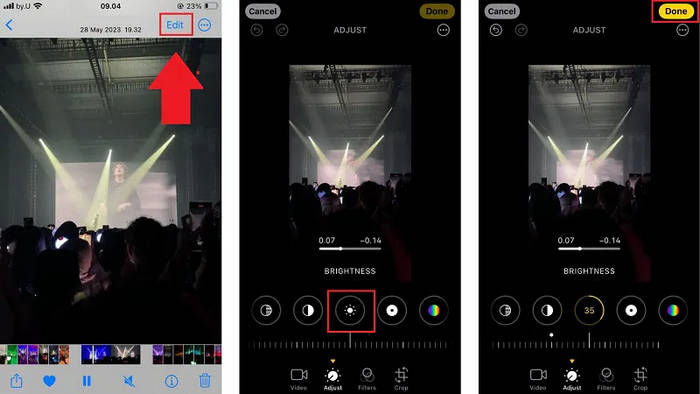
Note: You can also adjust the brightness of your video by adjusting the Exposure and Contrast editing features.
Step 3. Once you’re finished, tap Done in the bottom-right corner. Your video will be saved with the new brightness settings.
Pros
- Quick and easy; no extra apps needed.
- Can adjust multiple aspects like brightness, contrast, and exposure.
- Works for videos already saved on your iPhone.
Cons
- Limited creative control compared to full editing apps.
- Changes apply to the whole video; no scene-by-scene adjustments.
- Subtle improvements only; extremely dark videos may still look dim.
Verdict:
Perfect for fast fixes and minor brightness improvements on already-recorded videos. Photos editing cannot handle very dark or low-quality videos effectively, and it lacks advanced editing options for detailed corrections.
Method 3: Using iMovie
Another way to make dark videos brighter on the iPhone is by editing it through the iMovie. This app is Apple’s free video editing app for iPhone and iPad, designed to help you create and enhance videos with ease. If your video looks too dark, iMovie lets you adjust brightness, improve colors, and apply filters to make your footage look polished.
- • Enhance lighting, skin tones, and overall video colors.
- • Apply pre-set filters to instantly brighten and improve your video’s visuals.
- • Works smoothly with your iPhone’s video library and iCloud.
Steps on How to Make Dark Videos Brighter Using iMovie:
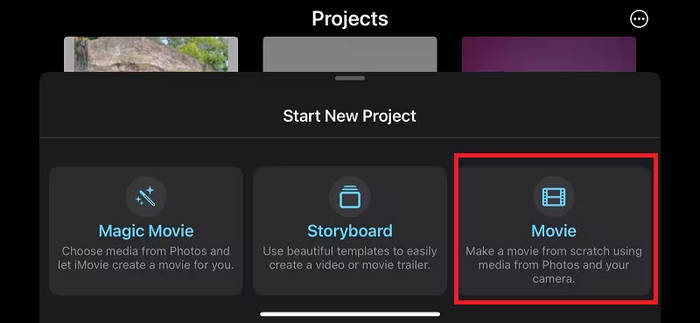
Step 1. First, on your iMovie, tap the Plus icon, and choose Movie to start a new project.
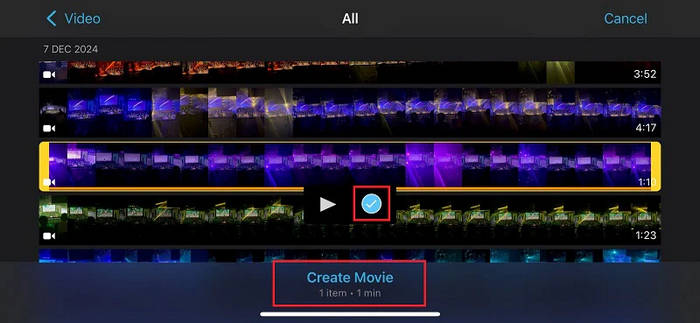
Step 2. Next, select the video you want to brighten from your media library and tap Create Movie to add it to the timeline.
Step 3. Tap your video clip in the timeline, then tap the Filters button at the bottom of the screen.
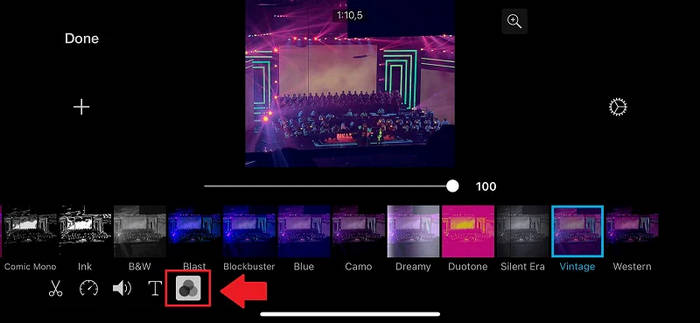
Step 4. Browse the filter options and pick one that brightens your video. A live preview shows the effect. To remove a filter, select None.
Step 5. Lastly, when your video looks good, tap Done in the top-left corner and save it to your iPhone.
Pros
- Advanced editing options beyond brightness, including color correction and filters.
- Allows for a more polished, professional look.
- Can edit multiple clips and adjust each individually.
Cons
- Slight learning curve for beginners.
- More steps compared to the Photos app.
- Larger app size; requires more storage.
Verdict:
Best for users who want full control over brightness, color, and overall video quality. While powerful, iMovie takes more time and effort to make dark videos brighter on iPhone, and beginners may find it overwhelming compared to quick fixes in Photos.
Part 2. Bonus: Best Desktop Software to Make Your iPhone Dark Video Brighter
While the iPhone’s built-in Photos app is convenient for quick brightness adjustments, it has its limitations. You can tweak brightness, contrast, and exposure, but the results are often subtle, and very dark videos may still look dim or uneven. Advanced corrections, scene-by-scene adjustments, or fine-tuning colors are not possible, which can be frustrating if you want a more professional-looking video.
This is where a desktop tool like FVC Video Converter Ultimate comes in. It offers precise control over brightness, contrast, saturation, and more, allowing you to make dark videos brighter on iPhone. With its powerful editing features, you can turn dark footage into bright, clear, and visually appealing videos that the iPhone alone may struggle to achieve.
Steps on How to Make Dark Videos Brighter on iPhone with FVC Video Converter Ultimate:
Step 1. First, you need to download and install the tool on your computer.
Free DownloadFor Windows 7 or laterSecure Download
Free DownloadFor MacOS 10.7 or laterSecure Download
Step 2. Once done, open the tool and click the Enhancer tab. From there, you can select a bunch of AI enhancement tools, including the Video Quality Repair Model.
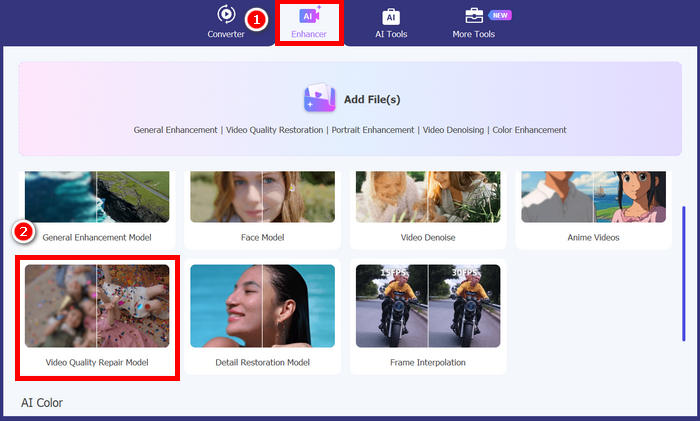
Step 3. After that, choose the Video Quality Repair Model and import the video that you want to enhance. Wait for a few seconds to directly enhance the video, and then click the Export button to download it.
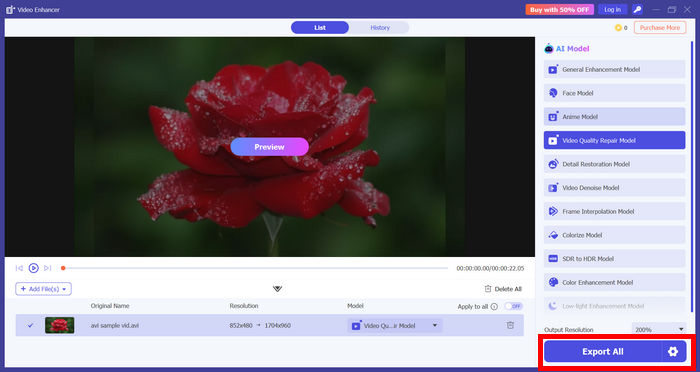
Note: You can preview the video to check the quality of the newly enhanced video and add further enhancement by manually adjusting the brightness and contrast of the video.What makes FVC Video Converter Ultimate is that it doesn’t only offer simple adjustment for the brightness and the contrast, it has an AI powered feature that can enhance the video further.
Part 3. FAQS on Making Dark Video on iPhone Brighter
Can I brighten a video on my iPhone without using third-party apps?
Yes. You can use the iPhone’s built-in tools like the Photos app or iMovie to make dark videos brighter on iPhone. The Photos app lets you adjust brightness, contrast, and exposure for quick fixes, while iMovie provides more advanced editing options, including filters and color adjustments for a polished look.
Why does my video still look dark even after adjusting brightness in Photos?
The Photos app has limited editing capabilities. It works best for small brightness tweaks, but extremely dark or underexposed videos may still appear dim. For more precise and professional results, using a desktop tool like FVC Video Converter Ultimate is recommended.
Is FVC Video Converter Ultimate better than editing on iPhone?
FVC Video Converter Ultimate provides more control over video brightness, contrast, saturation, and color balance than iPhone apps alone. It also allows real-time previews and AI-powered enhancement, making it ideal for very dark videos or when you want professional-quality results.
Conclusion
See, you don’t need to struggle with your dark videos forever as there are tools that can actually help you brighten them up. Now, try these methods, especially with the FVC Video Converter Ultimate, to get the best results. Whether you want a quick fix on your iPhone or a more polished, professional look on your desktop, these options make dark videos brighter on iPhone.
-
 Learn How CapCut Can Enhance Video Quality: 3 Easy Methods
 Do you want to enhance your video quality using CapCut but are not sure where to start? Read this article and learn how CapCut enhances video quality easily.
-
 How to Fix Videos Not Playing on iPhone: 5 Ways Included
 Have you ever had a problem with videos not playing on iPhone? Read this guide. Here are the most detailed analyses and solutions. We just want to help you out.
-
 My iPhone Has No Sound on Videos: How Should I Fix Them?
 Wondering what to do when the sound on iPhone is not working? Read this article and learn 3 different ways to fix the sound of your videos on your iPhone.
