


 Video Converter Ultimate
 Screen Recorder
 Video Repair
HEIC to JPG Converter for Windows: 5 Software Options Reviewed
Ever realize that certain pictures you take on your smartphone don't quite work the way you want them to when viewed on a Windows PC? You have the desire to just view, edit, or even send that picture, but that image type keeps trapping you. If you are a heavy user of HEIC images, a EIC to JPG converter for Windows search can be a pain. Here we will take a look at a few available on Windows and how they compare to each other in compatibility, offline image info, and value.

How We Test and Review
We ran all the Windows-compatible converters through the same HEIC file to evaluate their conversion quality, as well as compatibility with Windows, offline processing, whether they preserve any metadata in the files, and user experience. Lastly, we compared their pricing to the HEIC to JPG converter download for Windows 11 to determine which ones are the best value.
Part 1. Why Windows Users Need a HEIC to JPG Converter
HEIC is mainly used by Apple devices because it gives high-quality pictures that take up less space. The issue arises because, in reality, Windows may not recognize or open the files properly, mainly on older computers or with older software. By converting HEIC to JPG, Windows users will get a more universally supported image that will open seamlessly across websites, programmes, and devices.
Part 2. 5 Best Windows HEIC to JPG Software
| Software | Windows Version | Offline Usability | Metadata Retention | Price |
| FVC Free HEIC to JPG Converter for Windows | Windows 11/10 via browser | No | Yes | Free |
| CopyTrans HEIC | Windows 11/10 | Yes | Yes | Free for personal use |
| XnView MP | Windows 11/10 | Yes | Yes | Free for personal use |
| Aiseesoft HEIC Converter | Windows 11/10/8/7 | Yes | Yes | Free / Paid |
| iMazing Converter | Windows 11/10/8/7 | Yes | Yes | Free |
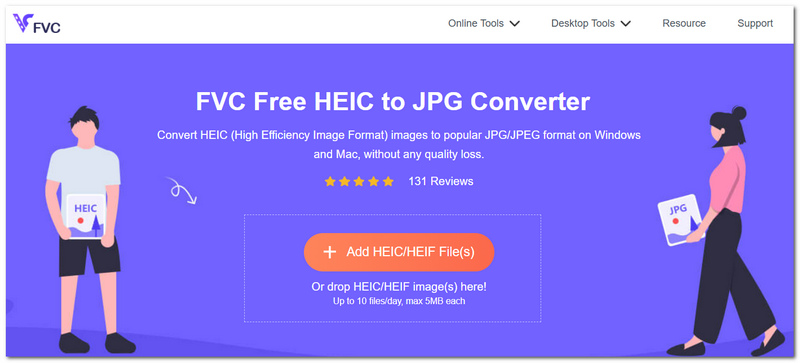
1. FVC Free HEIC to JPG Converter – Fast Online Conversion
We ran all the Windows-compatible converters through the same HEIC file to evaluate their conversion quality, as well as compatibility with Windows, offline processing, whether they preserve any metadata in the files, and user experience. Lastly, we compared their pricing to the HEIC to JPG converter download for Windows 11 to determine which ones are the best value.
Best for: PC owners seeking an efficient conversion tool for HEIC images.
Score: 5/5
FVC Free HEIC to JPG Converter makes it very easy to convert your HEIC images directly from your browser. If you are looking for the best free HEIC to JPG converter for Windows 11, it is a good choice with a simple way to get the job done quickly without installing anything on your desktop.
Pros
- Quick conversion for prompt outcomes.
- Batch processing for several HEIC images.
- Installation is not necessary.
Cons
- An internet connection is necessary.
- The free converter has a 5MB per-image limit.
For Windows 11 users who want speed, convenience, and an easy conversion process without installing another program, FVC Free HEIC to JPG Converter is a great option.
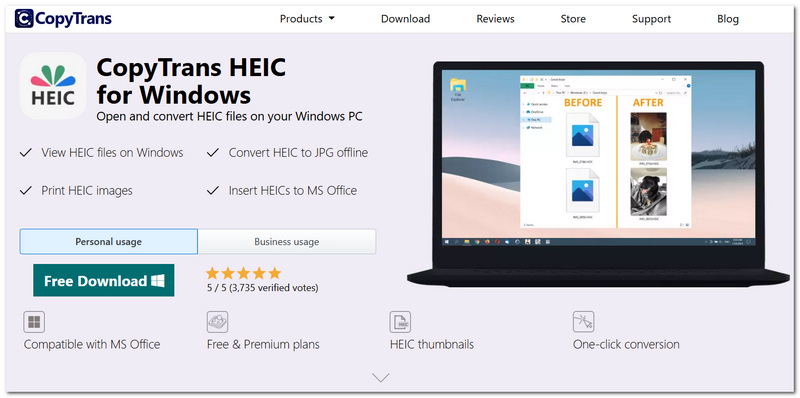
2. CopyTrans HEIC – One-Click Offline Conversion
Best for: Converting HEIC pictures directly from File Explorer for Windows 10 users.
Score: 4.5/5
CopyTrans HEIC brings one more quick helper to handle HEIC files directly from Windows. It is handy for those who seek the best free HEIC to JPG converter for Windows 10 without the need to use online conversion tools.
Pros
- Operates offline.
- Maintains EXIF data.
- Batch conversion is supported.
Cons
- Only Windows.
- Fewer options for customization compared to dedicated converters.
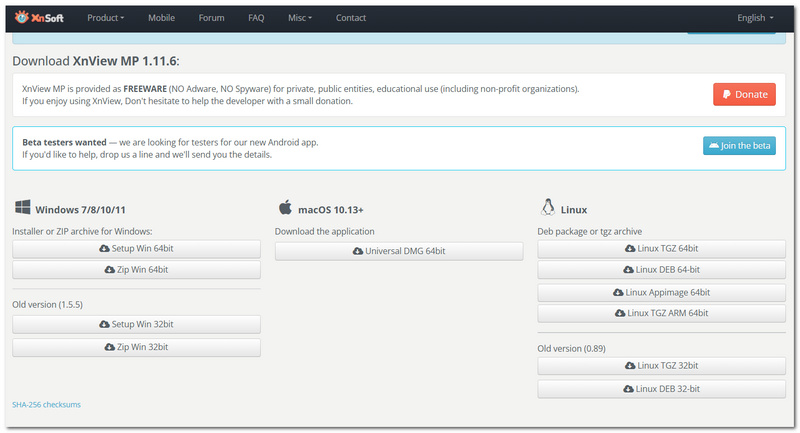
3. XnView MP – Advanced Image Management
Best for: Conversion and photo management, Windows users.
Score: 4/5
One desktop XnView MP is a combination viewer, organizer, and converter of images. This is a suitable choice for anyone looking for the best HEIC to JPG converter for Windows that can also assist you with keeping your larger collection of photos in order.
Pros
- Supports batch image conversion.
- Includes useful photo-management features.
- Works offline.
Cons
- Interface can feel busy for first-time users.
- More features than needed for simple HEIC conversion.
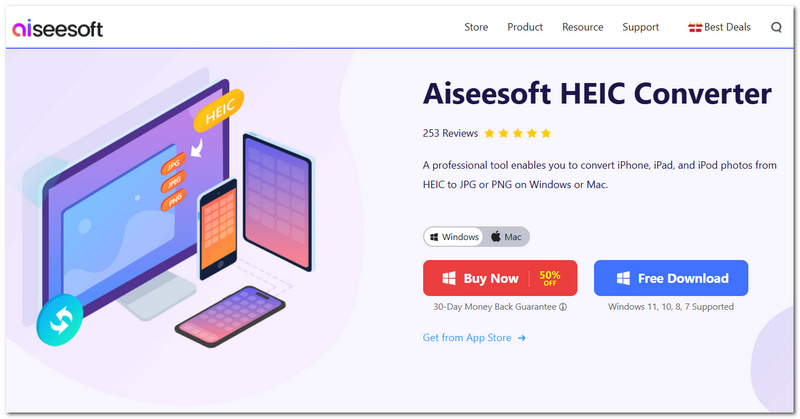
4. Aiseesoft HEIC Converter – Flexible Batch Conversion
Best for: Windows 10 users seeking an extra layer of control over the HEIC-to-JPG output.
Score: 4.5/5
More flexible than just using the Windows conversion methods, Aiseesoft HEIC Converter allows you to do the same easily without complicating the process. It's an effective HEIC to JPG converter app for Windows 10 for bulk processing needs.
Pros
- Batch HEIC conversion is supported.
- Allows you to modify the output quality.
- Able to maintain EXIF data.
Cons
- Needs to be installed on a desktop.
- The free version might have fewer features.
5. iMazing Converter – Simple Drag-and-Drop Conversion
Best for: Suitable for any version of Windows 11. If you're after a small, simple-to-use desktop converter for Windows 11, this is the best option.
Score: 4.5/5
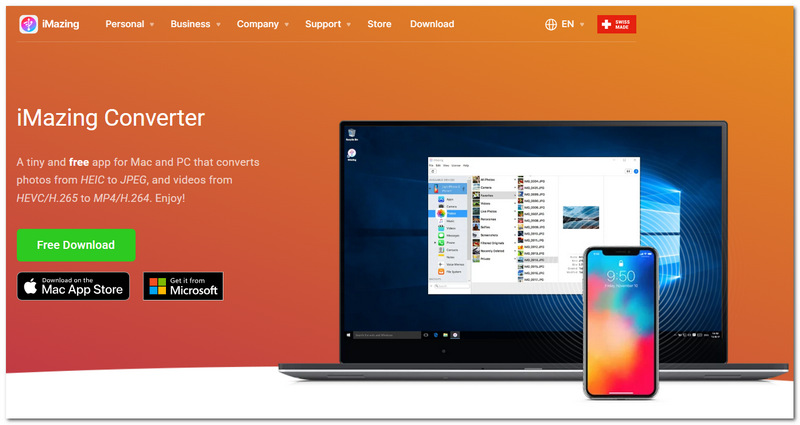
iMazing Converter simplifies HEIC conversion with a drag-and-drop flow. If you want a HEIC to JPG converter download for Windows 11, it's an easy-to-use product for offline work.
Pros
- Simple drag-and-drop interface.
- Preserves EXIF metadata.
- Free to use.
Cons
- Fewer output controls than advanced converters.
- Requires installation on Windows.
Part 3. Bonus: Open and Convert HEIC with Microsoft Photos
If you are struggling with just a handful of HEIC images, you might not have to find a dedicated converter at all. For Windows users, the Microsoft Photos app is a handy way to open HEIC images and save a duplicate as a JPG.
How to Open HEIC Files with Microsoft Photos
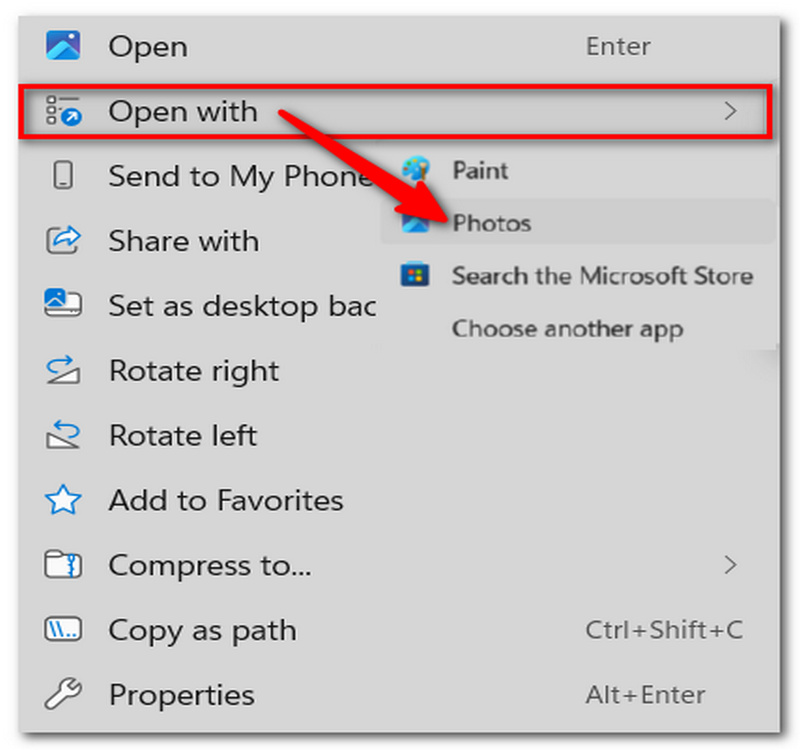
Step 1. Find your HEIC file in your File Explorer. You can also use the right-click menu on the picture and select Open with Photos.
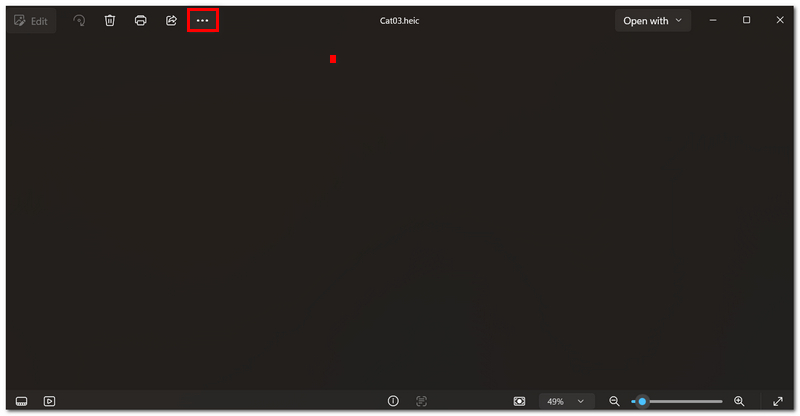
Step 2. If Windows requests HEIF/HEVC support, download the extensions from the Microsoft Store. When the image is opened, select the menu with the three dots (...).
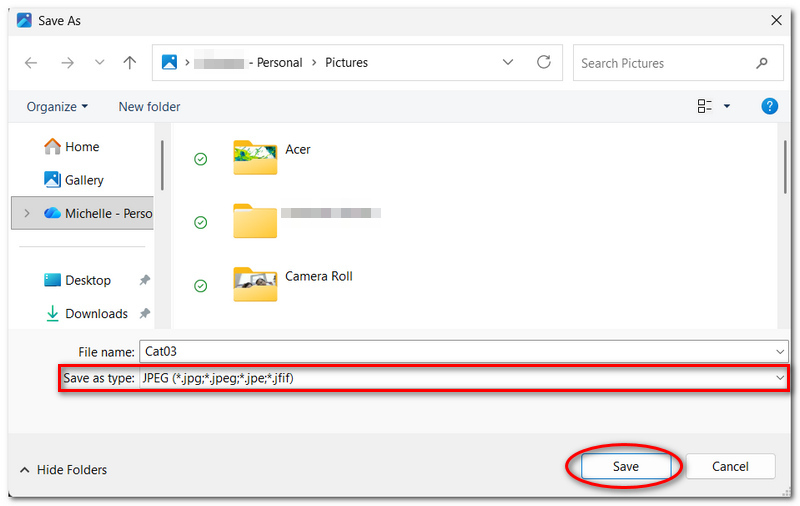
Step 3. Hit Save as and choose the Save as type to be
Part 4. FAQs about HEIC to JPG Converter for Windows
Will the conversion of HEIC to JPG solve issues related to photo thumbnails in Windows?
It can. JPG images are more widely supported by Windows applications, so converting HEIC images can make it easier to preview in Windows Explorer and browse the images in the folder if HEIC thumbnails aren't viewable.
How come my HEIC file opens on my phone yet not on my Windows PC?
Your phone might support HEIC by default, but its Windows environment or the particular app you are using may not. This is possibly one of the reasons why converting the file to JPG is desirable when transferring images across platforms.
What is a good way to convert hundreds of HEIC images: online or offline?
An offline desktop converter is usually more convenient for very large collections, as there is no need to constantly repeat the upload and download. It may also be used for personal photos.
Conclusion
The central message here is that no one converter is optimal for all Windows users. It's all about the trade-offs between speed, compatibility, offline viewing, metadata retention, and ease of use. Having examined these converters, you should now have a better understanding of what to focus on based on your approach to handling your HEIC photos. Personally, I feel that the best HEIC to JPG converter for Windows is the one that addresses your conversion requirements without creating additional steps.
-
 How to Fix HEIC Photos? Best and Easy Ways to Open
 Can’t open HEIC Photos on your Windows PC? This article will teach you the best and easy ways how to fix HEIC photos and open them on your Windows PC.
-
 HEIC vs. JPG |Which Is a Better Image Format to Use
 The battle between HEIC vs. JPG became more profound but which of the two is the better image format? To answer your queries then read this article.
-
 Best and Easy Methods on How to Turn Off HEIC on iPhone
 Are you searching for a way to turn off HEIC on your iPhone? This write-up will show you the best and easiest methods of turning off HEIC on an iPhone.
