


 Video Converter Ultimate
 Screen Recorder
 Video Repair
 Secure Download
Why and How to Fix VLC No Audio
Have you ever settled into your couch, popcorn in hand, dimmed the lights, and hit play on that movie you’ve been dying to see, only to realize... there’s absolutely no sound? It’s the ultimate buzzkill. You see the actors’ mouths moving, the action is happening on screen, but your speakers are as silent as a library during finals week.
If you’re facing the frustrating VLC no audio issue, rest assured, you’re not alone. In this guide, I’ll walk you through exactly how I fixed my VLC audio playback issues. We’ll start with the duh moments (the quick fixes) and move into the deeper technical stuff if your files are stubborn. By the end of this, you’ll have your VLC media player no sound problem sorted out for good.
Are you ready to get this problem fixed? Continue reading!

Part 1. Why is VLC No Audio Happening to You
Before we jump into the how-to, let's talk about the why. VLC is basically the Swiss Army knife of media players. It’s supposed to play everything. But sometimes, things go sideways.
The VLC player sound not working error usually happens because of:
1. Human error: (We’ve all accidentally muted something!)
2. Configuration mismatches: VLC might be trying to send audio to a pair of headphones that aren't even plugged in.
3. Codec issues: This is a big one. Some high-end audio formats, such as AC3 or DTS, don't play well with certain versions of VLC.
4. Update glitches: Especially if you’ve recently moved to VLC, no sound on Windows 11 after an OS update.
It’s frustrating because VLC is usually so reliable. However, don't worry; most of these issues are software-related and can be resolved in a few clicks.
Part 2. VLC No Audio - Quick Fixes (The Check These First List)
Before we start downloading tools or digging into the code, let’s check the basics. These three steps fix about 80% of the no sound in VLC cases I’ve encountered.
Check the VLC Volume Slider
I know, I know. You’re probably thinking, I’m not that silly. But honestly? I’ve done this. VLC’s volume slider can go up to 125% (or even 200% depending on your settings). Sometimes, the slider appears to be on, but the actual Mute toggle is off.
The Fix: Look at the bottom right of the VLC interface. If you see a small red X next to the speaker icon, click it to unmute. Also, try scrolling your mouse wheel up while the VLC window is active. If the percentage increases but you still hear nothing, proceed to the next step.
Ensure Audio Track is Not Set to Disable
Sometimes, when a video file has multiple audio tracks (such as a movie with English, Spanish, and Director’s Commentary), VLC becomes confused and defaults to Disable.
The Fix:
1. While the video is playing, right-click anywhere on the screen.
2. Hover over Audio.
3. Hover over Audio Track.
4. Make sure it isn't set to Disable. If it is, select Track 1 or whichever track you need.
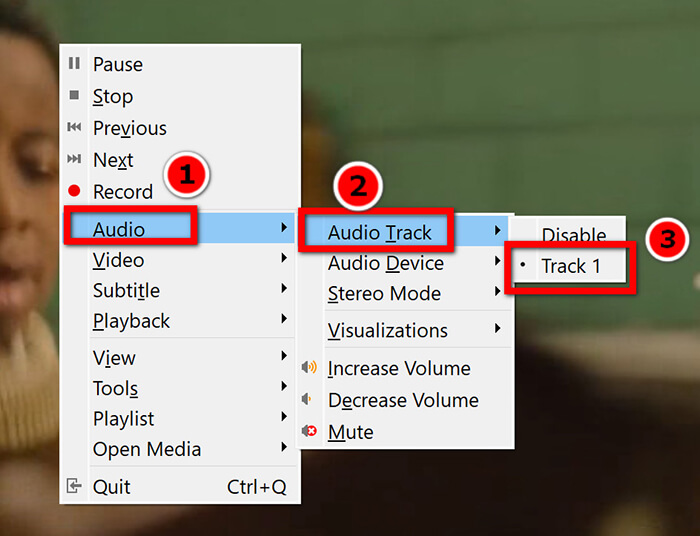
I can’t tell you how many times this was the secret culprit behind my audio issues with VLC Media Player.
Switch Your Audio Output Device in VLC Settings
This is the most common issue for me because I’m always switching between my gaming headset and my desktop speakers. VLC sometimes gets stuck trying to send sound to a device that isn't active.
The Fix:
1. Go to the top menu and click Audio.
2. Hover over Audio Device.
3. You’ll see a list (Speakers, Headphones, Digital Output, etc.). Manually click through them to see which one actually produces sound.
If you’re on a laptop, sometimes it tries to send audio via HDMI to a monitor that doesn't even have speakers! Besides, this solution also works when VLC is not playing video.
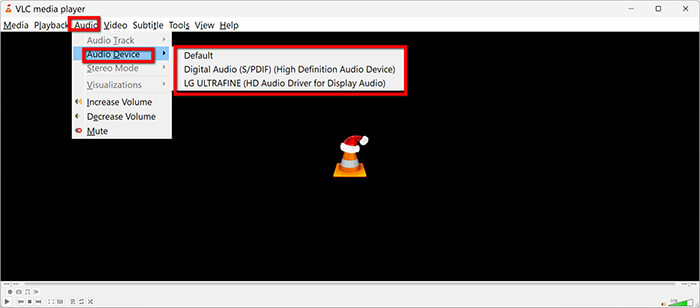
If you’re using Windows, right-click the speaker icon in your taskbar and open the Volume Mixer. Make sure VLC isn't specifically muted there. Sometimes, the OS mutes individual apps without notifying you.
Part 3. Deeper Fixes If the Quick Methods Won't Work
Okay, so you’ve checked the volume and the tracks, and you’re still staring at a silent screen. Now we’re entering the Deep Fix zone. This is where we examine how the file is constructed and how VLC processes it.
Fix #1: Convert to Other Formats (The Magic Bullet Fix)
If you are experiencing a VLC conversion with no sound issue or if your file uses a complex codec like AC3, the best way to resolve it is to change the file format entirely. I’ve found that many 4K or high-def files use audio encoding that VLC struggles to decode in real-time.
When I encounter a VLC media player error with no sound that won't go away, I stop fiddling with settings and simply convert the file to a standard MP4 with AAC audio. This solves the problem 100% of the time.
For this, I highly recommend FVC Video Converter Ultimate. This isn't just a basic converter; it’s a powerhouse that handles over 1000 formats without breaking a sweat. I started using it when I had a bunch of old AVI files that gave me the 'convert AVI to MP4 in VLC with no sound' headache. It uses hardware acceleration, which means it’s way faster than using VLC’s built-in Convert/Save feature (which, let's be honest, crashes half the time). It’s perfect for fixing those silent videos because it specifically allows you to choose a compatible audio codec during the conversion process, ensuring your VLC converted file has sound.
Detailed steps to fix VLC Audio via conversion:
Step 1. Free download FVC Video Converter Ultimate from the following buttons.
Free DownloadFor Windows 7 or laterSecure Download
Free DownloadFor MacOS 10.7 or laterSecure Download
Open the program and click the large + button or Add Files to import the video that has the VLC sound issue.

Step 2. Click the Output Format dropdown. I suggest selecting MP4 and then choosing the Same as source or HD 1080P profile.
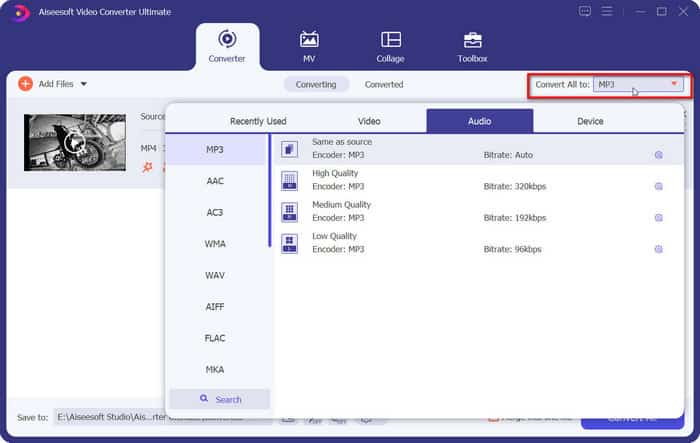
Step 3. Click the Custom Profile (gear icon). Ensure the Audio Encoder is set to AAC or MP3. This is the secret to fixing VLC convert to MP4 no sound.
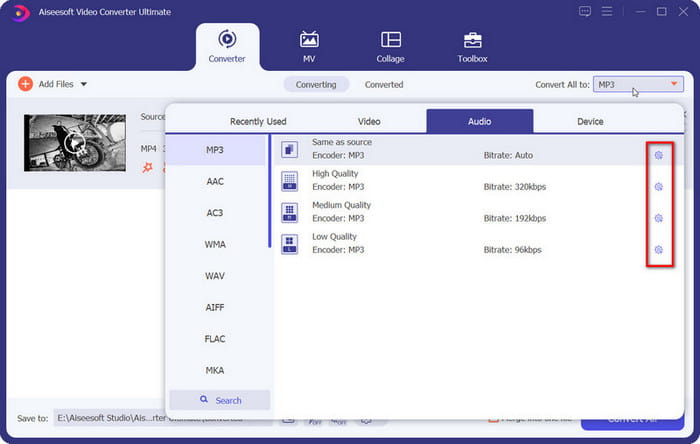
Step 4. Click the Convert All button at the bottom right.

Once it’s done, open the new file in VLC. Boom! Sound is back. Also, changing the video codec, is also the key to VLC not converting to MP4.
Based on my personal experience, FVC is a lifesaver for anyone who does a lot of video editing or downloading. The best aspects for me are the interface, which is clean and doesn’t feel like 90s software, and the speed. It’s significantly faster than freeware like Handbrake. As for limitations, the free trial has a limit on the length of the video you can convert. However, if you’re working on a full-length movie or a long school presentation, the upgrade is totally worth the peace of mind. It’s the most reliable way to fix a VLC player sound not working situation caused by codec errors.
Fix #2: Change Output Modules
VLC has different ways (modules) of talking to your hardware. Sometimes, the Automatic setting selects the wrong one, resulting in VLC not playing sound on Windows 11.
The Fix:
1. Go to Tools > Preferences (or press Ctrl + P).
2. At the bottom, under Show settings, click the All radio button.
3. On the left sidebar, find Audio and expand it, then click on Output modules.
4. On the right, you’ll see a dropdown for Audio output module. Change it from Automatic to DirectX audio output or WaveOut audio output.
5. Click Save, close VLC, and restart it.
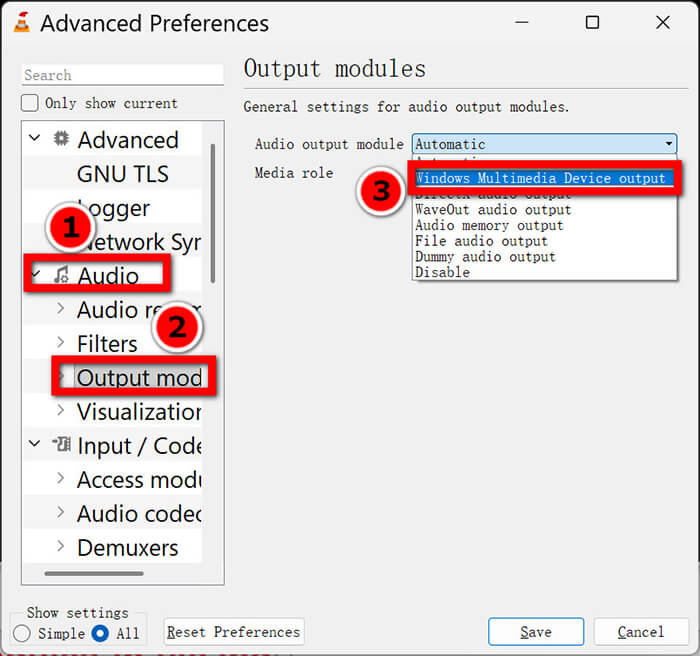
This specifically fixed an issue for me where my audio was stuttering and then cutting out entirely!
Fix #3: Toggling Audio Visualizations Off
This sounds weird, right? Why would a visualization affect the sound? However, in the world of tech, sometimes the most unusual things work. I found this tip on a forum when my VLC Media Player had no audio, which was driving me crazy. If the video is playing but there's no sound, the visualization engine might be hogging the audio stream.
The Fix:
1. Right-click the video while it’s playing.
2. Go to Audio > Visualizations.
3. Ensure it is set to Disable.
4. Sometimes, just toggling it to Spectrometer and then back to Disable refreshes the audio driver within VLC.
This fix is still working, when you find VLC audio is delaying.
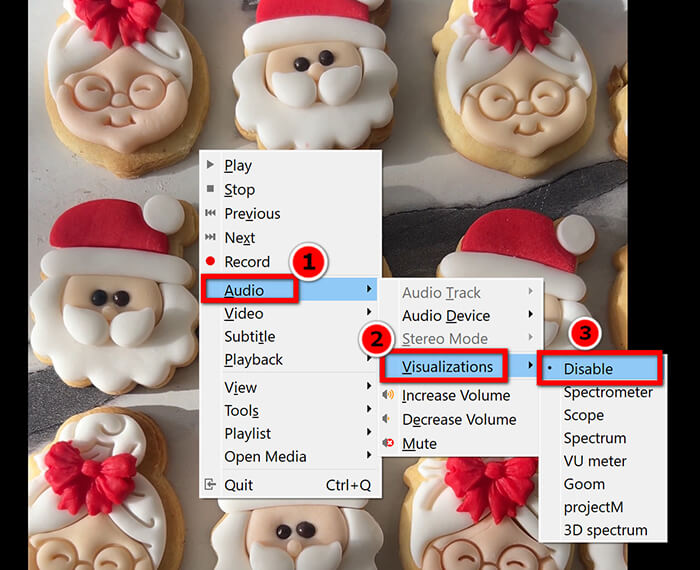
f you’re still stuck, try the Reset Preferences button at the bottom of the Simple Preferences menu. It’s like a factory reset for VLC and fixes any weird settings you might have accidentally changed while sleep-deprived!
Part 4. FAQs
Why do I have no sound in VLC, but other players work fine?
This usually means VLC’s internal settings are messed up, or it's using a conflicting output module. Follow the Change Output Modules step above. It’s rarely a hardware issue if YouTube or Spotify works fine.
I tried to convert a file, and now the VLC converted file has no sound. Why?
This is a classic VLC conversion, with no sound problems. VLC’s built-in converter is notoriously finicky. If the source file has a bitrate it doesn't like, it just gives up on the audio. This is why I use FVC Video Converter Ultimate; it handles stream re-encoding much more gracefully than VLC does.
How do I fix the issue of no sound in VLC on Windows 11 specifically?
Windows 11 features a Spatial Sound option that occasionally conflicts with VLC. Try right-clicking the speaker icon in your system tray, then go to Sound settings and turn off Enhance audio or Spatial sound to see if VLC starts behaving properly.
Conclusion
Dealing with VLC, no audio is like trying to eat a sandwich with no filling, completely unsatisfying. But as we’ve seen, whether it’s a simple mute button, a confusing audio track setting, or a deep-seated codec conflict that requires a tool like FVC Video Converter Ultimate, there is always a solution. Don't let VLC no sound ruin your movie night. Take a deep breath, follow these steps, and you’ll be back to hearing every explosion, whisper, and soundtrack beat in no time.
-
 Tips & Tricks about VLC Metadata Editor You Must Know in 2025
 Do you want to use the VLC as a metadata editor? In this case, you can read this article as we provide an unbiased review of the VLC metadata editor.
-
 VLC Playback Speed: Secret Techniques to Control the Video Speed
 Do you want to watch a video but change the VLC playback speed? We will teach you how to do it easily in both operating systems.
-
 How to Use VLC to Repair Videos | Your Ultimate Guide
 Do you have broken videos stuck on your files? Explore the ultimate guide to VLC video repair to repair your videos and get them playing again easily.
