


 Video Converter Ultimate
 Screen Recorder
 Video Repair
 Secure Download
Find Out Why & How to Fix Print Screen Not Working
I was about to press Windows+Prt Sc to take a screenshot of the content on the screen but found that nothing happened and I couldn't find the screenshot. What's going on?
Don't worry, take the Print Screen not working issue slowly and go through this guide step by step.
We will take you to explore the possible causes of this problem, and then see if there are any good solutions. Let's also see if there is any more reliable screenshot software that can be used as an alternative to Print Screen.

Part 1. Why Is My Print Screen Not Working
Why is my Print Screen not working? This section is designed to answer that question.
We have compiled a list of possible causes for this issue. Please check to see if any of them apply to you:
• A program running in the background of your computer conflicts with the Print Screen.
Software such as OneDrive, Snippet Tool, or Dropbox running in the background may occupy or take over the original Print Screen function, preventing you from using the shortcut key to take screenshots on your computer.
• You have not enabled the Print Screen shortcut key on your computer.
The Print Screen button not working issue may be because you have not enabled the keyboard shortcut on your computer. If this is the case, pressing the key will not produce any response.
• You have enabled the F-lock key.
If your computer keyboard has an F mode or F lock key, check to see if they are enabled. They may disable your Print Screen key, preventing you from taking screenshots normally.
• Your keyboard driver is outdated.
If your computer's keyboard driver is too old, it may cause the Print Screen not working on Windows 10 issue.
Part 2. Fix Print Screen Not Working on Windows 10/11
So, based on the above reasons, have you found the root cause of your computer problem? Then treat the problem and see how to solve it.
We have prepared answers to the questions raised. Please follow the guide below to fix the Print Screen key not working.
Use An Alternative solution to Screenshot
From the above triggers, you will find that while Print Screen is convenient to use, it actually has many potential issues—any unintended action or keystroke can cause it to stop working.
If you frequently need to take screenshots and edit them, we recommend choosing a more professional screen capture software as an alternative to Print Screen.
FVC Screen Recorder is an excellent choice. It is almost versatile in screen capture and recording. You can use it to take screenshots, record videos from the system desktop and webcam, and add audio from the microphone or system.
Is it just about recording and screenshots? Of course not. FVC Screen Recorder also allows you to edit the videos you capture. A one-stop solution that lets you complete all operations—from screenshots to image resizing, editing and marking—within a single software application.
• Quickly take screenshots of any area on your computer desktop.
• Record video content from your computer screen or webcam.
• Record audio from your microphone or system.
• Record content from your phone screen on your computer.
• Supports editing and modifying the obtained video, audio, or images after recording.
Free DownloadFor Windows 7 or laterSecure Download
Free DownloadFor MacOS 10.7 or laterSecure Download
Here is a guide on how to take a screenshot with FVC Screen Recorder.
Step 1. Download and install FVC Screen Recorder on your Windows computer.
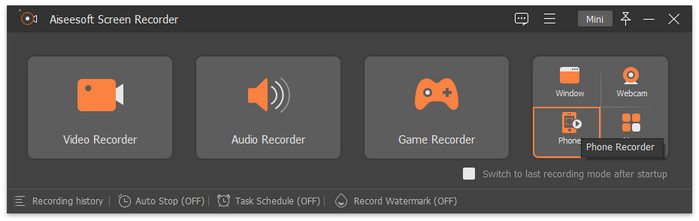
Step 2. Launch it and enter the main interface. Select a feature like Video Recorder.
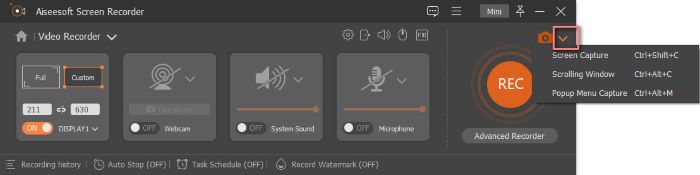
Step 3. Drop down the list next to the Screen Capture icon. Choose from the Screen Capture, Scrolling Window, and Popup Menu Capture.
Try the Other Hotkey Combinations
Print Screen not working on Windows 11? No worries, there are other keyboard shortcuts you can try.
The following shortcuts on Windows can also be used to take screenshots.
• Win + PtrScn: This shortcut captures the entire screen. After taking the screenshot, you can find the image in the Screenshots folder.
• Alt + PrtScn: This shortcut captures any specified window on your computer. The screenshot will be automatically added to the clipboard. You can then open other image editing software to process the captured image.
Sometimes, pressing Ctrl + Print Screen or Alt + Print Screen may also help resolve the issue of Print Screen not working.
Close Any Programs That May Interfere with the Print Screen
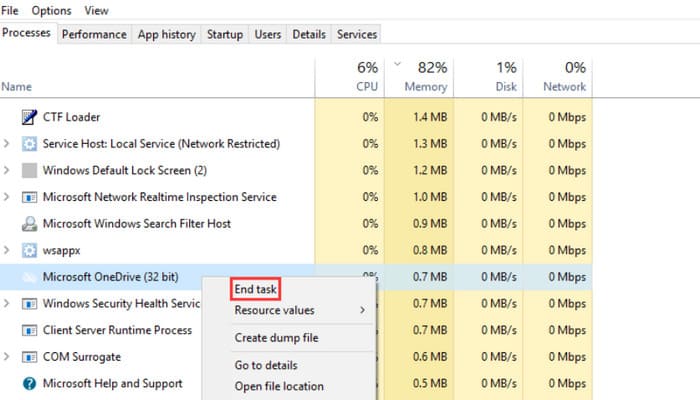
Press Ctrl + Shift + Esc simultaneously to open Task Manager. Check if there are any programs running in the background, such as OneDrive, Snippet Tool, Snagit Tool, or Dropbox, that may interfere with Print Screen.
If so, right-click on the program. Select End task from the expanded menu to close these programs.
Once you have done so, try taking a screenshot again.
Enable Shortcut Keys
First, check if your computer has shortcut keys enabled.
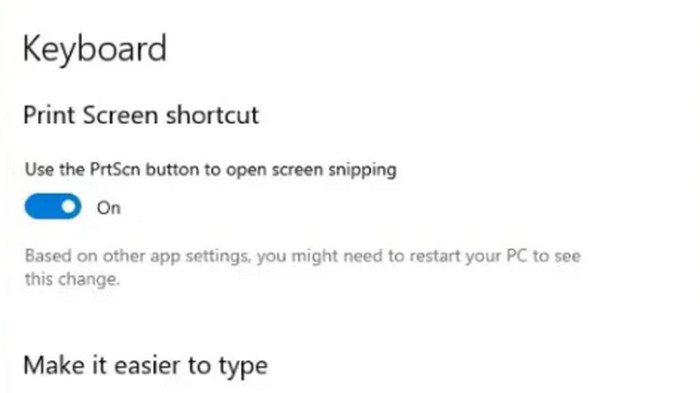
Press Win+U simultaneously to bring up the Ease of Access window.
Then click Keyboard. Check if the Print Screen shortcut option is enabled.
If not, enable it.
Update the Keyboard Drive
If the above methods still do not fix the Print Screen not working issue, then you should consider whether the keyboard driver on your computer is outdated, causing the shortcut keys to not function properly.
Here's how to check and update your keyboard driver:
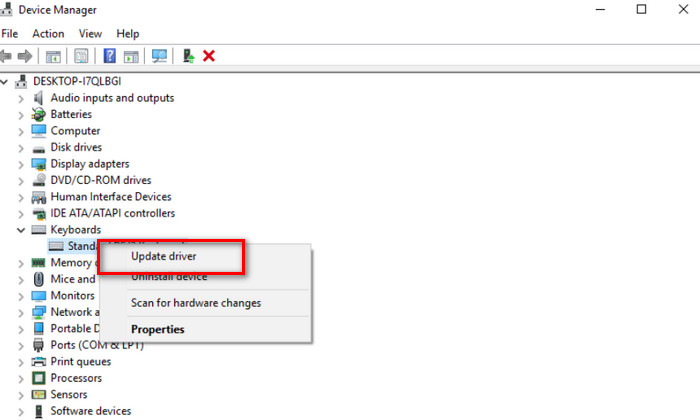
Step 1. Press Win + X simultaneously, then select Device Manager from the menu.
Step 2. Expand the Keyboards section, right-click on Standard PS/2 Keyboard, and select Update driver.
Part 3. FAQs of Print Screen Not Working
How to make a Print Screen work in Windows 11?
First, make sure that you have enabled hotkeys on your computer. Then, press the Windows+PrtScr keys to enable the screenshot function.
Why is my screenshot not working anymore?
First, check if there are any programs running in the background that may be interfering with it. If so, please close them immediately. If the problem persists, try updating the keyboard driver.
Why is my ASUS ROG laptop print screen not working?
First, make sure you're using the correct key combination—typically PrtScn, Fn + PrtScn, or Windows + PrtScn. You can also try updating your keyboard driver, restarting your laptop, or using alternative screenshot tools.
Conclusion
There are many factors that can cause Print Screen to not work: other conflicting programs running in the background, shortcut keys not enabled, outdated keyboard drivers, etc. This article provides the most detailed solutions and steps for these causes. If you want a more reliable screen capture service, we recommend choosing a professional and stable alternative such as FVC Screen Recorder.
-
 How to Screenshot in Windows Media Player Efficiently
 Discover the simplest methods to capture screenshots in Windows Media Player effortlessly. Elevate your screen capture experience with our comprehensive guide.
-
 Grenshot Review: A Full-Featured Screenshot Software Tool
 Greenshot screenshot tool, a free and open-source software tool for Windows and Mac. A lightweight that has a multi-export screenshot used for your device.
-
 Screenshot in VLC – How to Take Snapshot in VLC Media Player
 How to take snapshots in VLC Media Player and where to save them? Go through the VLC snapshot feature and its alternative from the article.
